How to use the app goodnotes

Use the App Goodnotes

24
STEPS
TOOLS

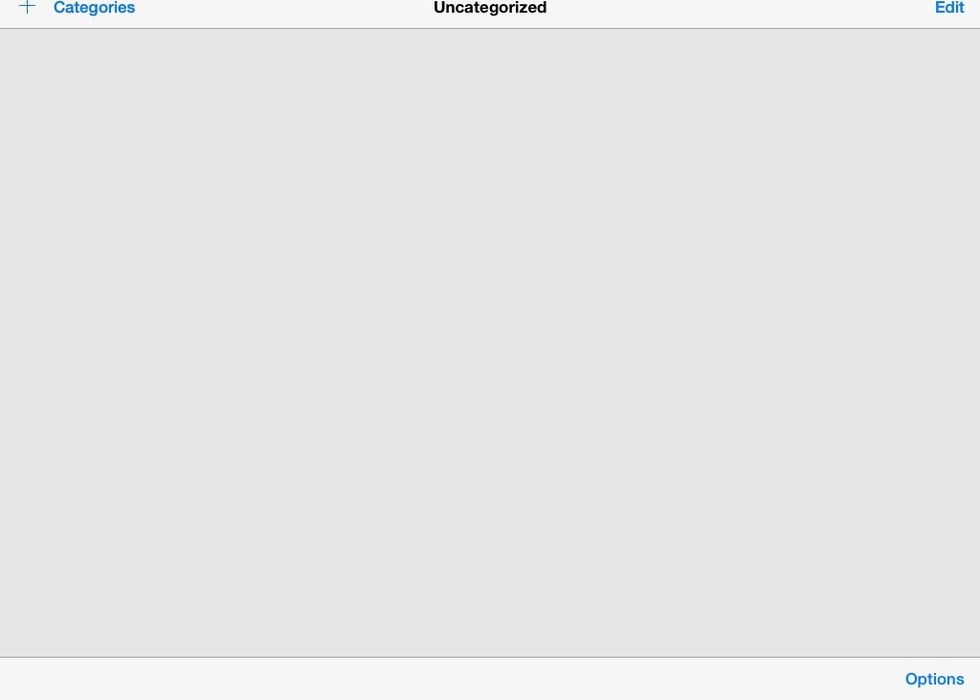
When you open up the app for the first time, you will see this page. That is where you can add books.
When you open up the app for the first time, you will see this page. That is where you can add books.

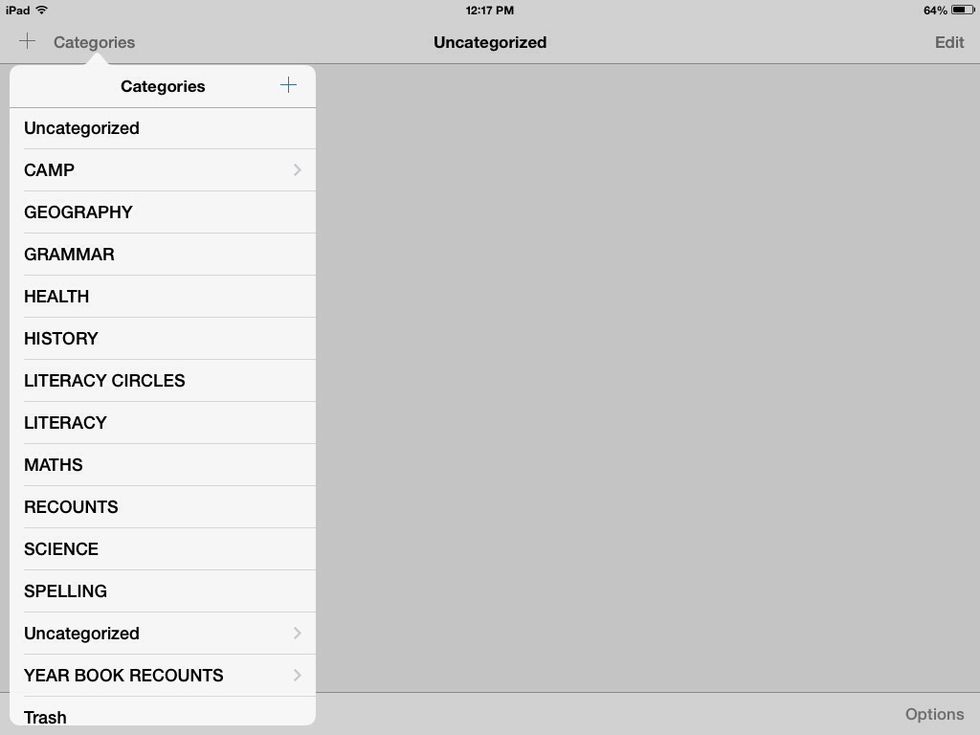
By pressing categories at the top left corner, you are able to make category's by pressing the \u2795 sign at the top right corner

By pressing categories at the top left corner, you are able to make category's by pressing the ➕ sign at the top right corner
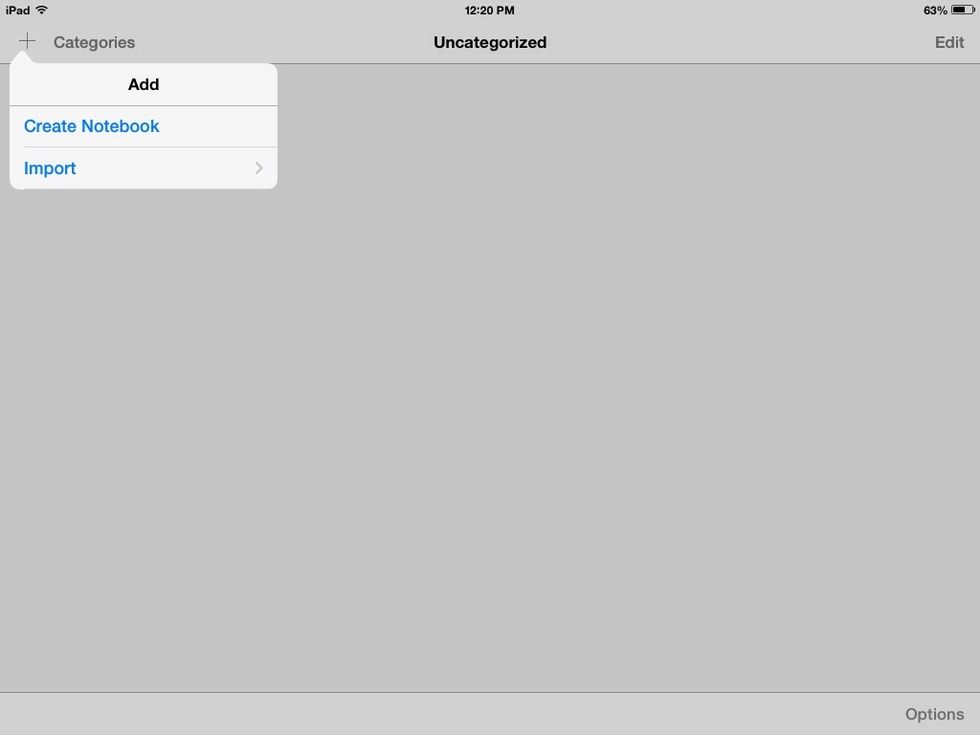
Next to category at the top there is a \u2795 sign at the top left corner, then to create a book press create notebook. To import something from another app, press import under create notebook.
Next to category at the top there is a ➕ sign at the top left corner, then to create a book press create notebook. To import something from another app, press import under create notebook.

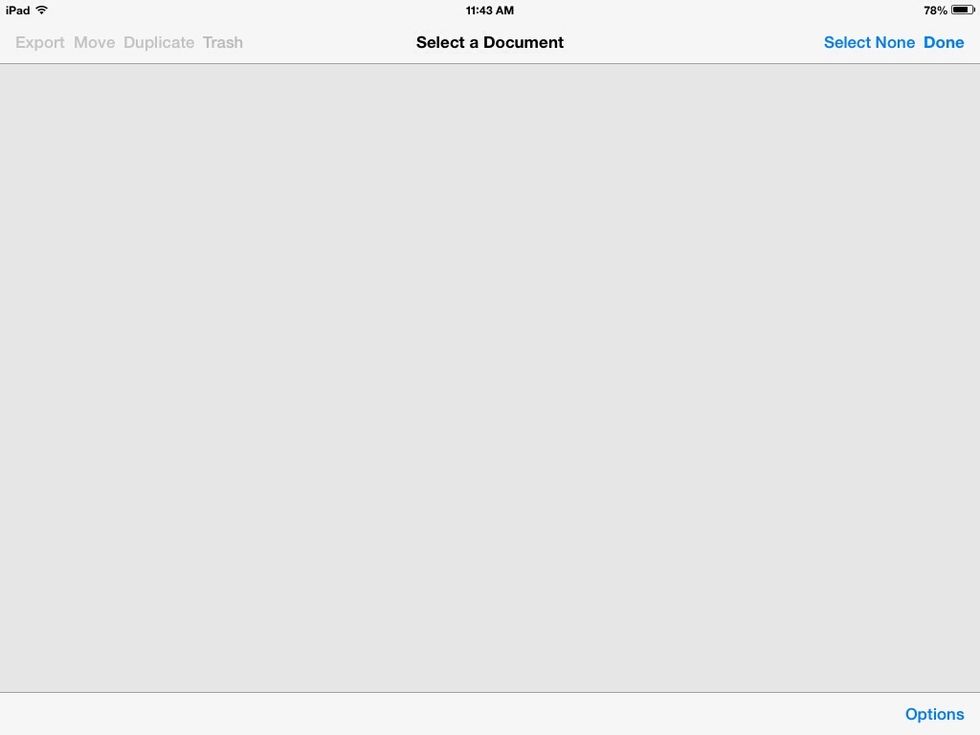
On the same page as step one, on the top right corner it says edit, press that and you can move books from one category from another by tapping on them then selecting a different category.

On the same page as step one, on the top right corner it says edit, press that and you can move books from one category from another by tapping on them then selecting a different category.

Also on the same page as step 4, you can put books in the trash.
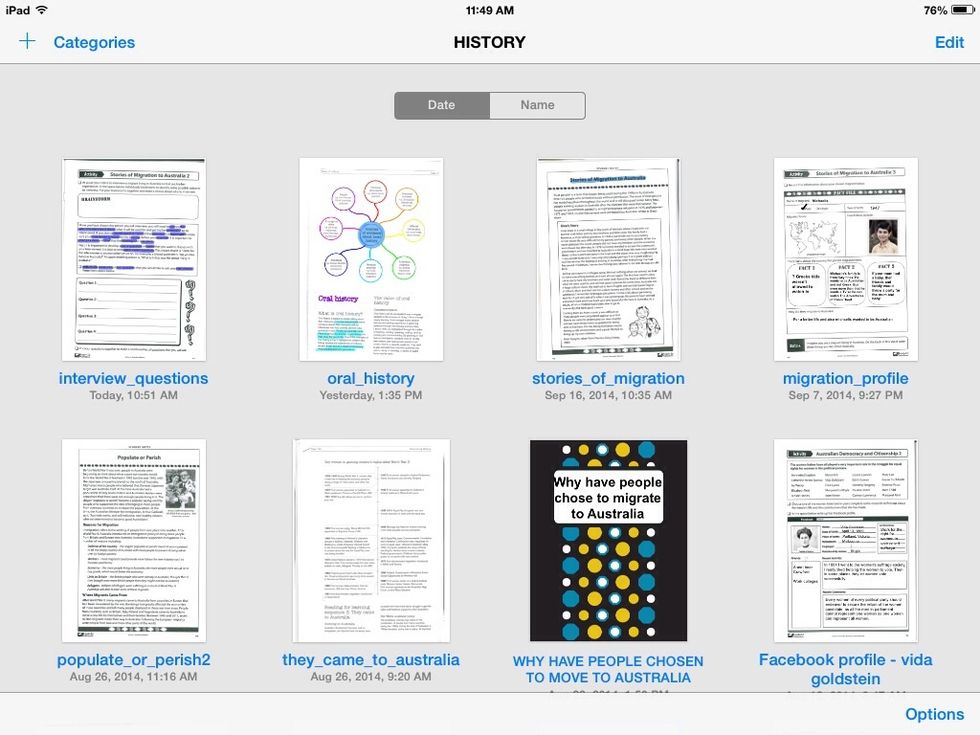
This is my history category, I have added sheets to fill out in class and have made lots of notebooks!

This is my history category, I have added sheets to fill out in class and have made lots of notebooks!

  • An iPad/iPhone/iPod
  • The app goodnotes