
The Conversation (0)
Sign Up
This is being used for training at my school. This Snapguide can be used to demonstrate how to use RESOURCES added to a Google Calendar.
To reserve iPads, laptops, iMacs, AV equip, or an area to use with your class, you simply need to go to your Google Calendar!!
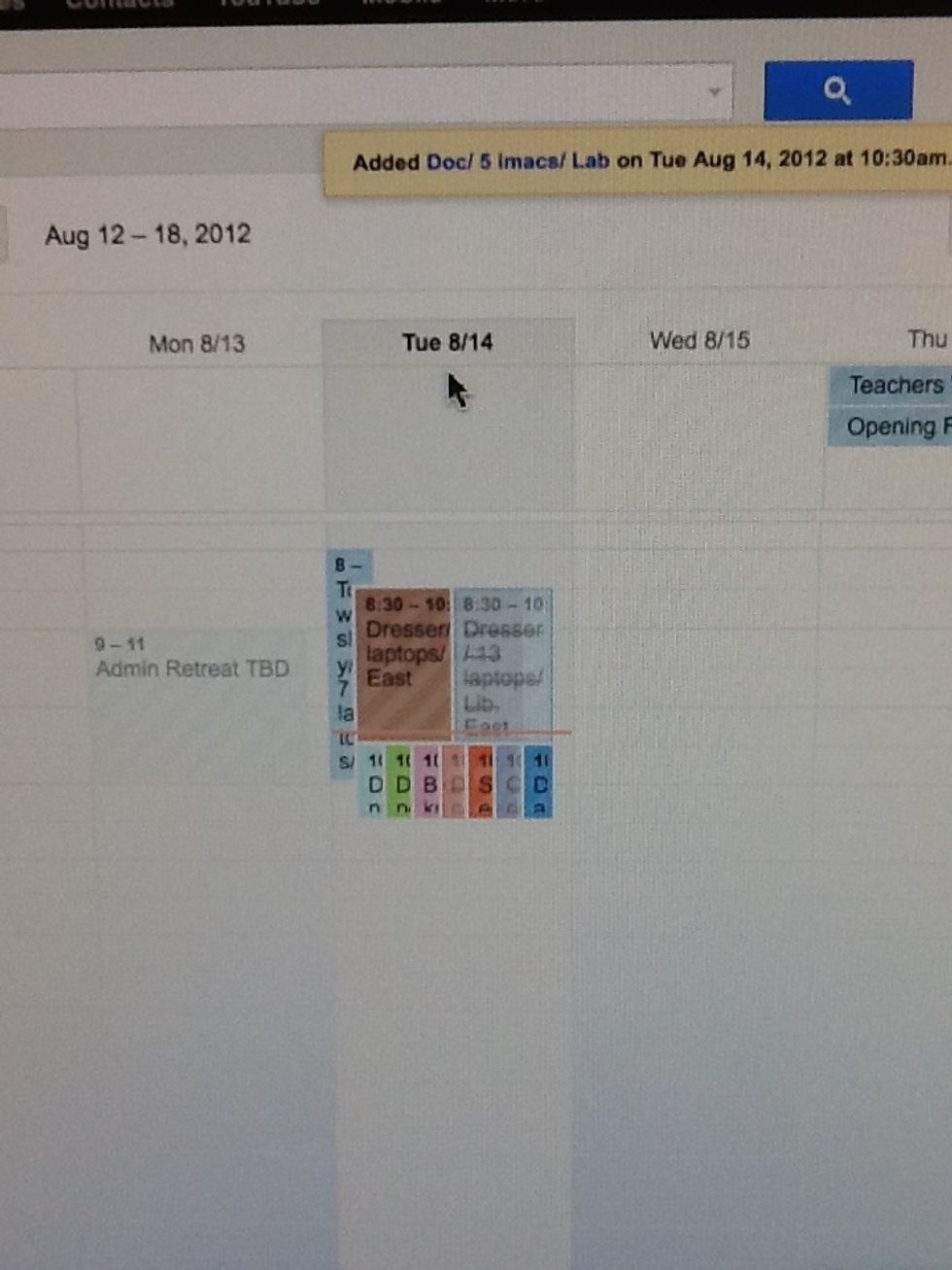
When you want to make a reservation, please CHECK the CALENDAR first!!! It will be beneficial to click on the specific day at the top.
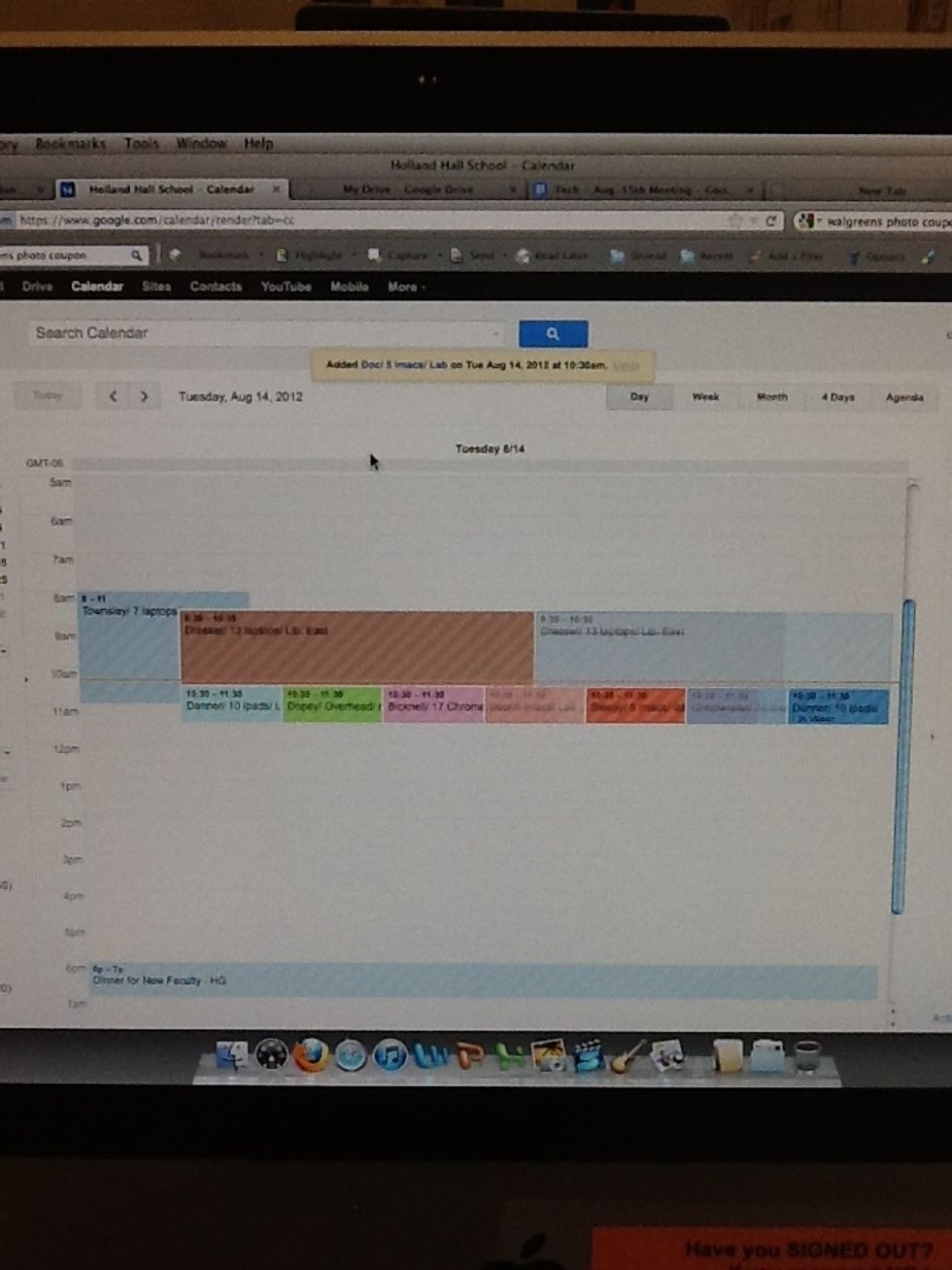
Once you've opened the day, you will see all the reservations for that day.
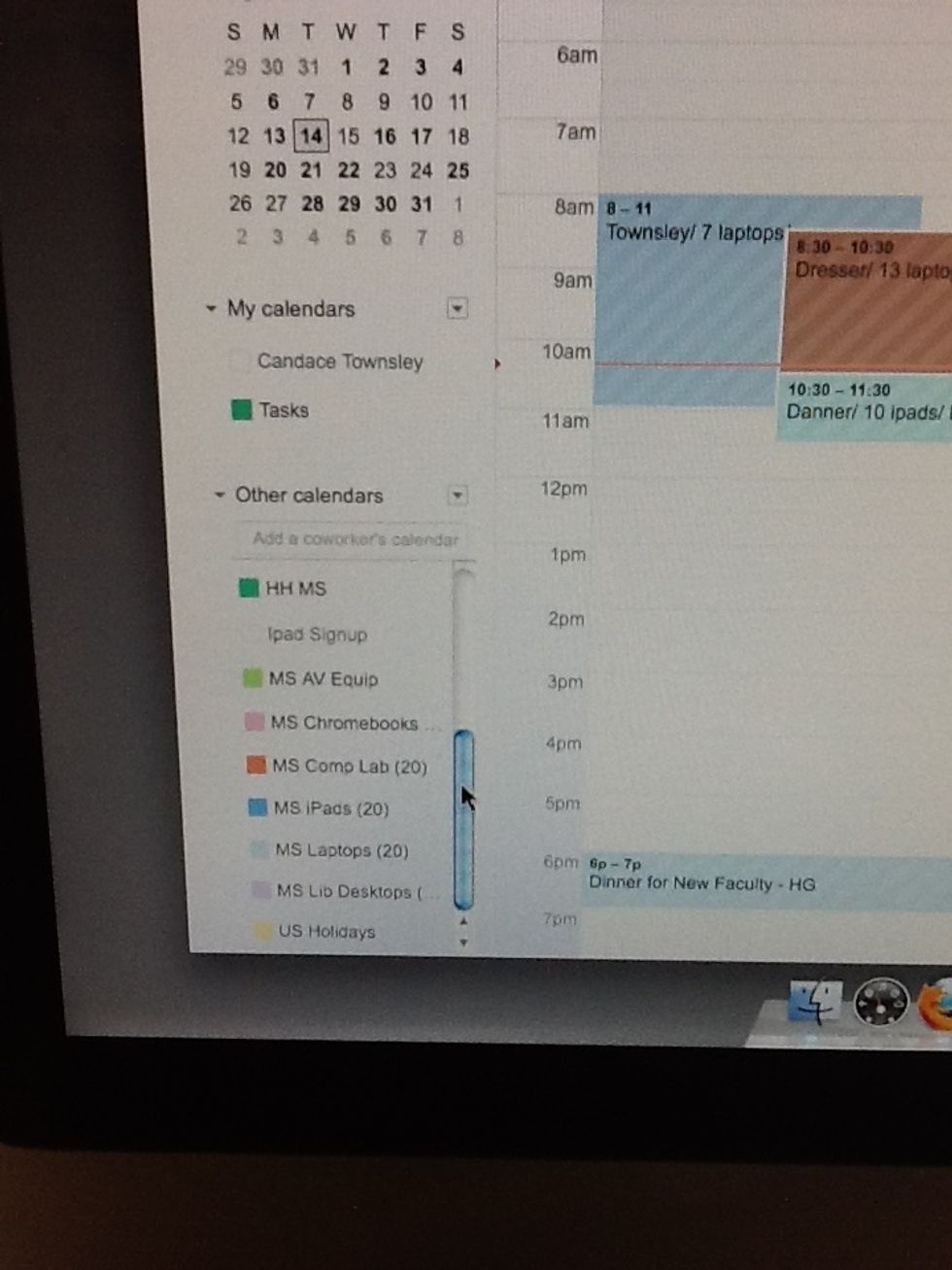
If you don't see much on the calendar, make sure you have clicked on the specific resource on the left to be sure it is showing up on your calendar. You can turn it off by clicking it again.
After checking current reservations to determine what is available, you will create your reservation.
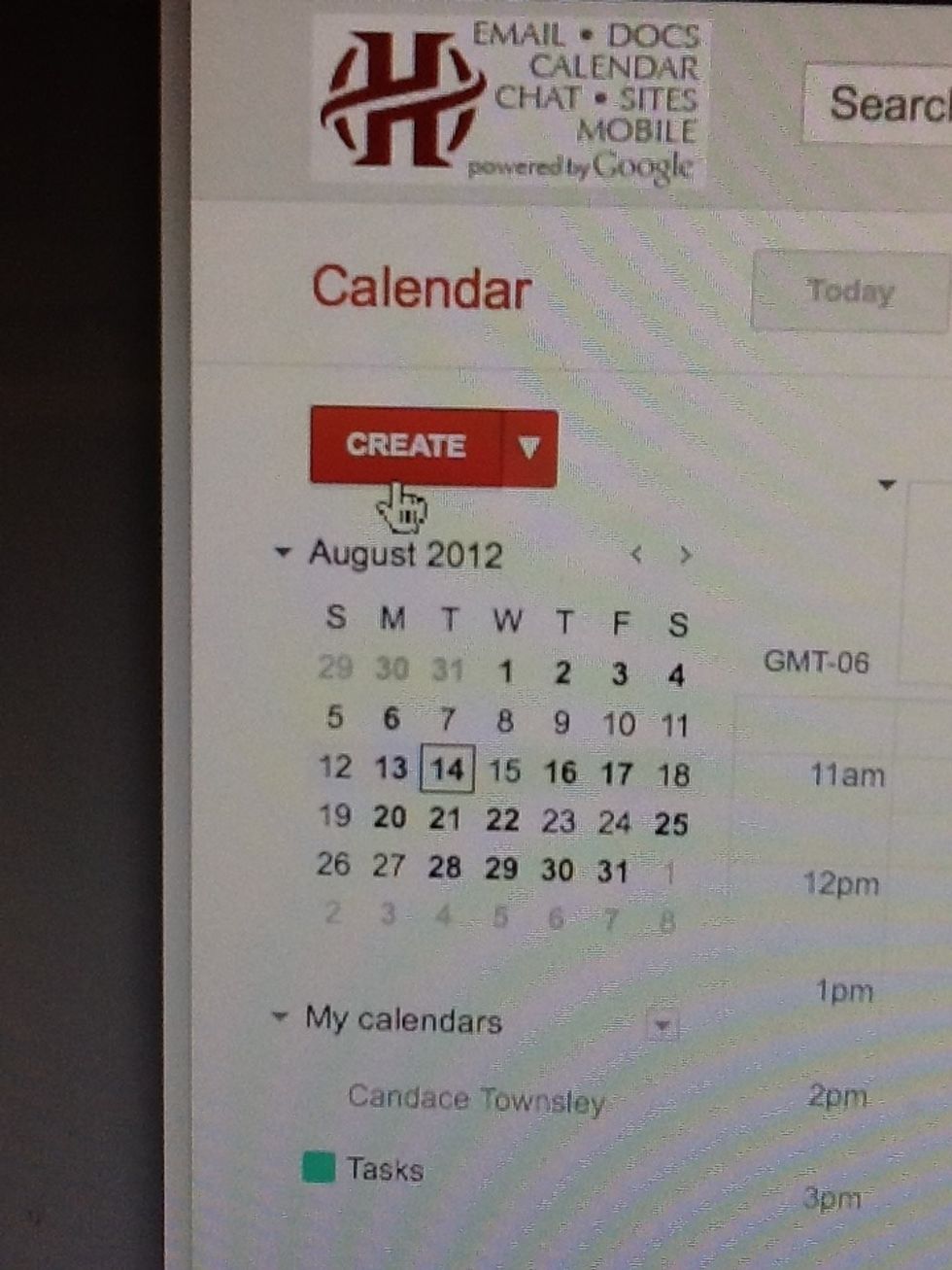
Click on the CREATE button. You are creating a reservation!!
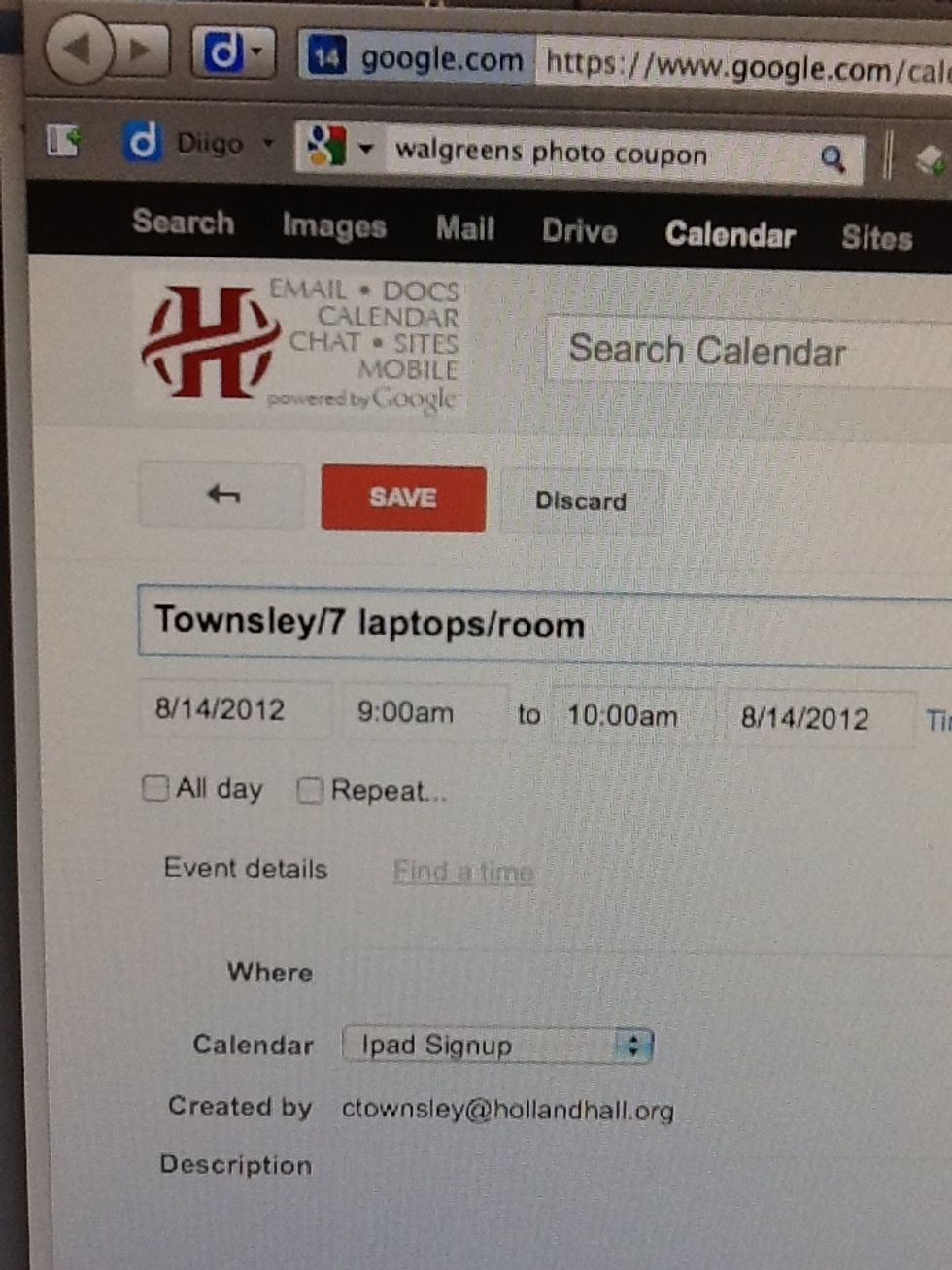
Where it say "untitled event" you need to type- your last name/ # of specific items/ where you plan to use them Please use this template in this order.
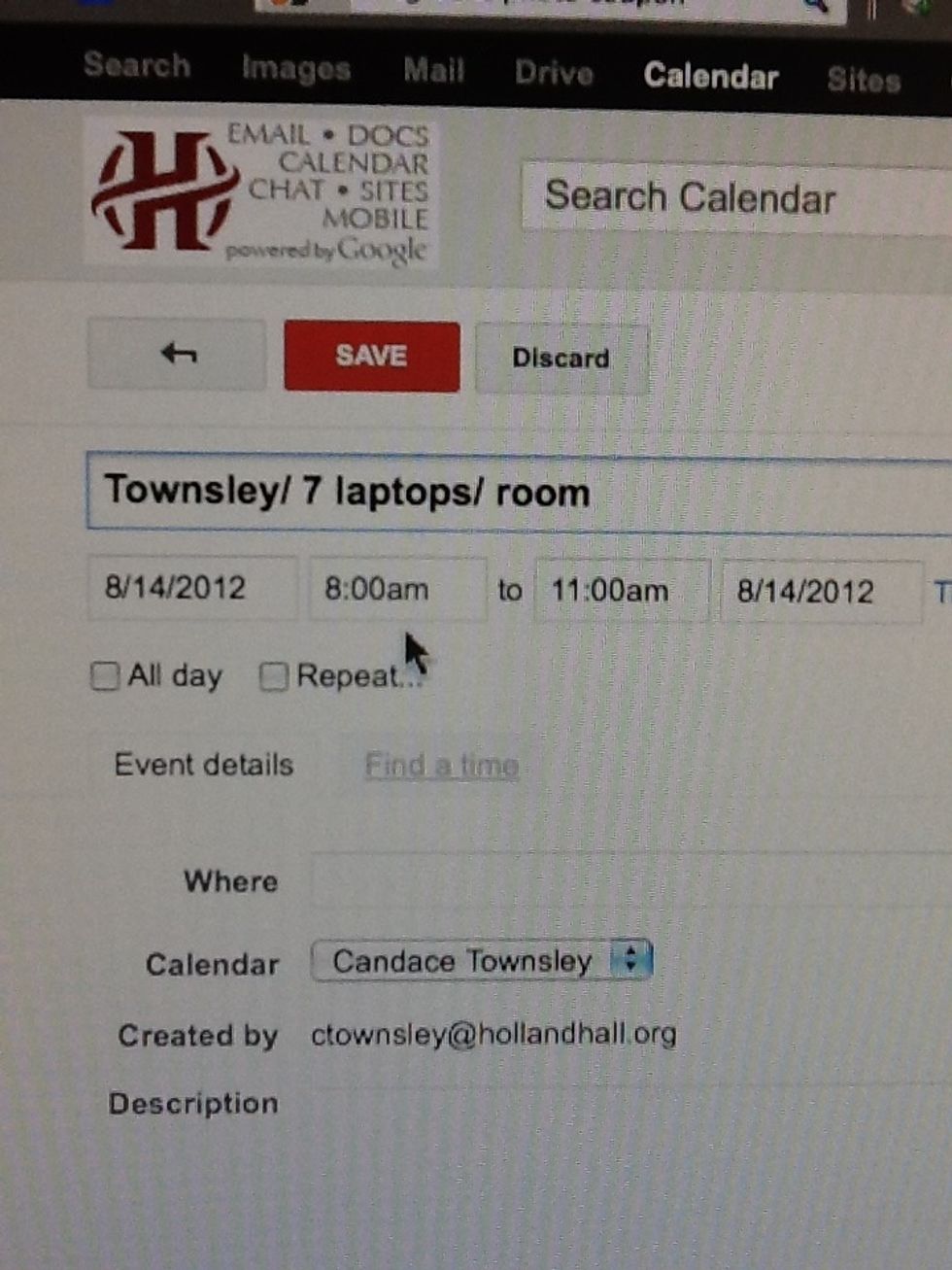
Please make sure to choose your beginning and end times. Please refrain from clicking on "all day".
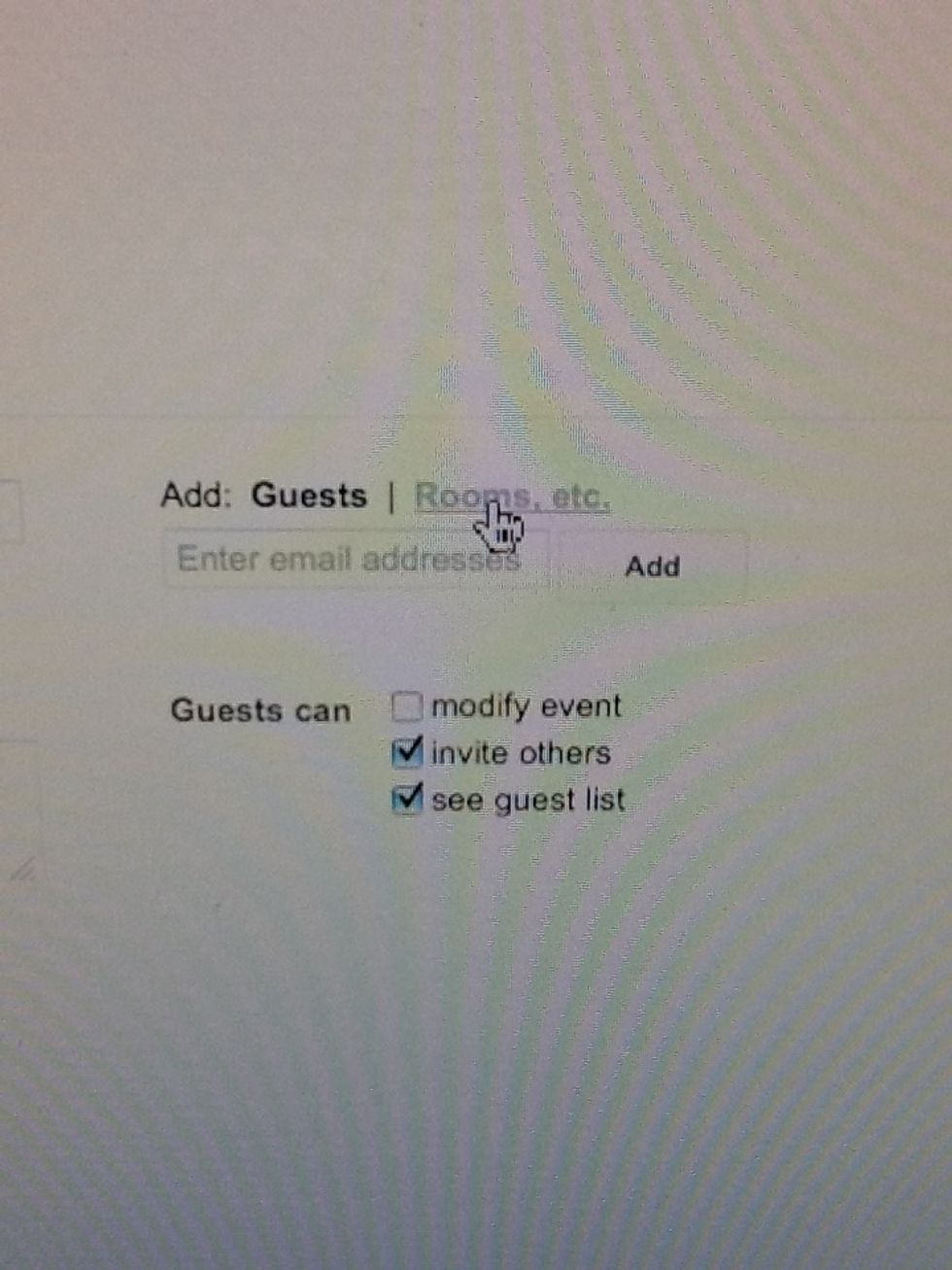
On the right the screen will default to "Guests". You will need to click on "Rooms, etc."
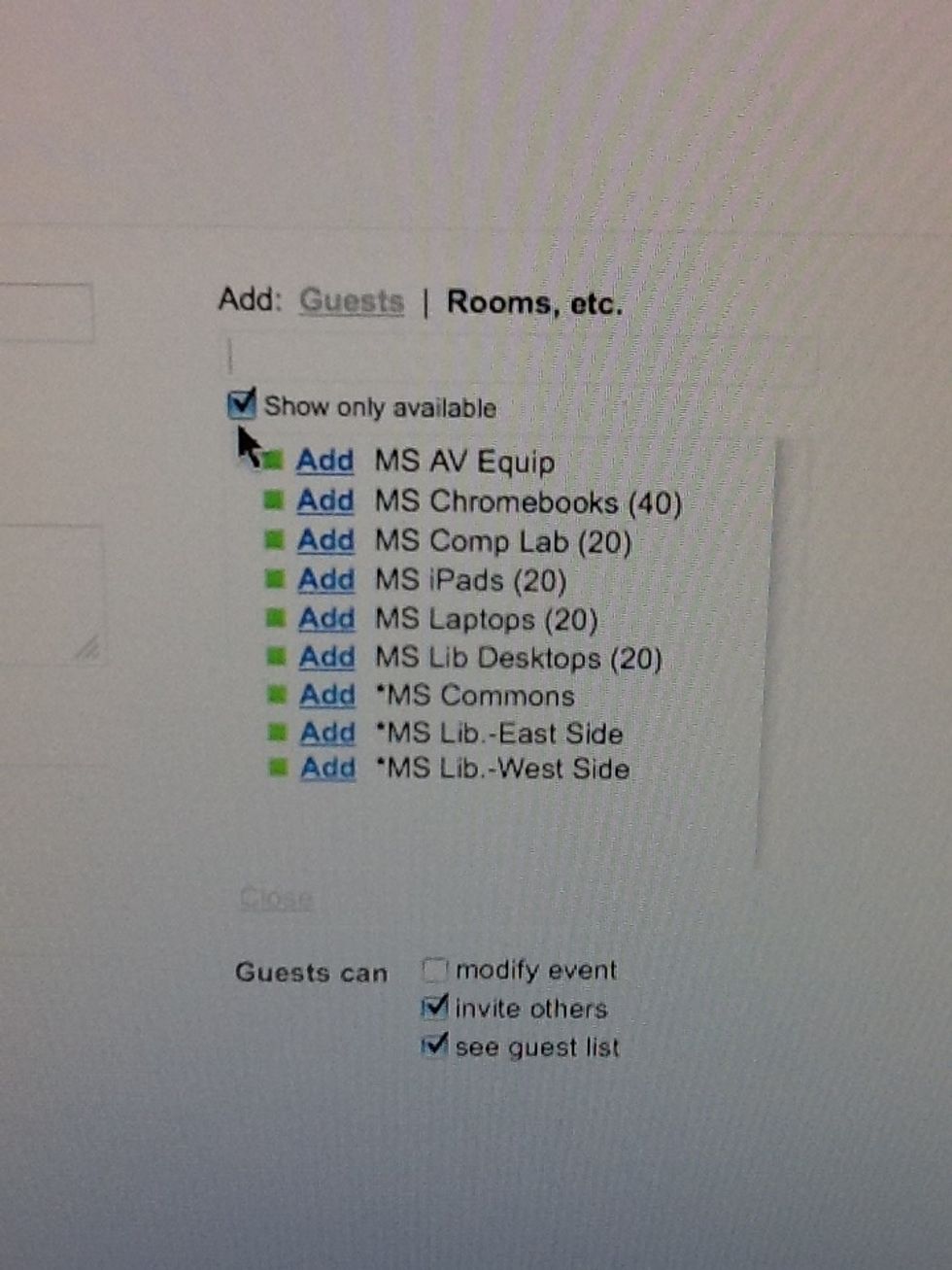
Then you will see many options for technology and areas to reserve. It is IMPORTANT to uncheck "show only available"!
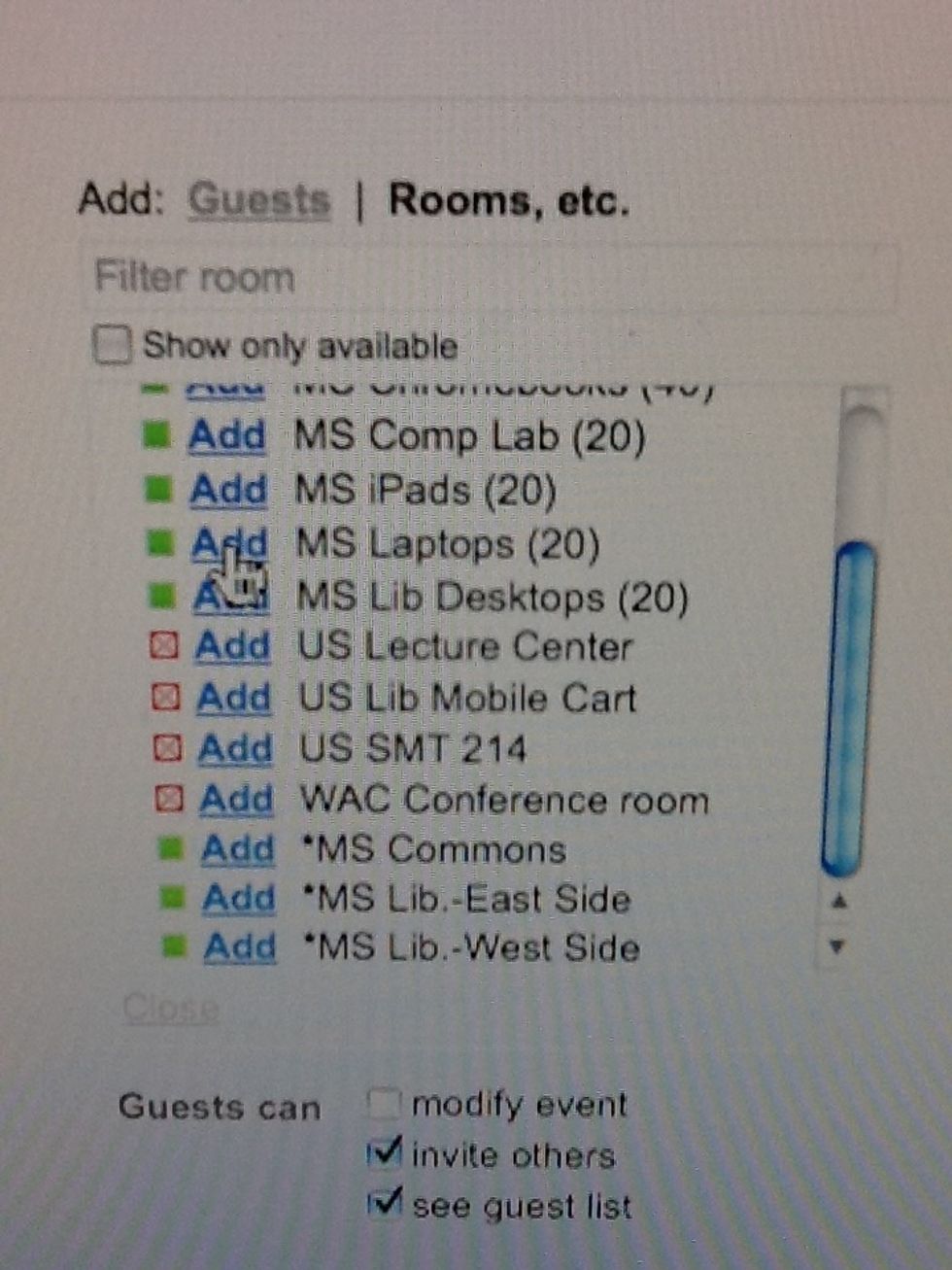
This will allow you to see technologies that have already been reserved. Since I want 7 laptops, I will ADD "MS Laptops (20)".
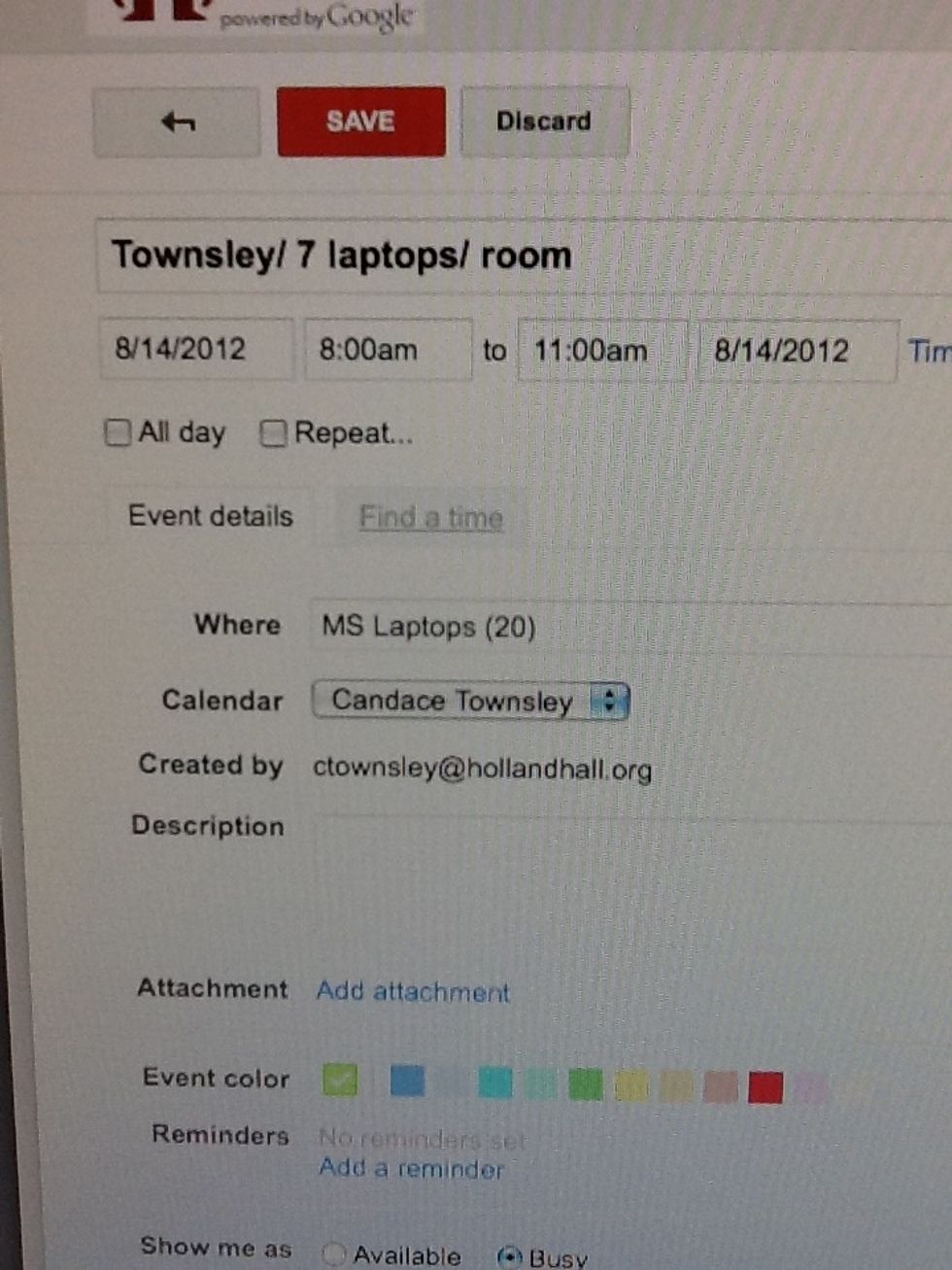
Once you click ADD, MS Laptops (20) will appear on the WHERE of your reservation screen.
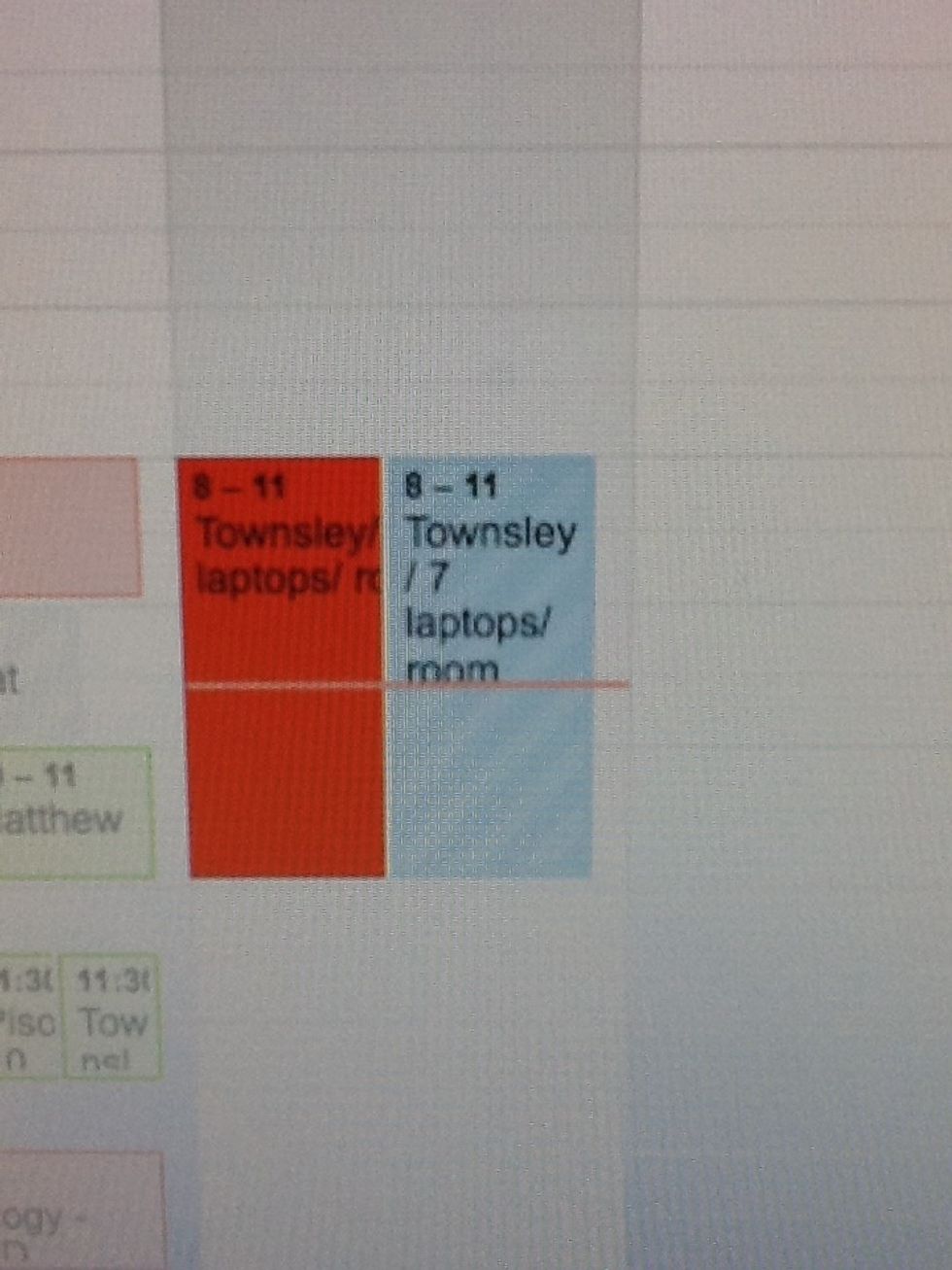
The reservation will appear twice - once on YOUR calendar and once on the MS Laptop Calendar.
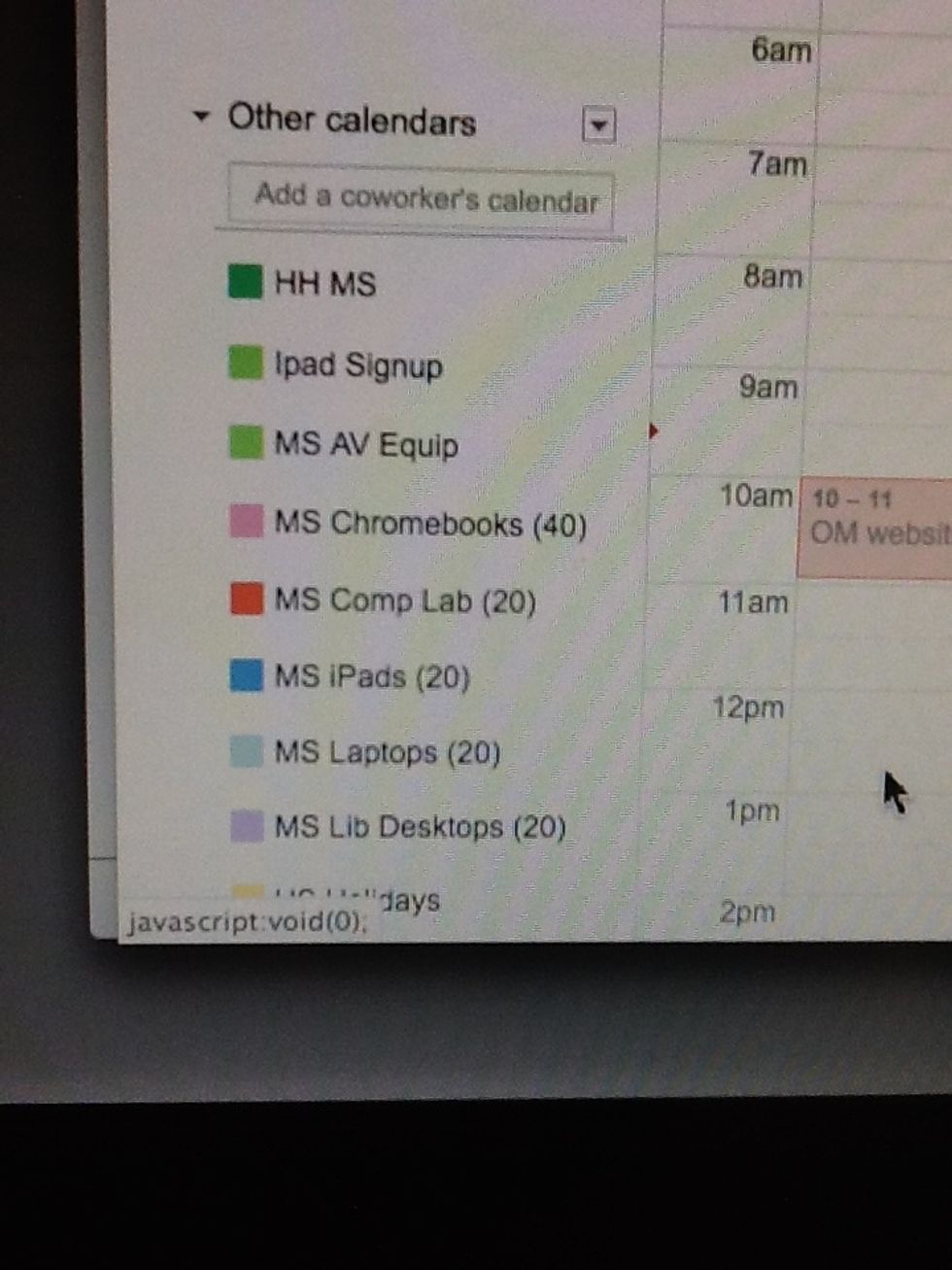
All of the resources can be viewed on your calendar by clicking on the resource on the left side of your calendar. IT IS VERY IMPORTANT THAT YOU CHECK THIS CALENDAR BEFORE MAKING A RESERVATION!!
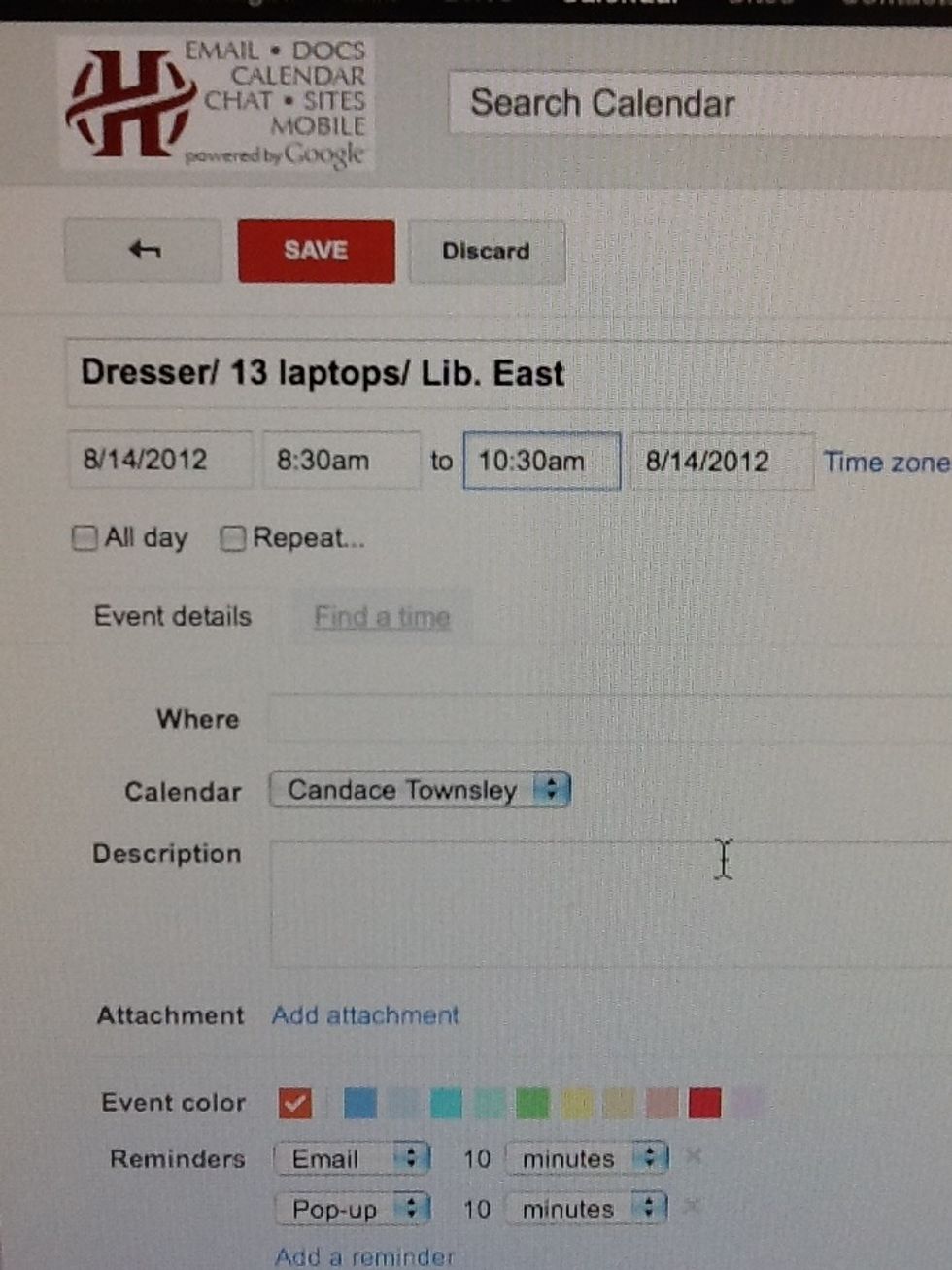
After checking the MS Laptop (20) calendar, Mrs. Dresser reserves the remaining 13 laptops available after my reservation of 7. She would like to use the in the Library EAST side.
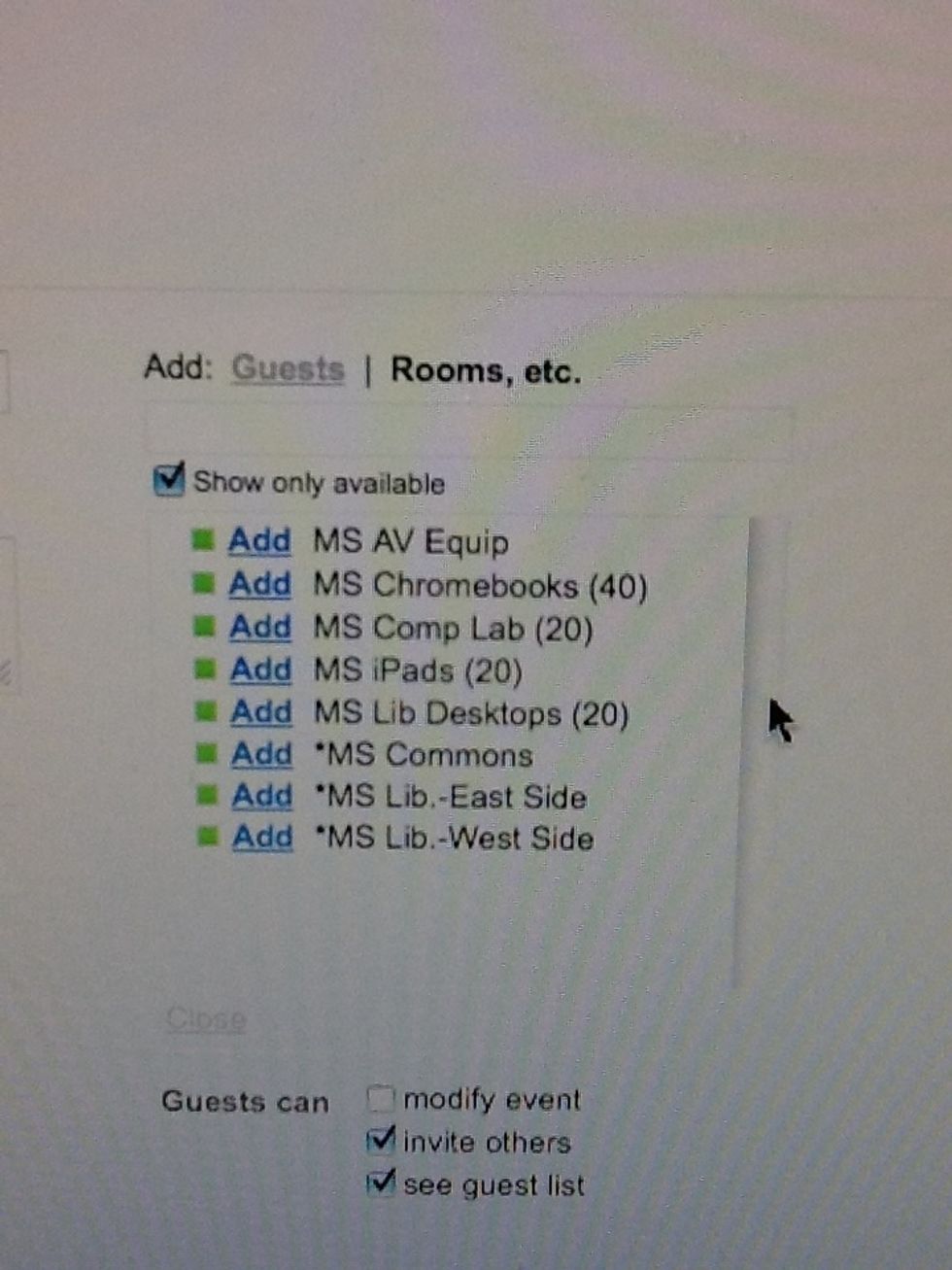
When she clicks on rooms, the laptops do not show up, so she must UNCHECK "show only available".
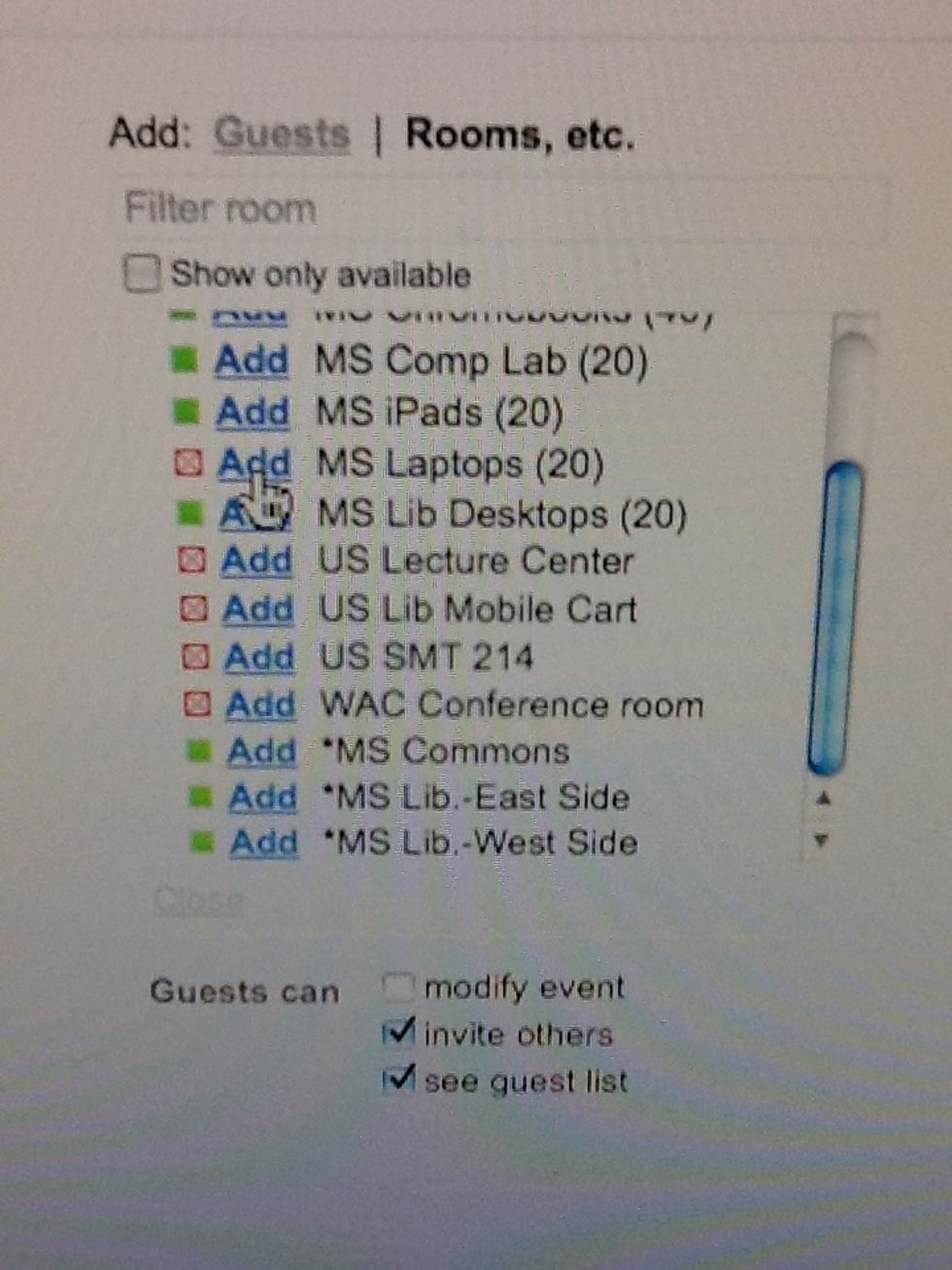
This will allow her to add the reservation for the remaining 13 laptops.
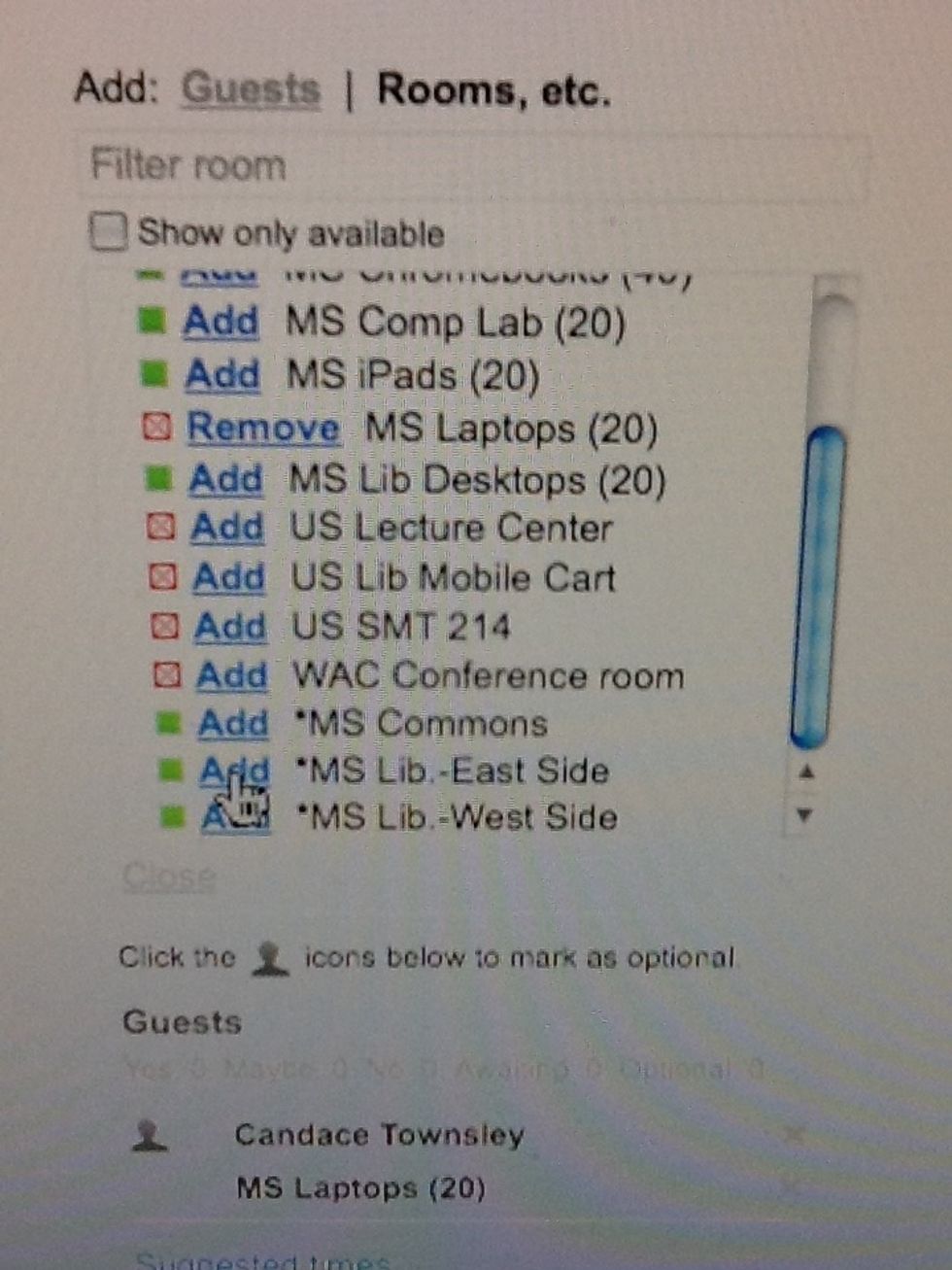
She will also add the MS Library - East Side. Please note that AREAS have an asterisk before their name.
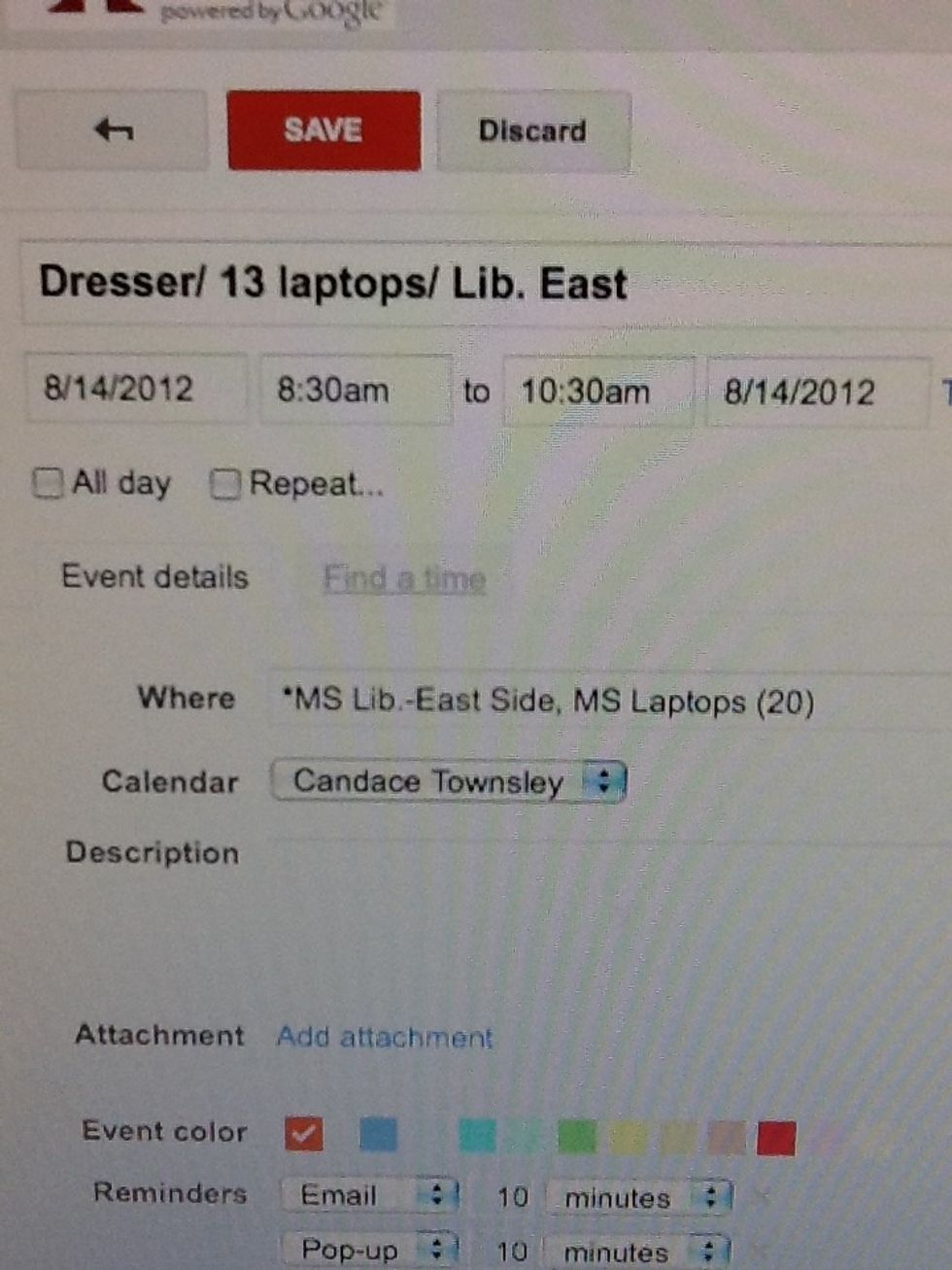
The where section of her reservation now shows the laptops and the area reserved.
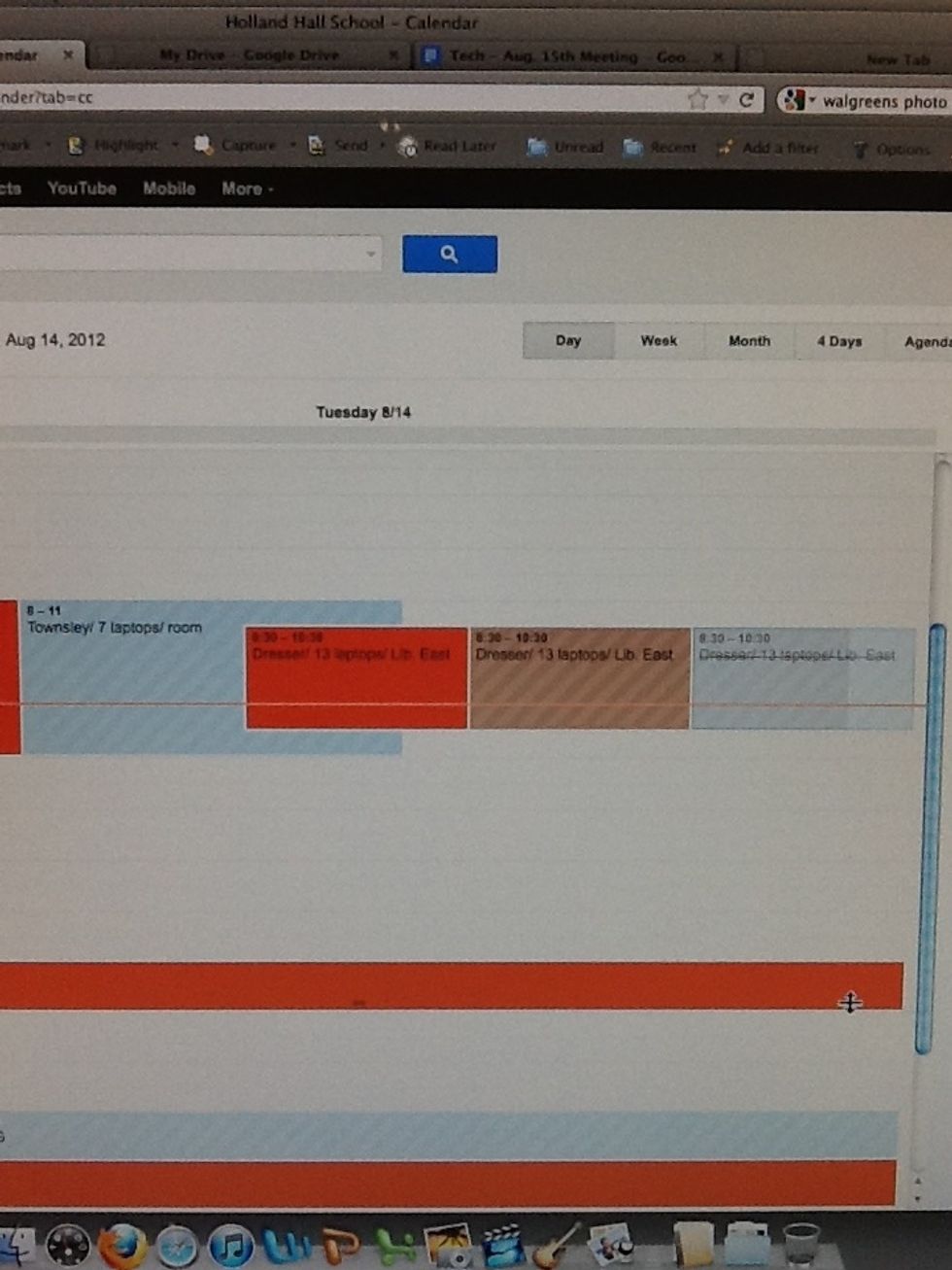
Upon looking at the calendar- we see that Mrs. Dresser has 13 laptops reserved, but there is a line through her reservation because the laptops were already reserved.
This reservation is appropriate because the two reservations together add up to the 20 laptops we have available.
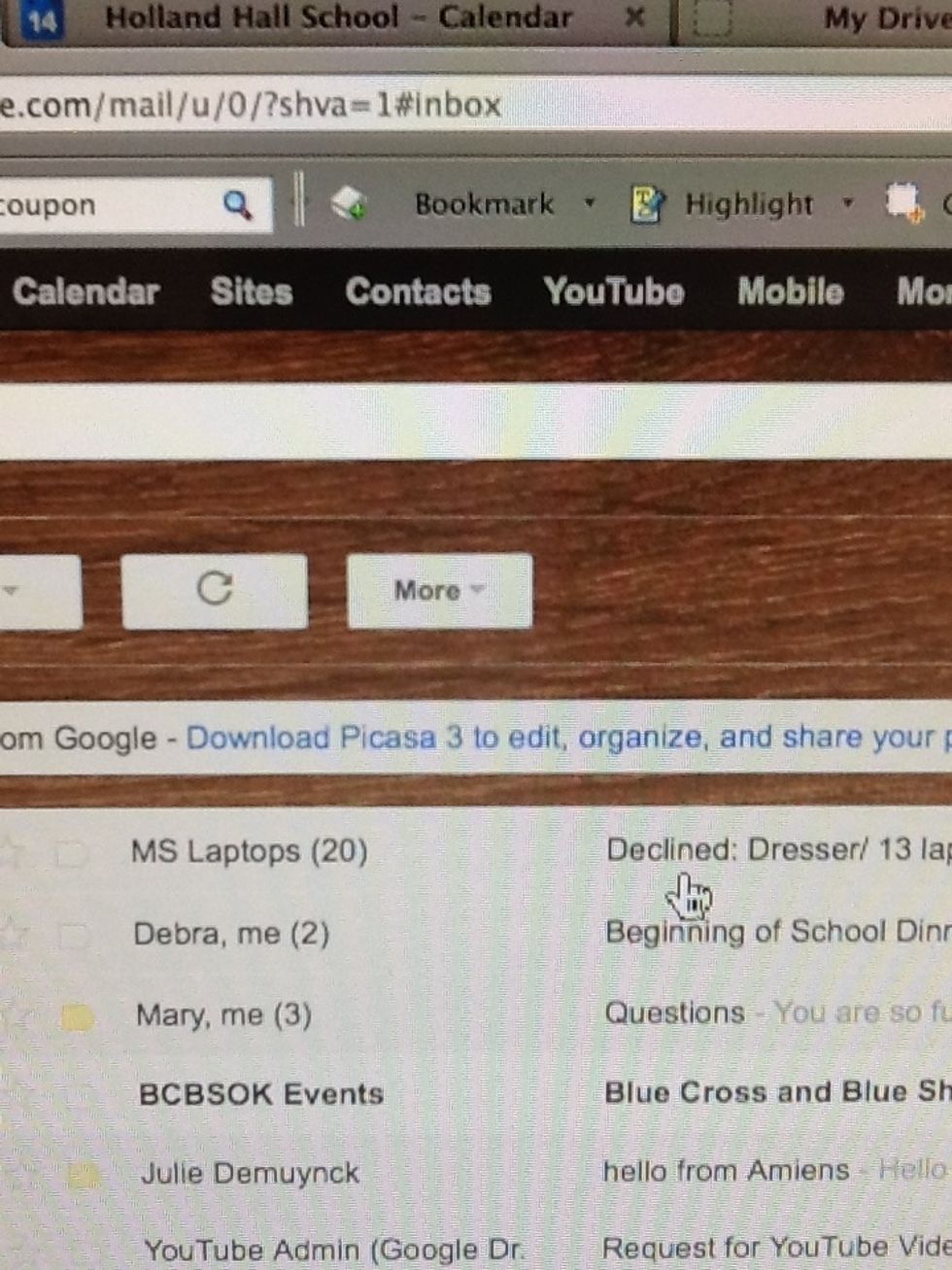
When calendars are double booked- the person will receive an email from that resource stating your reservation has declined.
If multiple users overbook and exceed the number of items available- we can tell who booked first based upon the time/date of your declined email.
Reservations should be made for the following: Chromebooks (40) iPads (20) Laptops (20) iMacs (20) -Library iMacs (20) -Lab AV equipment ALTERNATIVE CLASSROOM AREAS Commons Library East Library West