How to use a patch cord to record music

Use a Patch Cord to Record Music

17
STEPS
TOOLS

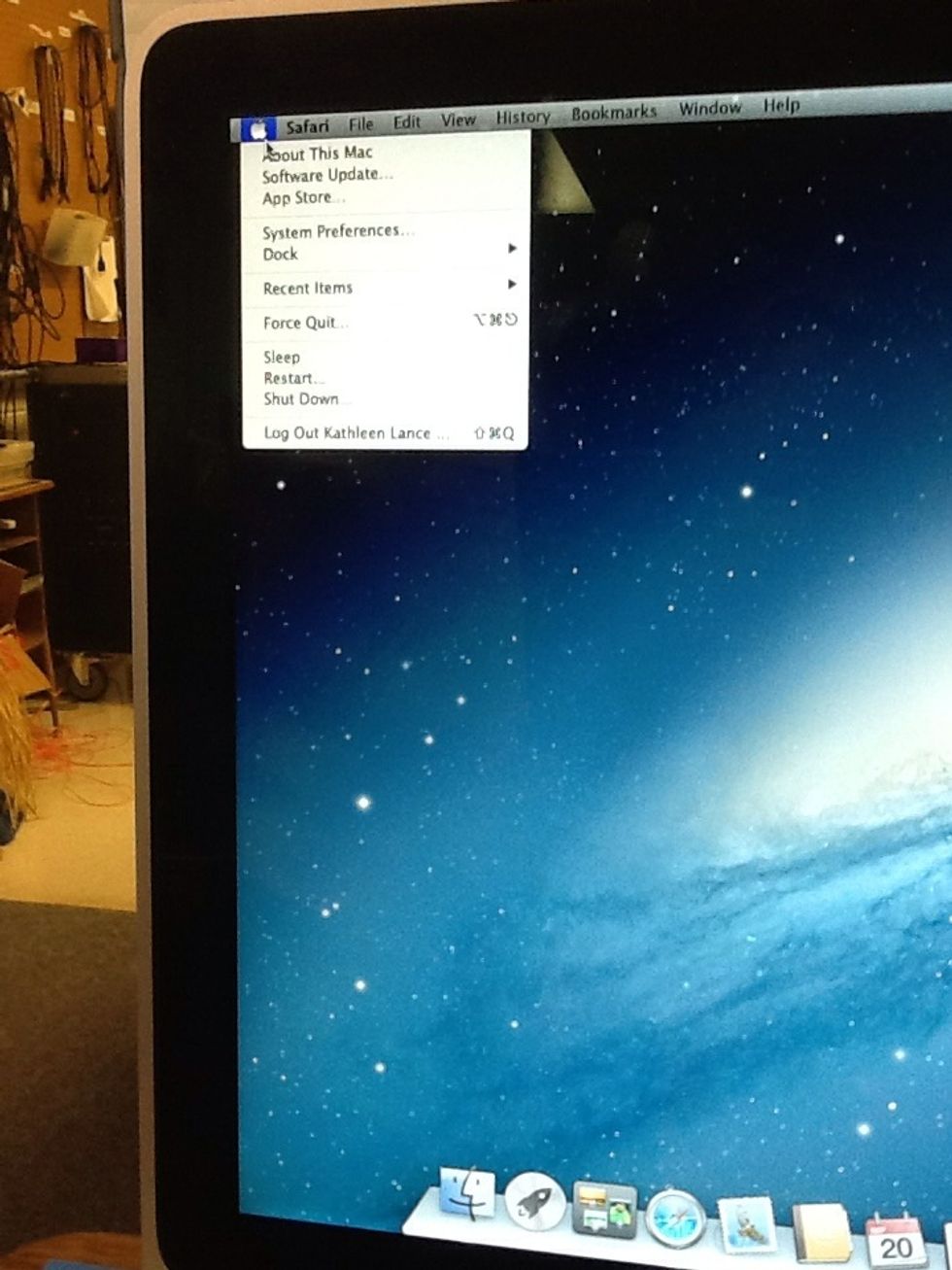
Begin by clicking on the Apple button on your Home screen.
Begin by clicking on the Apple button on your Home screen.

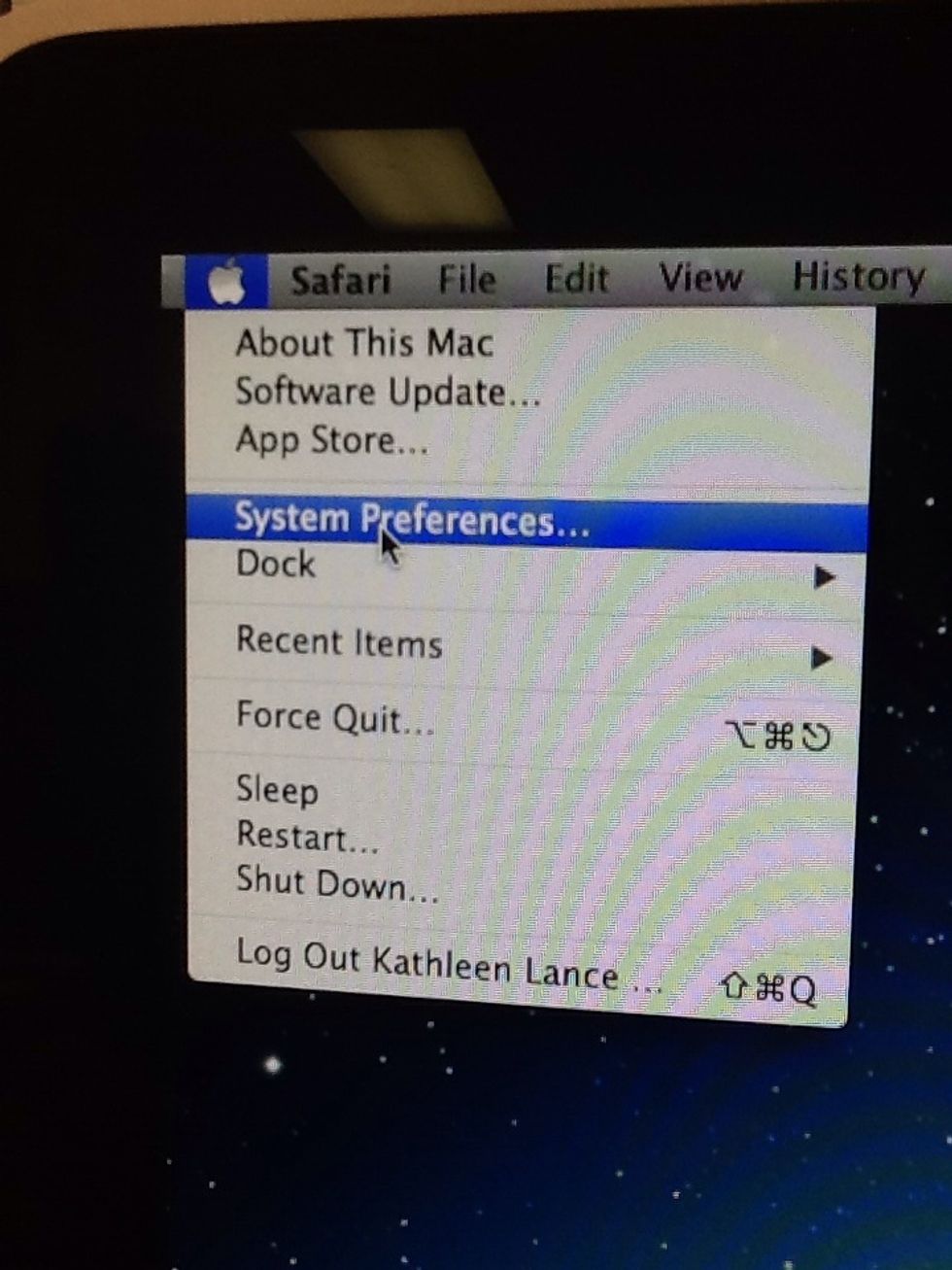
Click on "System Preferences."

Click on "System Preferences."

Next, click on the "Sound" icon.
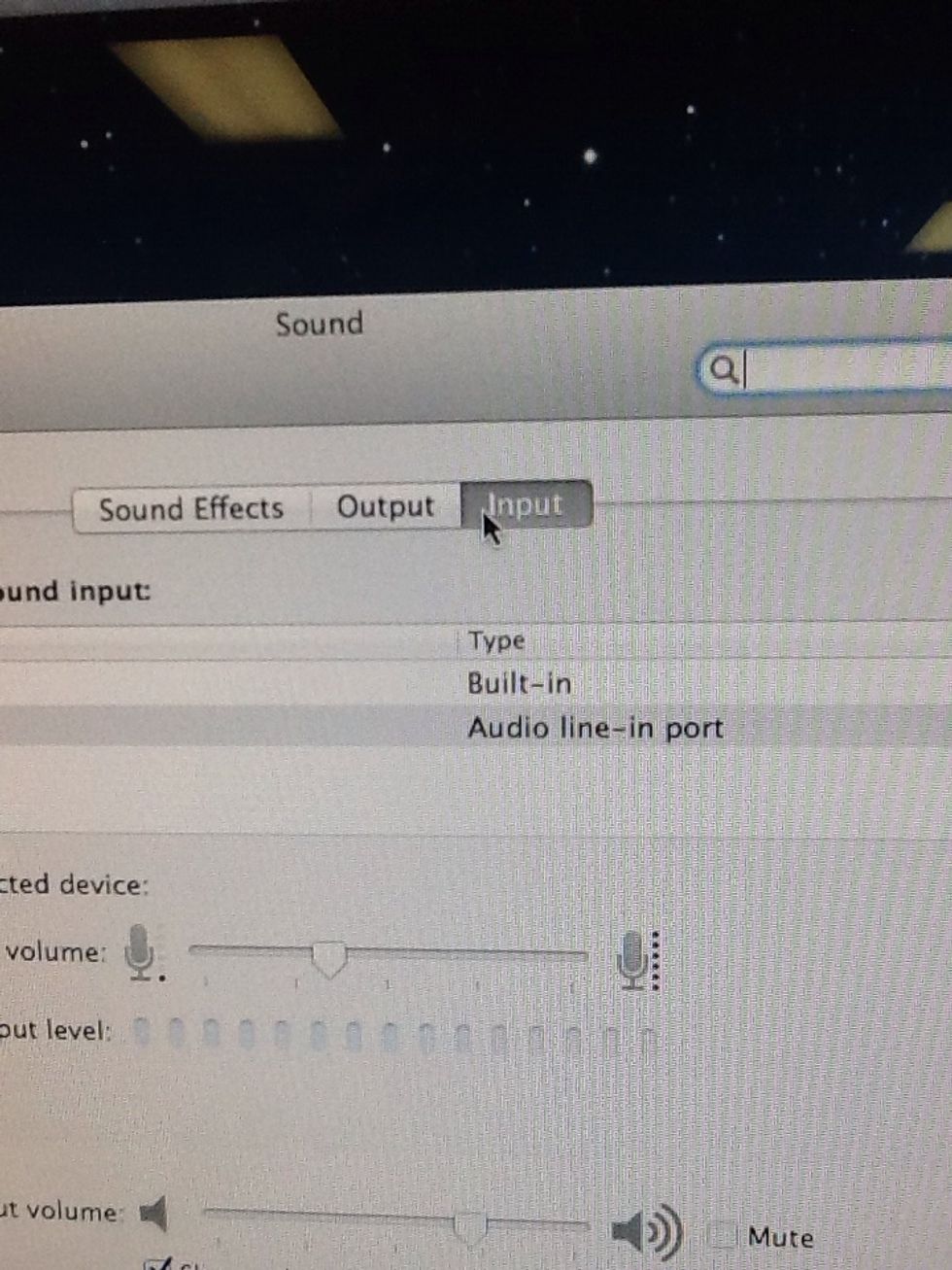
Next, click on the "Sound" icon.

Click the "Input Tab."
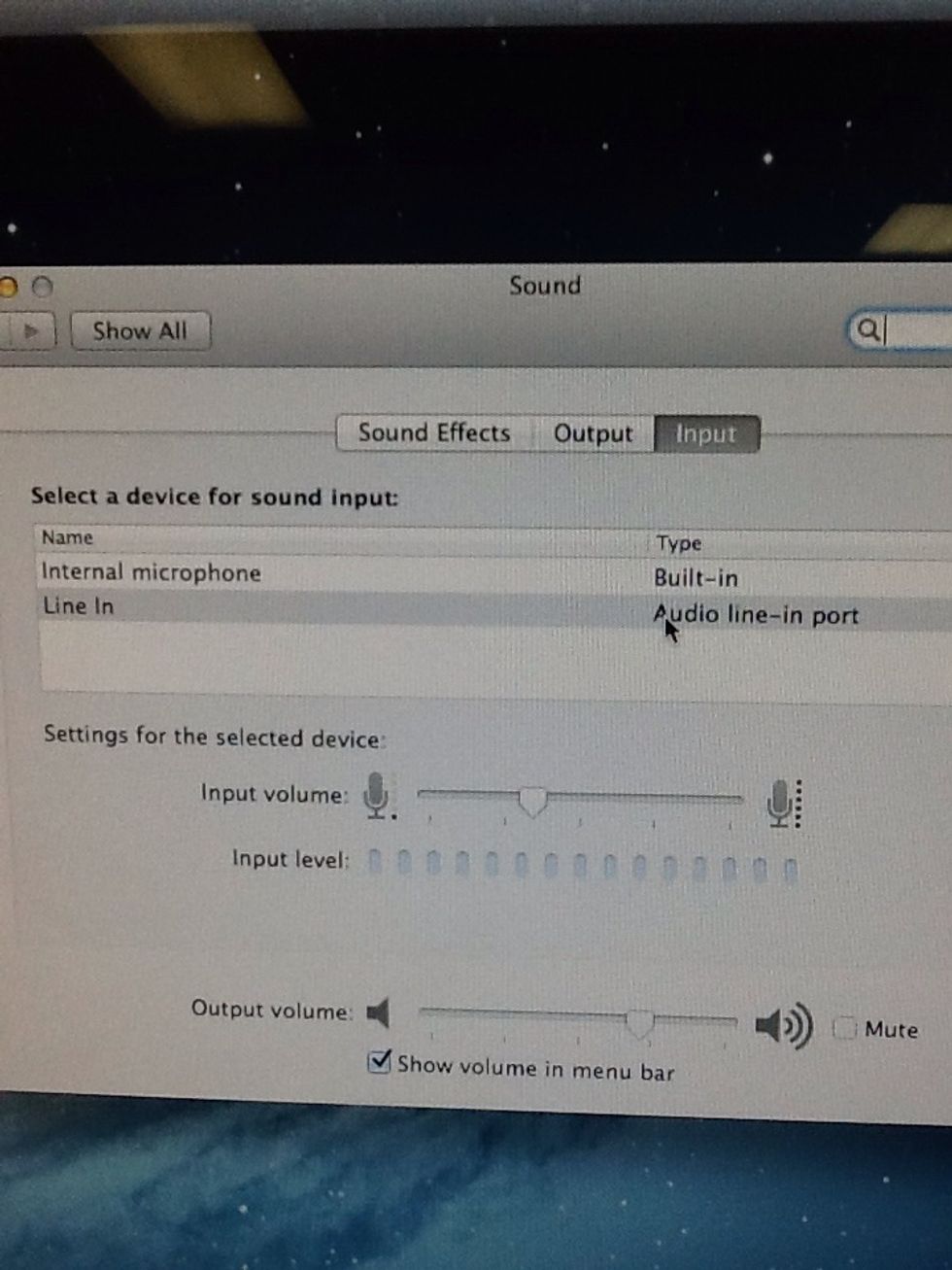
Click the "Input Tab."

Choose the "Line In" choice for your sound input device.
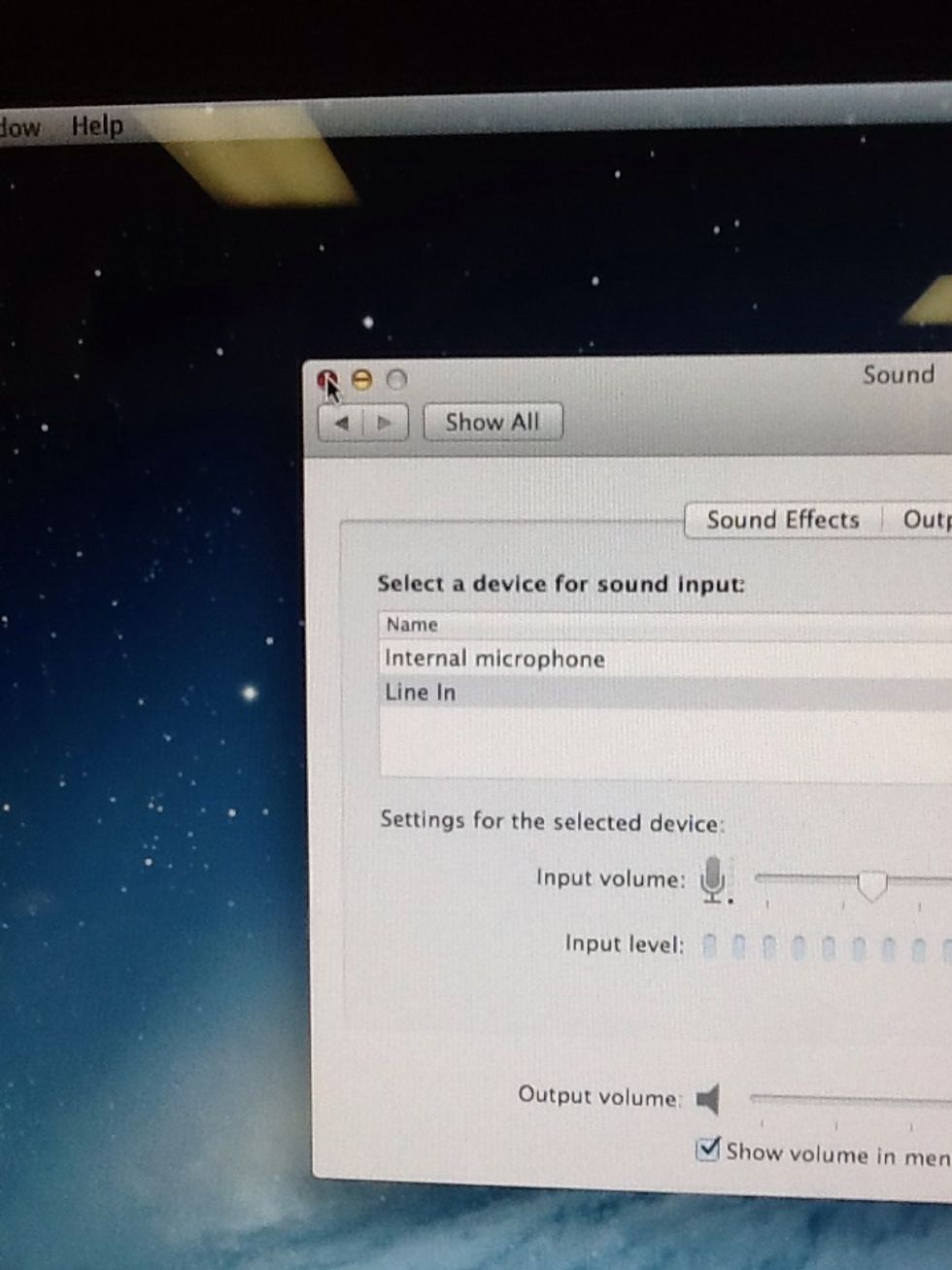
Choose the "Line In" choice for your sound input device.

Exit out of the Sound Tab that you have open.
Exit out of the Sound Tab that you have open.

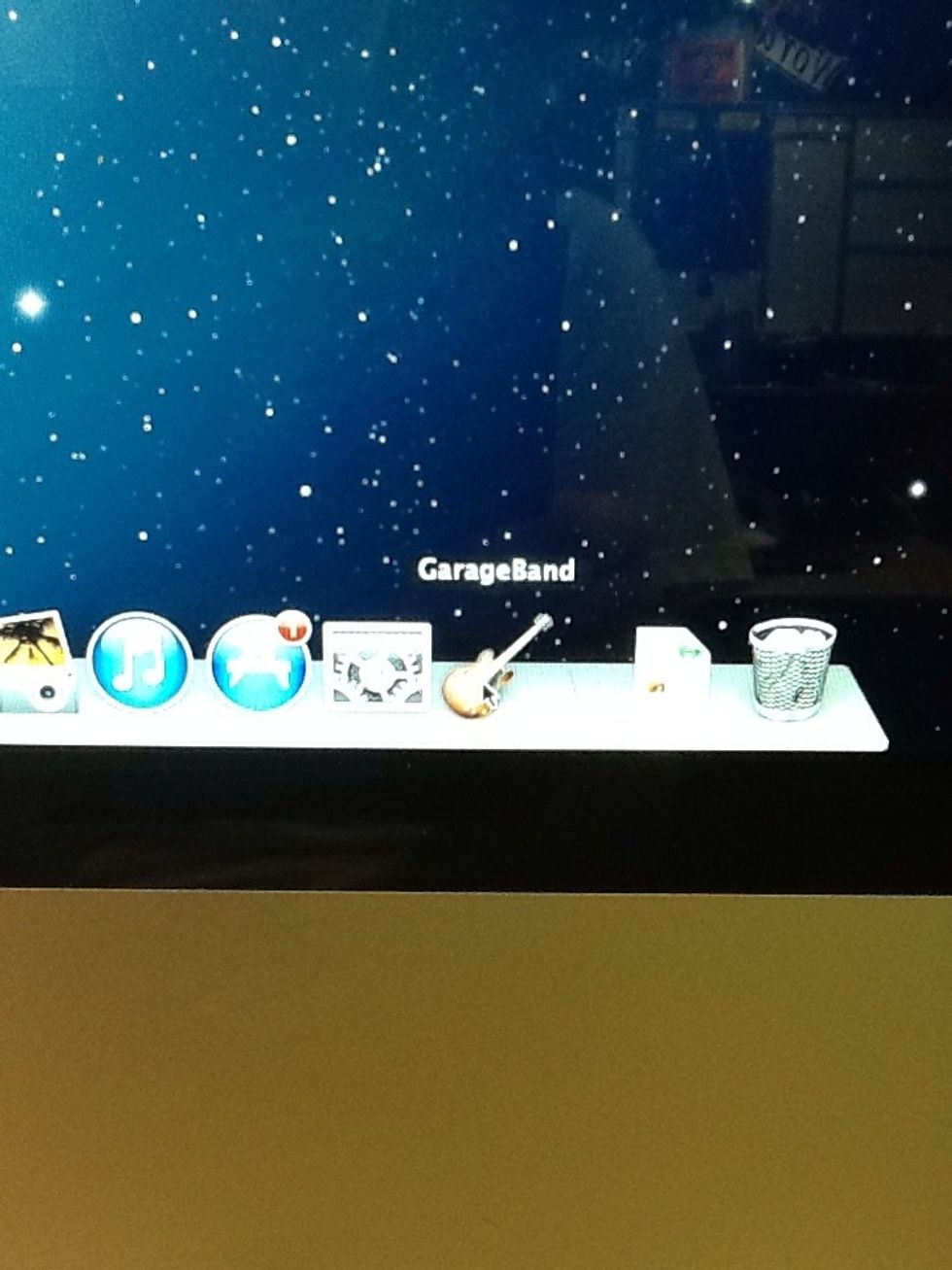
Next, go to "Garage Band."
Next, go to "Garage Band."

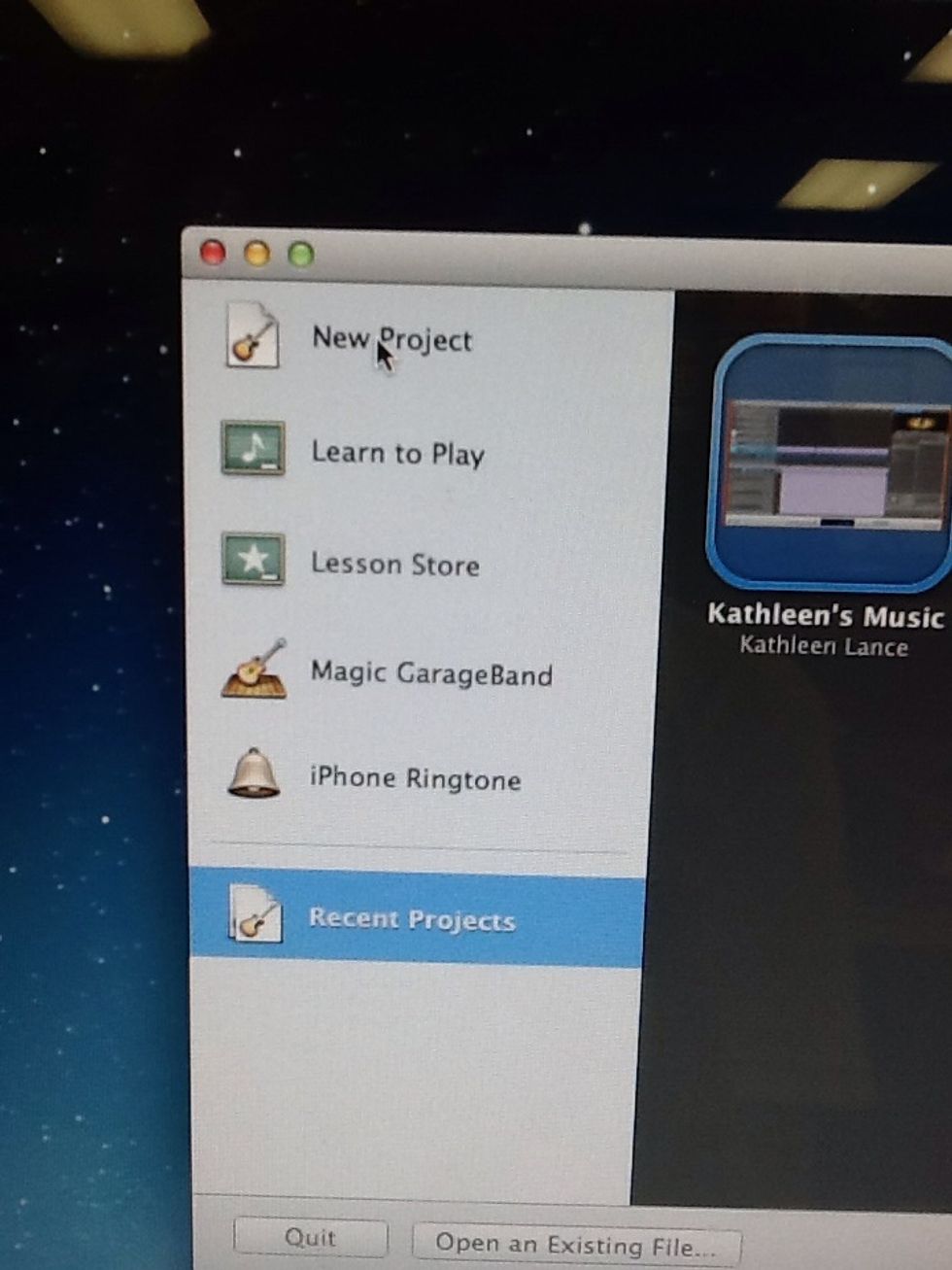
Click on "New Project."
Click on "New Project."

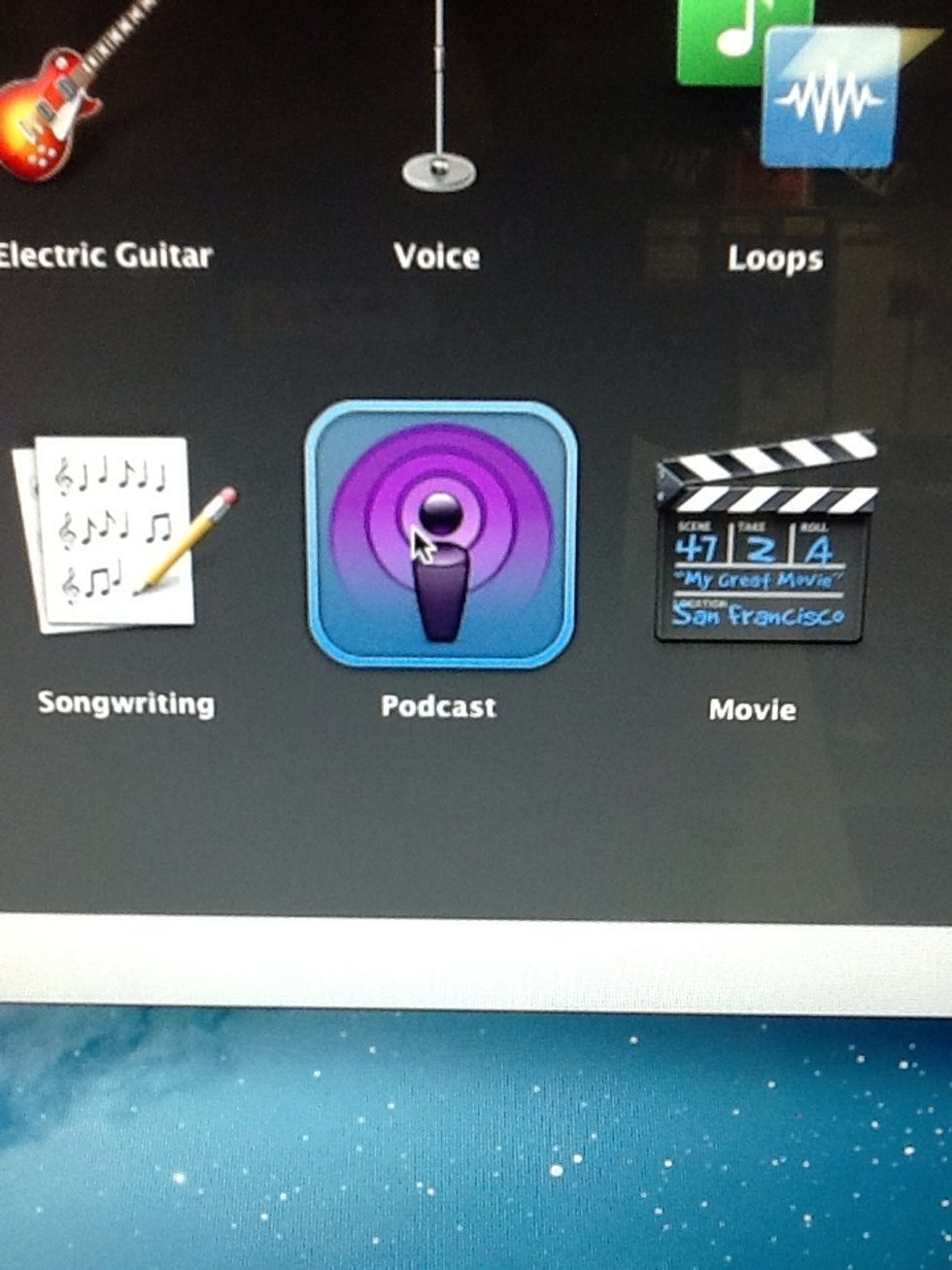
Choose "Podcast."
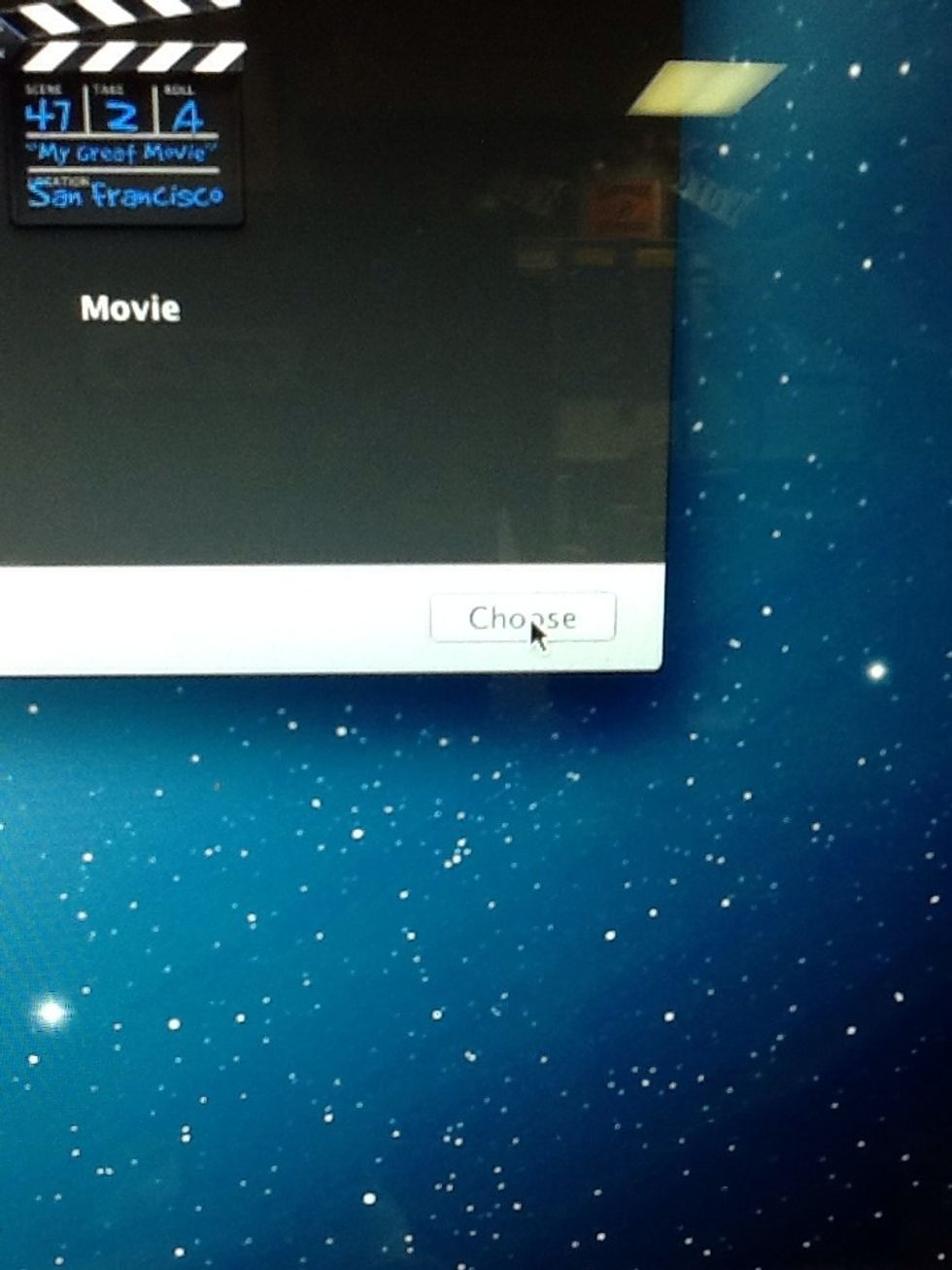
Choose "Podcast."

Click "Choose."
Click "Choose."

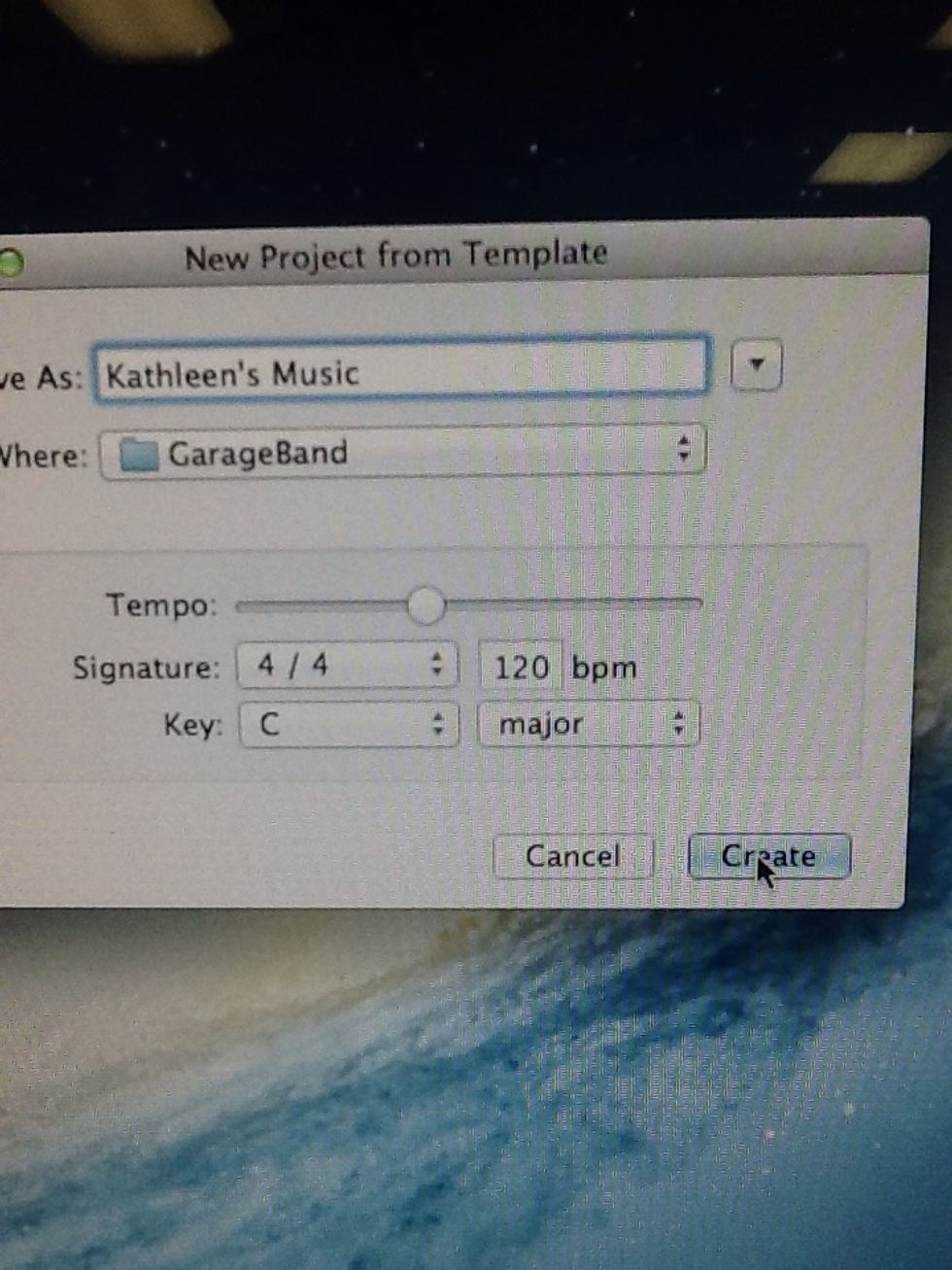
Type in what you would like to save your music as and then click "Create."
Type in what you would like to save your music as and then click "Create."

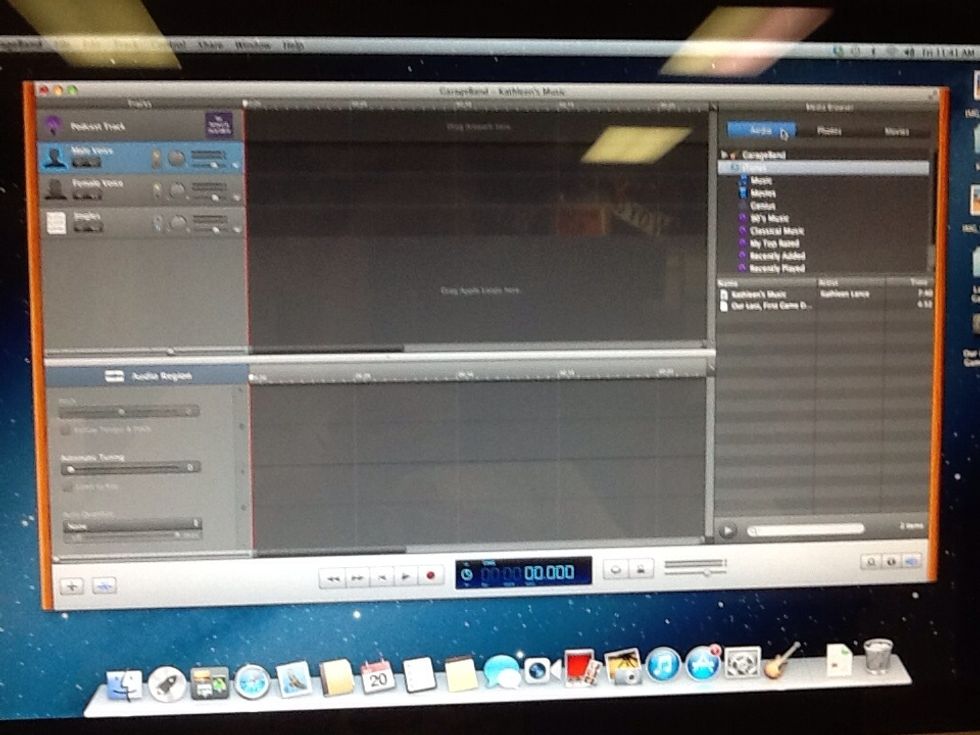
You should next see a screen like this one come up.

You should next see a screen like this one come up.

Click on the "+" sign icon and click "Create."

Click on the "+" sign icon and click "Create."

Click on the "Real Instrument" icon and then click "Create."
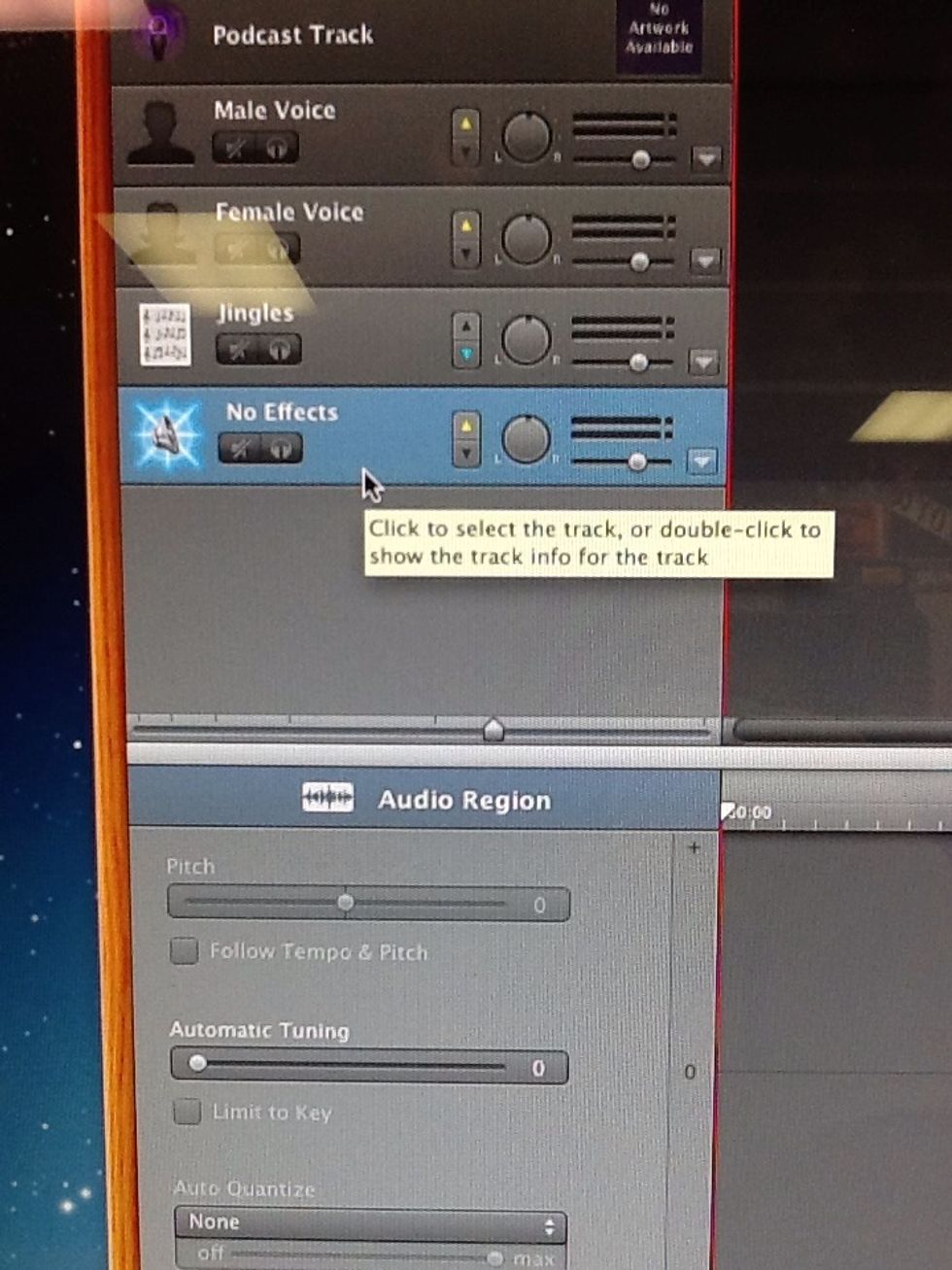
Click on the "Real Instrument" icon and then click "Create."

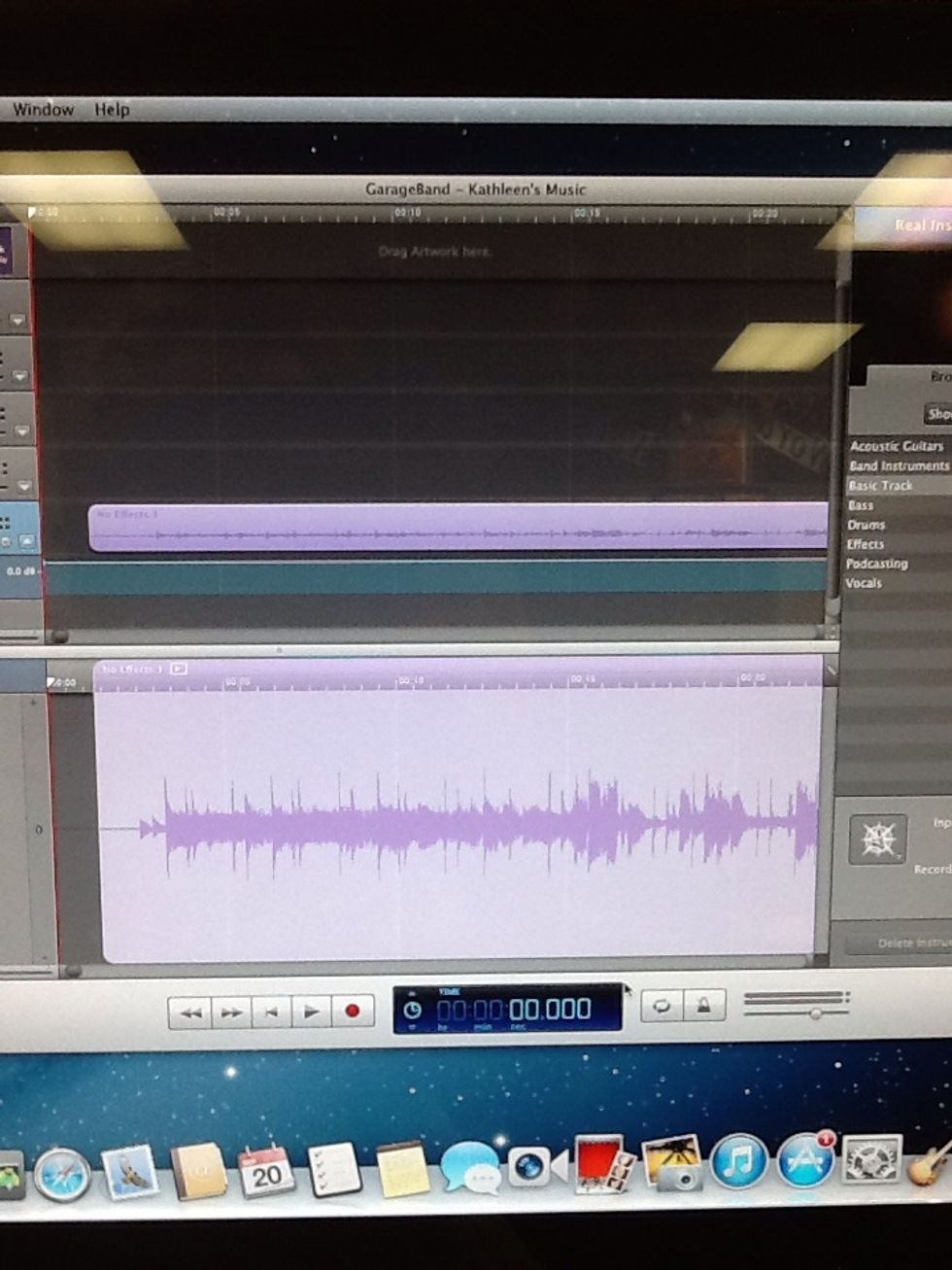
A "No Effects" bar should pop up after you have completed the previous steps.
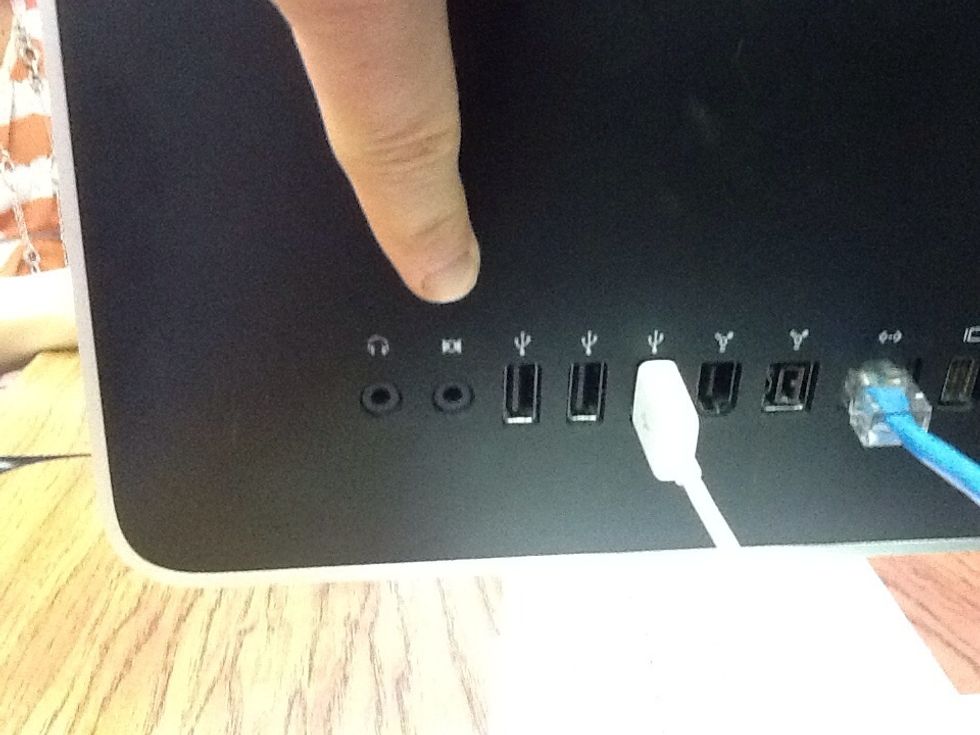
A "No Effects" bar should pop up after you have completed the previous steps.

Next, take your patch cord and plug it into the "Auxiliary Cord Jack."
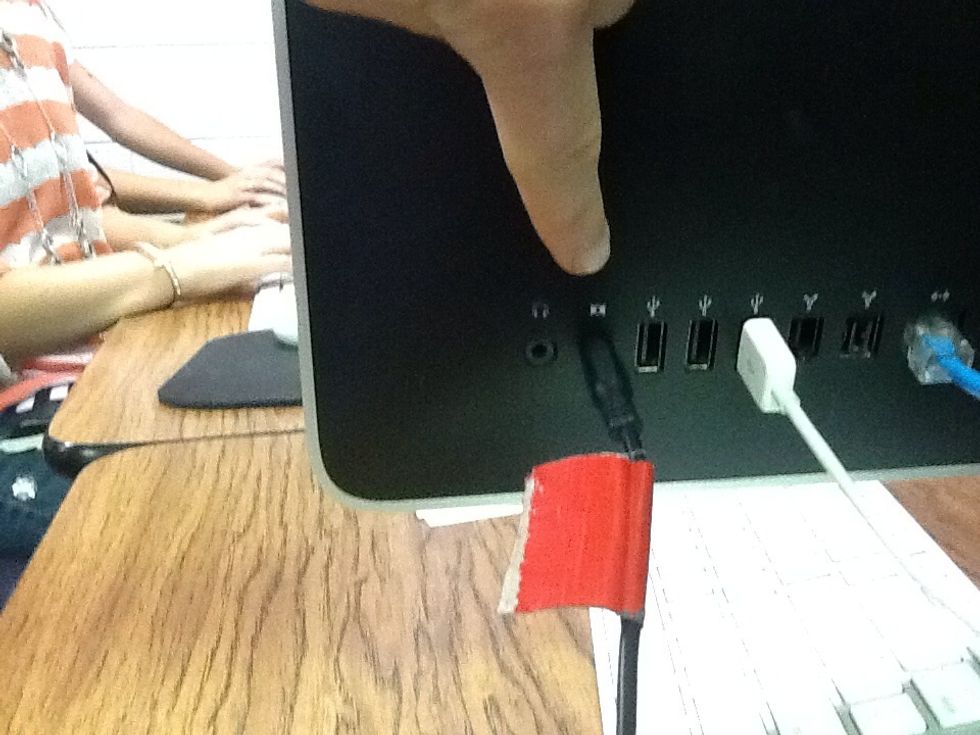
Next, take your patch cord and plug it into the "Auxiliary Cord Jack."

Make sure you don't get your cord in the headphone jack by accident.

Make sure you don't get your cord in the headphone jack by accident.

Next, click the "Record" icon button to begin recording your music.
Next, click the "Record" icon button to begin recording your music.

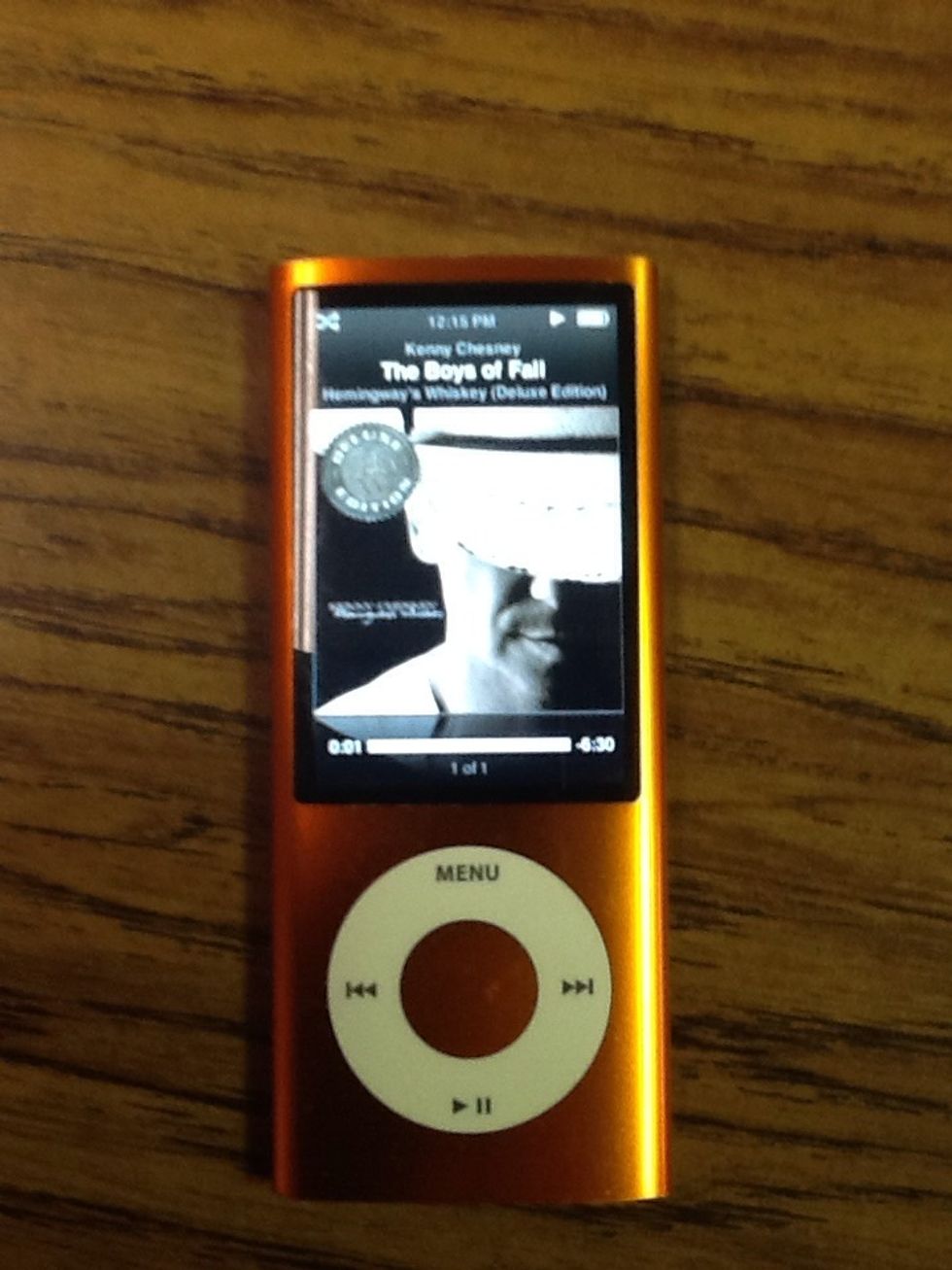
After that, begin playing your music on your device. Make sure you hit the record button first so that you will be able to record your whole song.
After that, begin playing your music on your device. Make sure you hit the record button first so that you will be able to record your whole song.

Once your music is done playing either press the stop button or press your space bar to stop the recording.
Once your music is done playing either press the stop button or press your space bar to stop the recording.

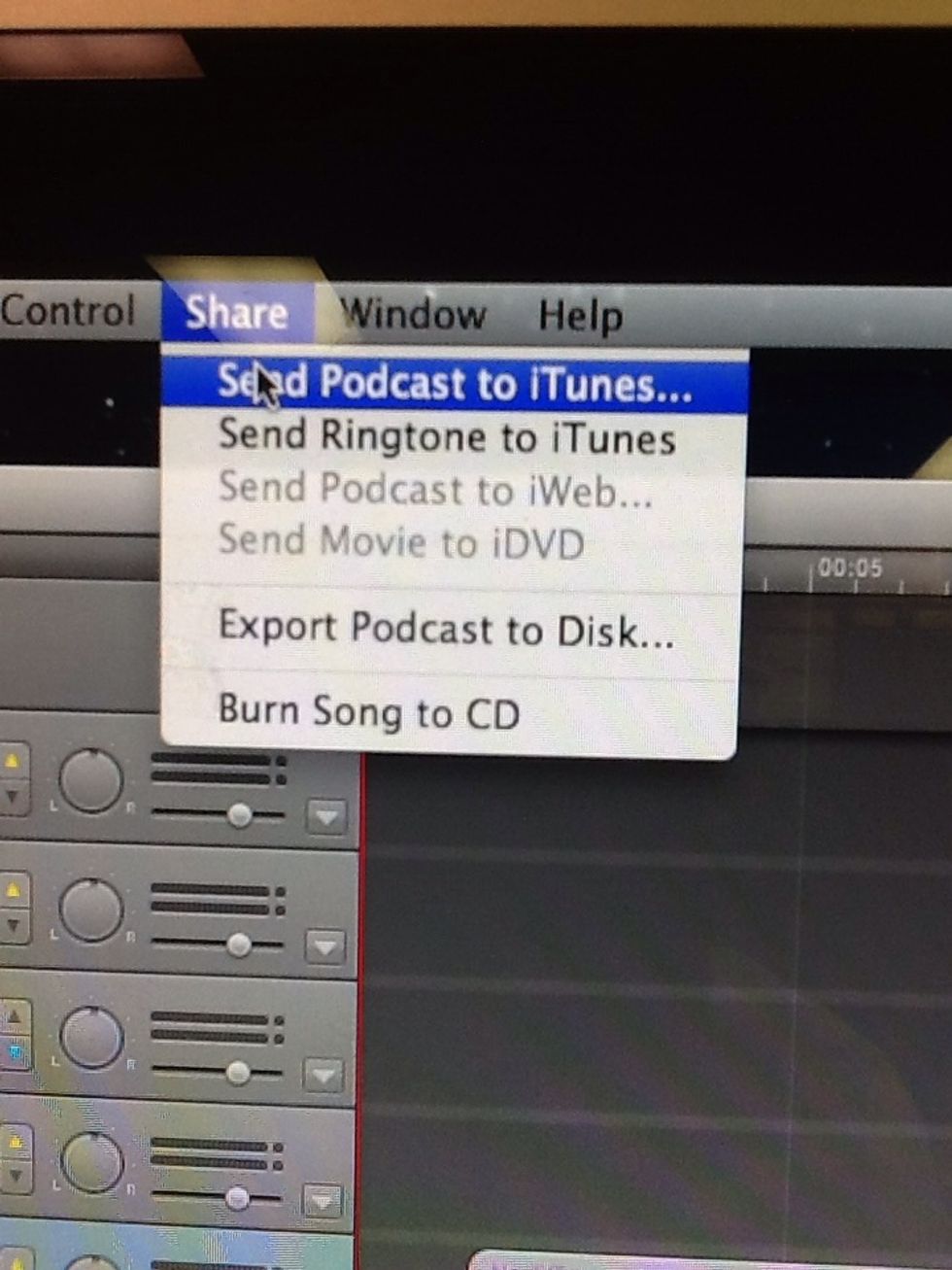
After you have finished editing your music, click on the "Share" tab and click "Send Podcast to iTunes."
After you have finished editing your music, click on the "Share" tab and click "Send Podcast to iTunes."

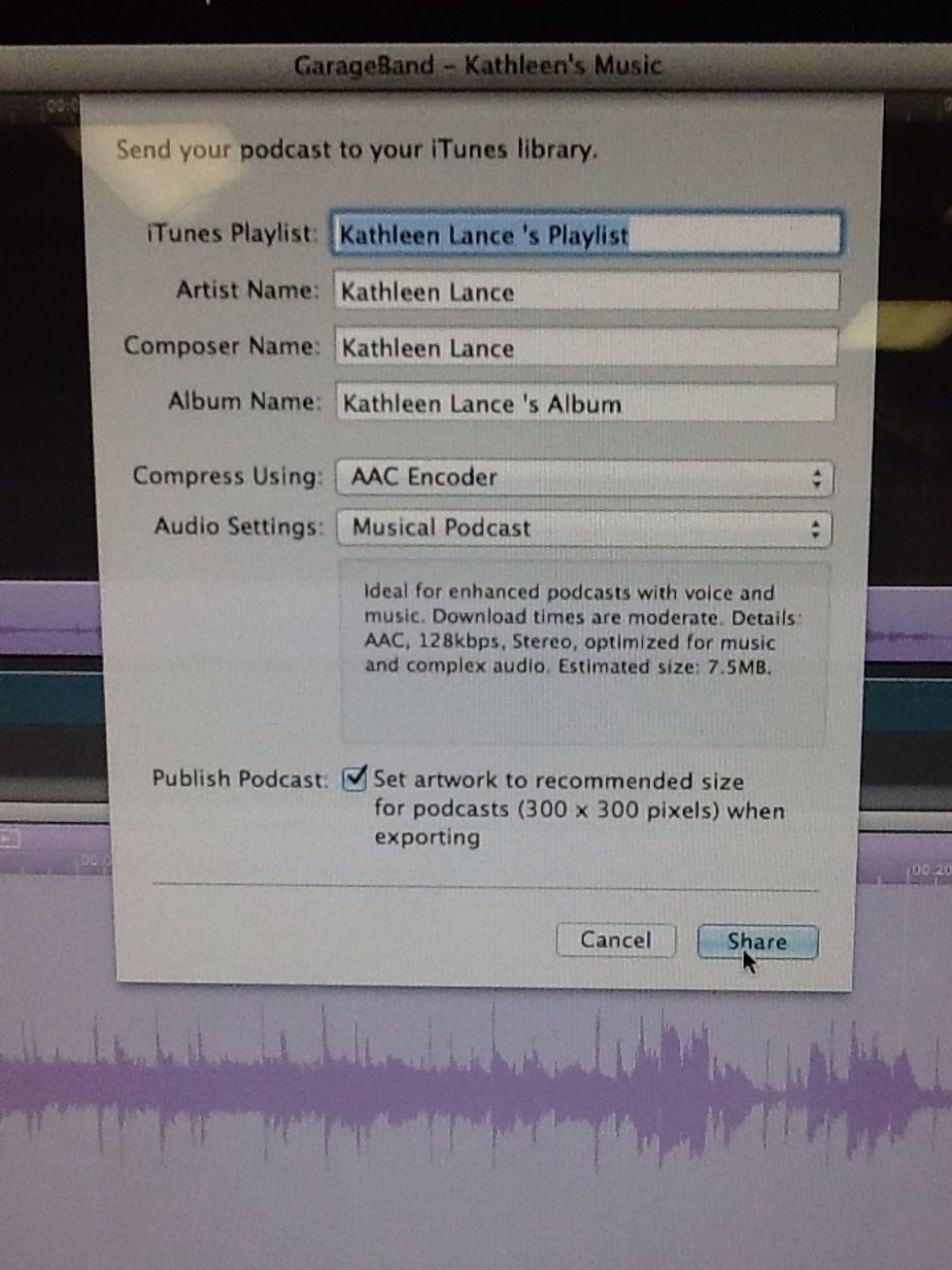
Type what you would like your file to be called and click "Share."
Type what you would like your file to be called and click "Share."

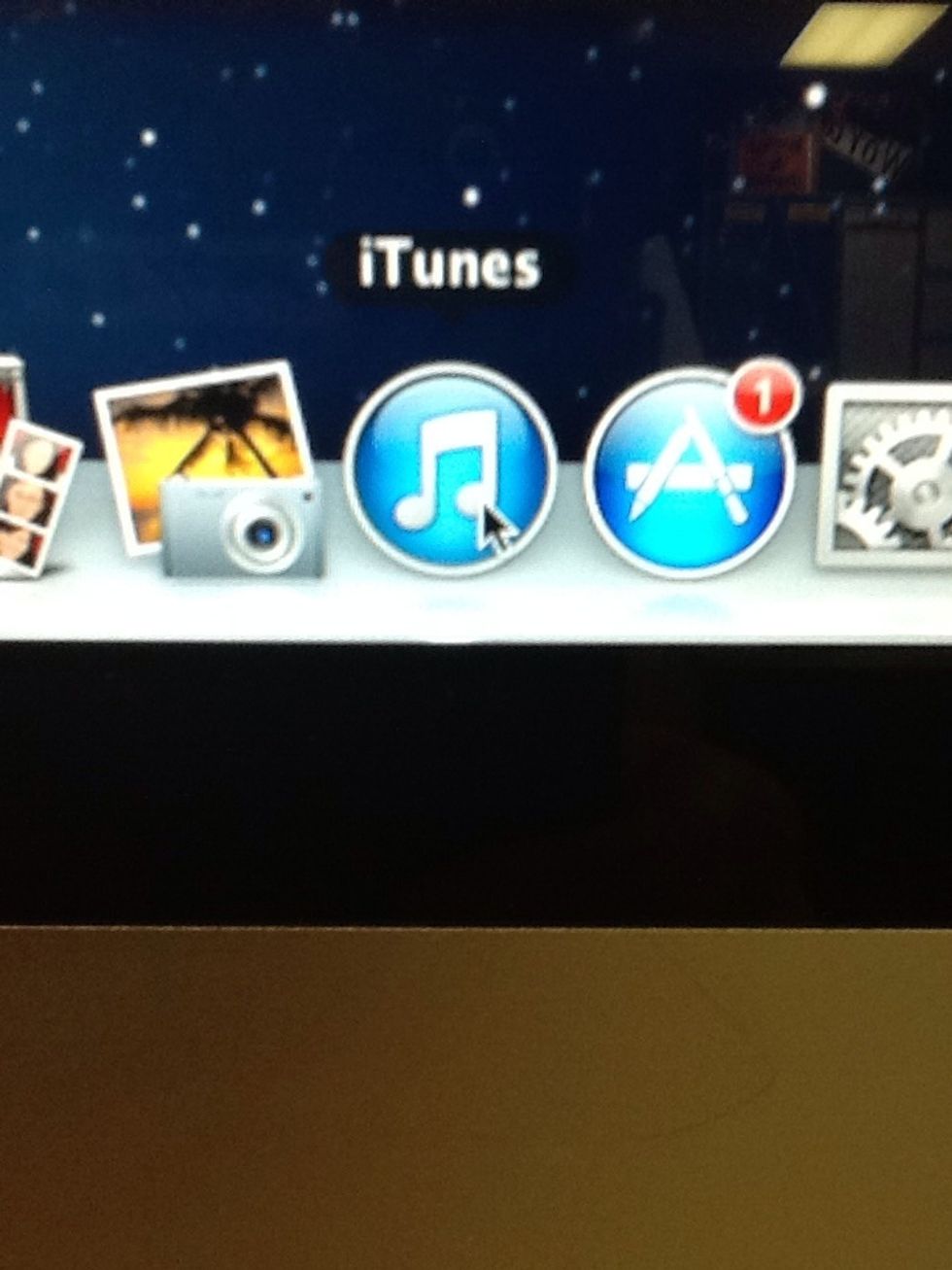
Go to iTunes to see your music file.
Go to iTunes to see your music file.

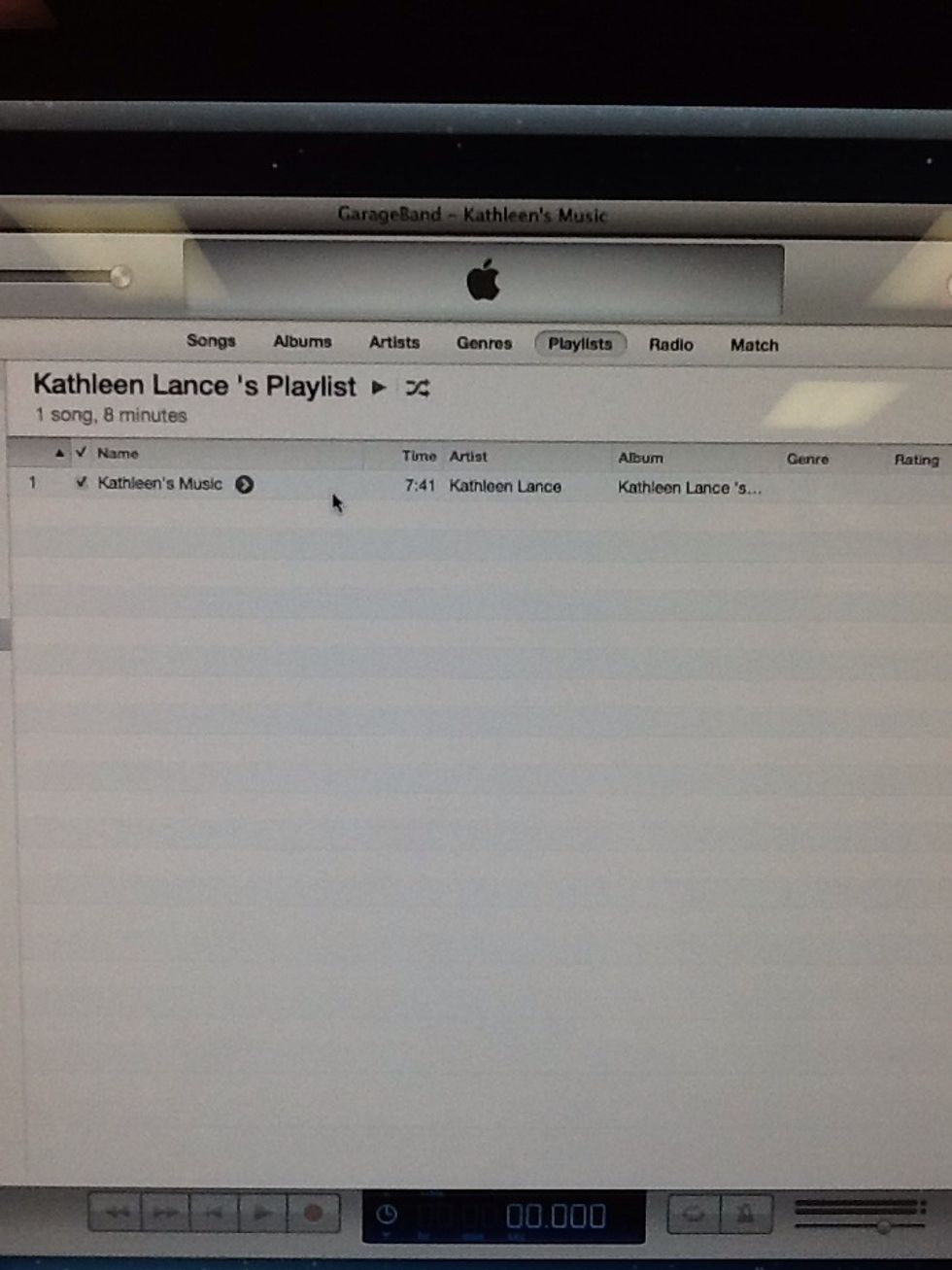
Finally, check to make sure your music is in iTunes and you'll be done!!

Finally, check to make sure your music is in iTunes and you'll be done!!

  • Patch Cord
  • Either phone or iPod to get music