
The Conversation (0)
Sign Up
Download iBooks if you haven't got it already.
Tap Settings.

Tap General.
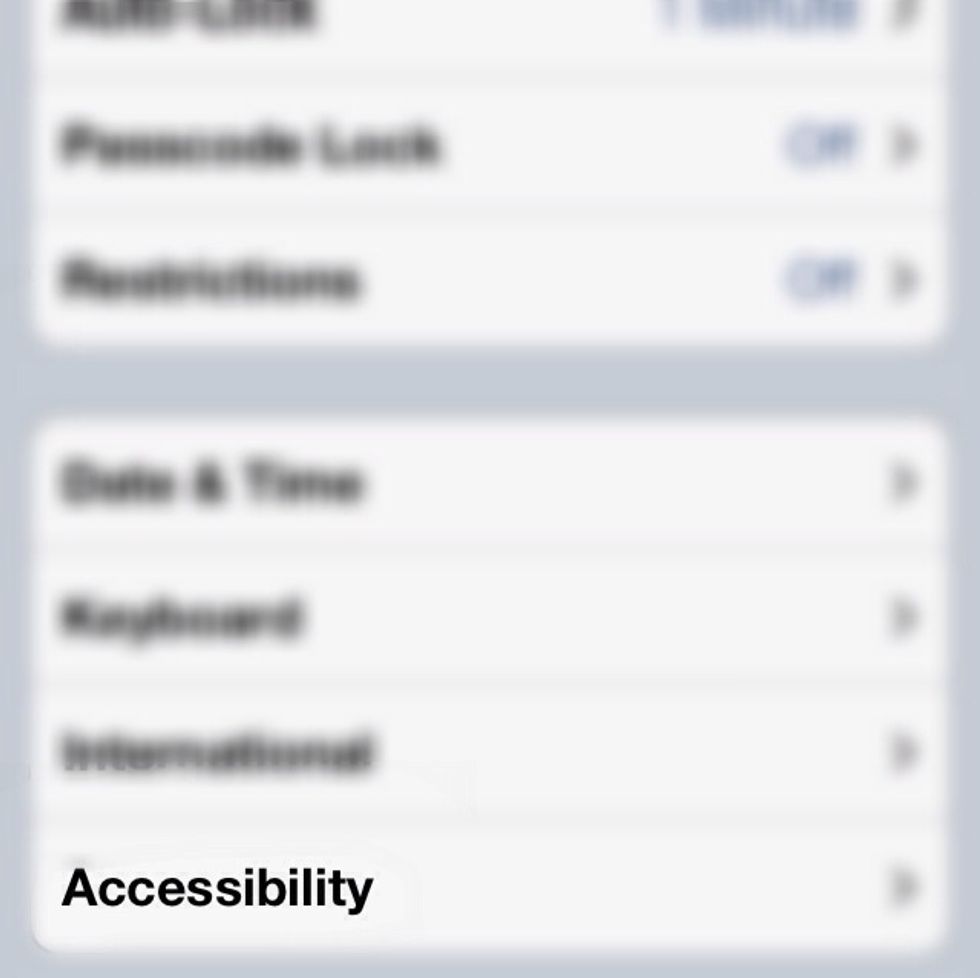
Tap Accessibillity.
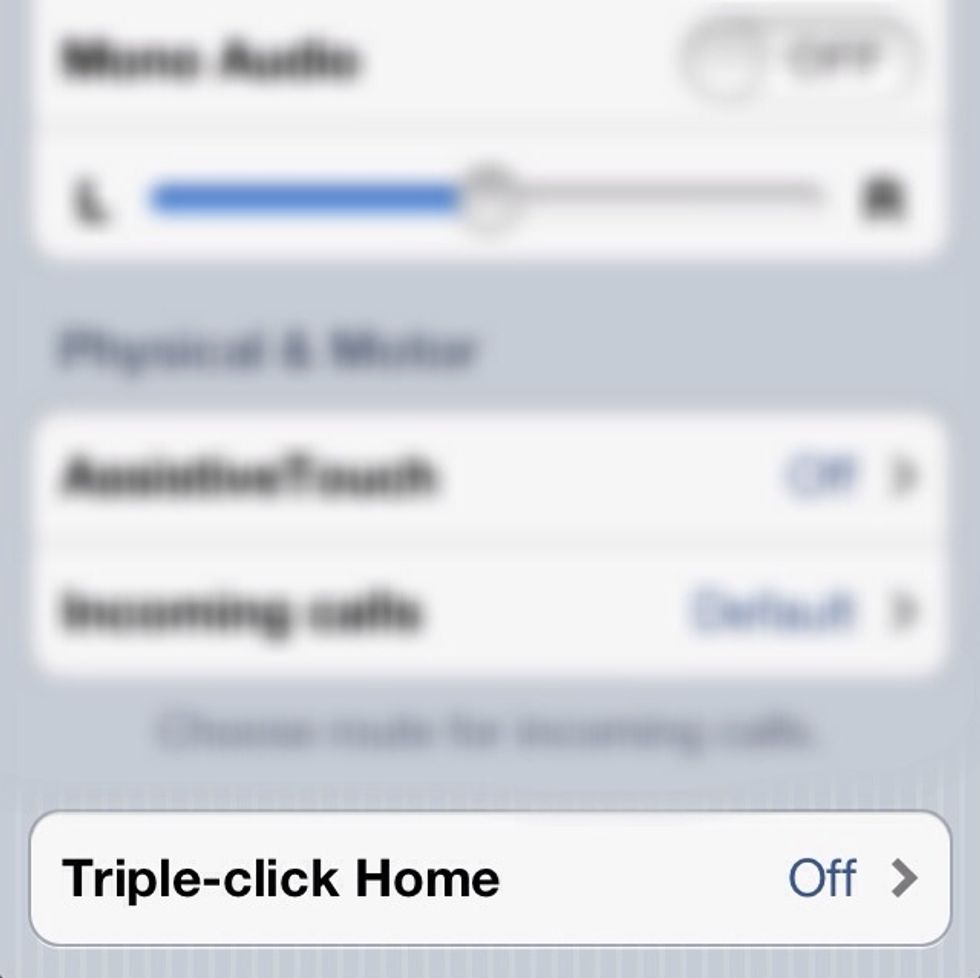
Tap Triple-click Home.
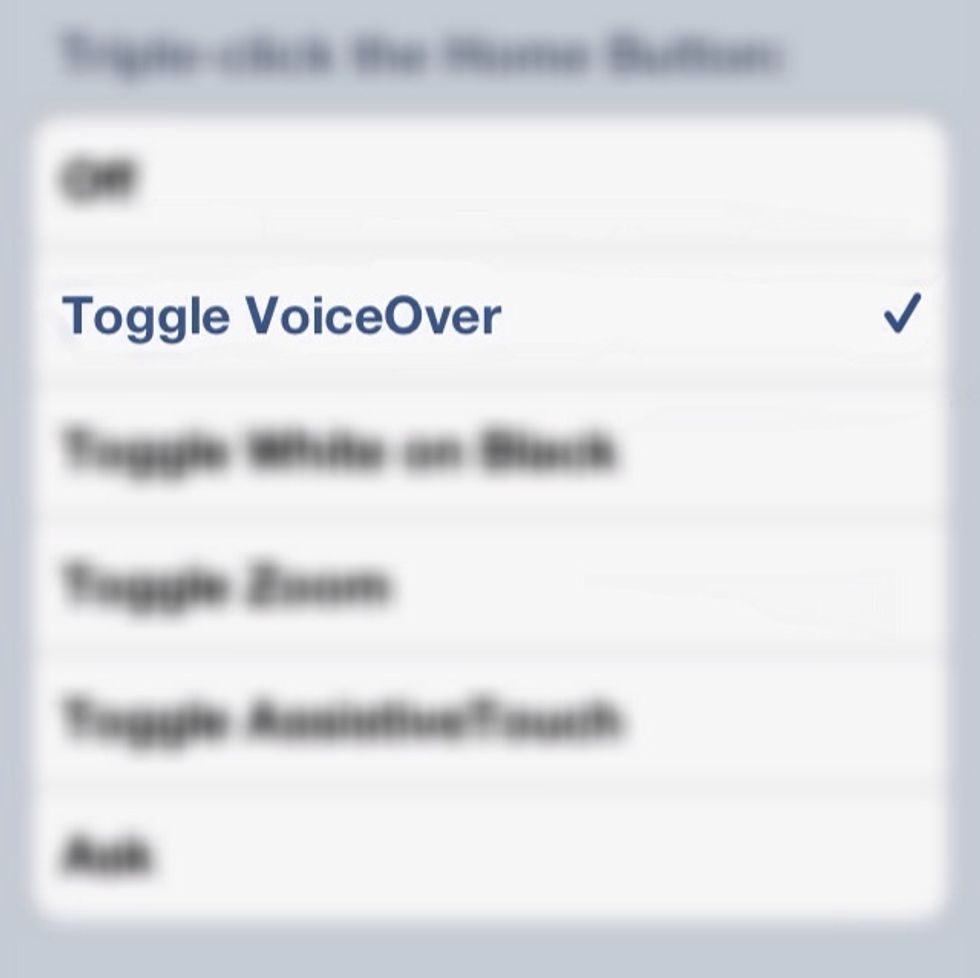
Tap Toggle VoiceOver.

Open iBooks.

Open your book or PDF.
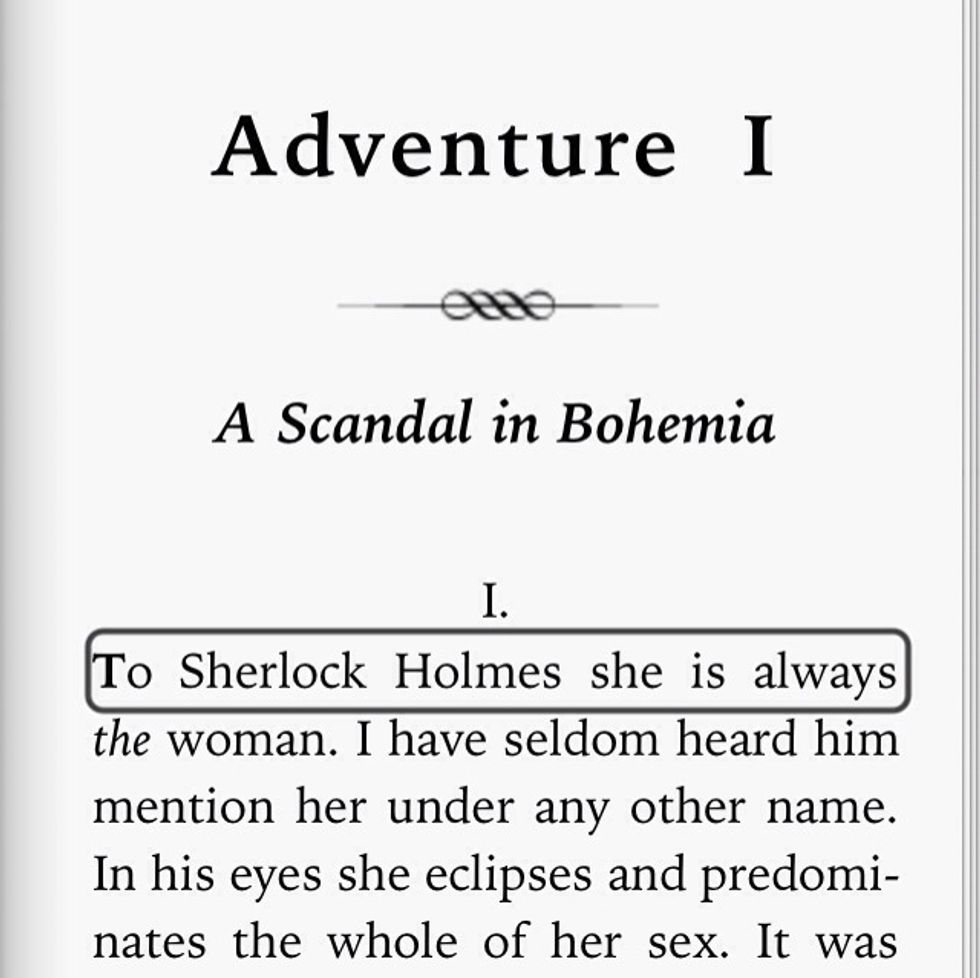
Press your home button 3 times rapidly, you should hear Siri say "Voice Over On". Tap the first line you wish to be read, then hold two fingers down in the highlighted box then swipe downwards.
Congratulations! You now have an audiobook instantly available. View next page for tips.
• Turn on orientation lock to avoid audio stopping. • Audio will stop if screen locks. More on next page.
• Make the text smaller for a better experience • To fast? Adjust the speed by going to Settings-Accesibility-VoiceOver-Speaking Rate (Thanks Alicia Lopez)