How to take a screen grab and send it to dropbox

Covers via screenshots the steps to take for uploading your screenshot to your dropbox folder of choice

30
STEPS
TOOLS

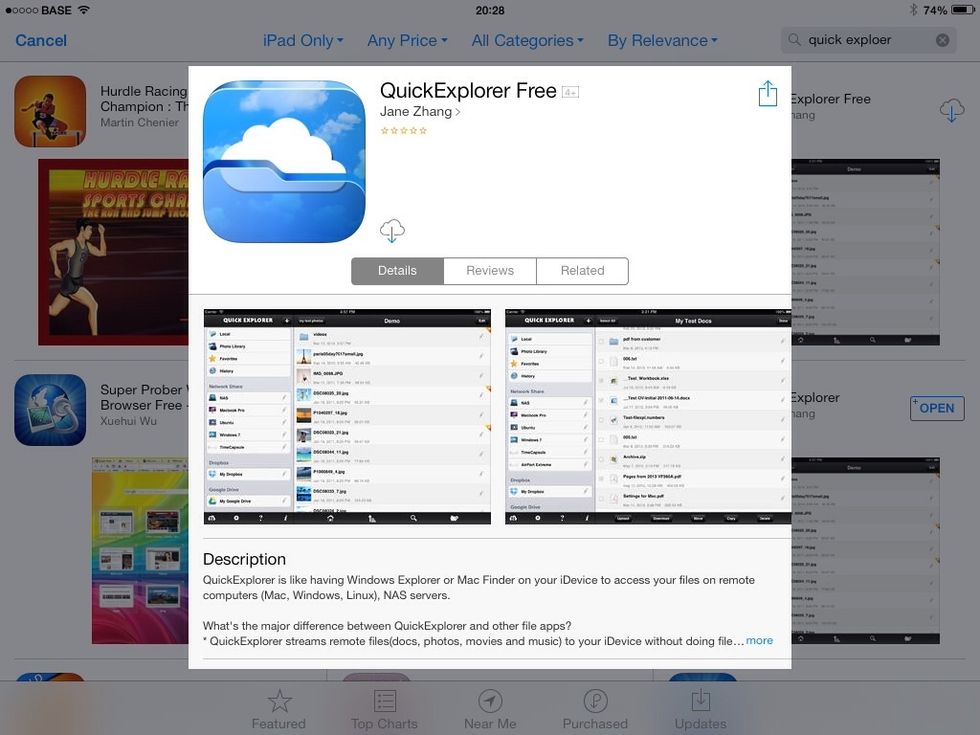
Download quick explorer (free) https://itunes.apple.com/be/app/quickexplorer-free/id626591824?mt=8 Add your dropbox folder as a first step:
Download quick explorer (free) https://itunes.apple.com/be/app/quickexplorer-free/id626591824?mt=8 Add your dropbox folder as a first step:

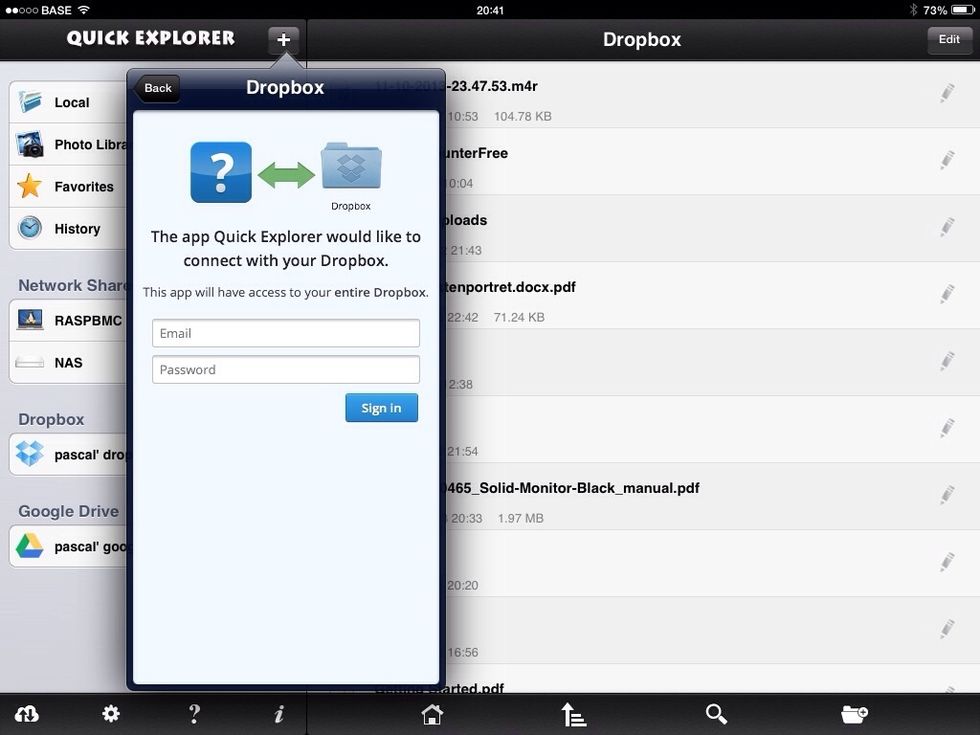
Click on the + sign to add a cloud storage, select dropbox and insert your account info. The free version allows 1 cloud storage location.
Click on the + sign to add a cloud storage, select dropbox and insert your account info. The free version allows 1 cloud storage location.

I will take this screenshot as an example (fyi: to take a screenshot, press home + power button on your ios device)
I will take this screenshot as an example (fyi: to take a screenshot, press home + power button on your ios device)

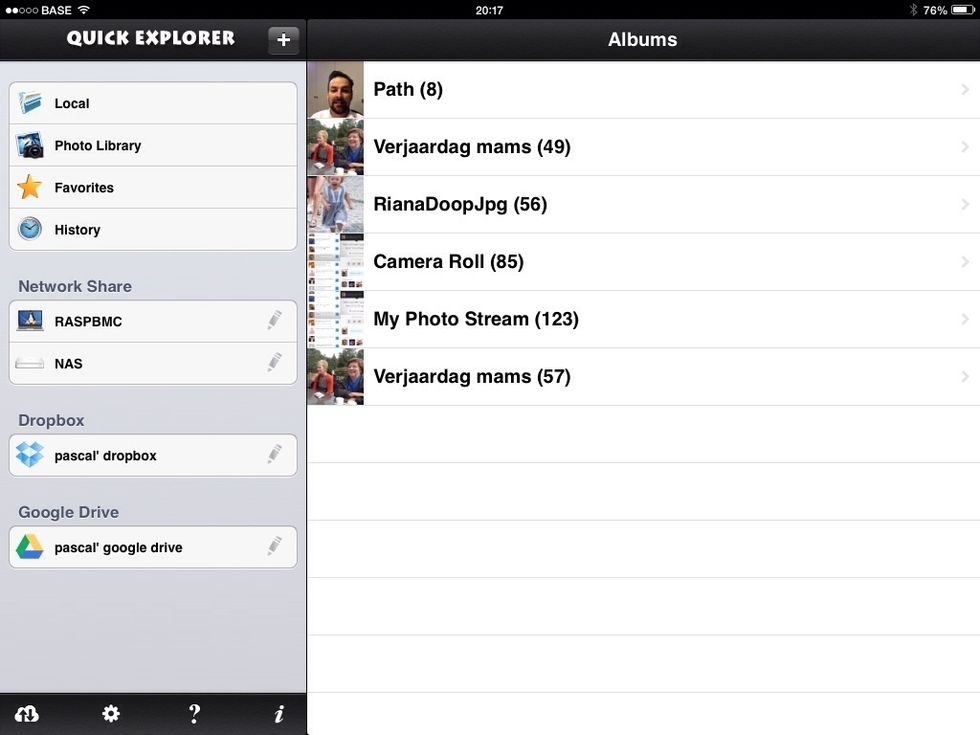
In the quick explorer app, select the photo library just under "local" on the top left side and select on the right side your photo stream folder
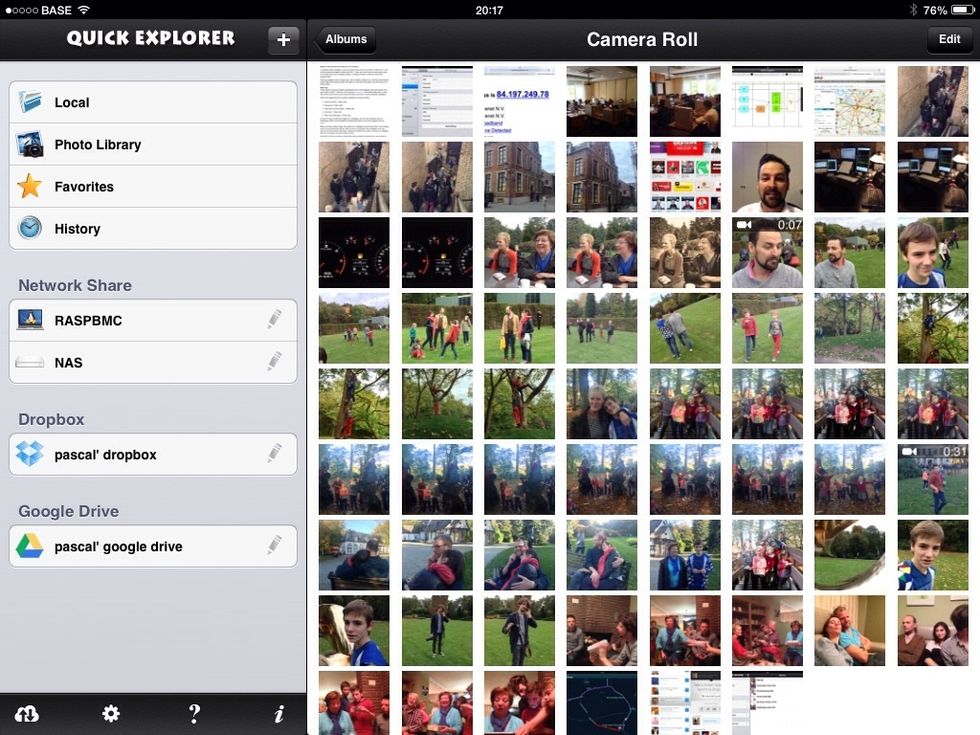
In the quick explorer app, select the photo library just under "local" on the top left side and select on the right side your photo stream folder

Select the "edit" button on the top right and select the screenshot(s) you want to upload, a checkmark will appear.
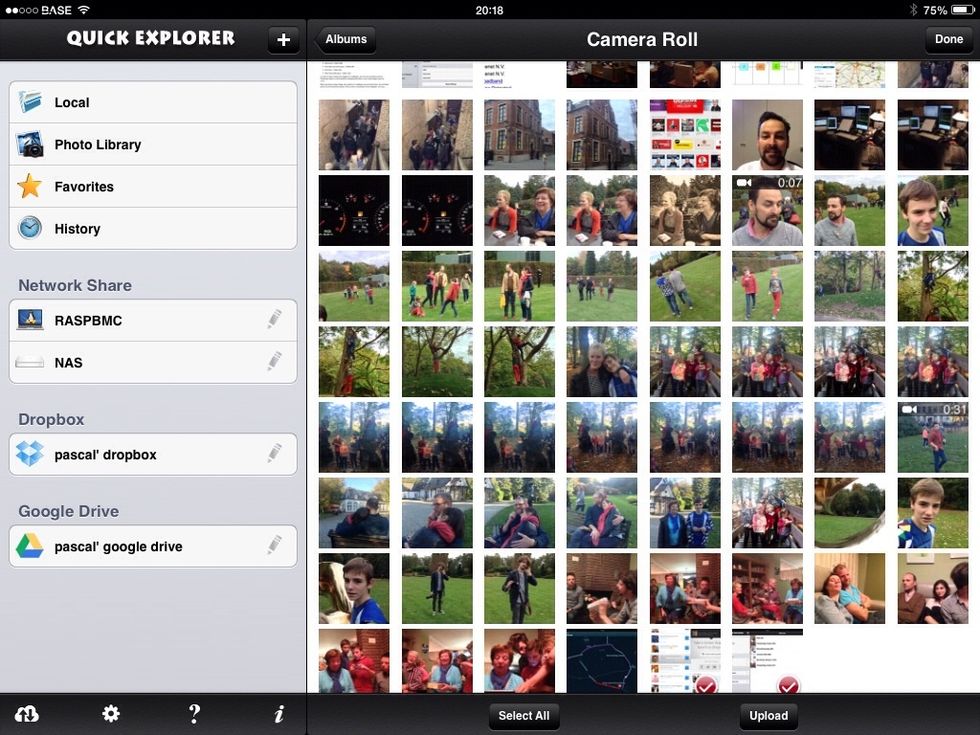
Select the "edit" button on the top right and select the screenshot(s) you want to upload, a checkmark will appear.

Hit the "upload" button on the bottom side
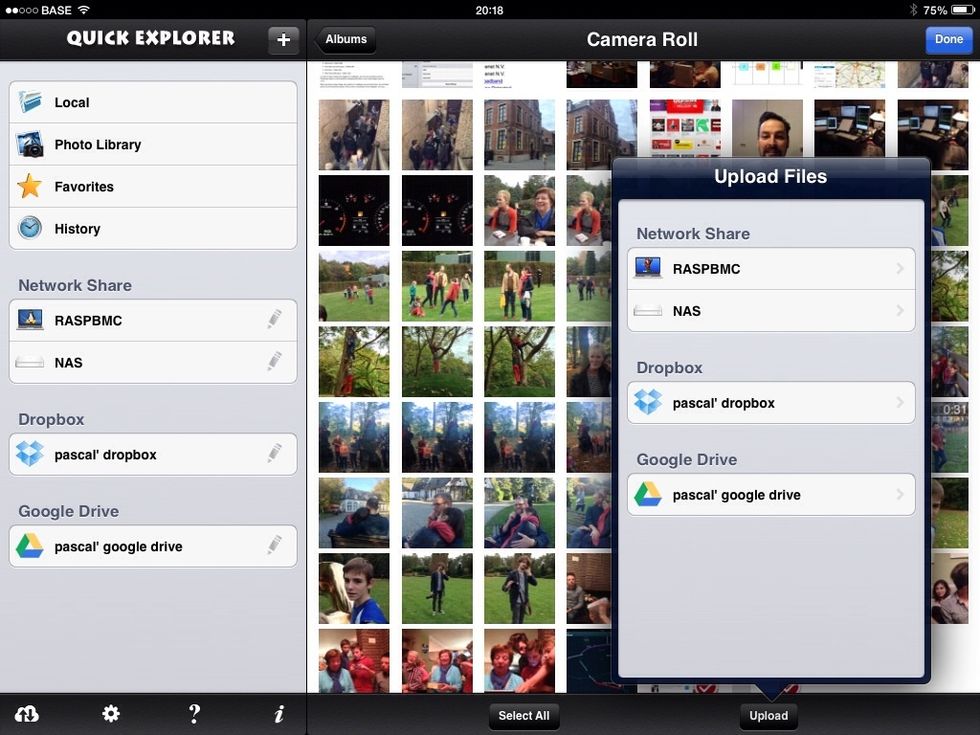
Hit the "upload" button on the bottom side

Select your dropbox location,
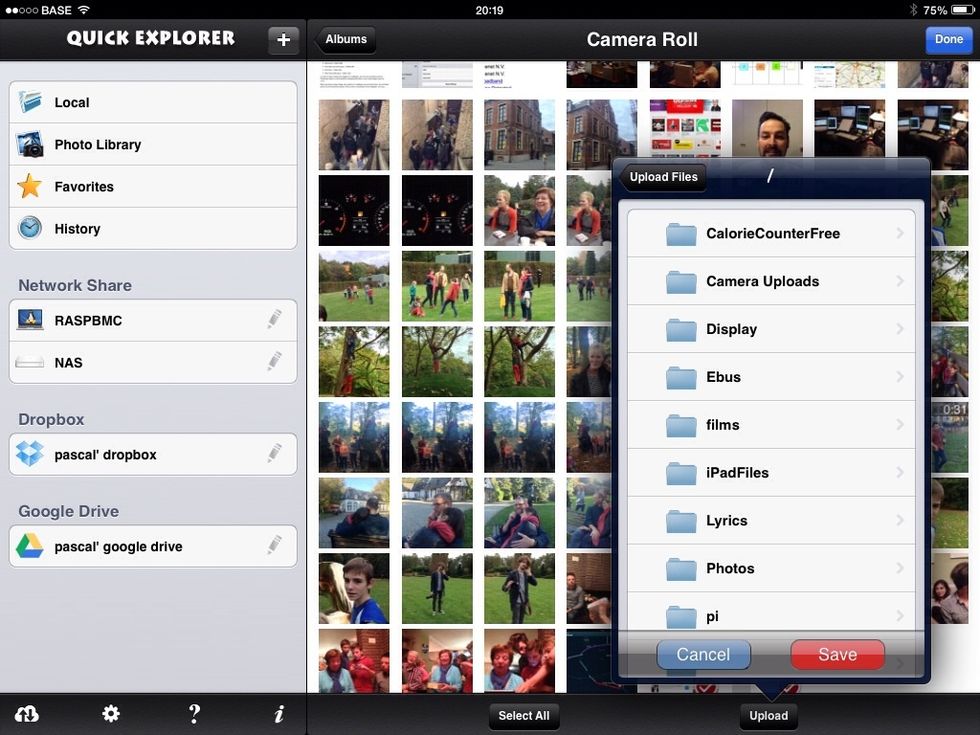
Select your dropbox location,

and navigate to the folder you want to upload it to. Click the red button "save" to start the upload.
and navigate to the folder you want to upload it to. Click the red button "save" to start the upload.

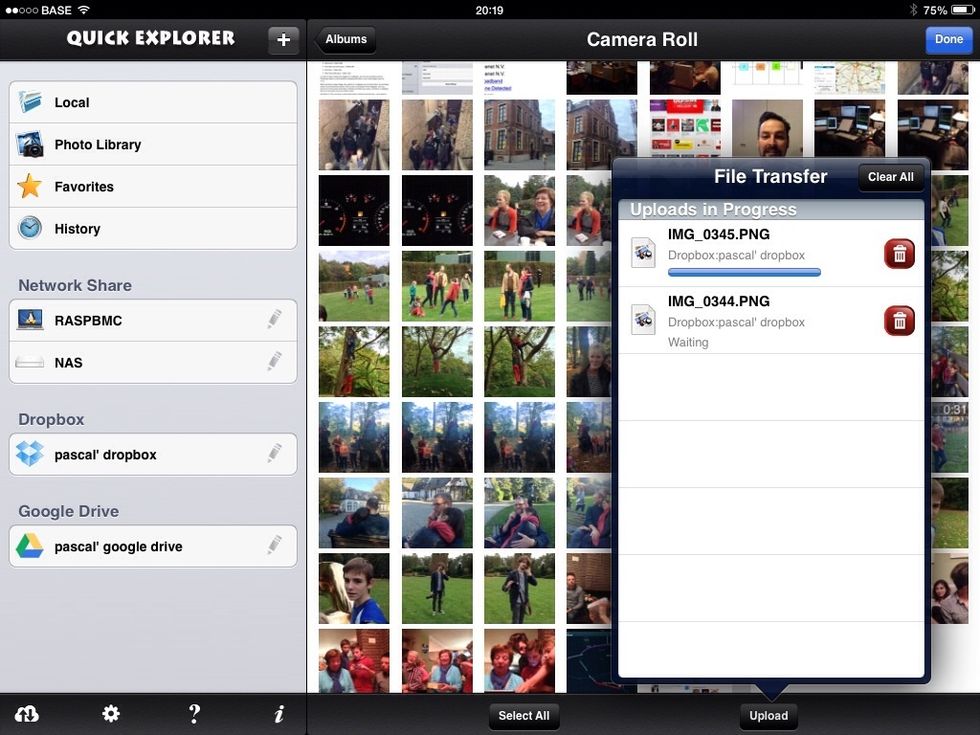
You should see a progress bar of the file transfer
You should see a progress bar of the file transfer

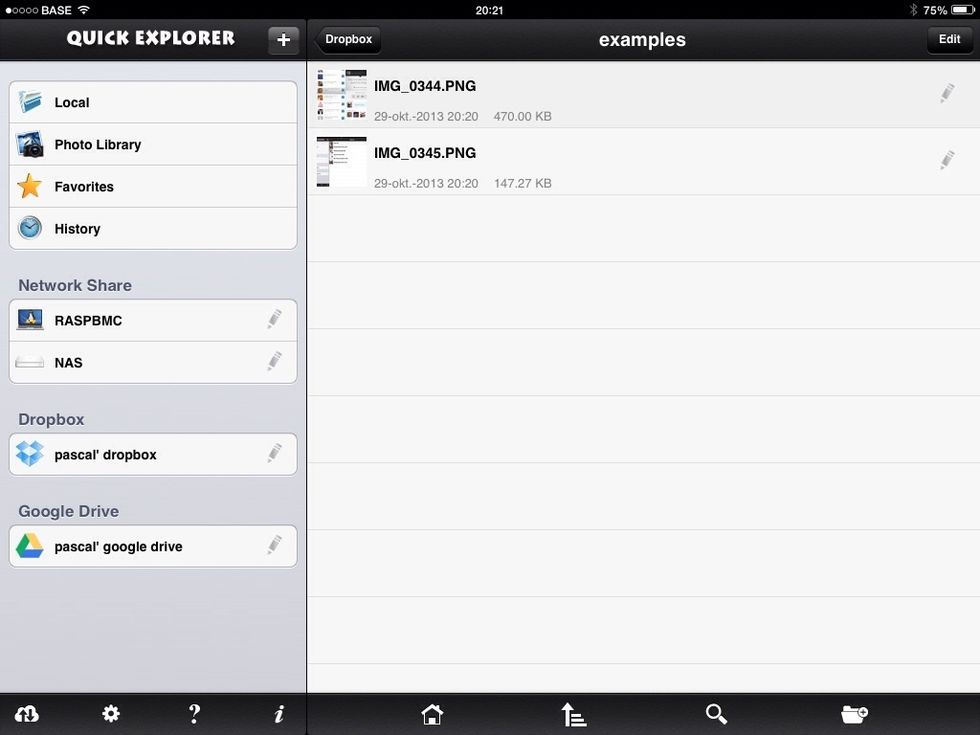
If you navigate to the folder from any device, you should see the saved screenshots. Done!

If you navigate to the folder from any device, you should see the saved screenshots. Done!

The creator of this guide has not included tools