How to share from pages to documents pro on ipads

Share From Pages to Documents Pro on iPads

27
STEPS
TOOLS

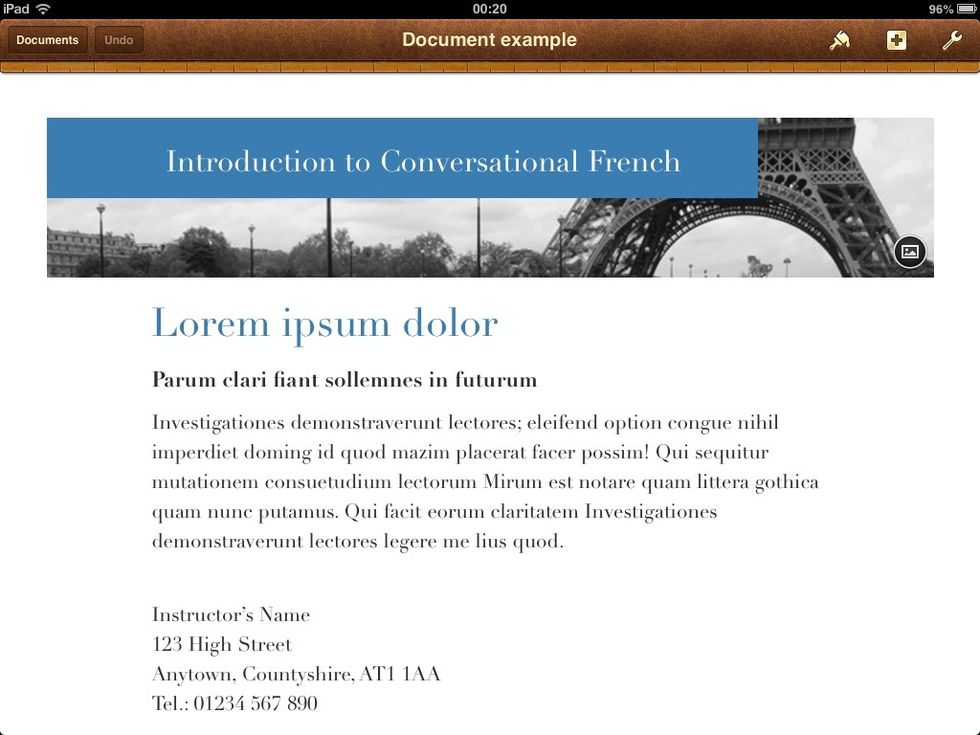
Once students have created their document in Pages on their iPads you'll want them to be able to hand in their work. This can be done, straight to your iPad - NB you need to be on the same network.

Once students have created their document in Pages on their iPads you'll want them to be able to hand in their work. This can be done, straight to your iPad - NB you need to be on the same network.

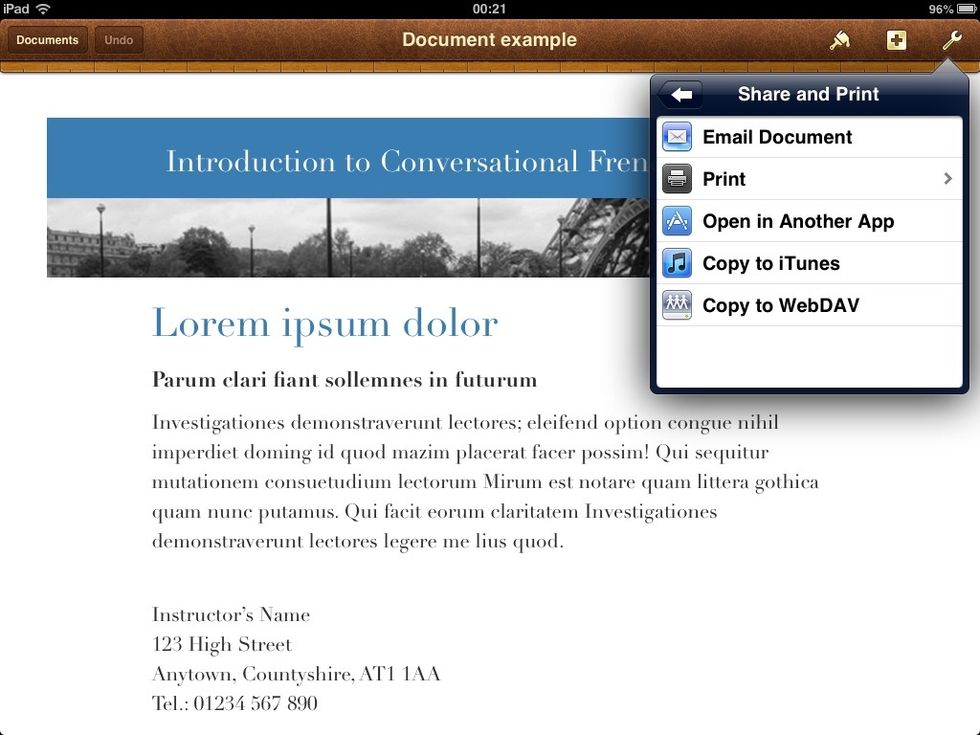
Students tap the tool icon at the top right of the Pages screen and select the Share and Print option.
Students tap the tool icon at the top right of the Pages screen and select the Share and Print option.

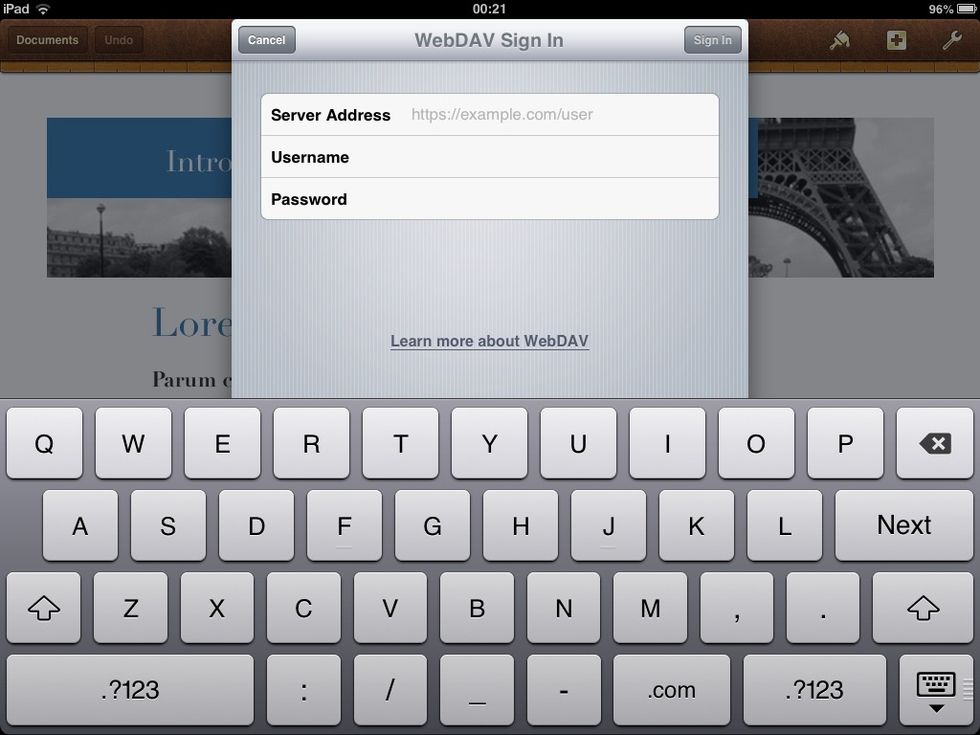
Select the last menu option - Copy to WebDAV.
Select the last menu option - Copy to WebDAV.

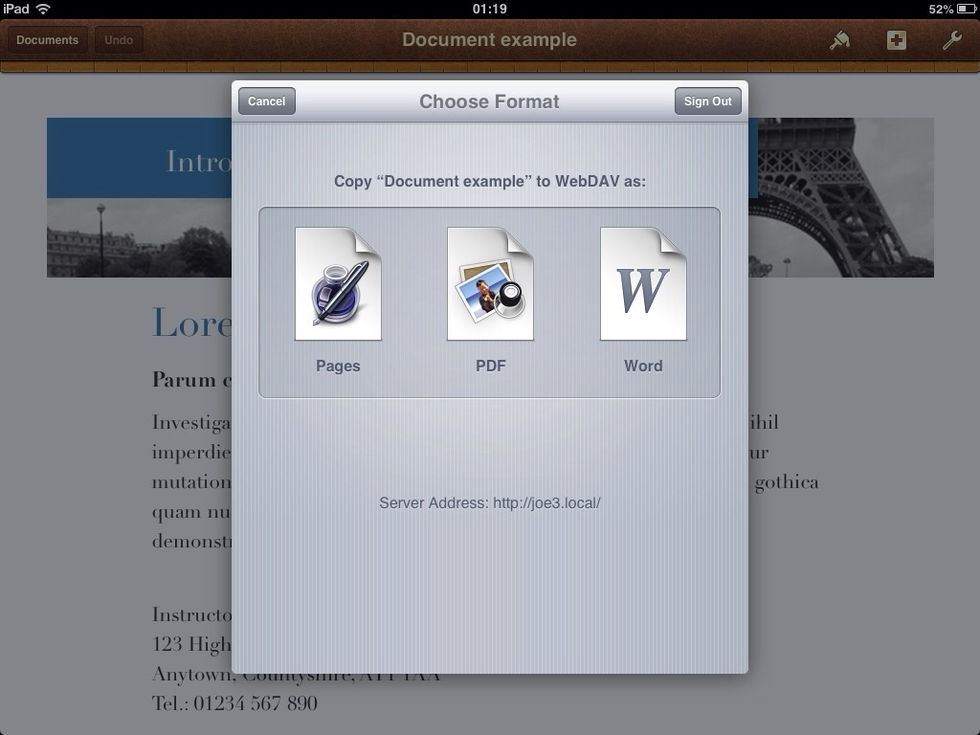
The server address (in the top window shown above) is simply the name of teacher's iPad followed by .local. For this to work the teacher needs to have Documents Pro open on their iPad .
The server address (in the top window shown above) is simply the name of teacher's iPad followed by .local. For this to work the teacher needs to have Documents Pro open on their iPad .

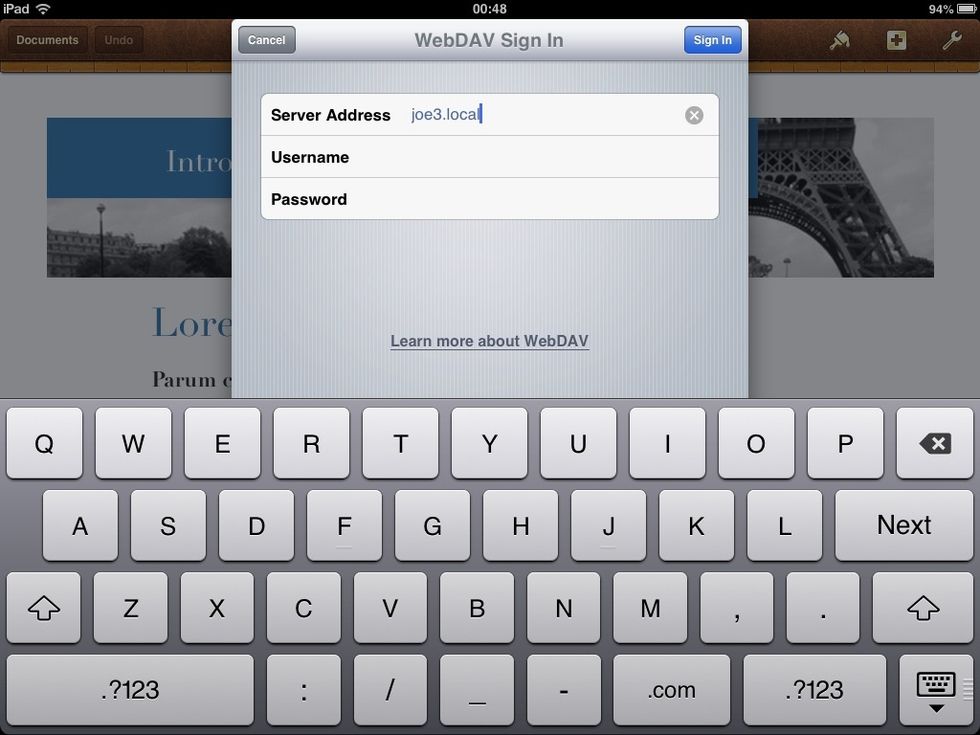
Having entered the server address (in this example the teacher's iPad name is joe3) students tap Sign In to connect to the teacher's iPad . (An iPads name is found in Settings > General > About).
Having entered the server address (in this example the teacher's iPad name is joe3) students tap Sign In to connect to the teacher's iPad . (An iPads name is found in Settings > General > About).

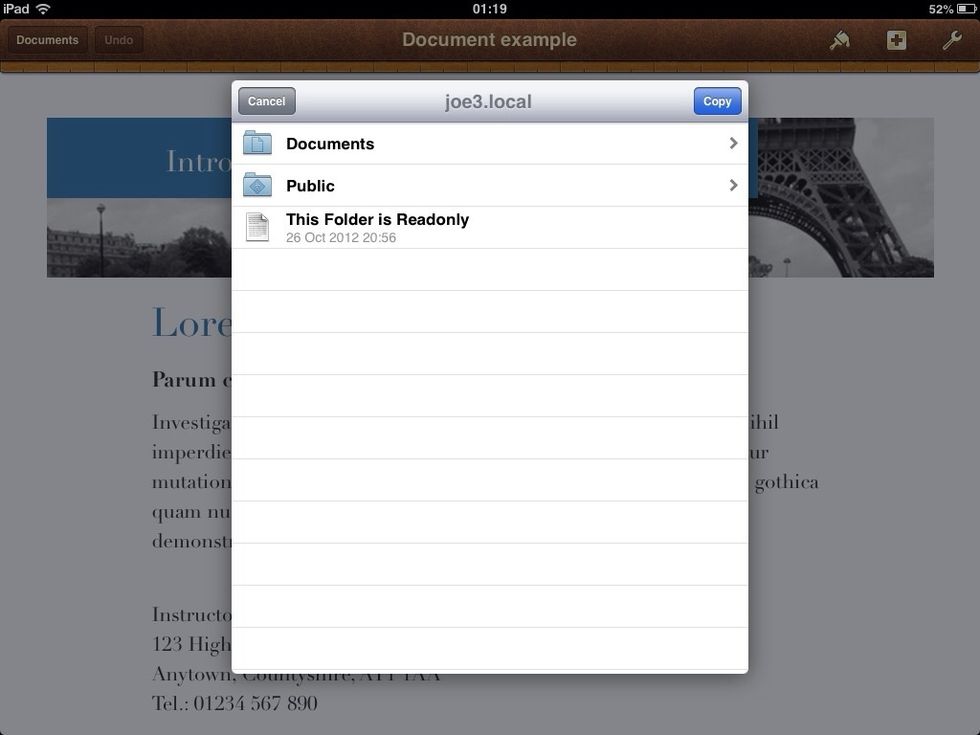
Once the student's iPad has connected to the teacher's iPad , they will be given the choice of which file type they send to Documents Pro on the teacher's iPad .
Once the student's iPad has connected to the teacher's iPad , they will be given the choice of which file type they send to Documents Pro on the teacher's iPad .

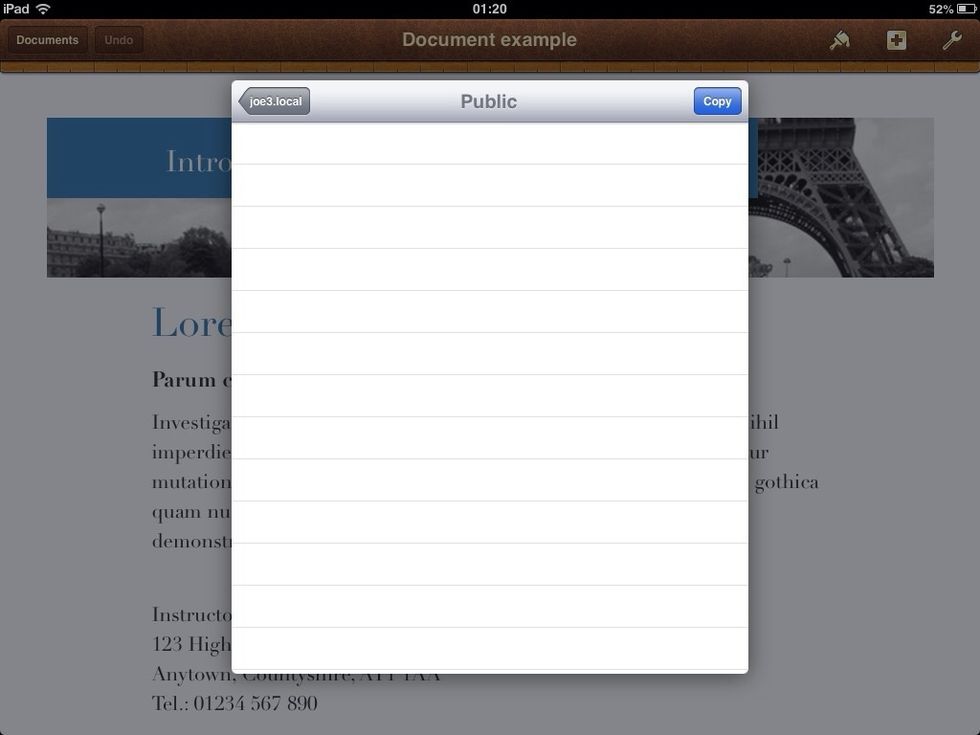
The directory of folders in Documents Pro on the teachers iPad is shown to the student, and they should select Public as the destination.
The directory of folders in Documents Pro on the teachers iPad is shown to the student, and they should select Public as the destination.

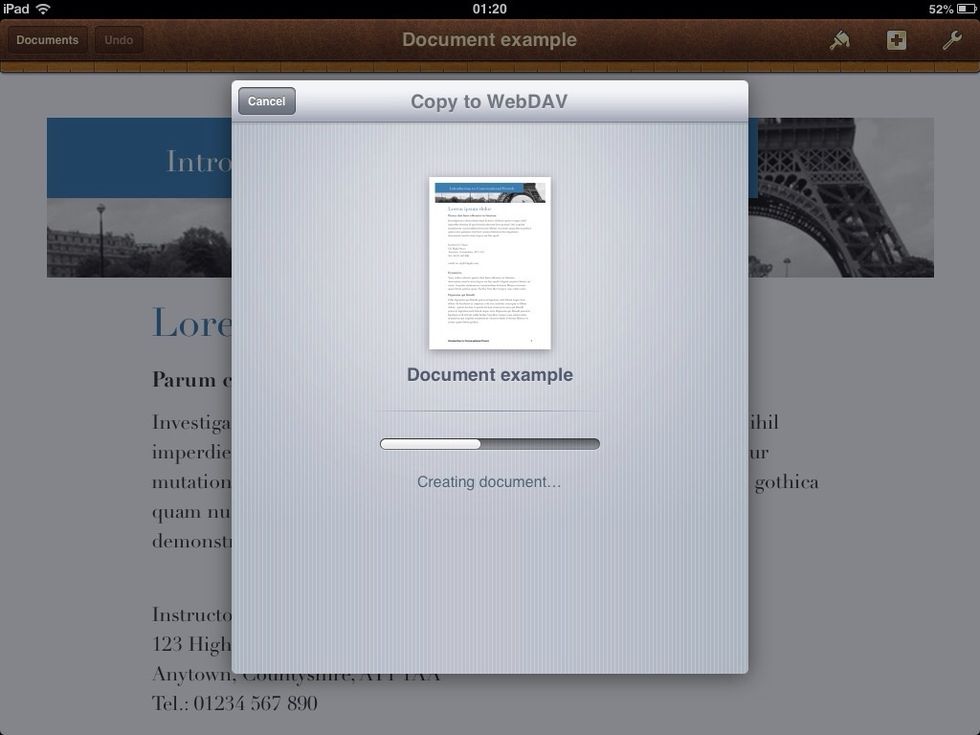
If the teacher had created sub folders within Public they would be shown here. Once within the desired designated folder students tap Copy to send a copy of their file to this destination.
If the teacher had created sub folders within Public they would be shown here. Once within the desired designated folder students tap Copy to send a copy of their file to this destination.

The file is created and copied to the destination folder from Pages on the student iPad to Documents Pro on the teacher's iPad .
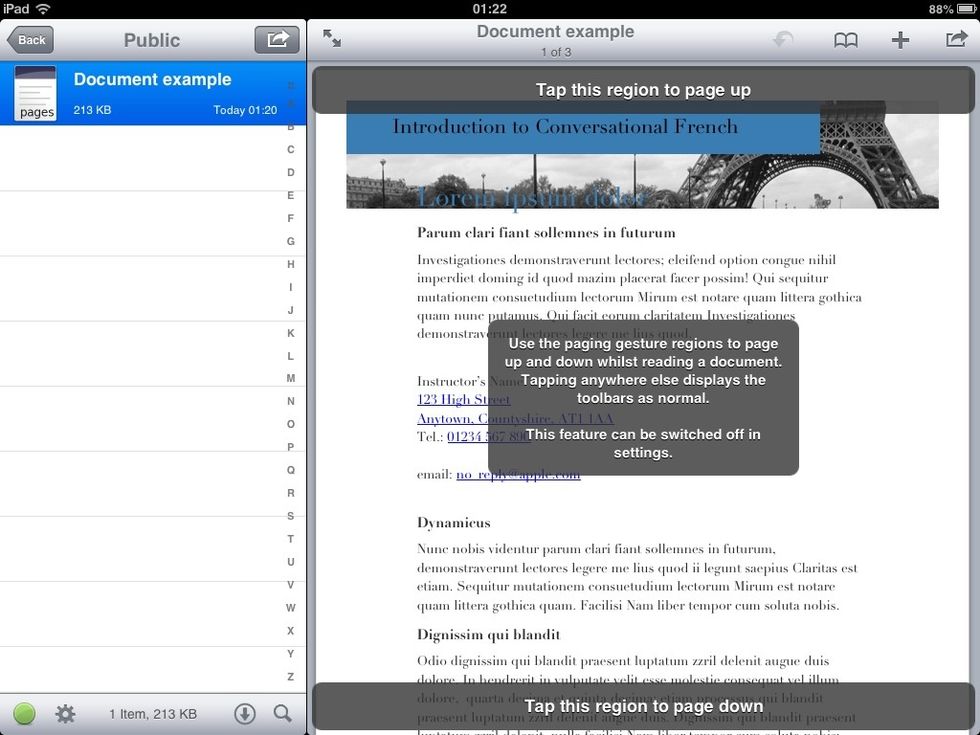
The file is created and copied to the destination folder from Pages on the student iPad to Documents Pro on the teacher's iPad .

The teacher can select and preview the student's file in Documents Pro whether Pages, Word document or PDF file types.
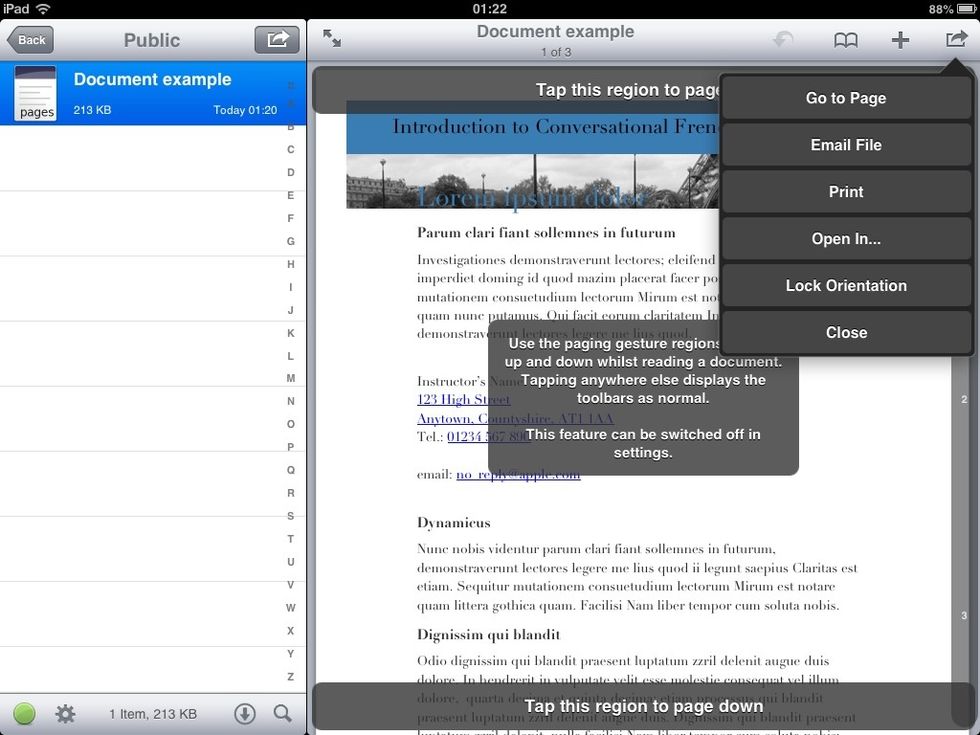
The teacher can select and preview the student's file in Documents Pro whether Pages, Word document or PDF file types.

The teacher can choose to open the file in a compatible app for that file type.

The teacher can choose to open the file in a compatible app for that file type.

The creator of this guide has not included tools