
The Conversation (0)
Sign Up
Imagine being able to just speak to your phone and navigate between books, magazines, websites and newspapers. Then a voice reads them to you out loud.
Read a newspaper. Then read a magazine. Without ever having to look at your screen. You can also add or remove content from your personal lists.

This app was designed for a blind man named Earl to allow him to control and read newspapers, magazines and books. Everything is controlled by your voice or screen gestures. All read allowed to you.
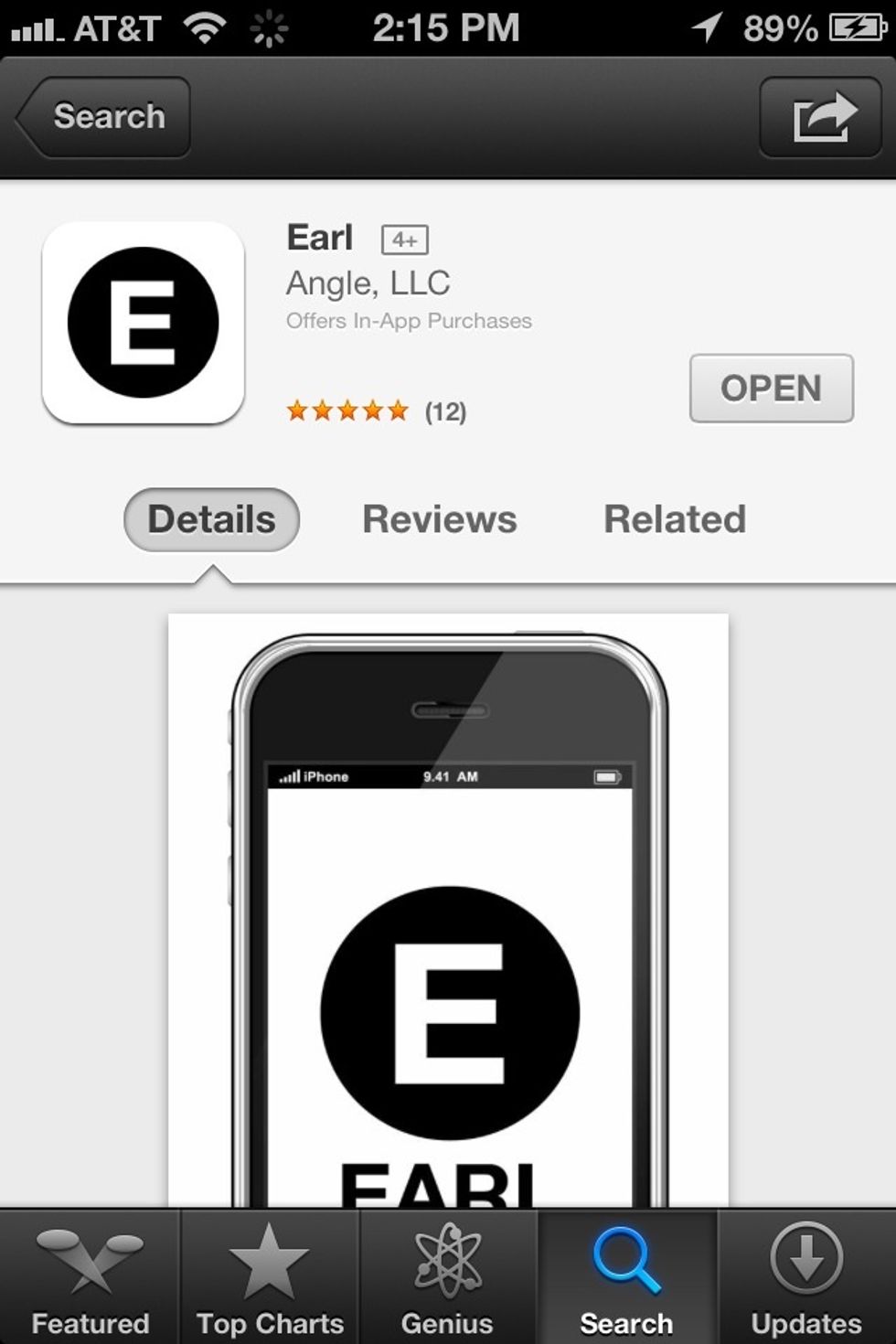
The app is called Earl and its free in the App Store. The app only contains one screen because all controls are done by voice or finger gestures. There are no buttons to tap.
Using the app pretty much walks you through how to use it. The basic control is to simply double tap the screen with one finger then speak what you want to read.
When you first open the app it'll say something like, "1. Magazines. 2. Newspapers, 3. Books". Then you just double tap your screen and speak your selection. For Exp. "1" to listen to magazines.
It'll have a list of default content. For example magazines might list Forbes, Rolling Stones, etc... You can add or remove magazines from your list by saying "add" or "remove".
You can also browse content to see what's available. For example say, "Browse magazines". It'll list all available and you add the ones you want to your personal list.
To find the app settings simply say "Settings". To get help simply say, "Help". In fact I recommend you first go through the help section to learn all its finger gestures and voice commands.
For example a two finger double tap will pause what's being read to you. Repeat the two finger double tap to start it playing again.
Three finger swipe up or down navigates to the next or previous paragraph that's read to you. Three finger swipe left or right navigates pages.
You don't have to memorize the number of the options. For example instead of saying "1" for magazines. You can simply say, "magazines". Or "list magazines".
Don't forget you can also listen to websites out loud. Say, "Browse websites". It'll list categories that are available such as entertainment, technology or business. Then select the ones you like.
Then it'll list all available sites you can have read out loud to you. The same process is done with all content you want to find and add to your lists.
Well I just wanted to pass along this great find. Using it makes me think of Star Trek where they just say, "Computer. read me the news". :)
Because finding what you want is done by simply speaking what you want out loud. Be sure to say "Help" and really learn all about how to use all the functions of this great app.
Now you can find and read what you want eyes free. So keep your eyes on the road.