
The Conversation (0)
Sign Up

Open up iMovie! It's the star with the camera in the middle!
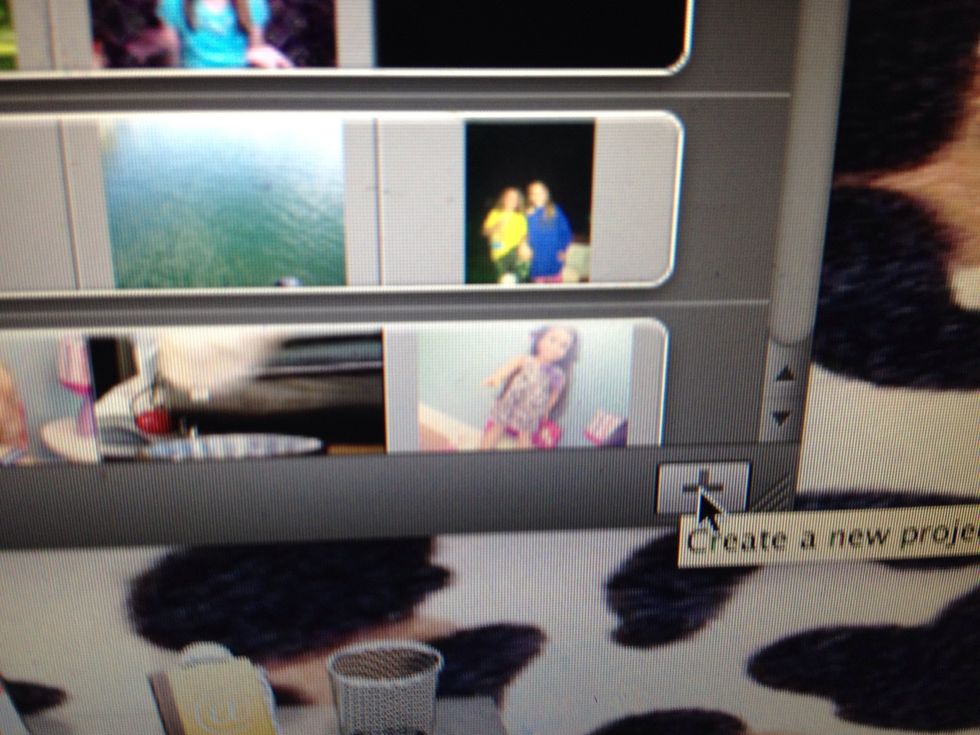
Press the plus sign.
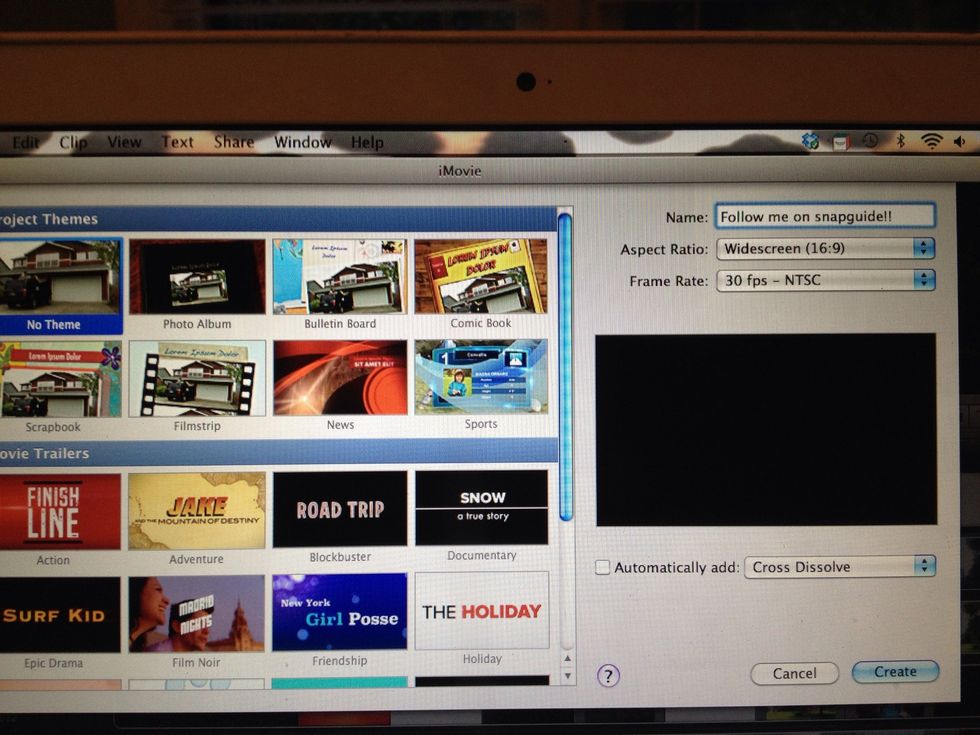
Name your new project!
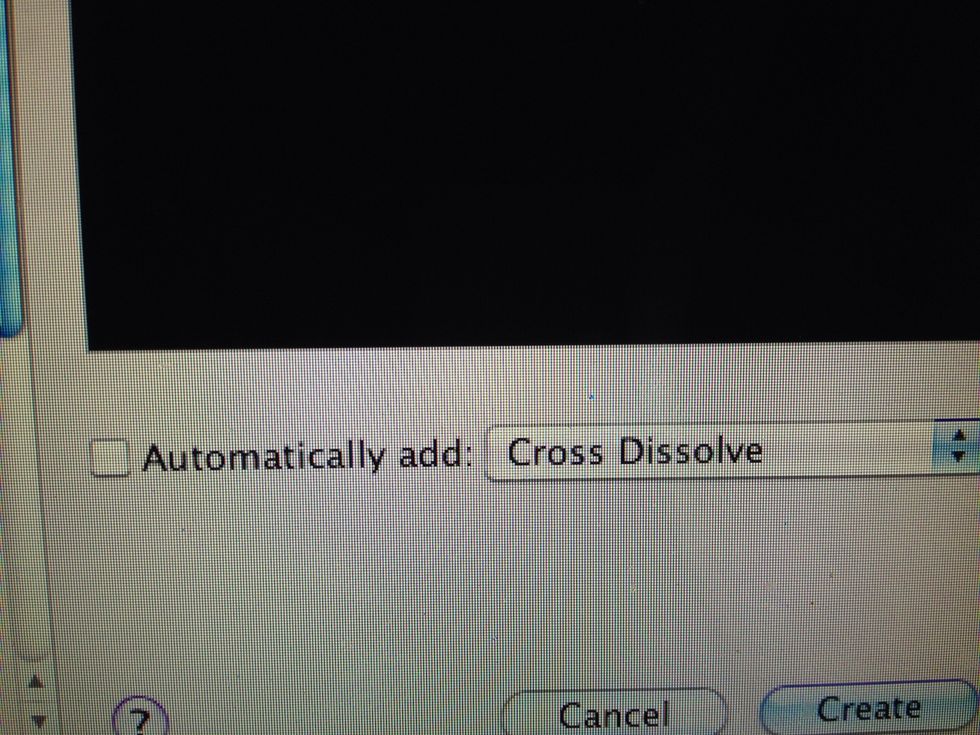
You can also add automatic transitions! Click "create" to create your project!
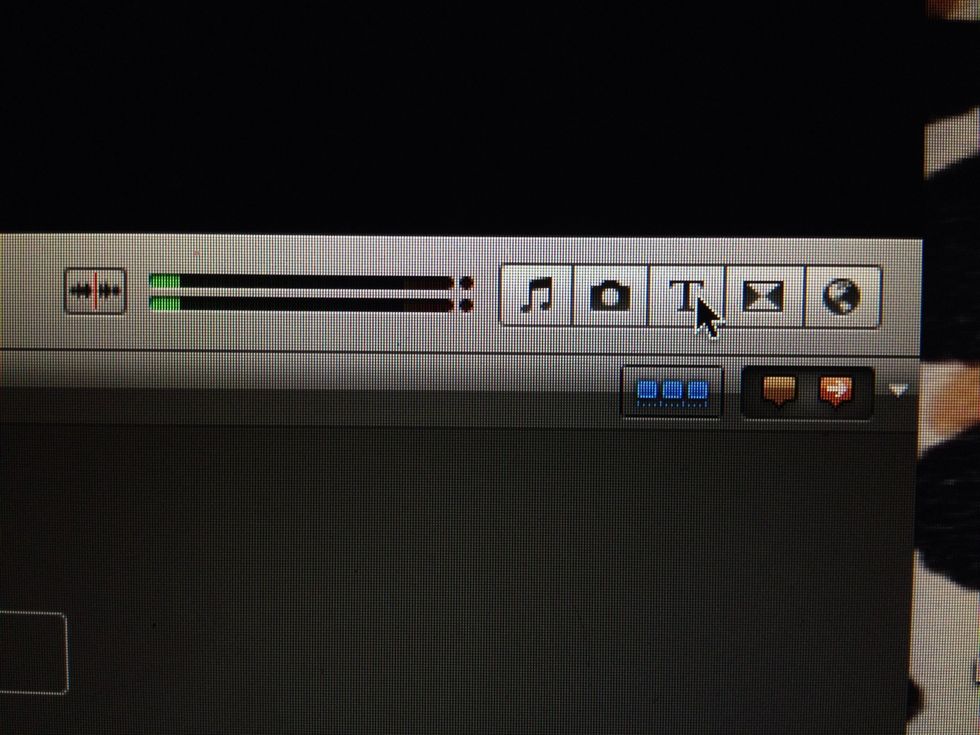
Add a title to your video! Click the T in the corner
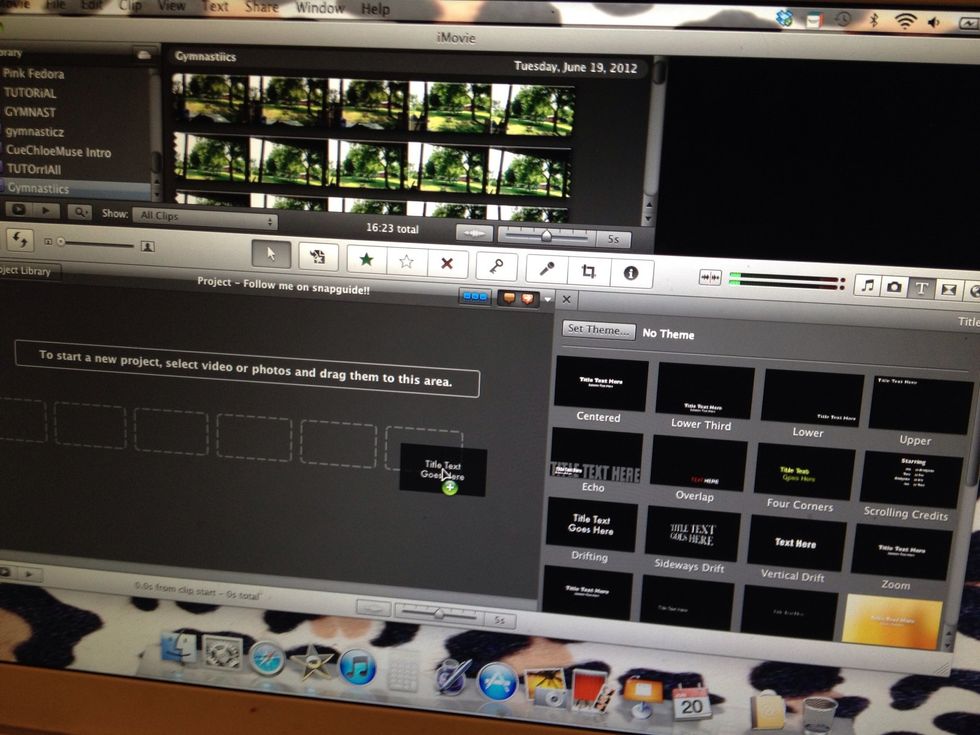
Drag the text of your choice to your project
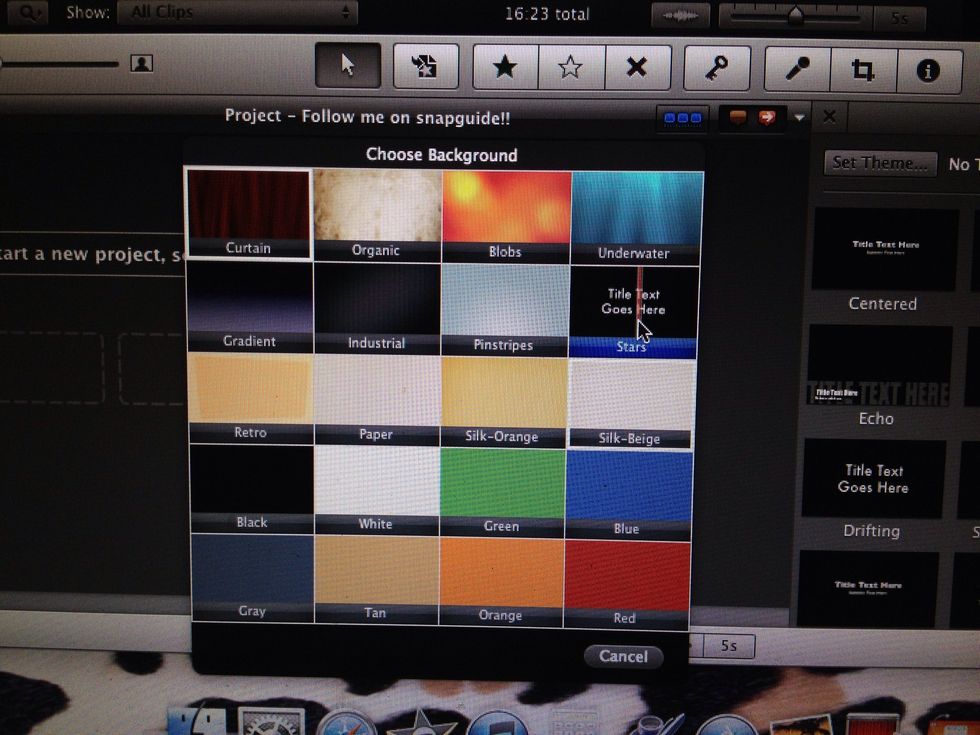
Choose the background
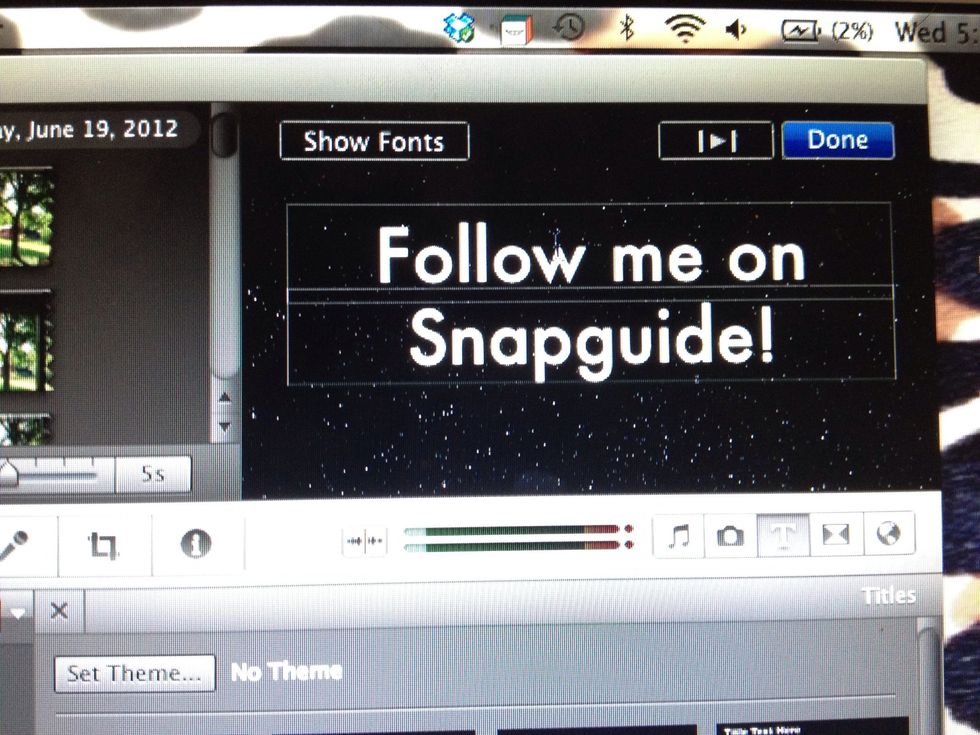
Now type! Click show fonts to change the text!
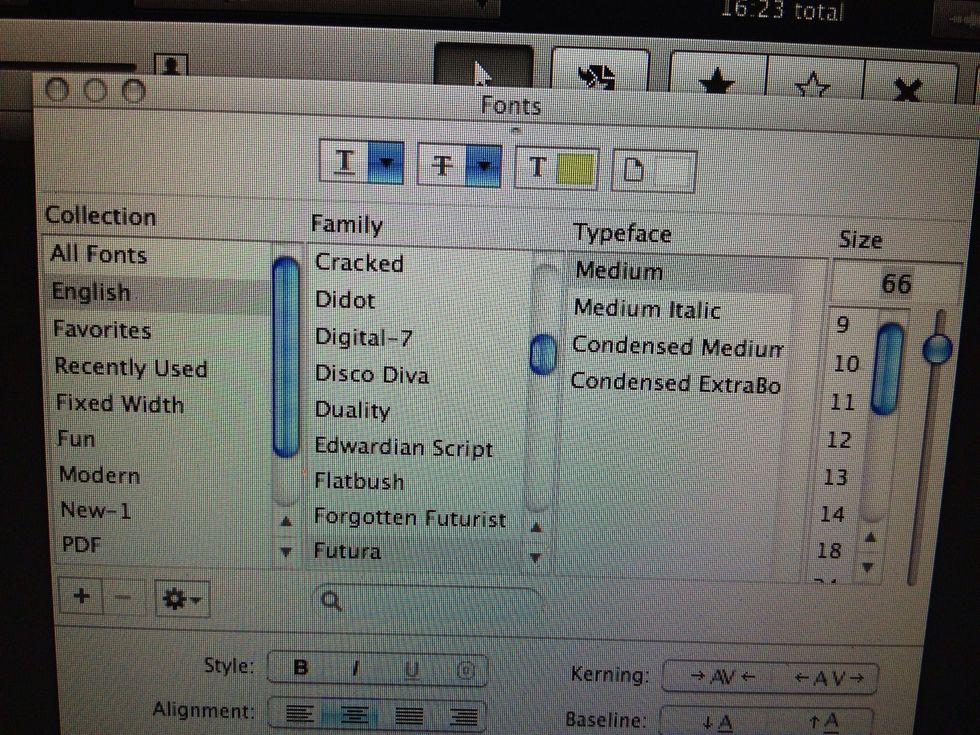
Select the text and select your font!
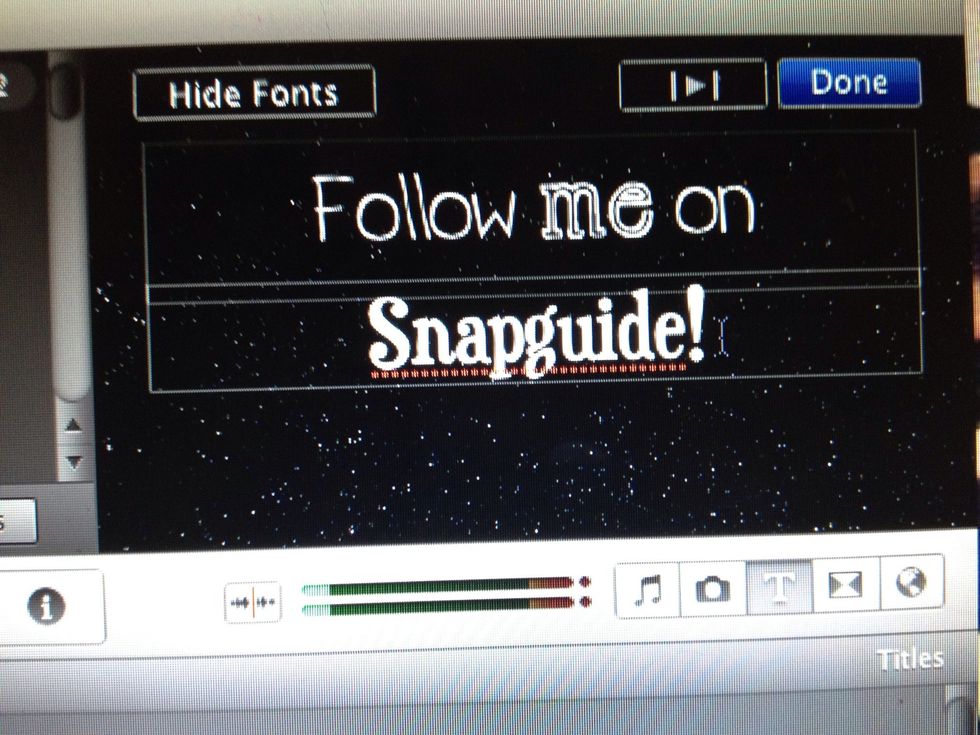
Be creative with your fonts! I love to mix n match!
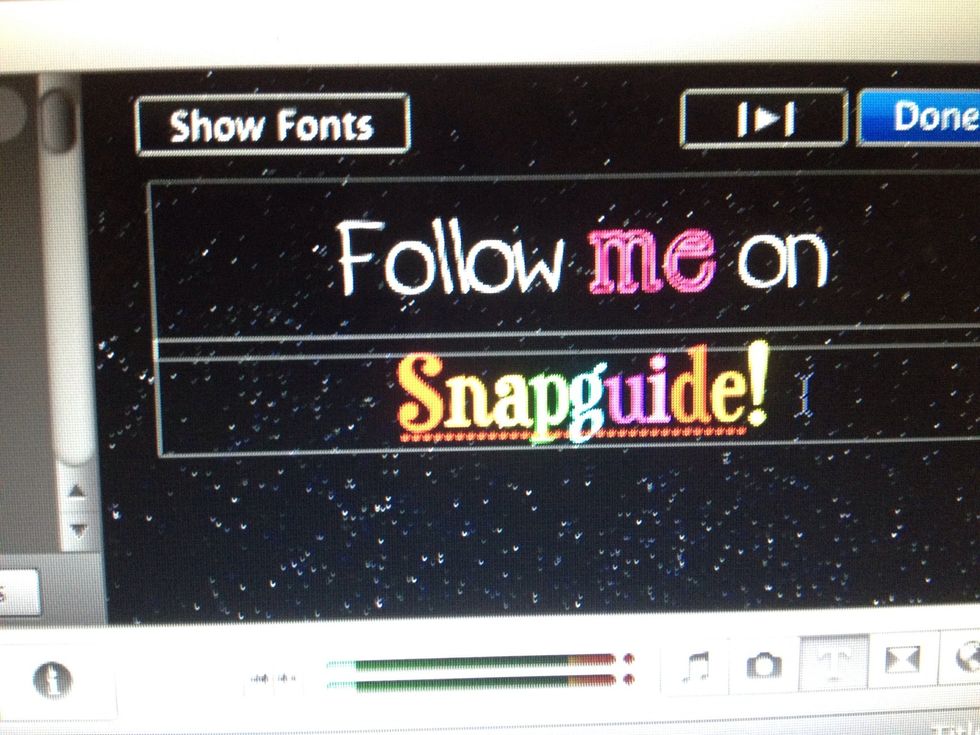
You can change the color too!
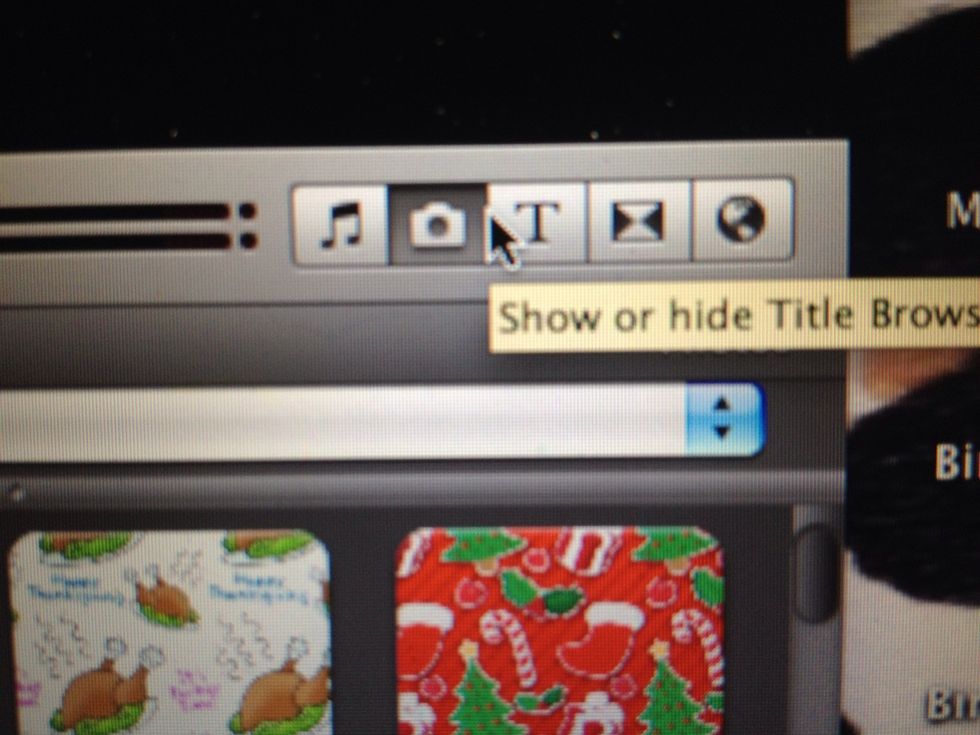
Now click the camera!
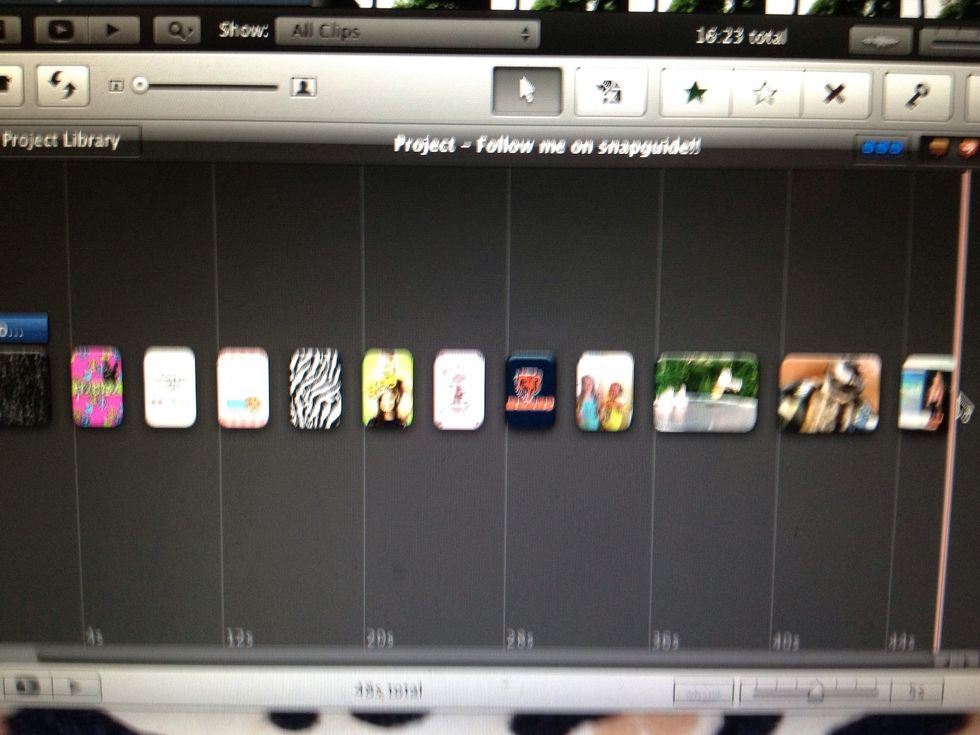
Drag in your photos
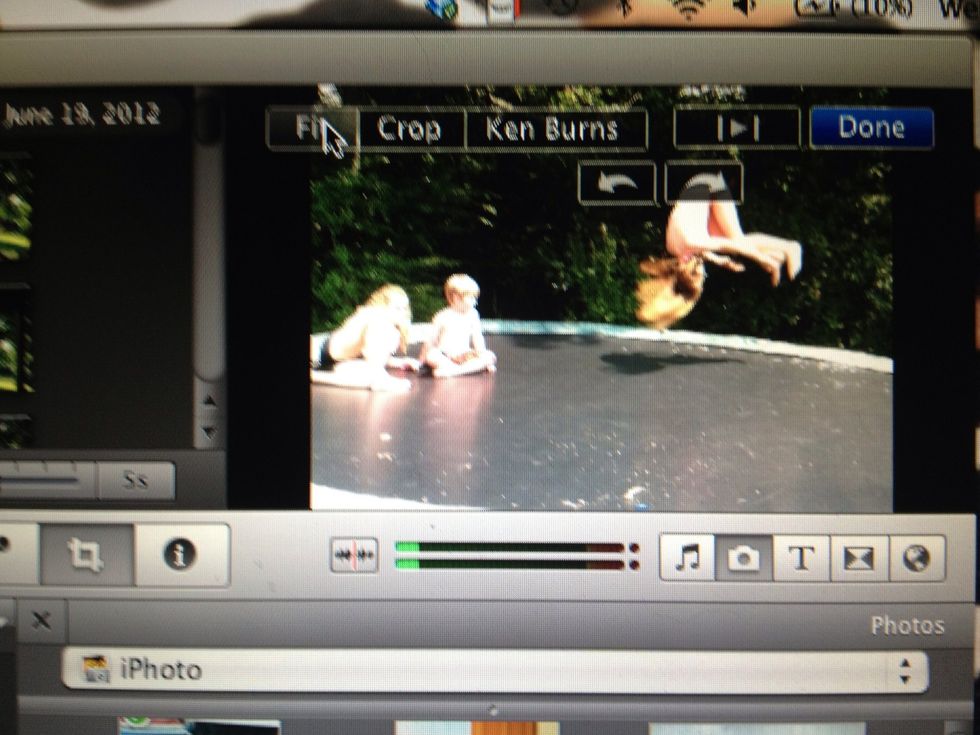
To get rid of the annoying zoom select crop and select "fit"
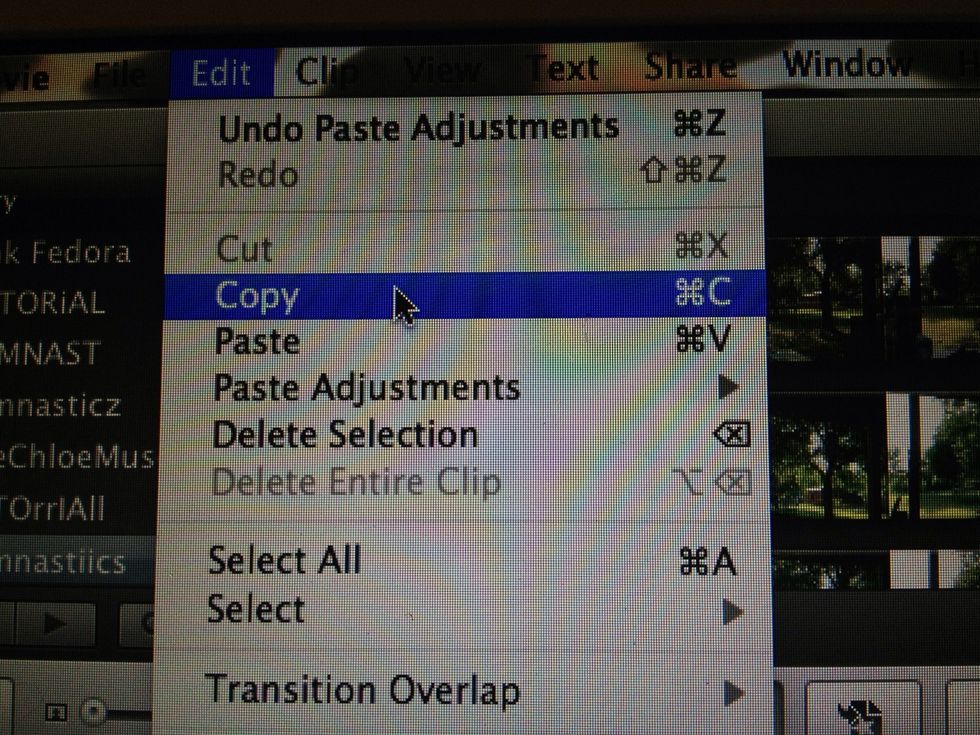
On your fitted clip select crop
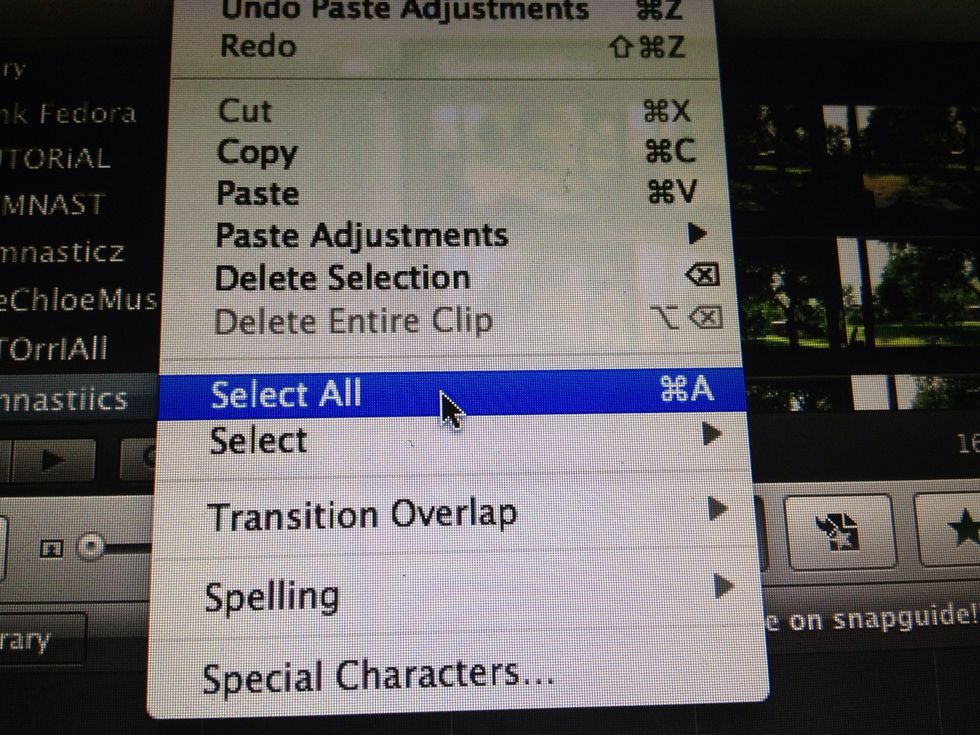
Select all
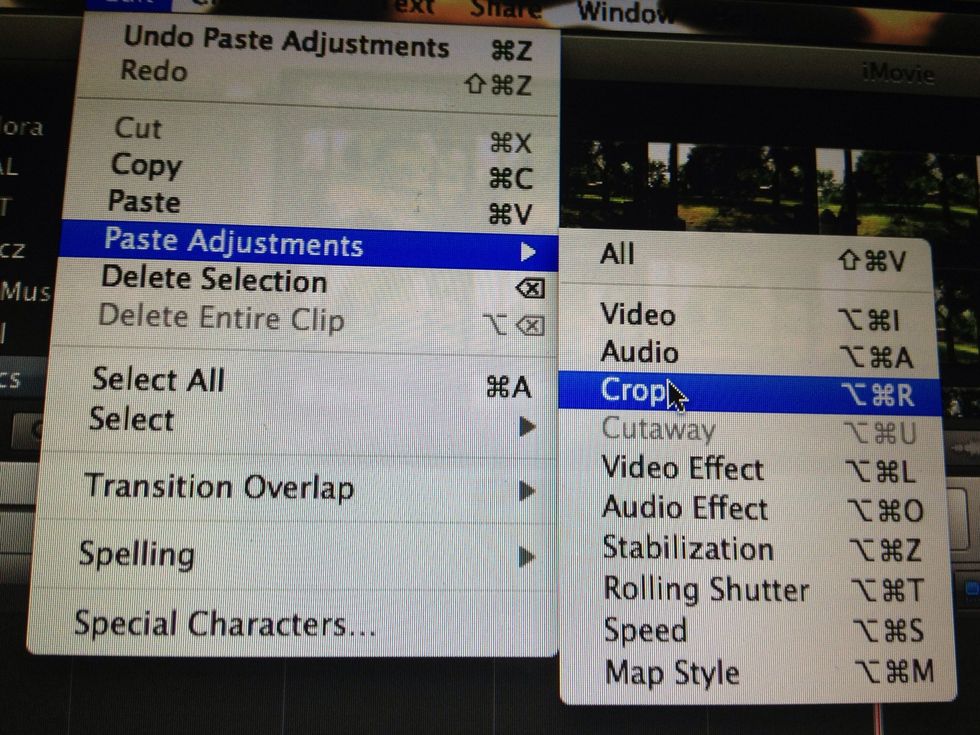
Paste adjustments > crop
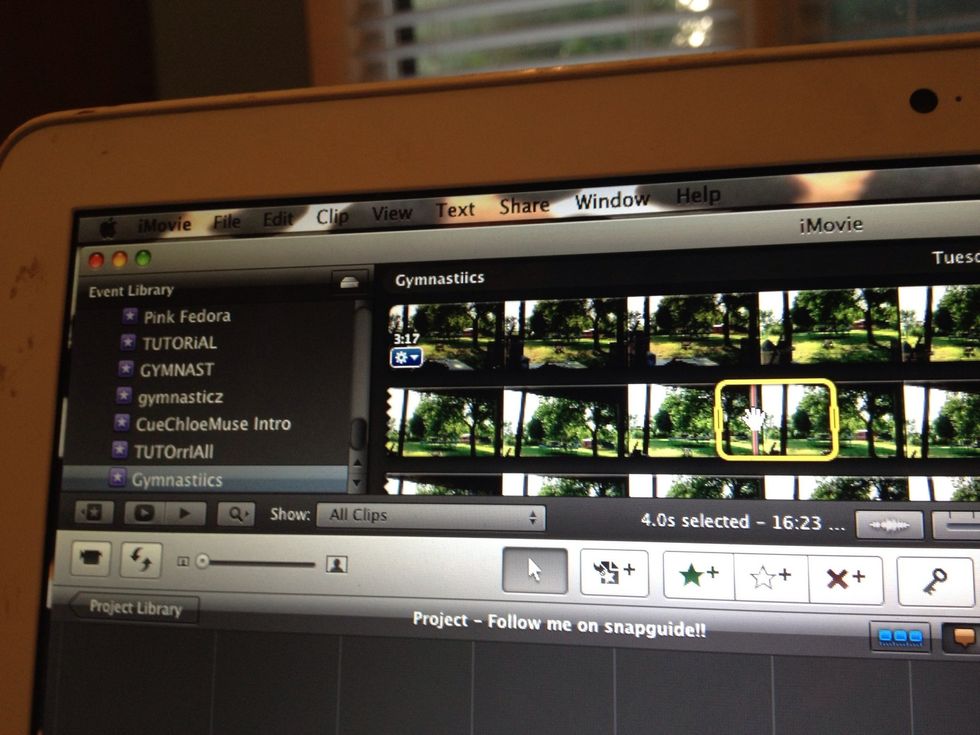
To select video select a part of film and drag it in!
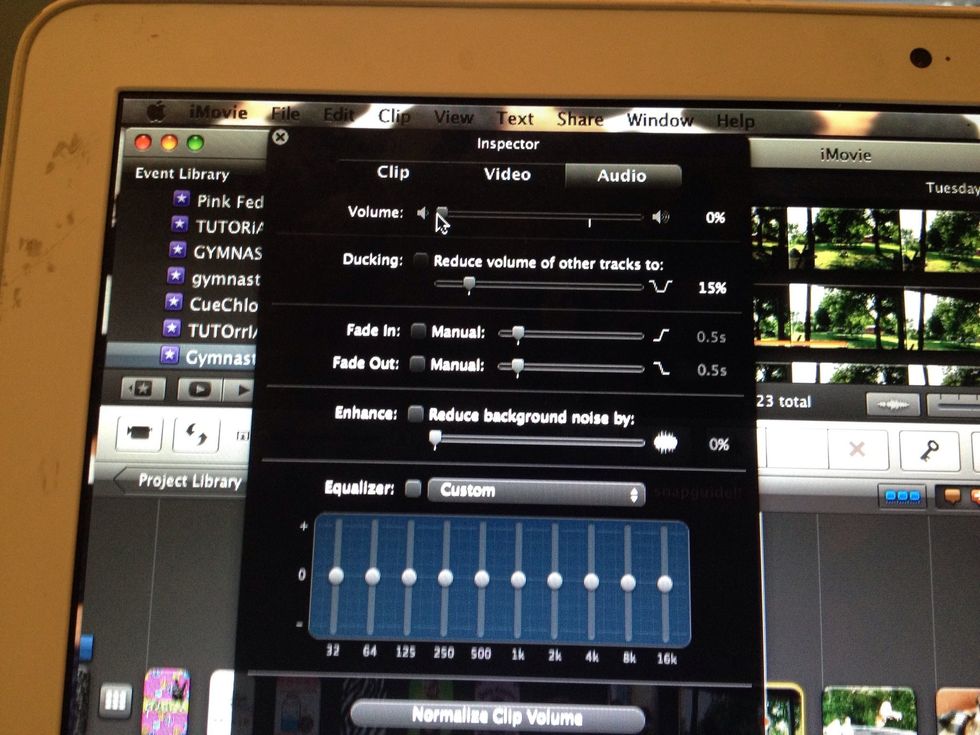
To change the audio select the clip!
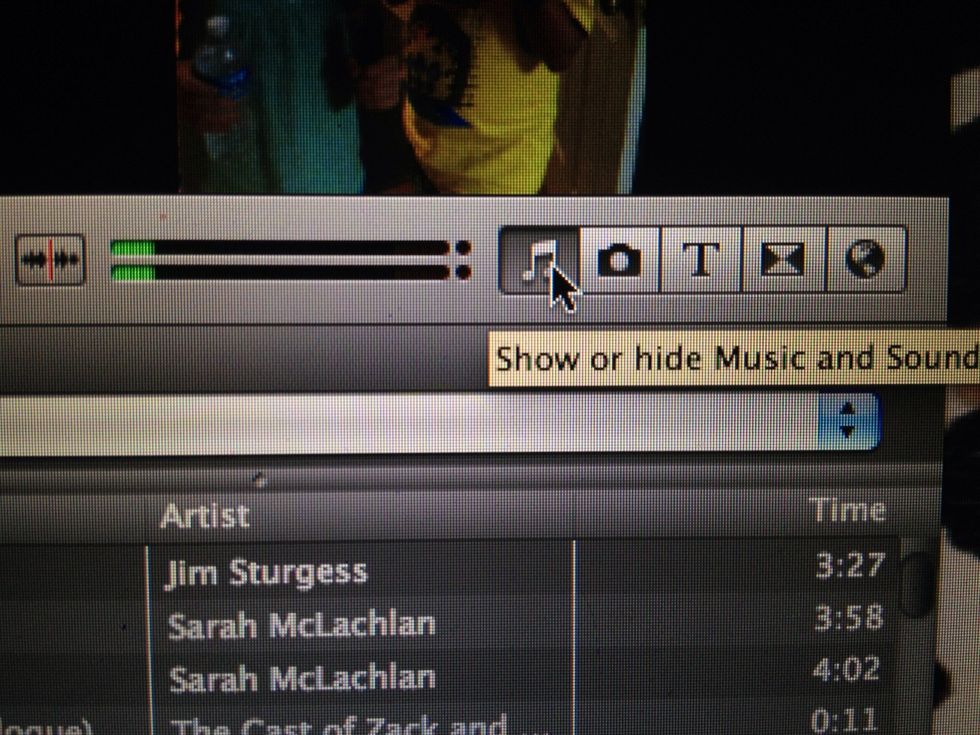
To add music select the musical note
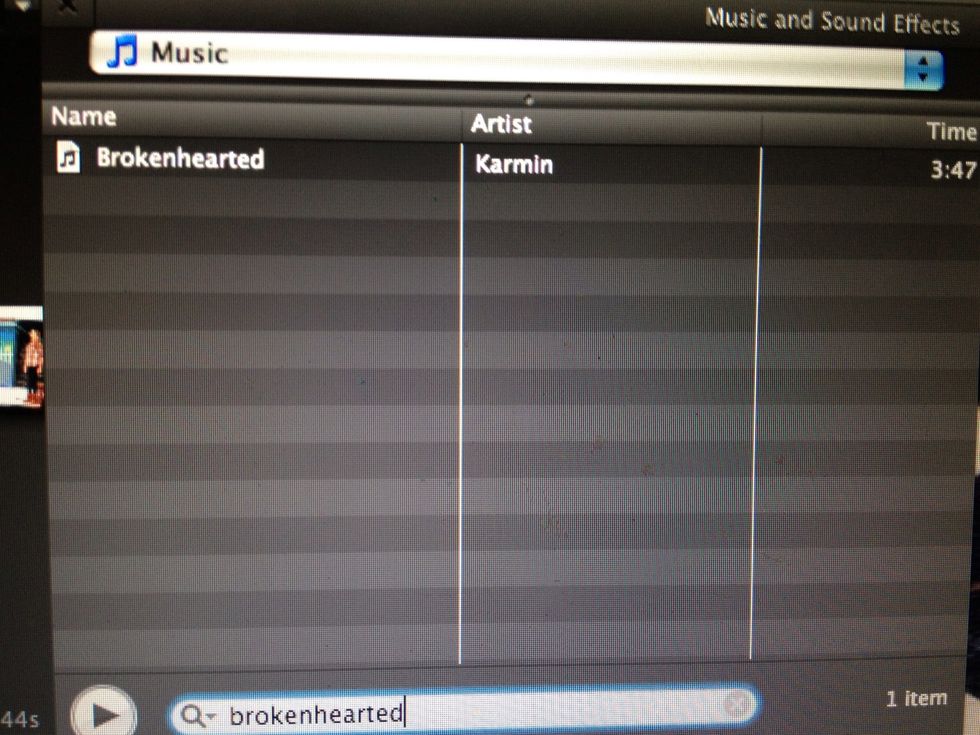
Search the song you want
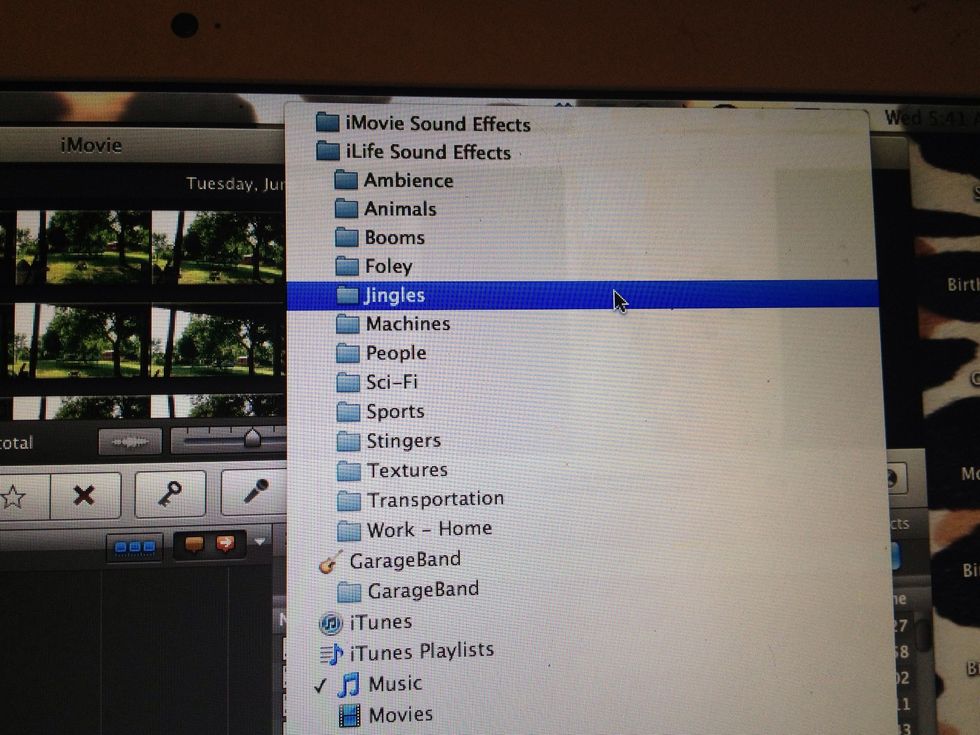
Apple provides free music and sound effects that are copyright free!
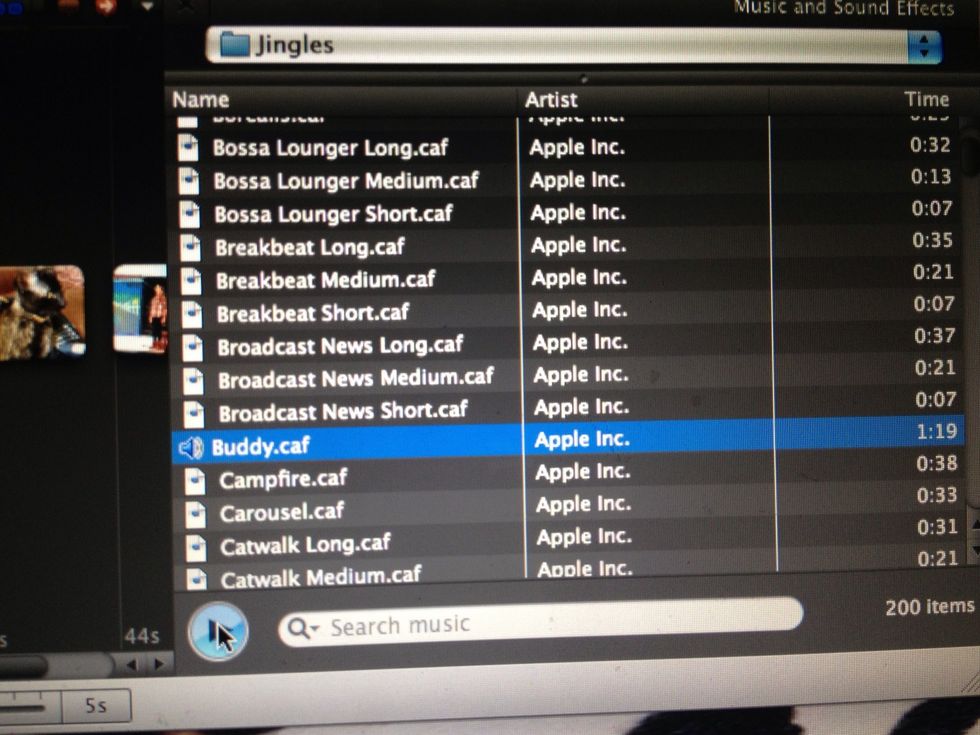
To listen select your song and press play
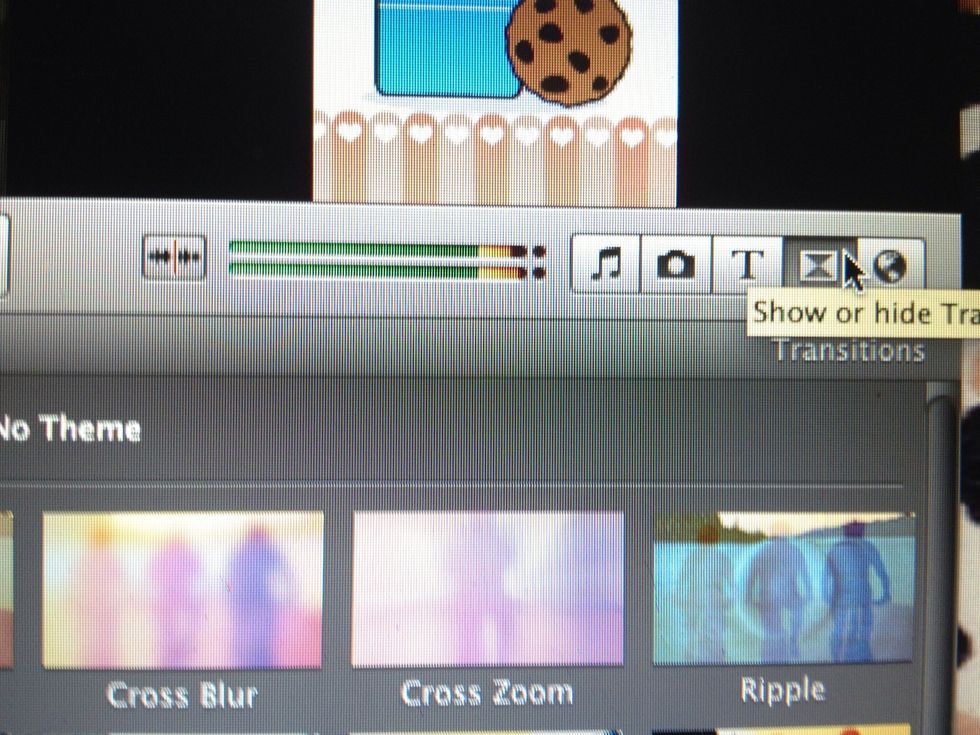
To add transitions tap the triangle thingy!
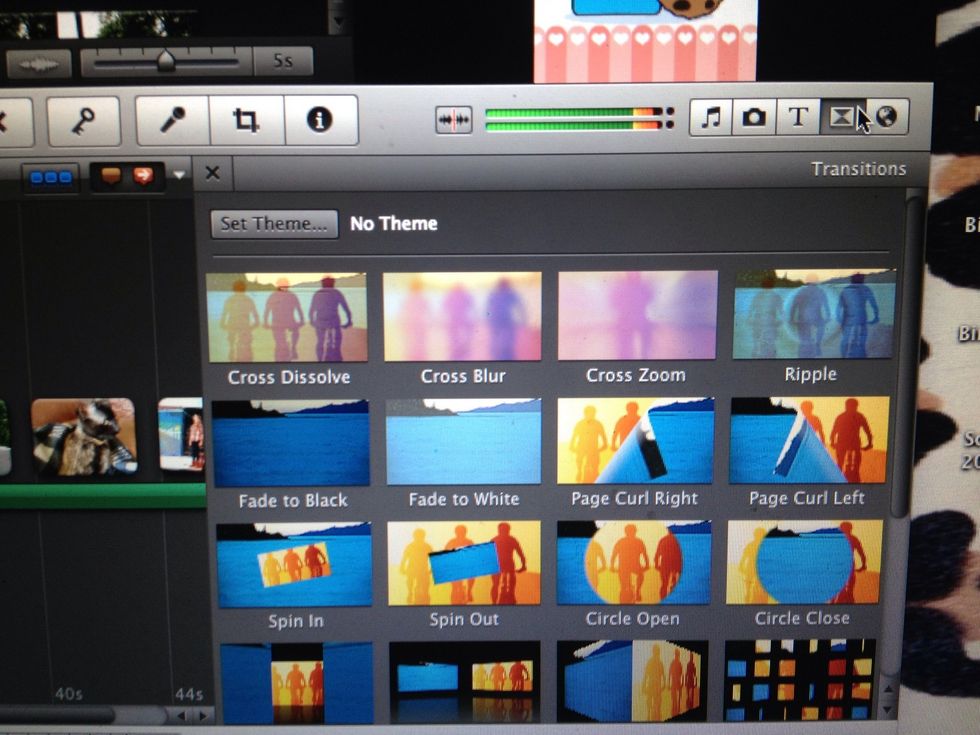
Select your transition
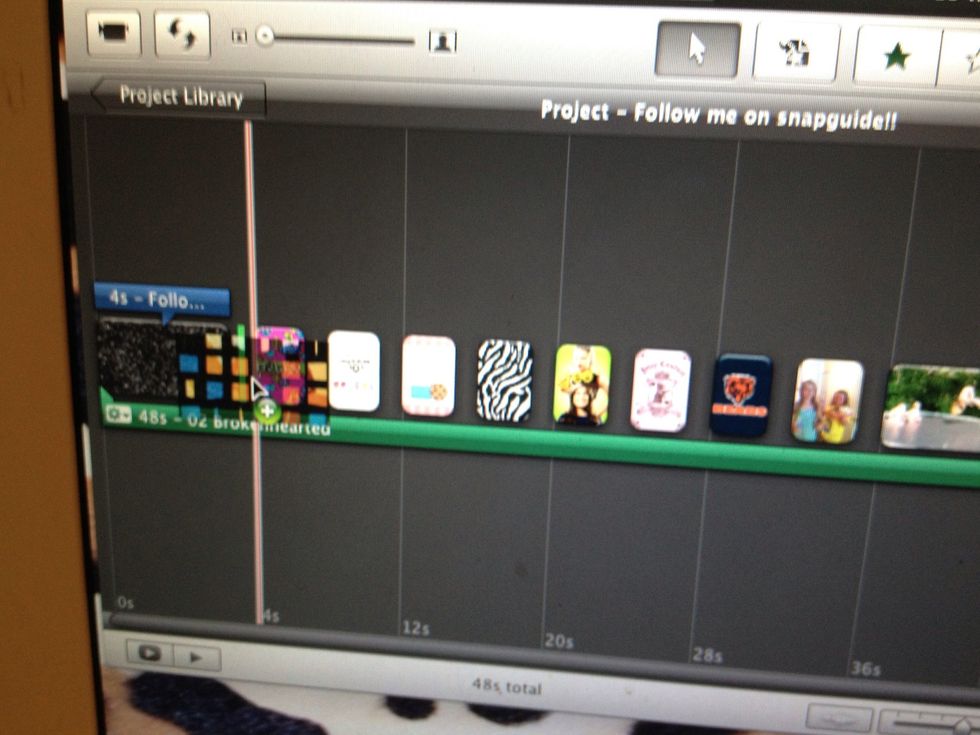
Drag it in between 2 clips
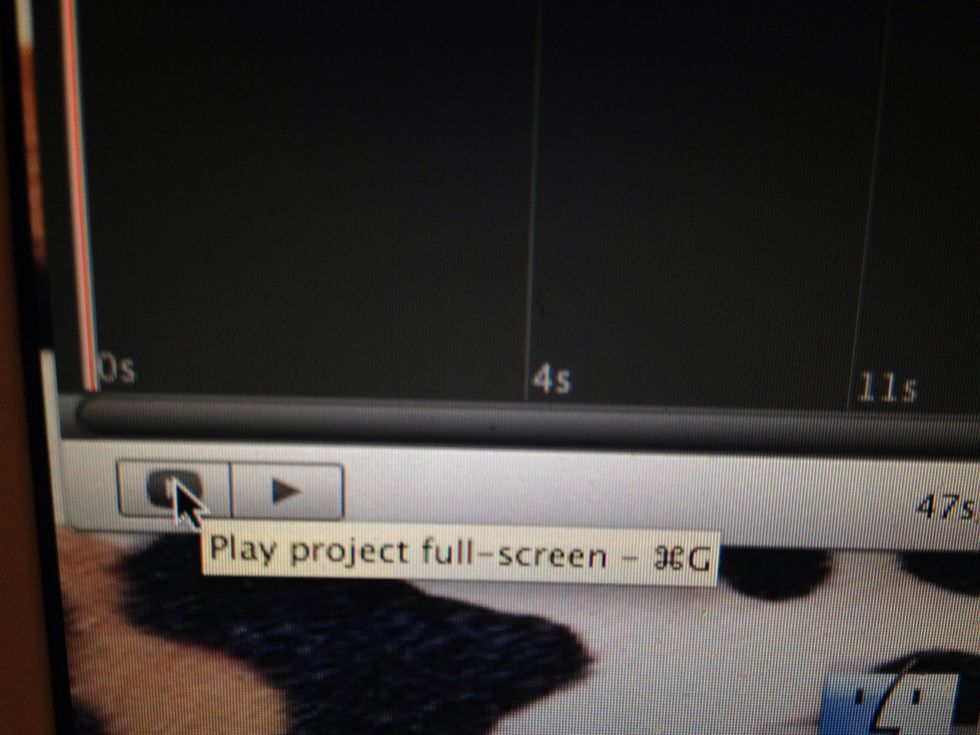
Press the big play button to play full screen. All the cool kids do!
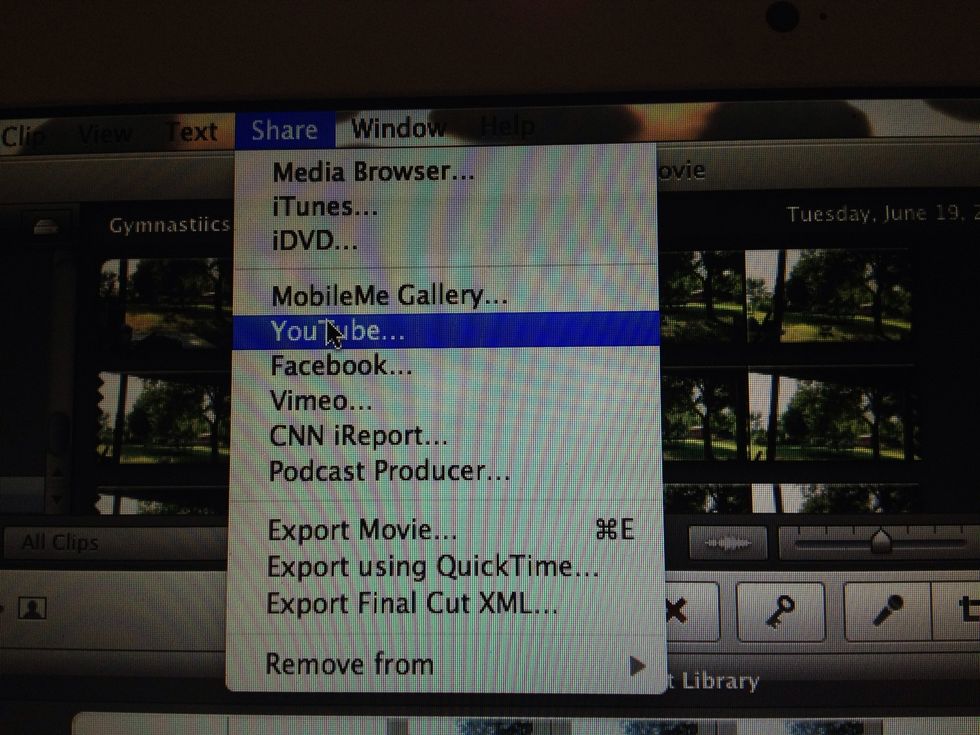
To share or publish to YouTube press share
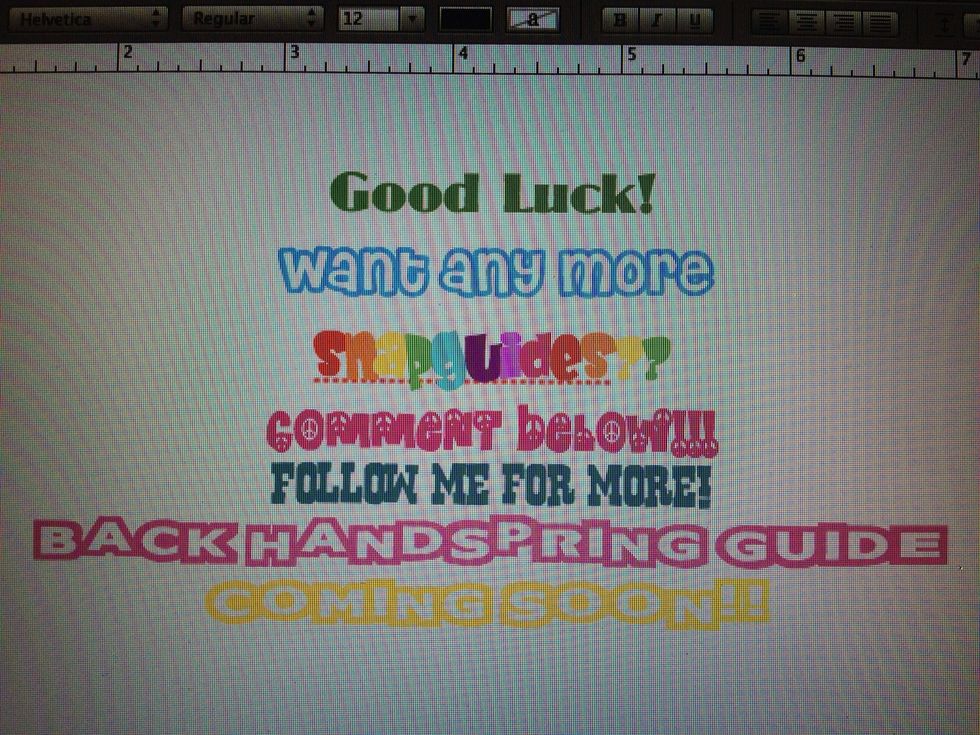
Yay!!!