The Conversation (0)
Sign Up
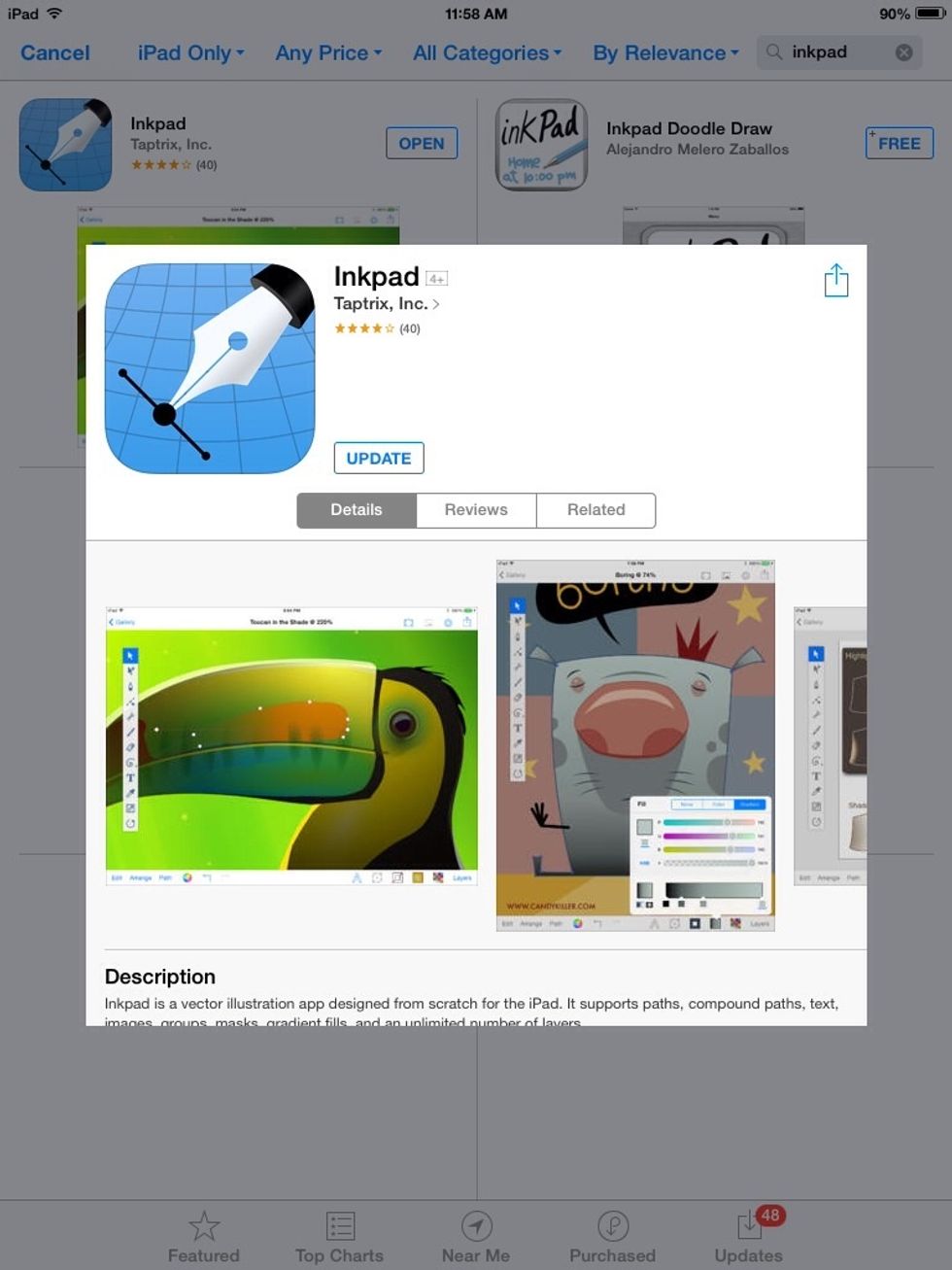
Download Inkpad for the iPad (Free)
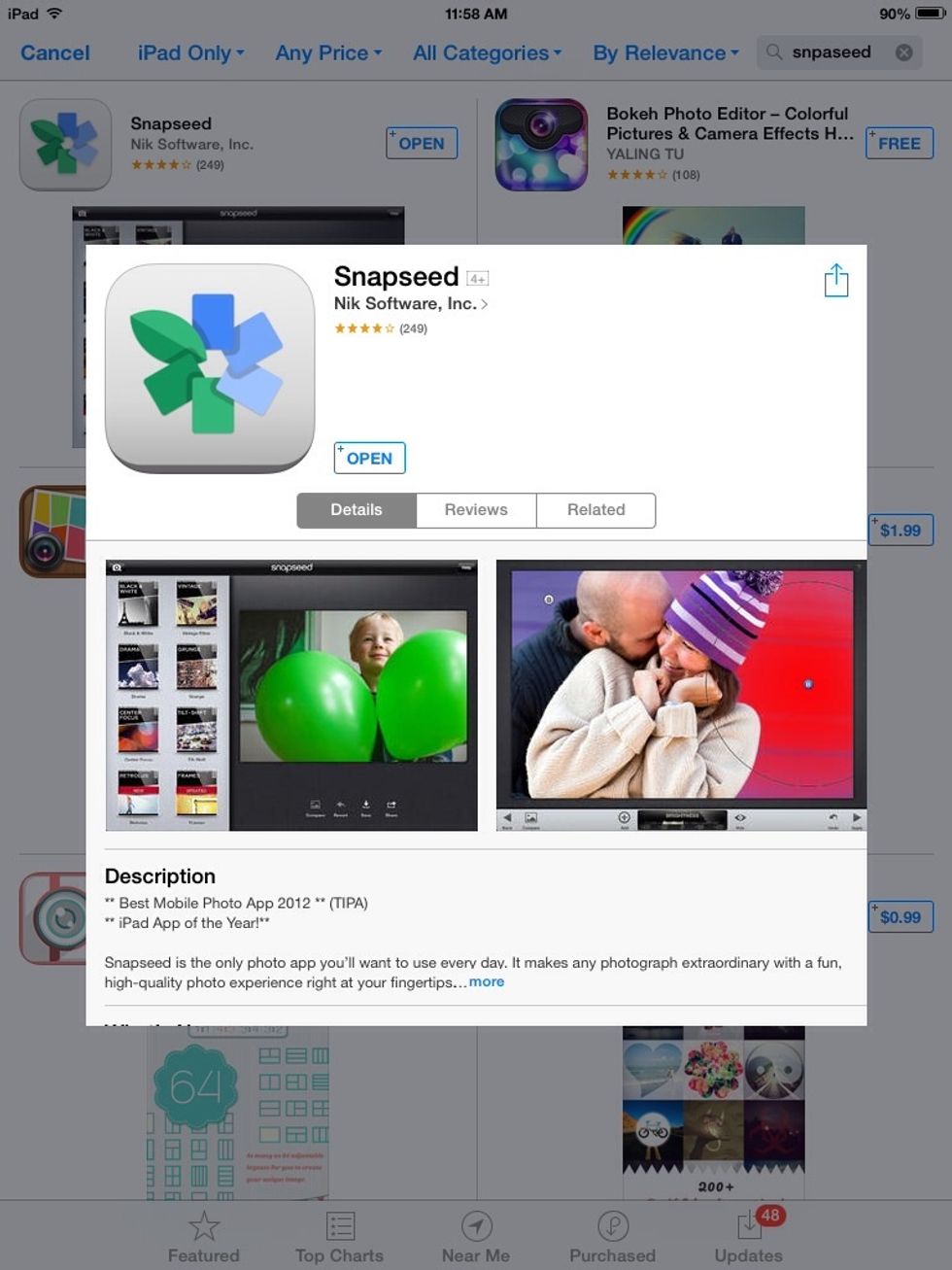
Also download Snapseed for the iPad (free)
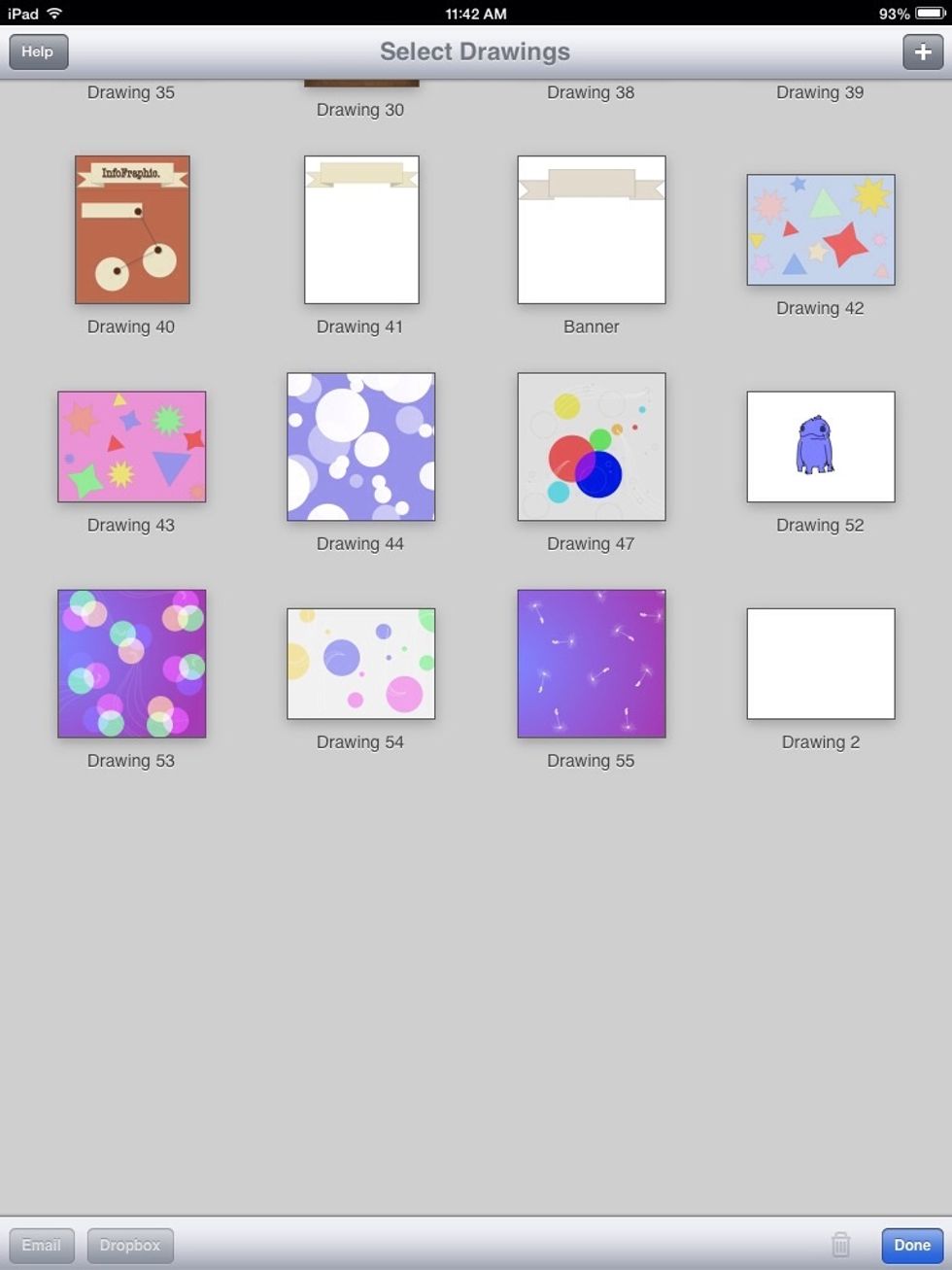
Open Inkpad and tap the white plus to create a new document.
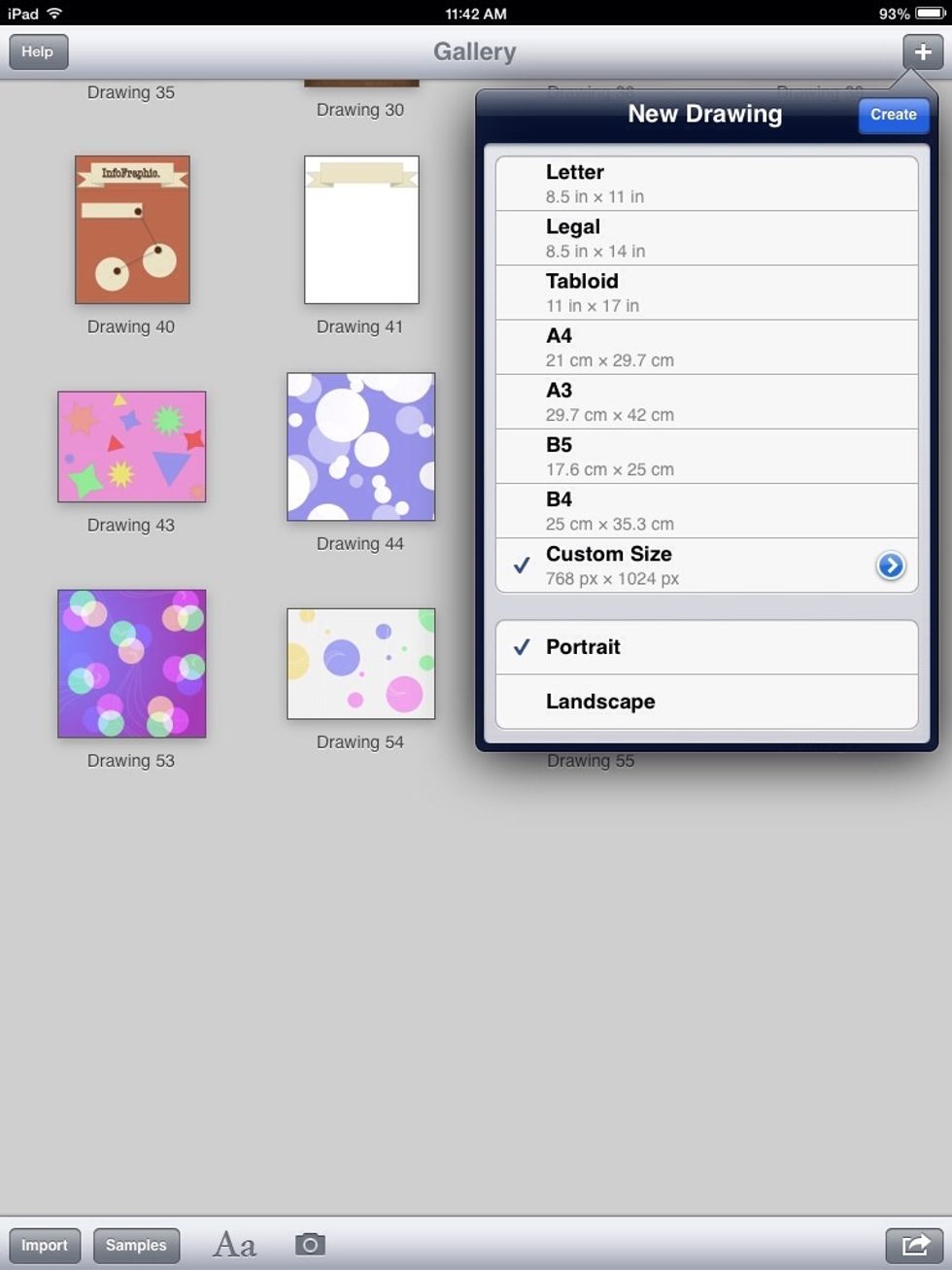
Choose a size for your image. I chose 1024 x 768 because those are the dimensions of my iPad mini. Then, tap "Create."
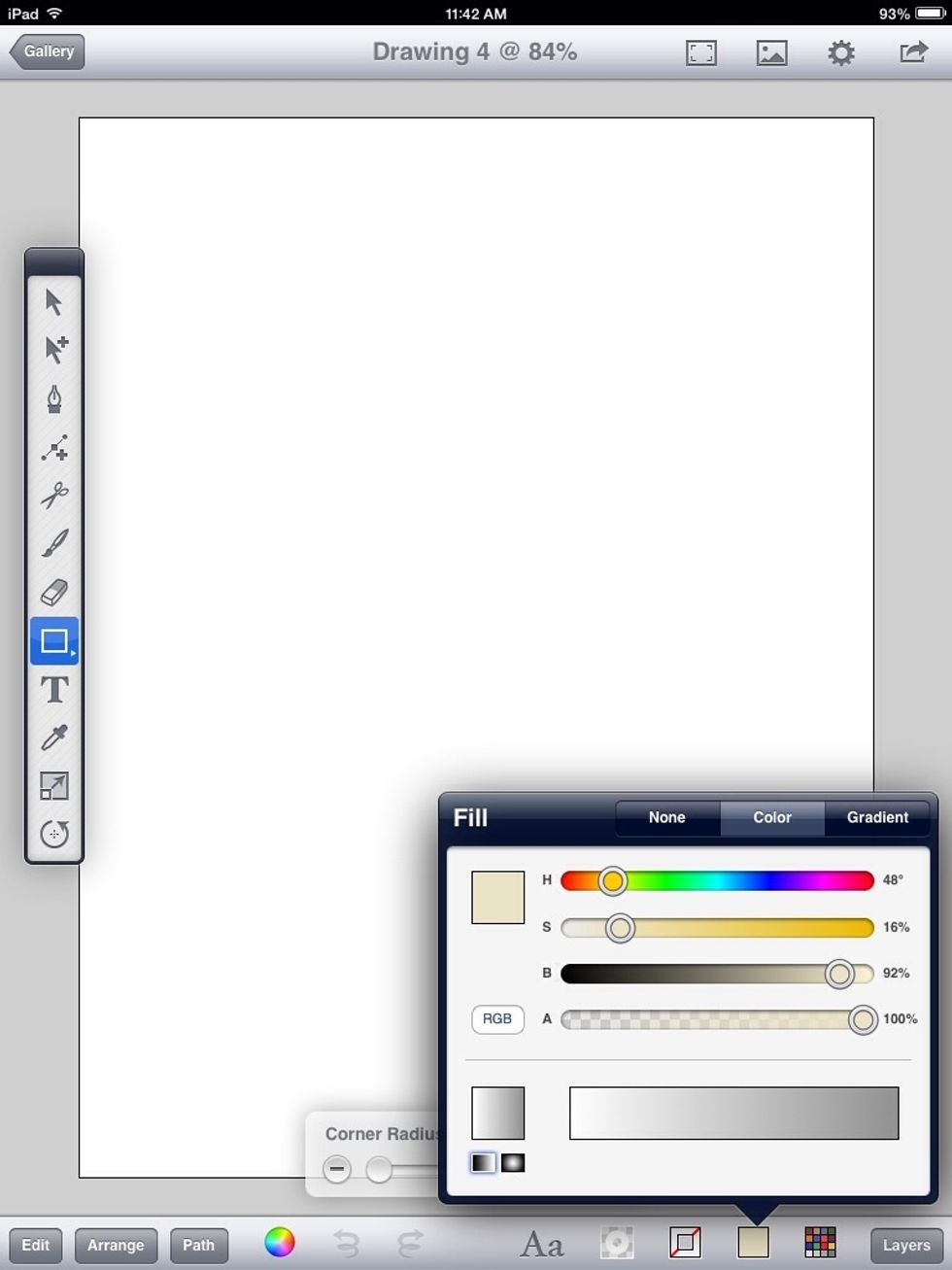
Select the "Square tool" and a nice cream or tan color for it.
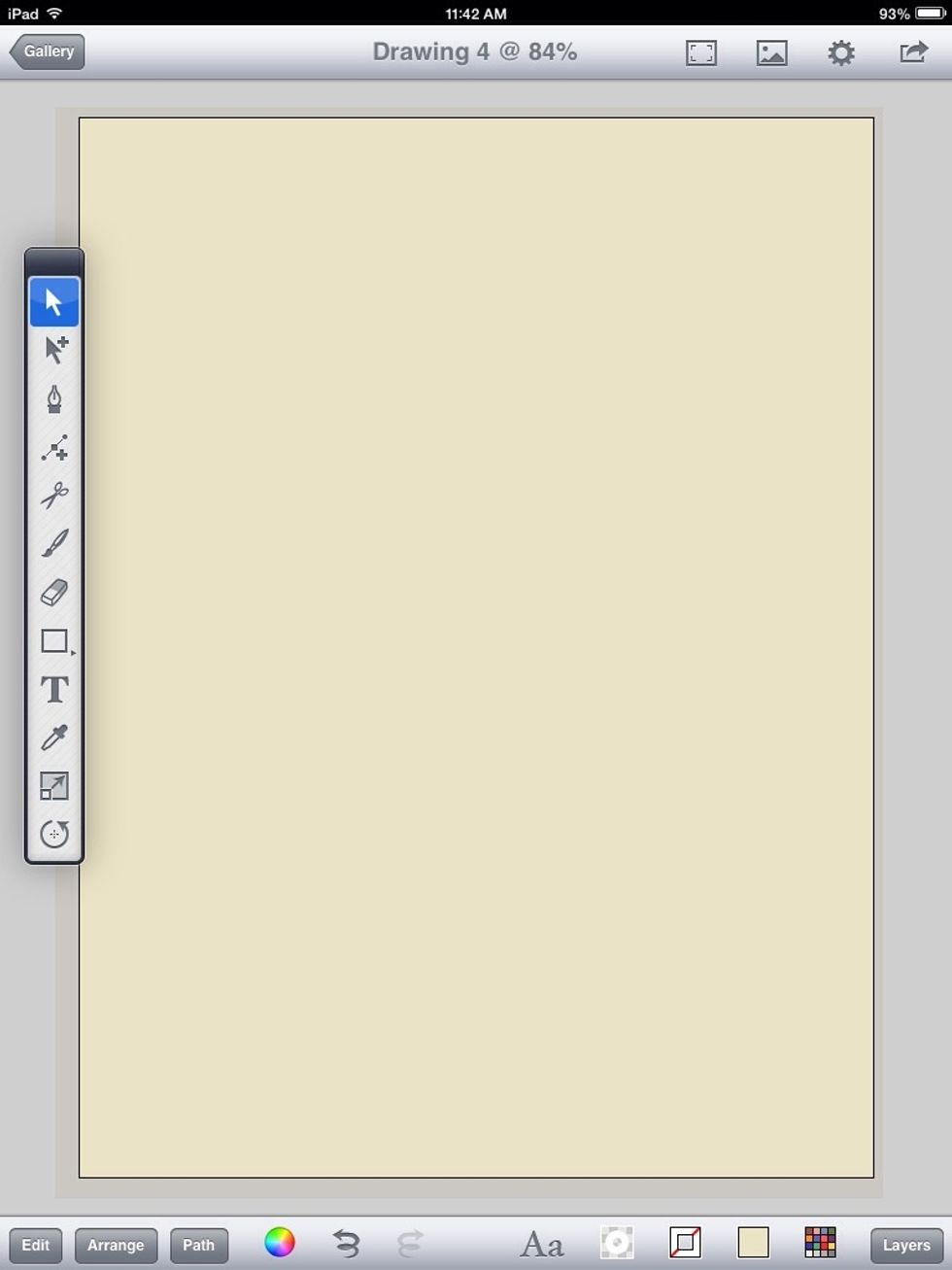
Drag it over the entire canvas.

Tap the "Send icon" at the top left of the app to save the image. Tap where it says "Add to photo album."
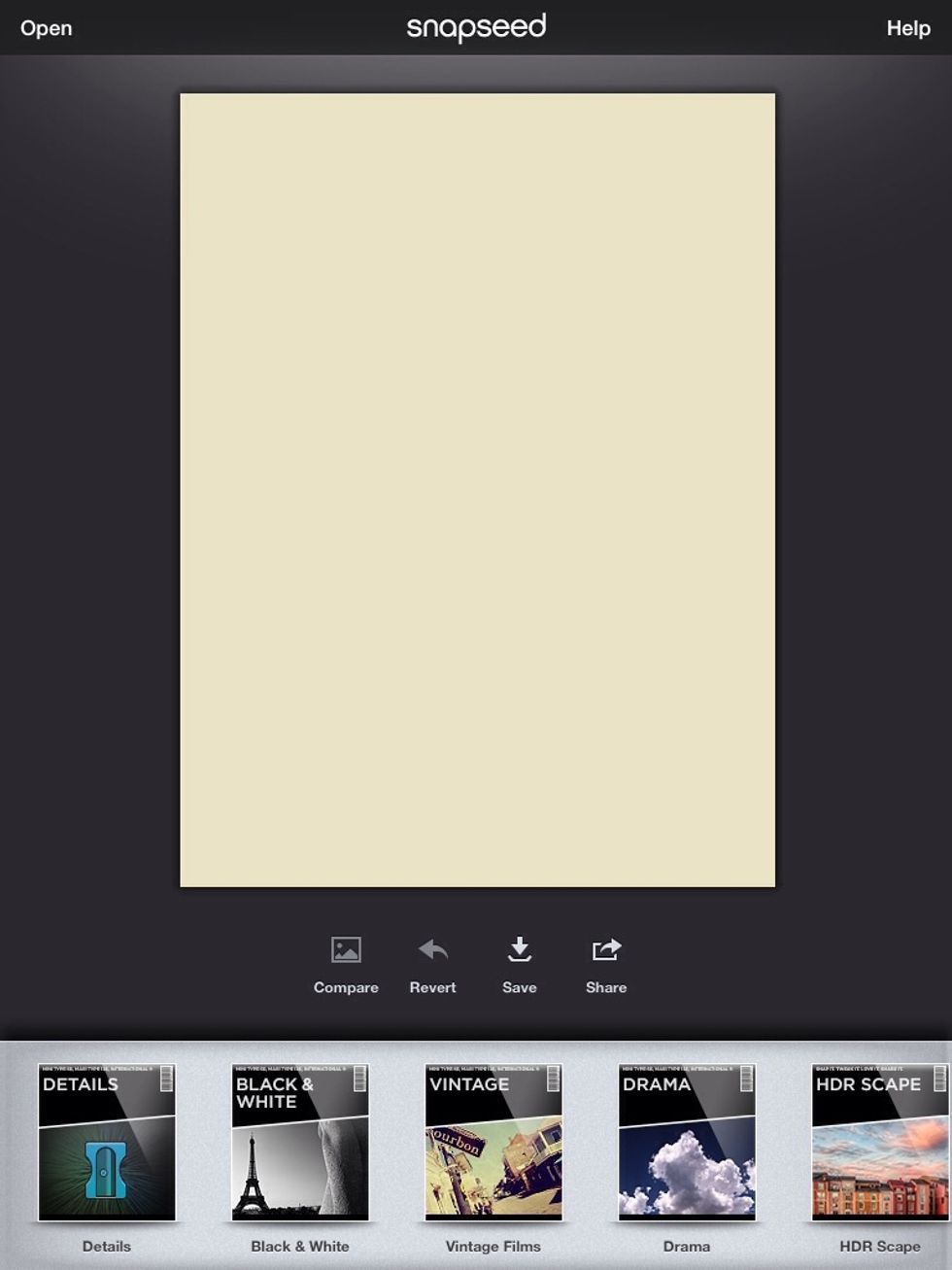
Open the image in Snapseed and choose the "Vintage" filter.
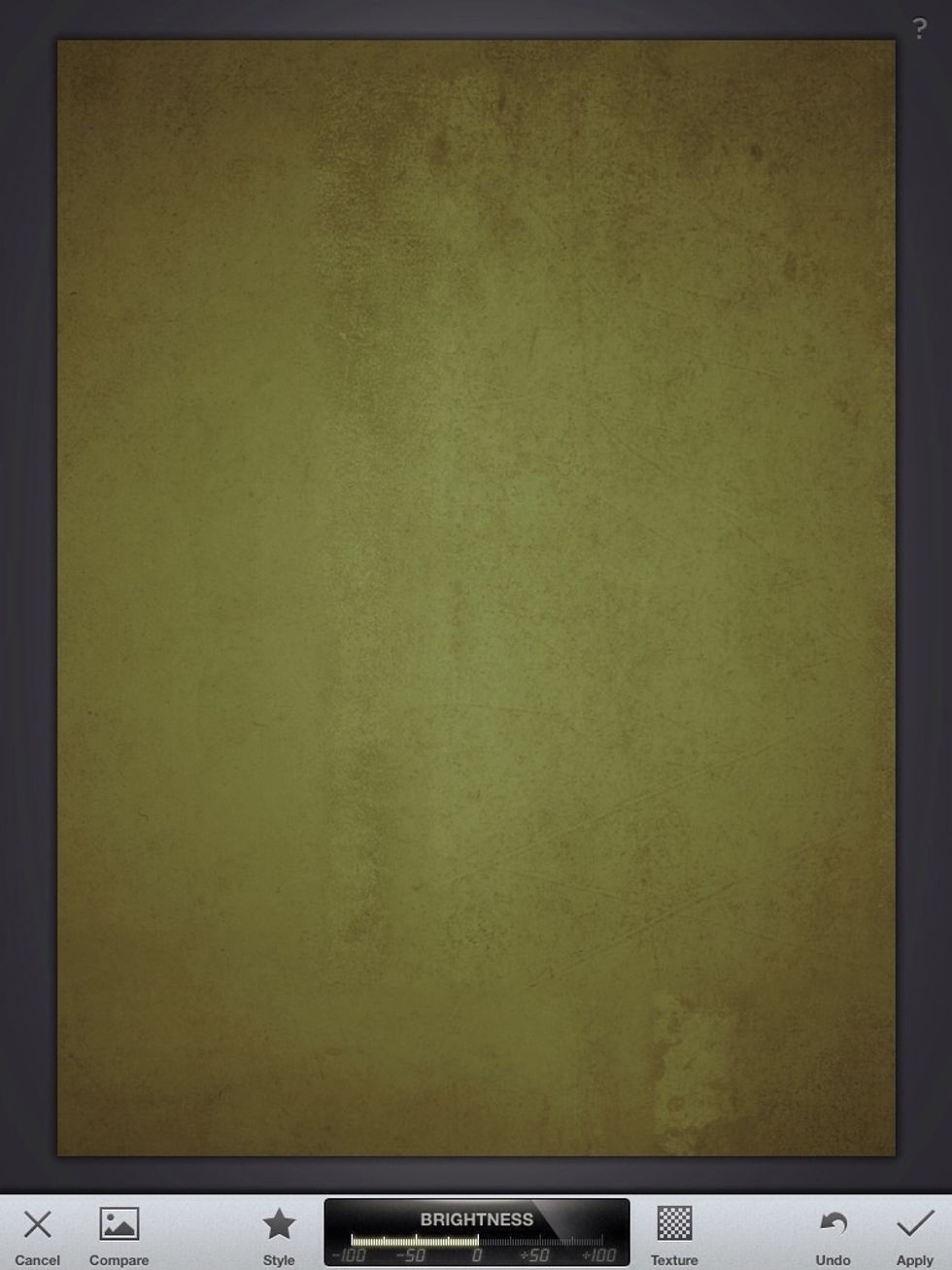
Turn down the brightness by dragging a finger to the left on top of the image. Tap "Apply"
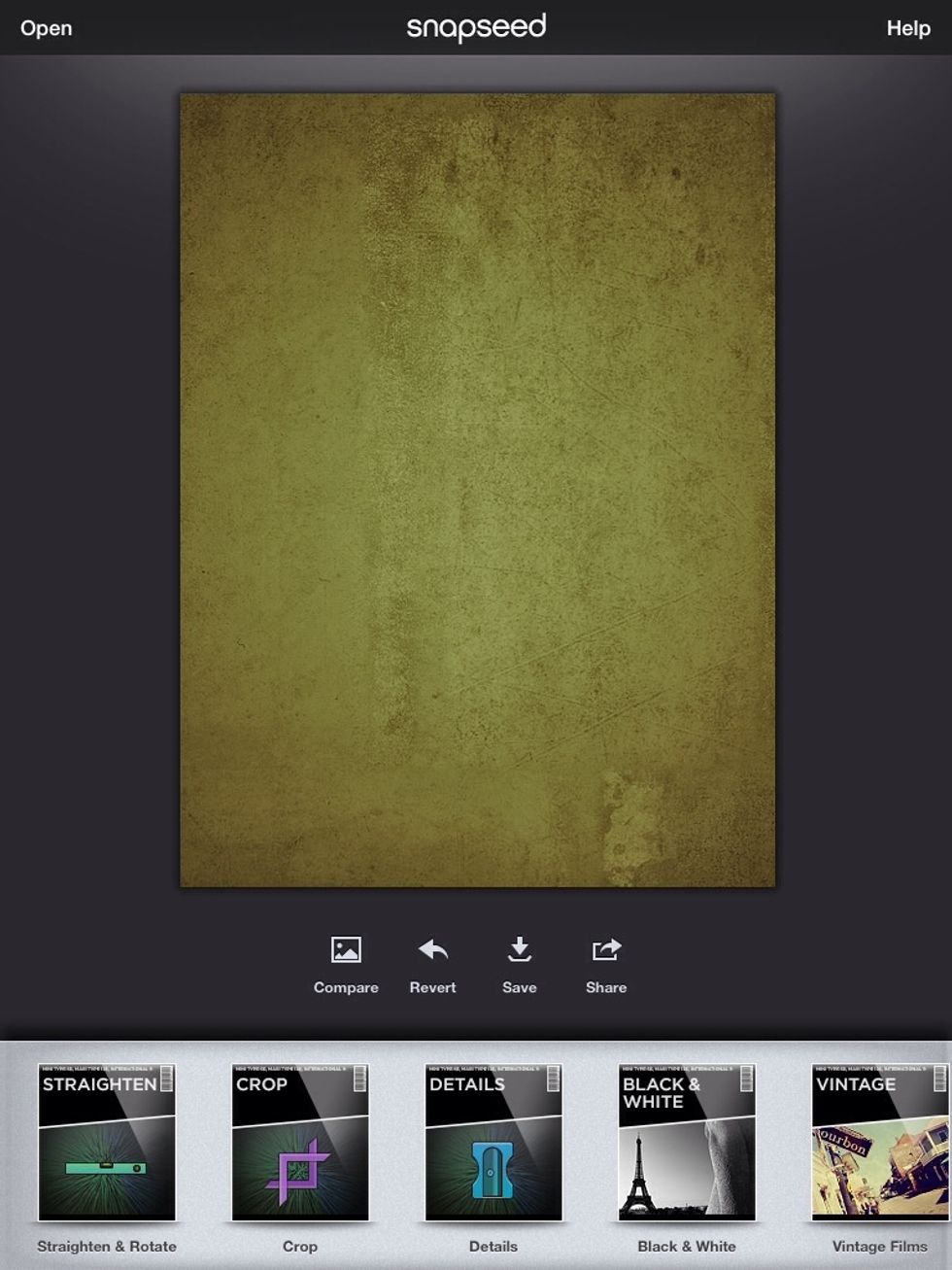
Select the "Details" filter
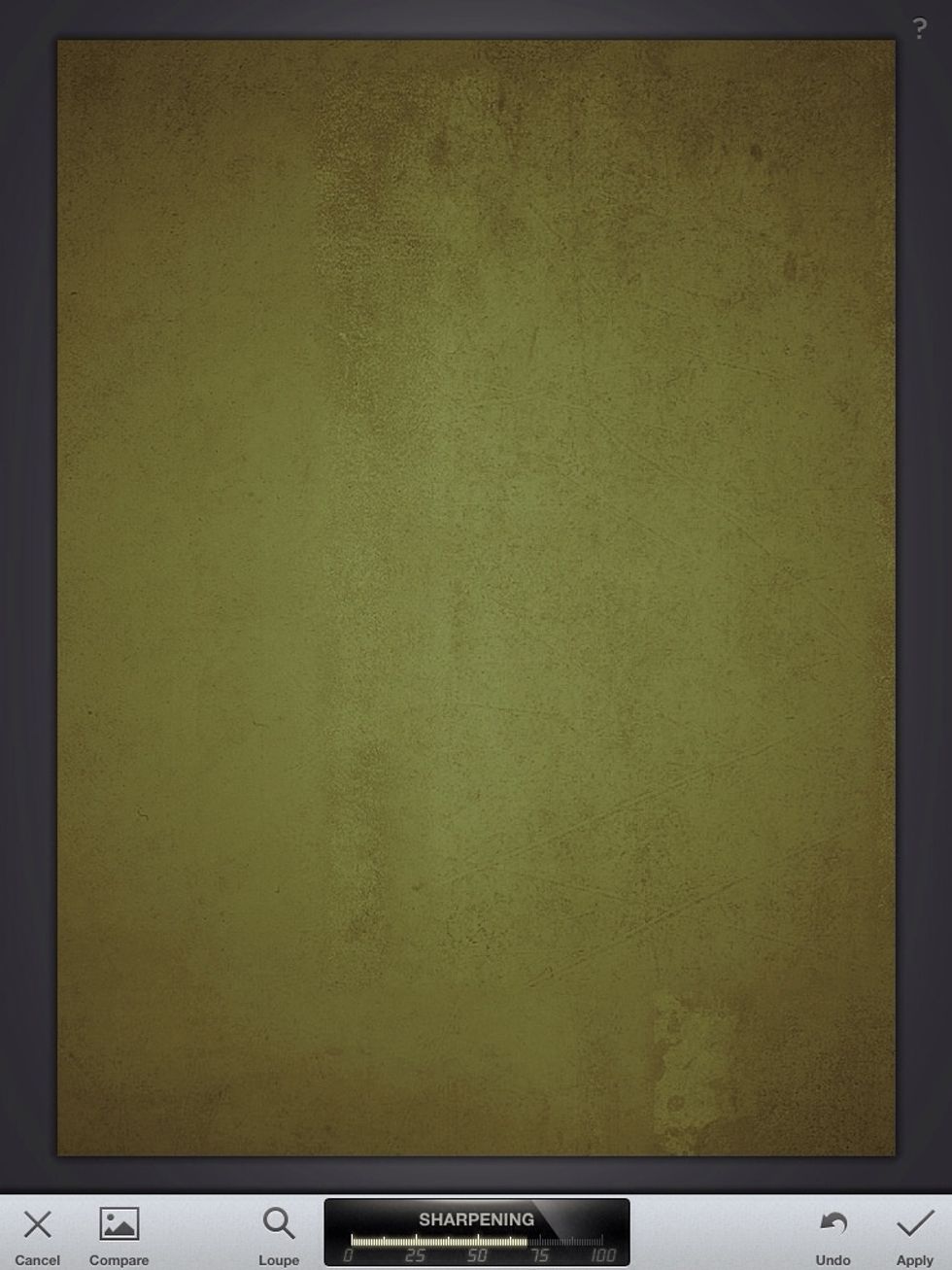
Swipe right to increase sharpness. Dragging a finger up or down on top of an image changes the function of the filter. Drag up to switch to "Structure" mode.
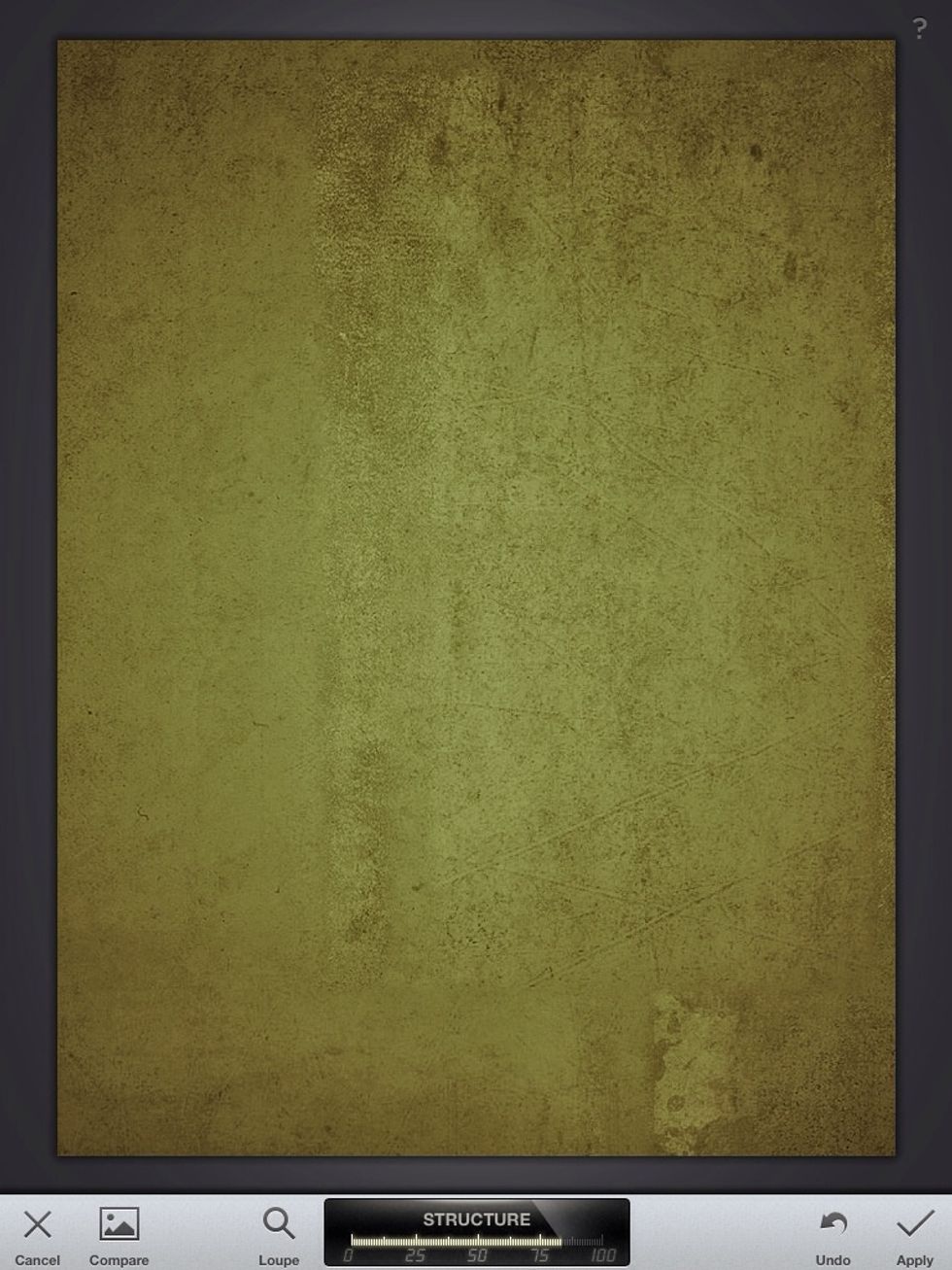
Drag to the right to increase structure details. Tap "Apply."
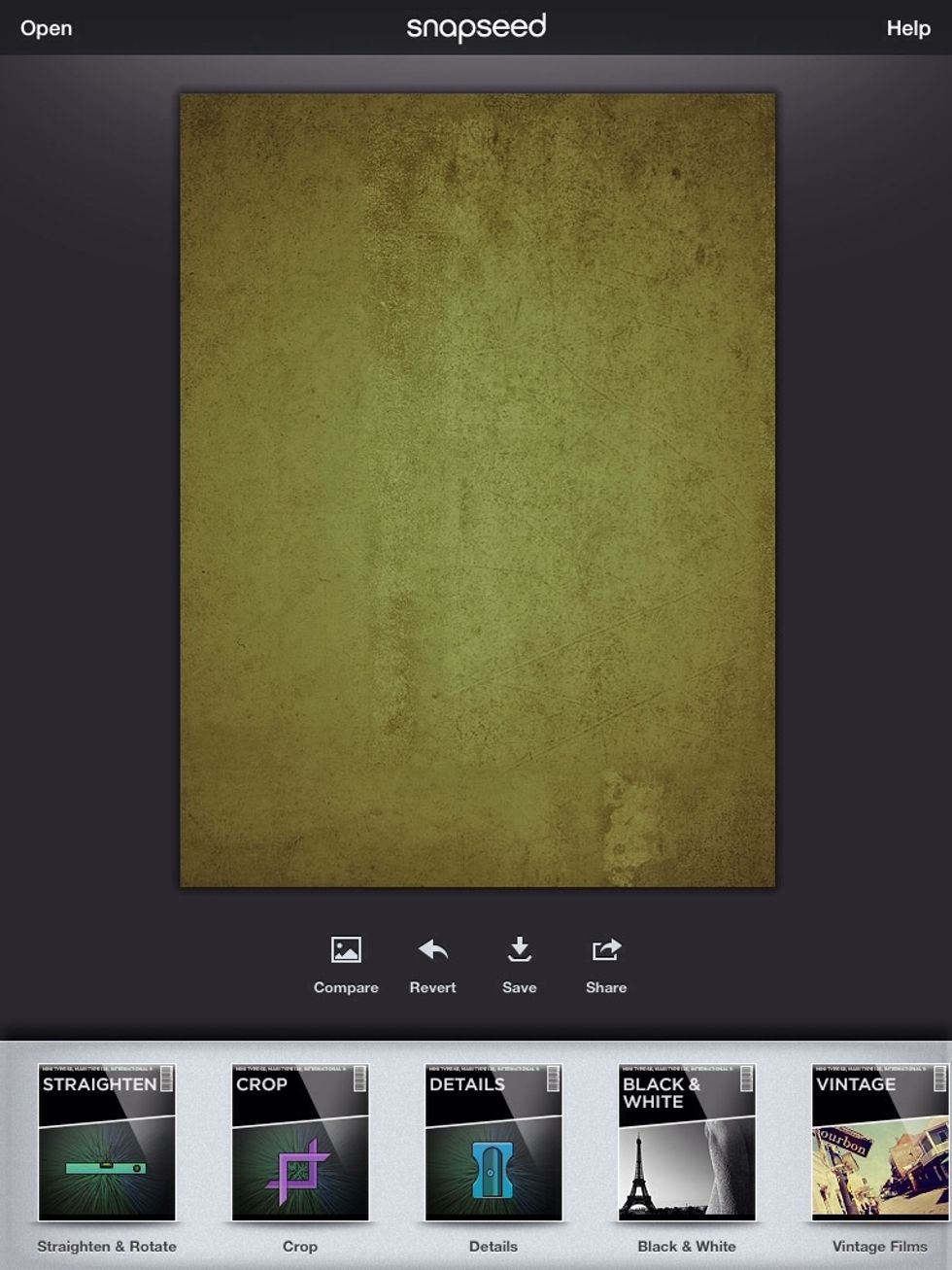
Now tap "Save" to save the image to your camera roll.

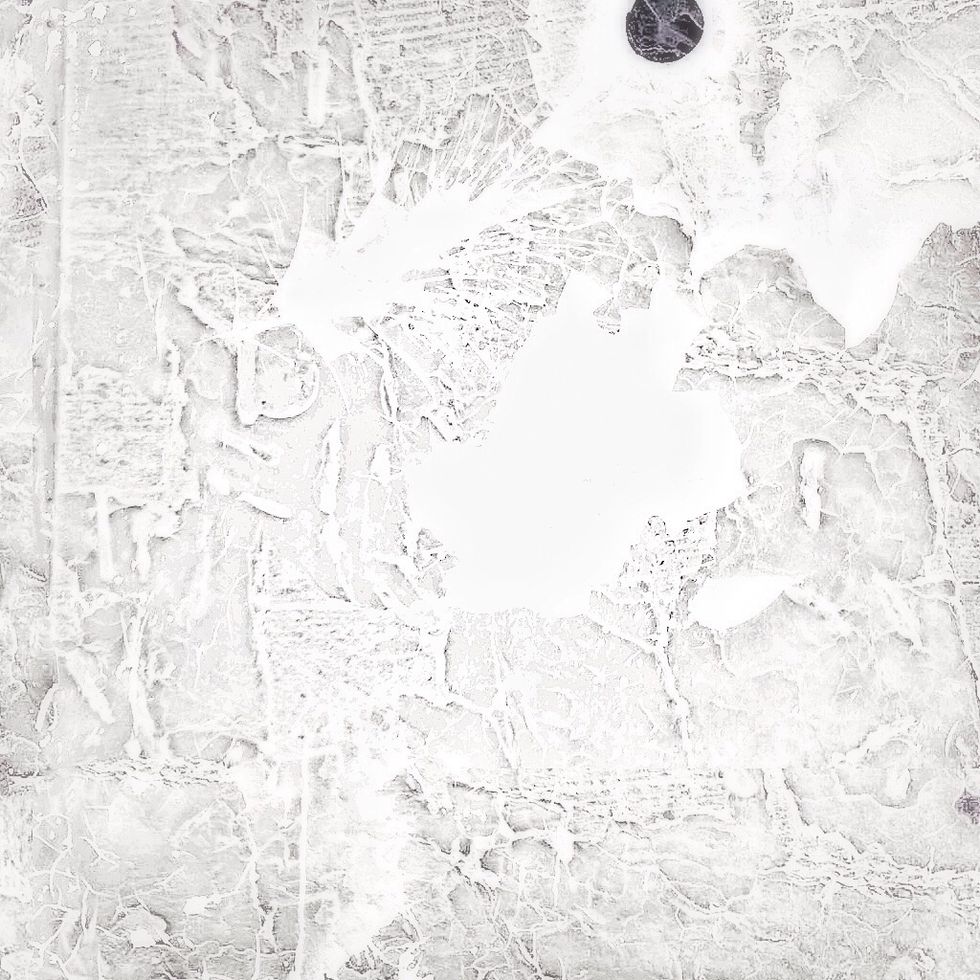
This is the image.
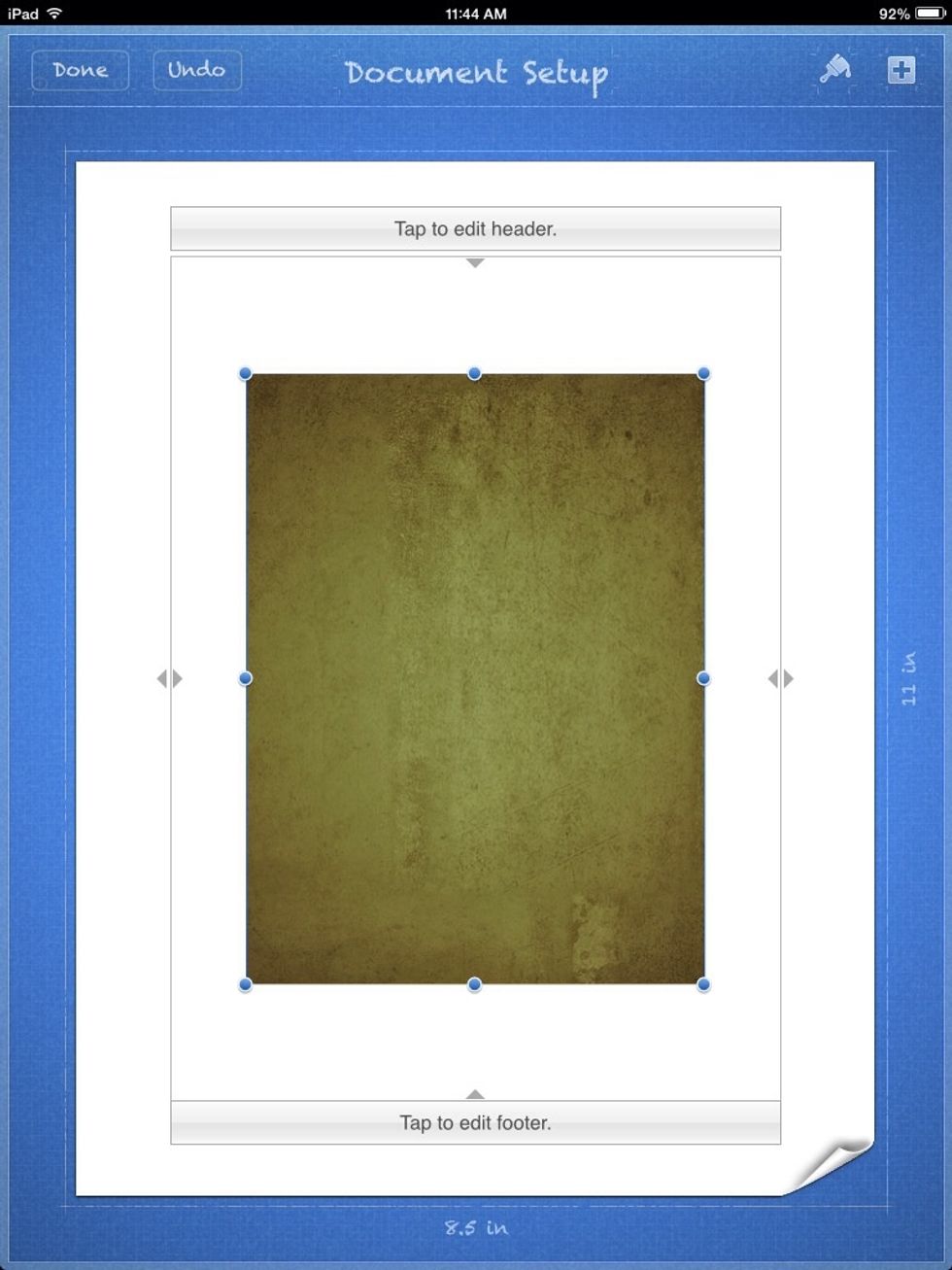
Now you can use it for whatever. I am using it as a background for a Pages document.
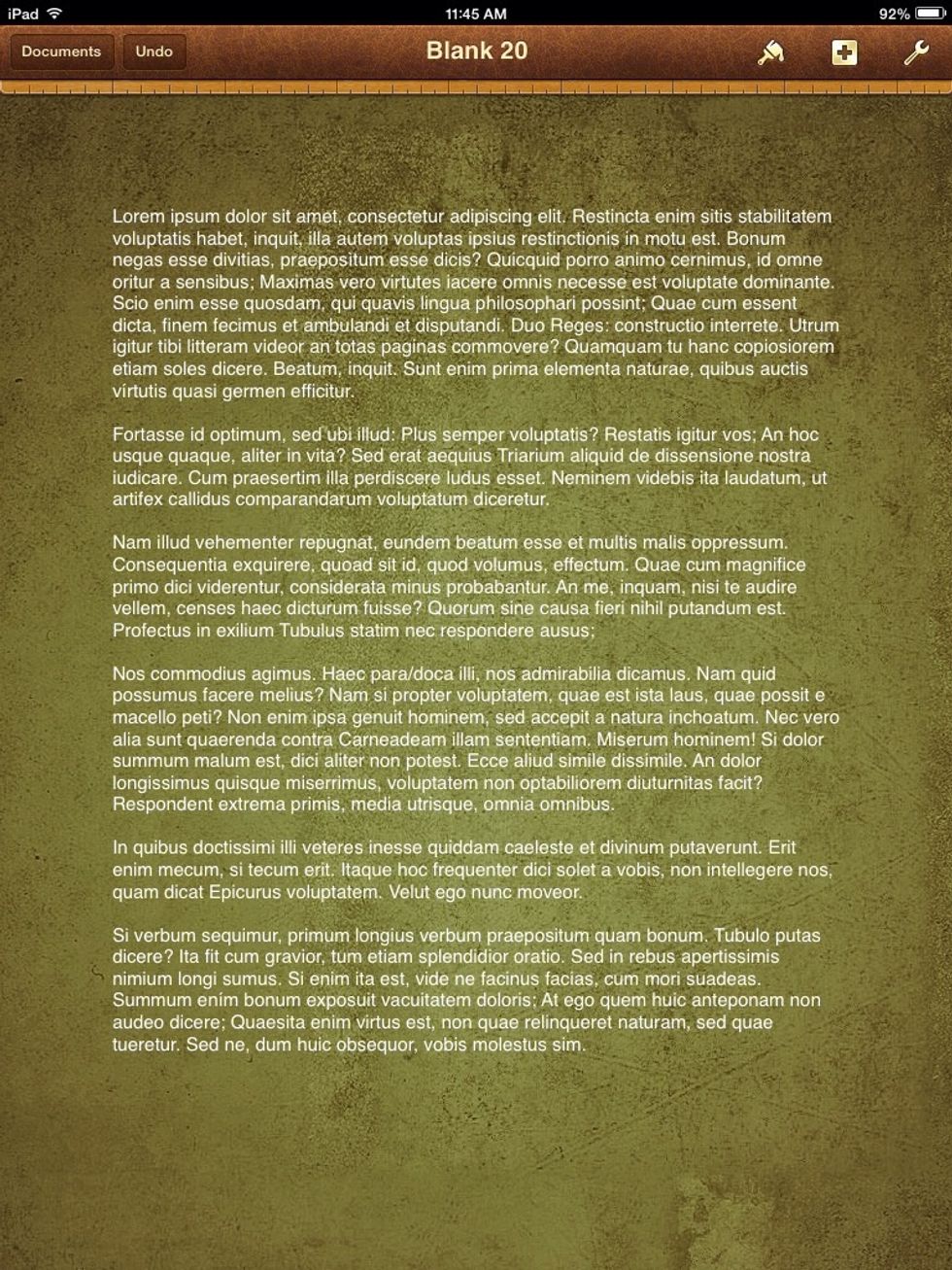
End
Try other filters to get different effects, and play around with the different modes.
Examples: