
The Conversation (0)
Sign Up

Open "Settings" on your iPad
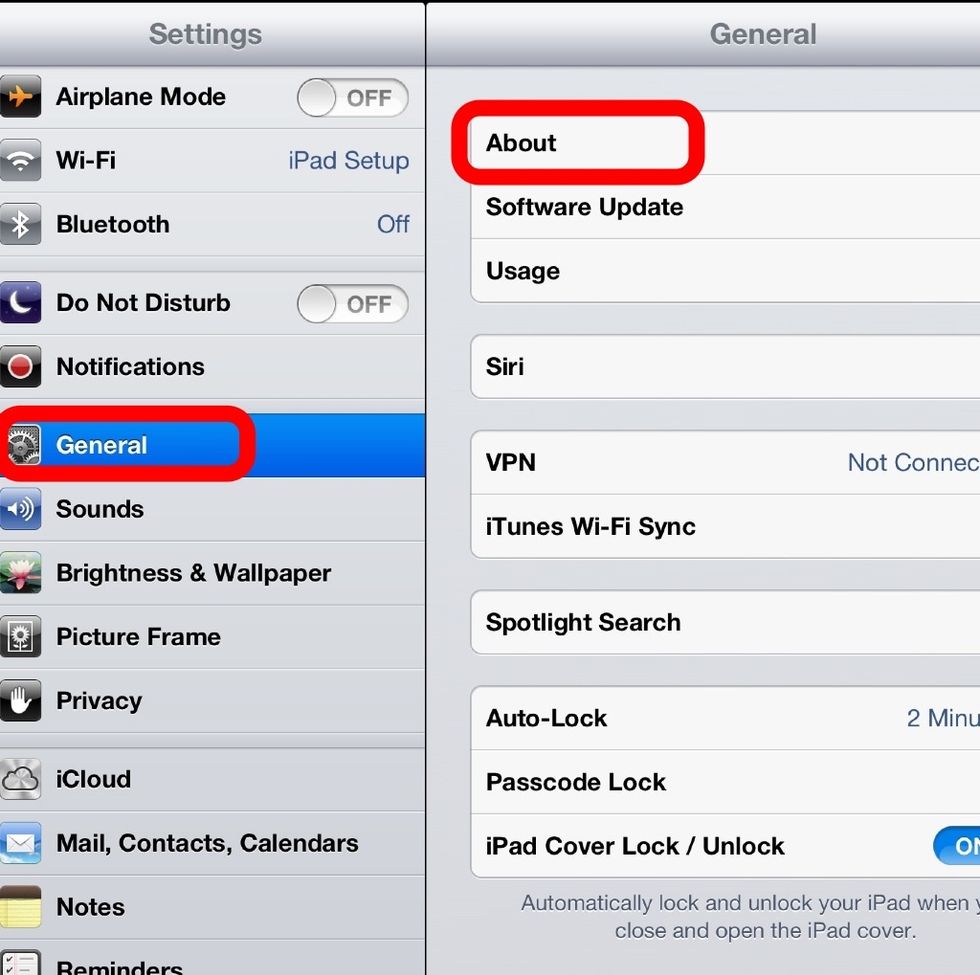
In the "General" tab, touch "About" at the top of the list
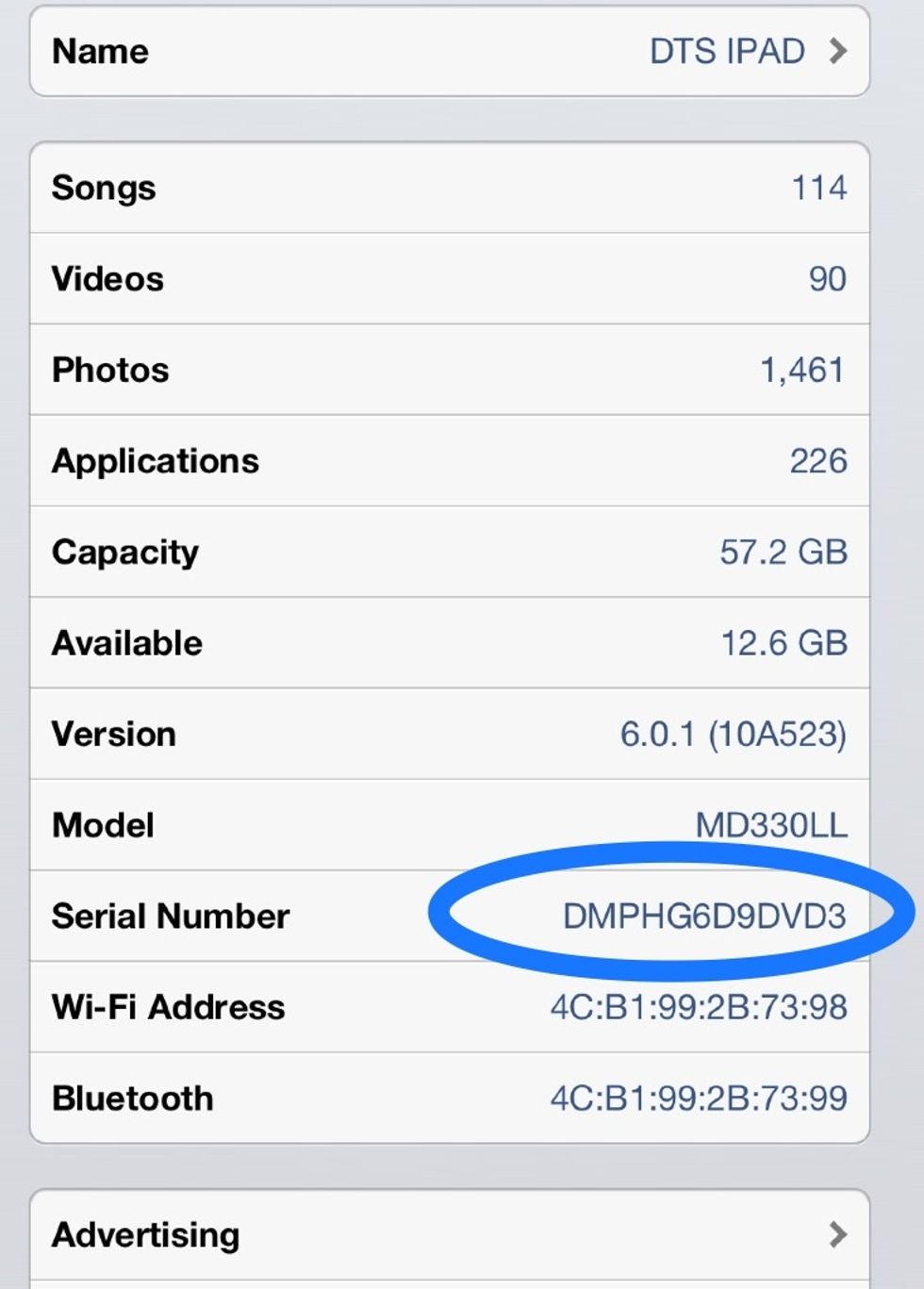
Write down your serial number on a separate sheet of paper. You may need it when registering your iPad.
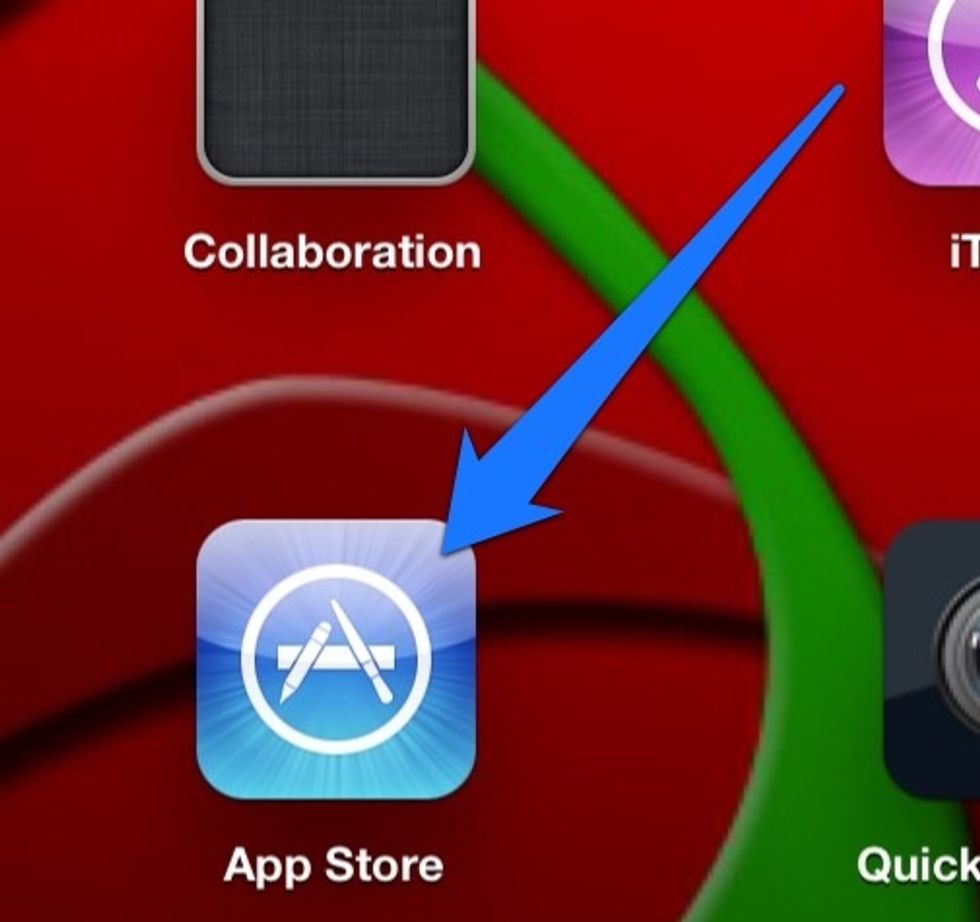
Open the App Store on your iPad
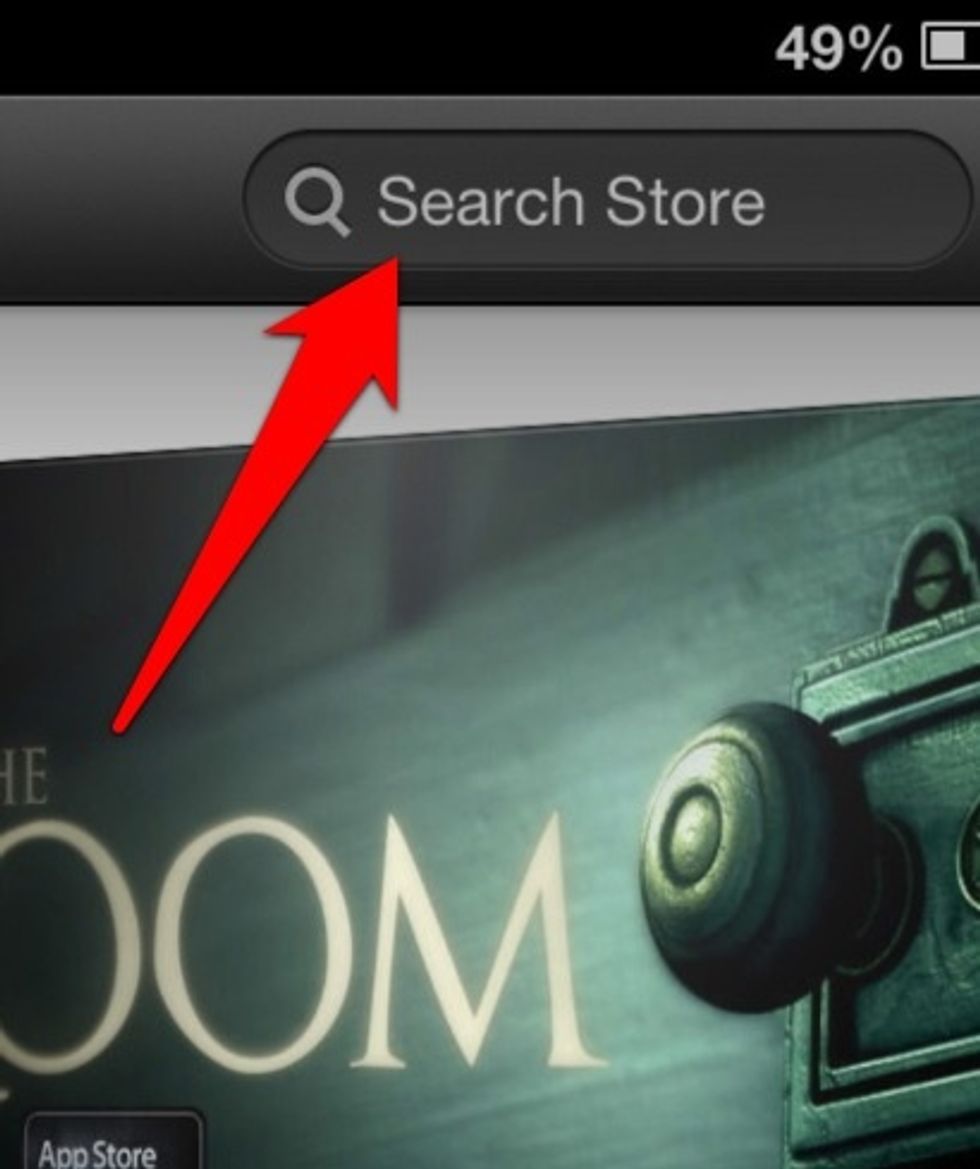
Touch the Search Store field at the top right
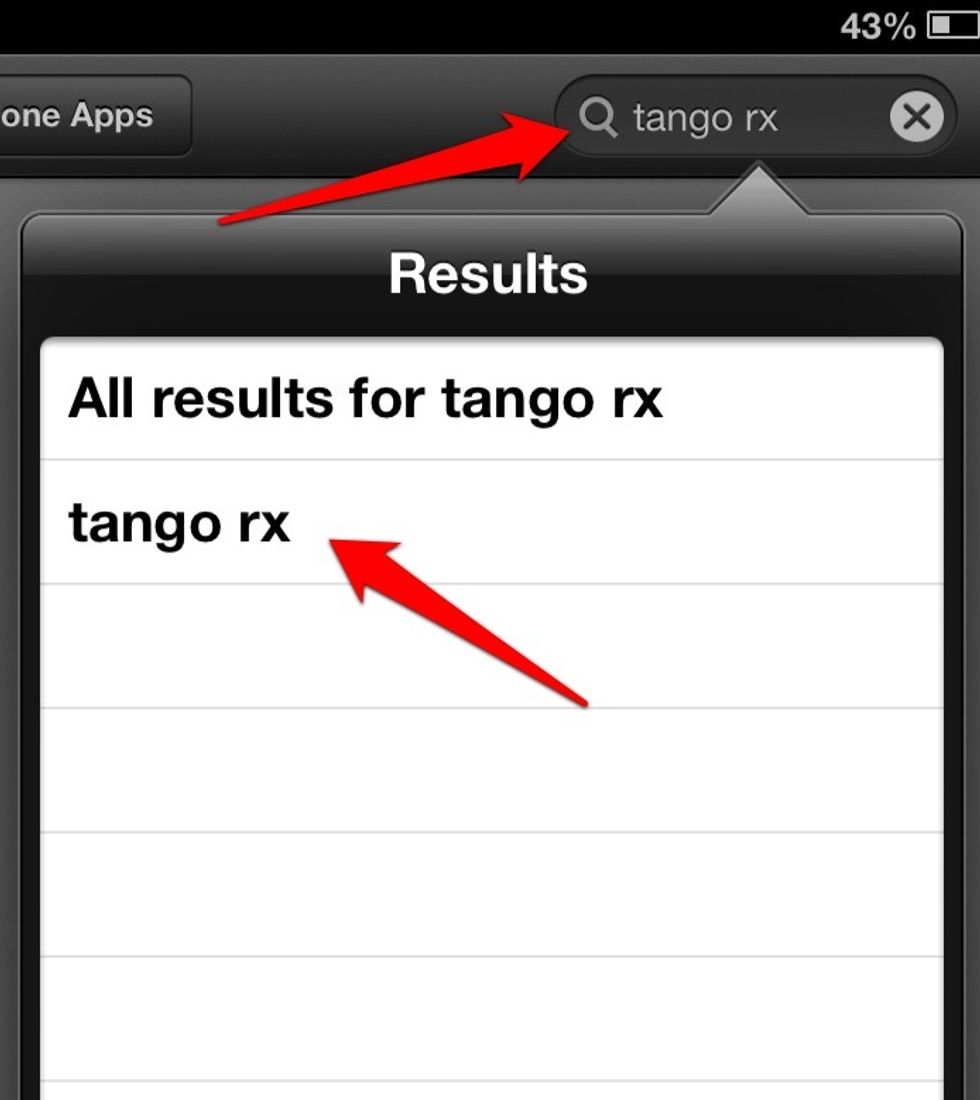
Enter "Tango Rx" in the field, then tap "Search" on your keyboard
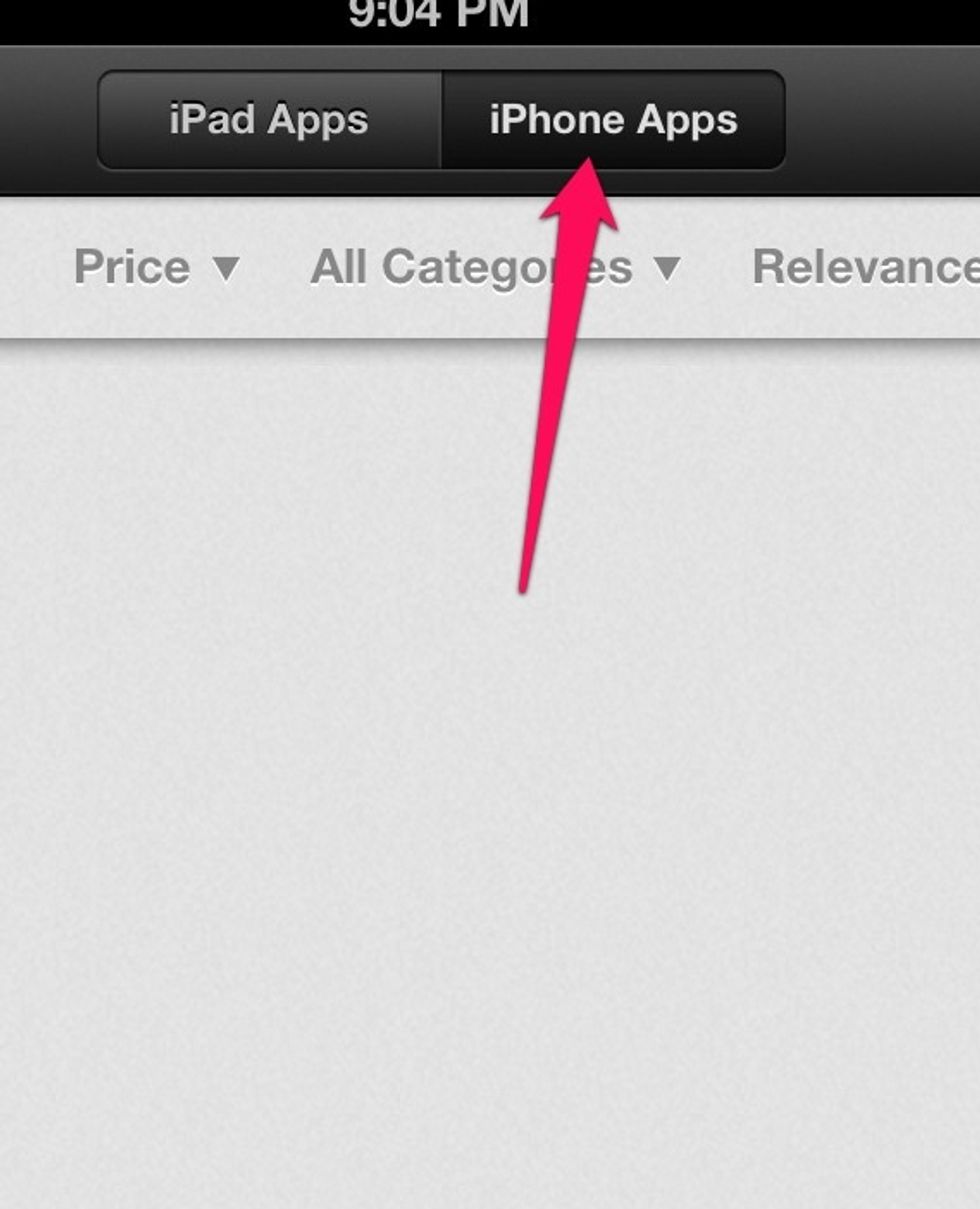
Select "iPhone Apps" at the top
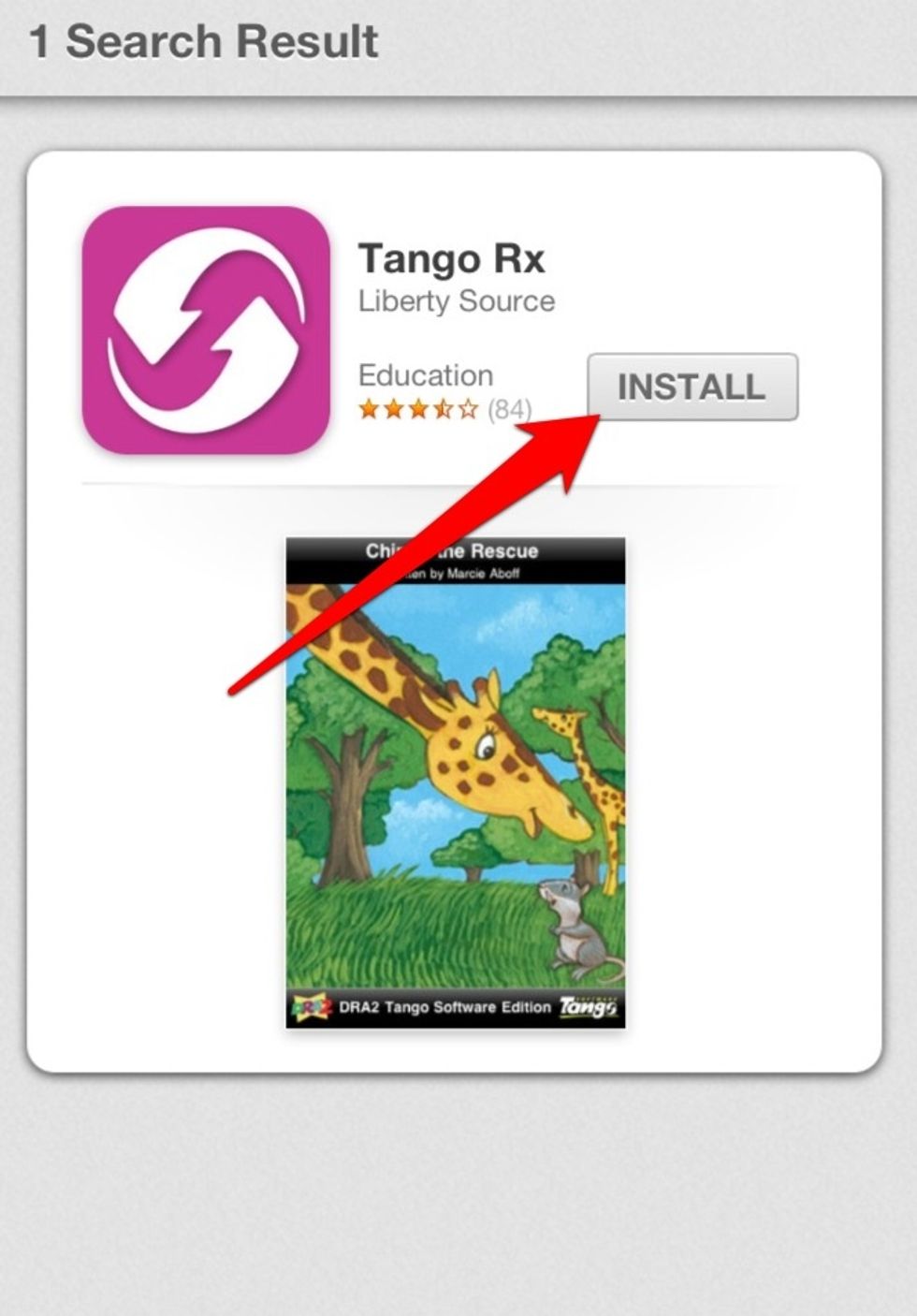
When it appears, the button will either say "Free" or "Install". Touch it.
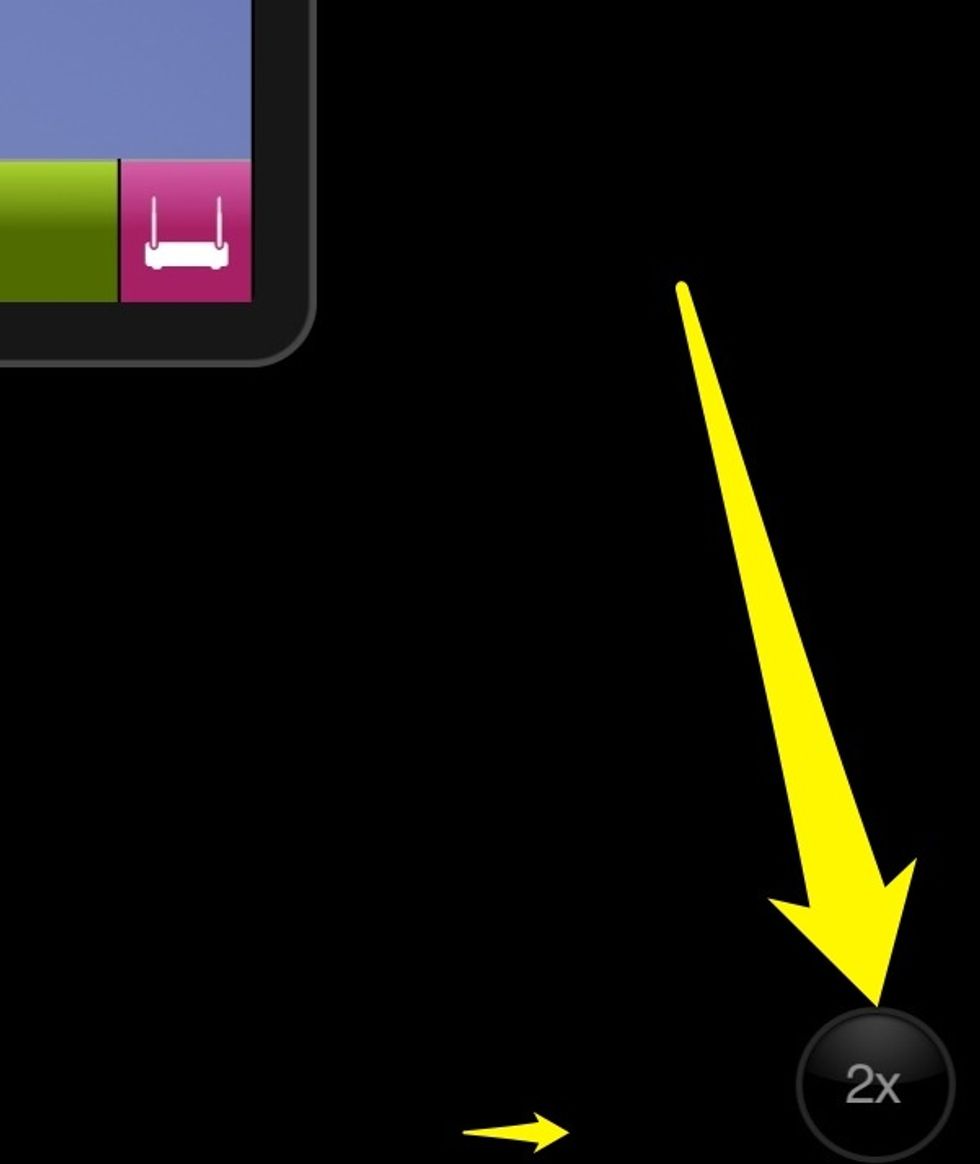
Tap the 2x button at the bottom right to make the app full-screen.

Enter the information you got from your Reading Specialist.
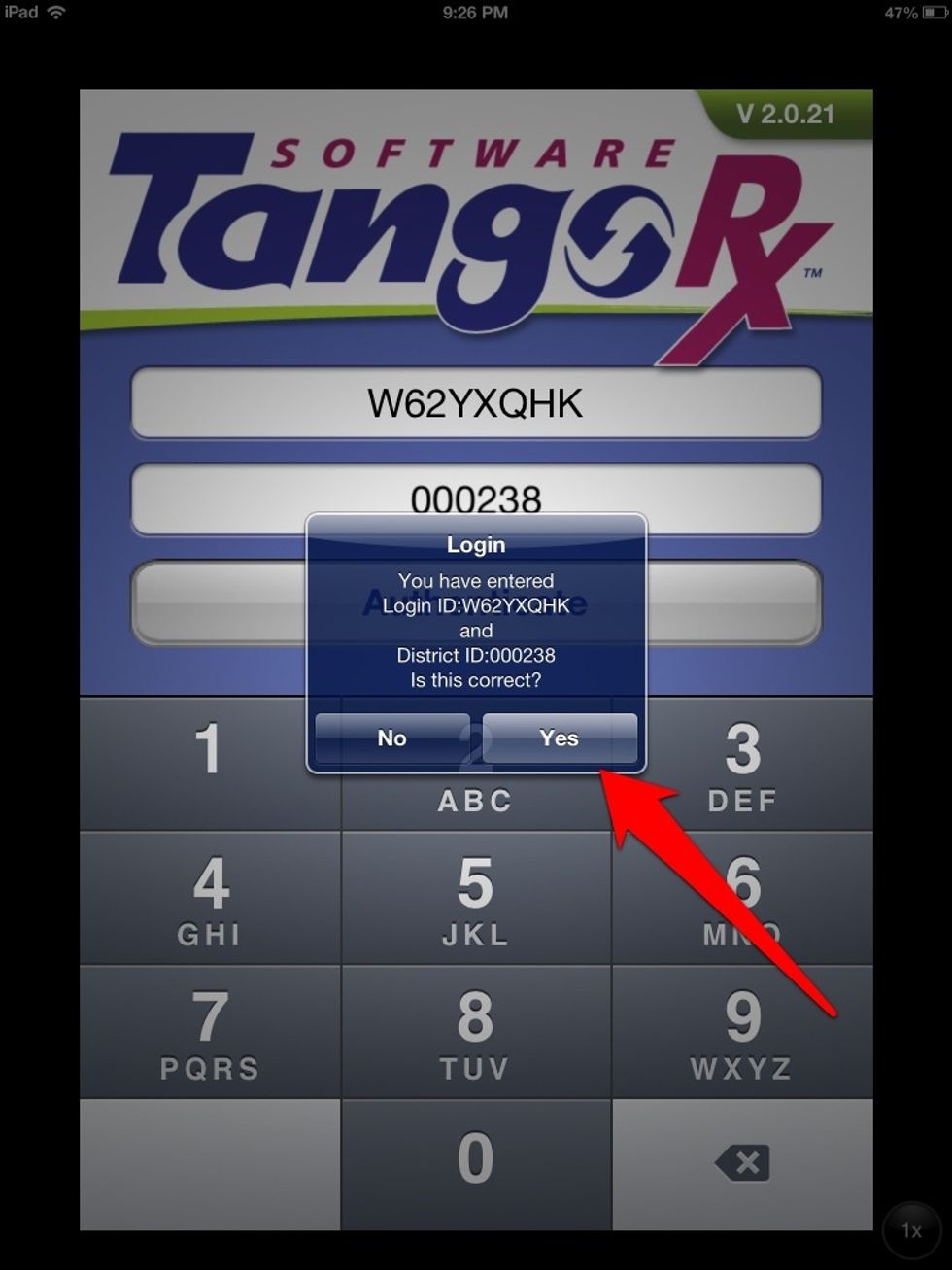
Touch "Yes"
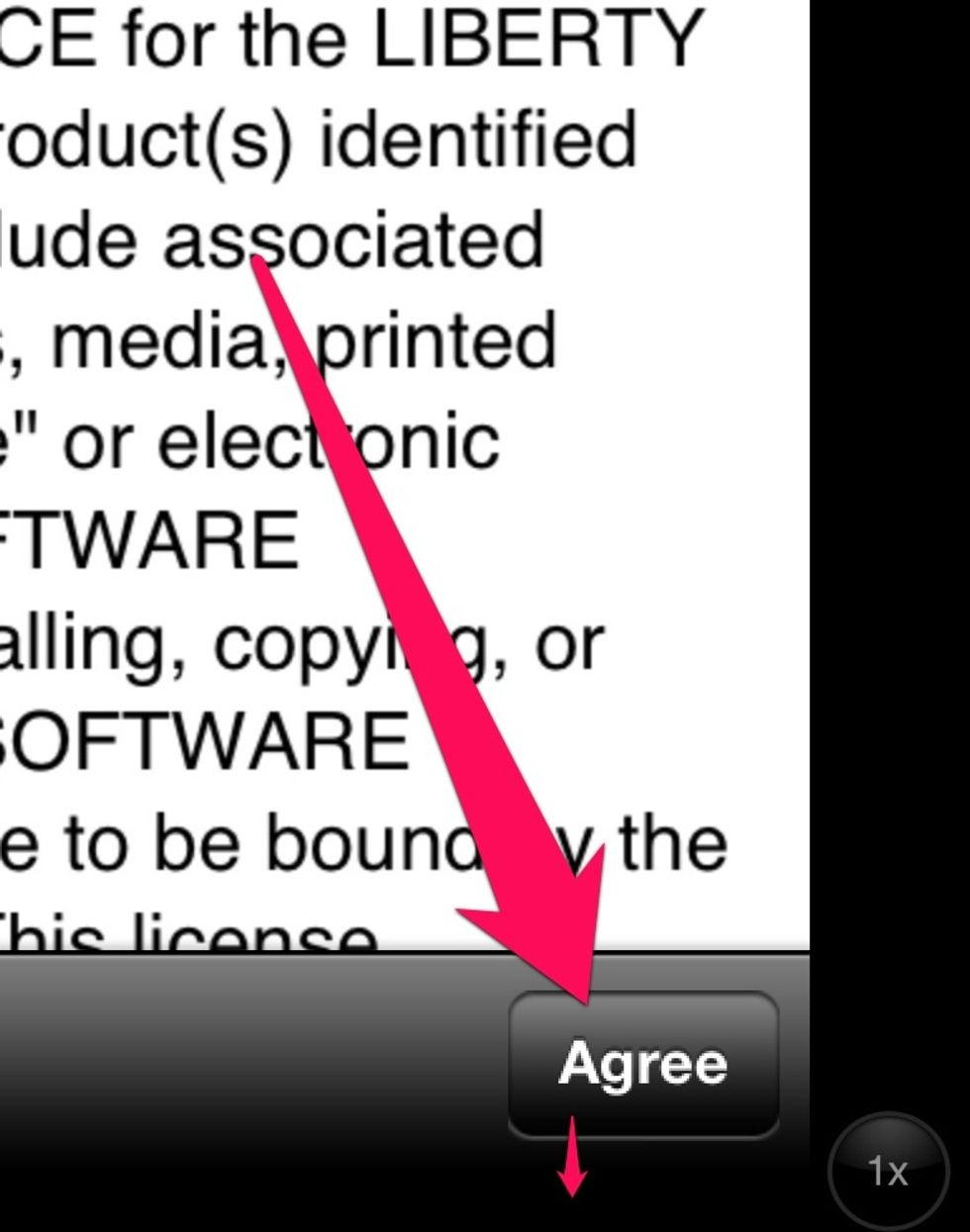
Scroll down the page a little way and then touch the "Agree" button

Create your account using your school email address
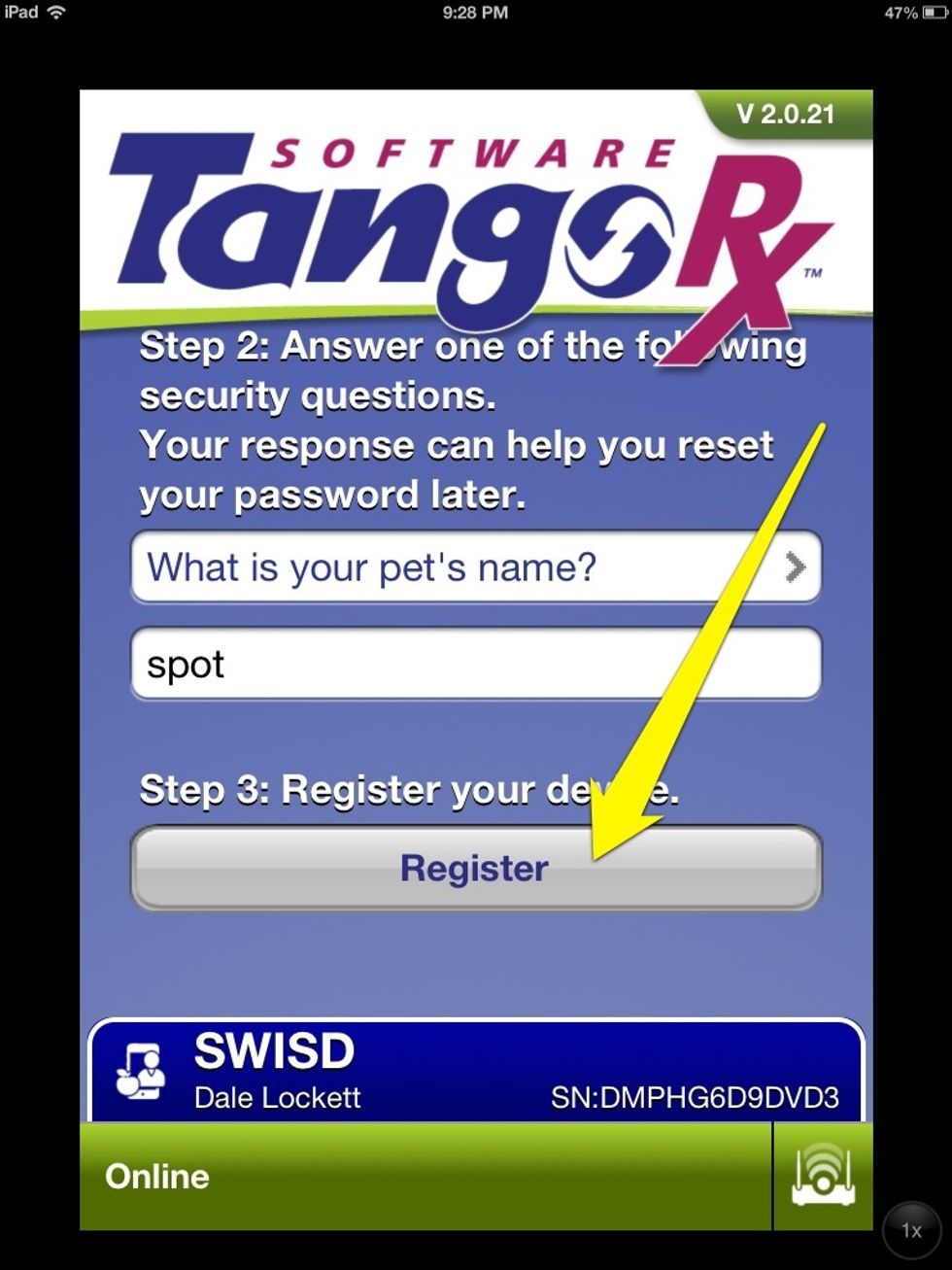
Use the pet name that your campus is using. You should be able to get that from your reading specialist

The data will now begin downloading

You should see your status as "Online." Touch the sync icon
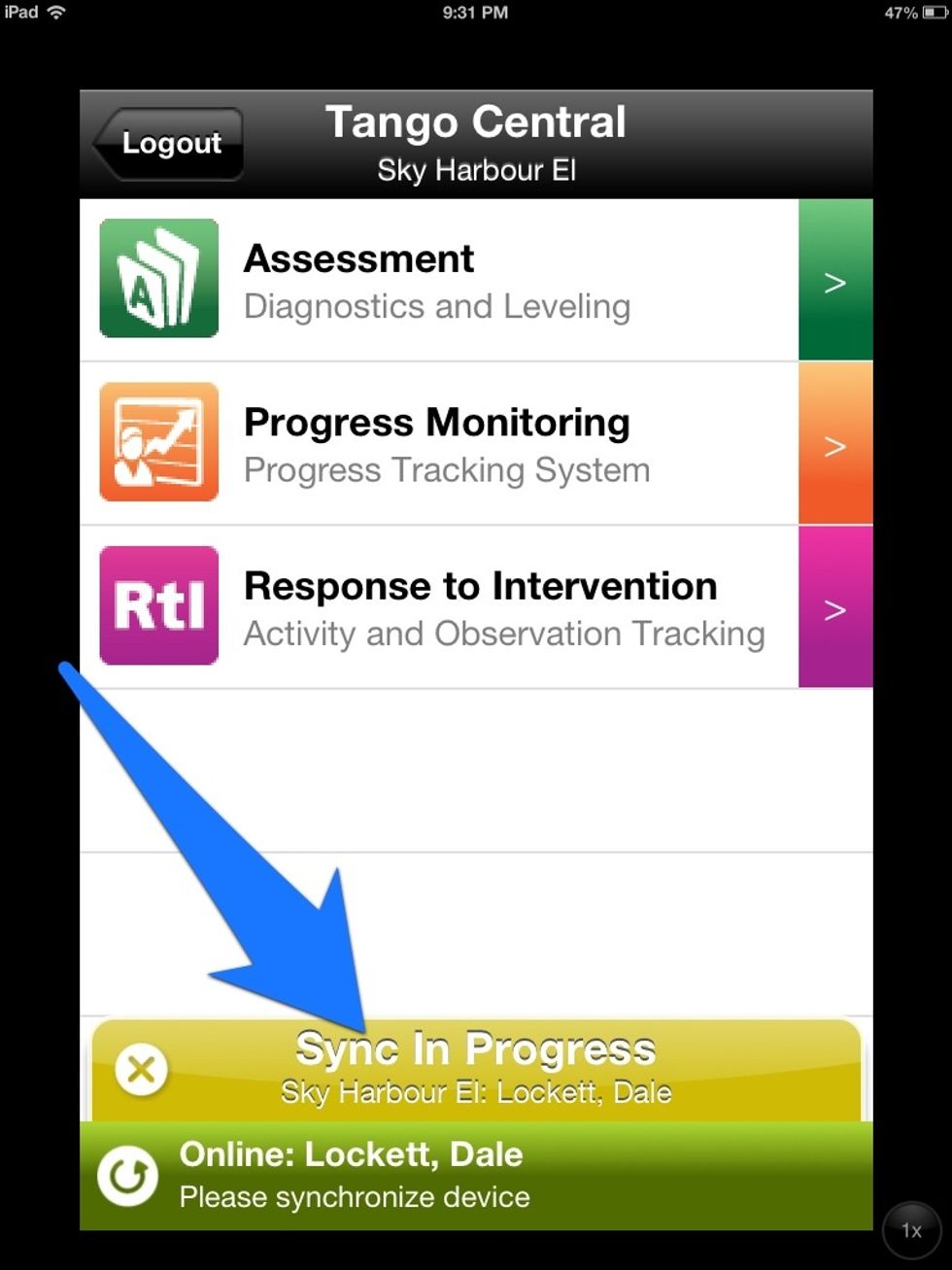
You should see this screen while the sync is in progress
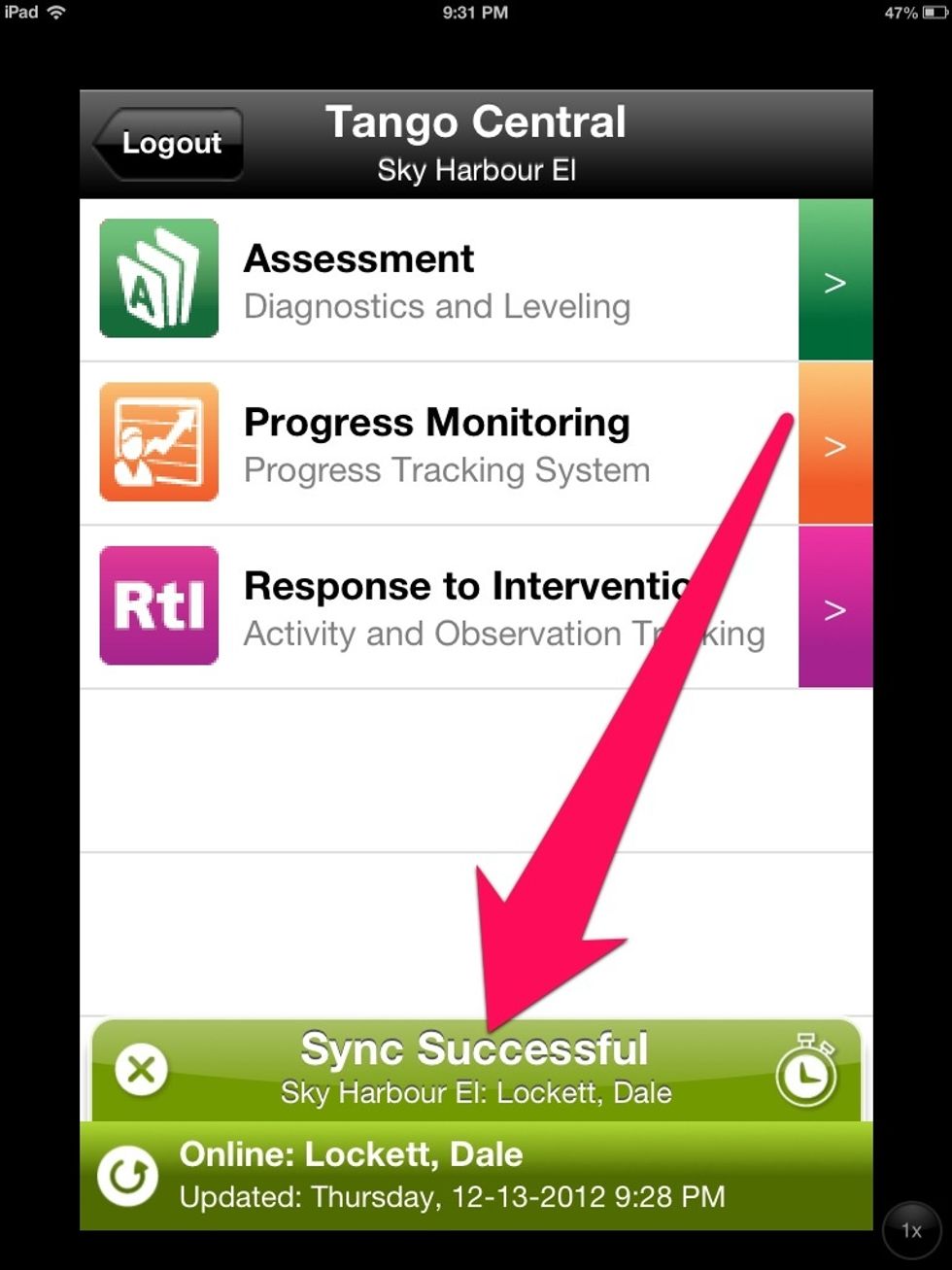
When you see this you have successfully set up your iPad.