How to Setup iPhone Hotspot With Mac

How to Setup iPhone Hotspot With Mac

24
STEPS
TOOLS

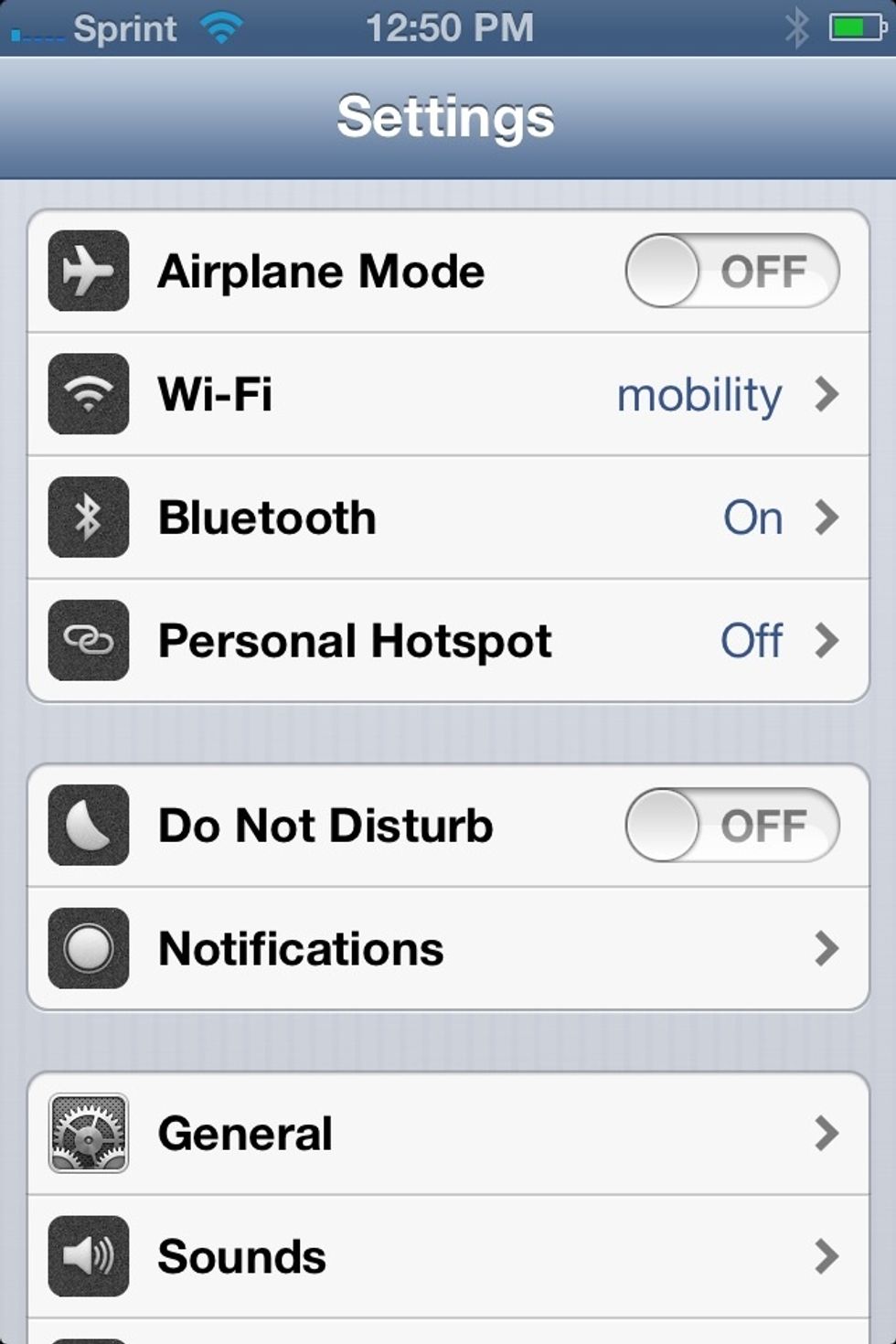
Select Settings on the iPhone and find Personal Hotspot.
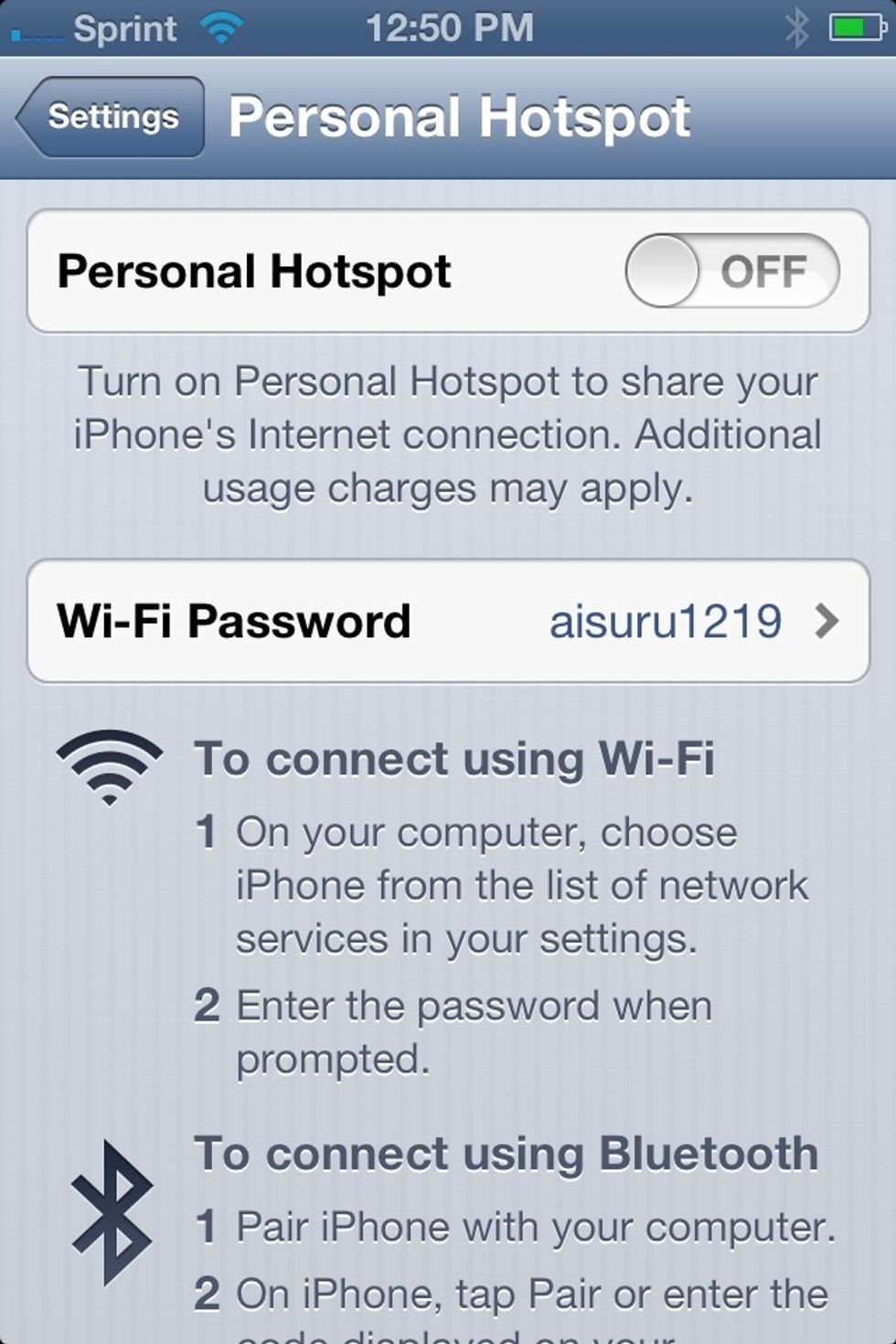
Select Settings on the iPhone and find Personal Hotspot.

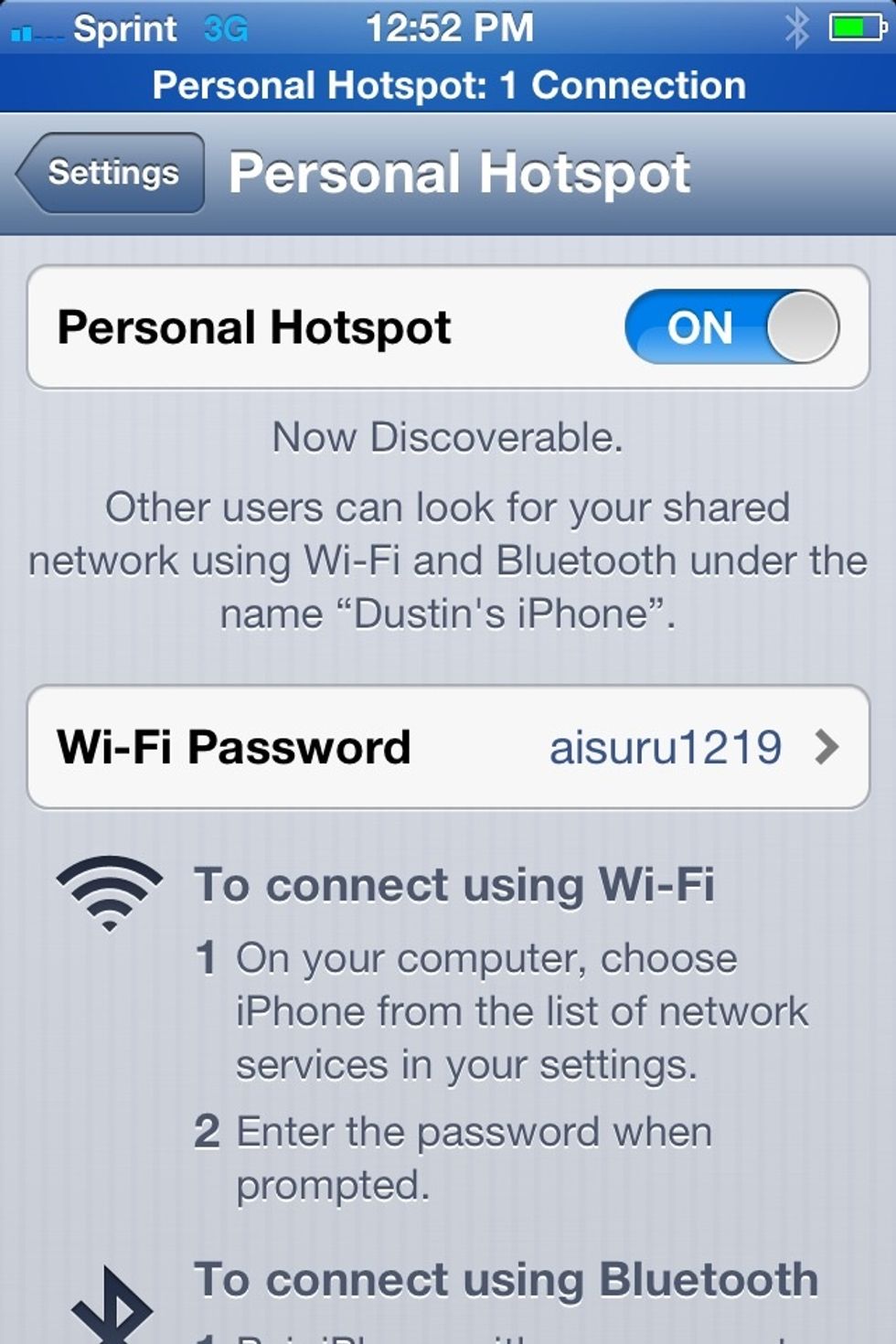
In the Personal Hotspot settings, change the Wi-Fi Password to something unique.
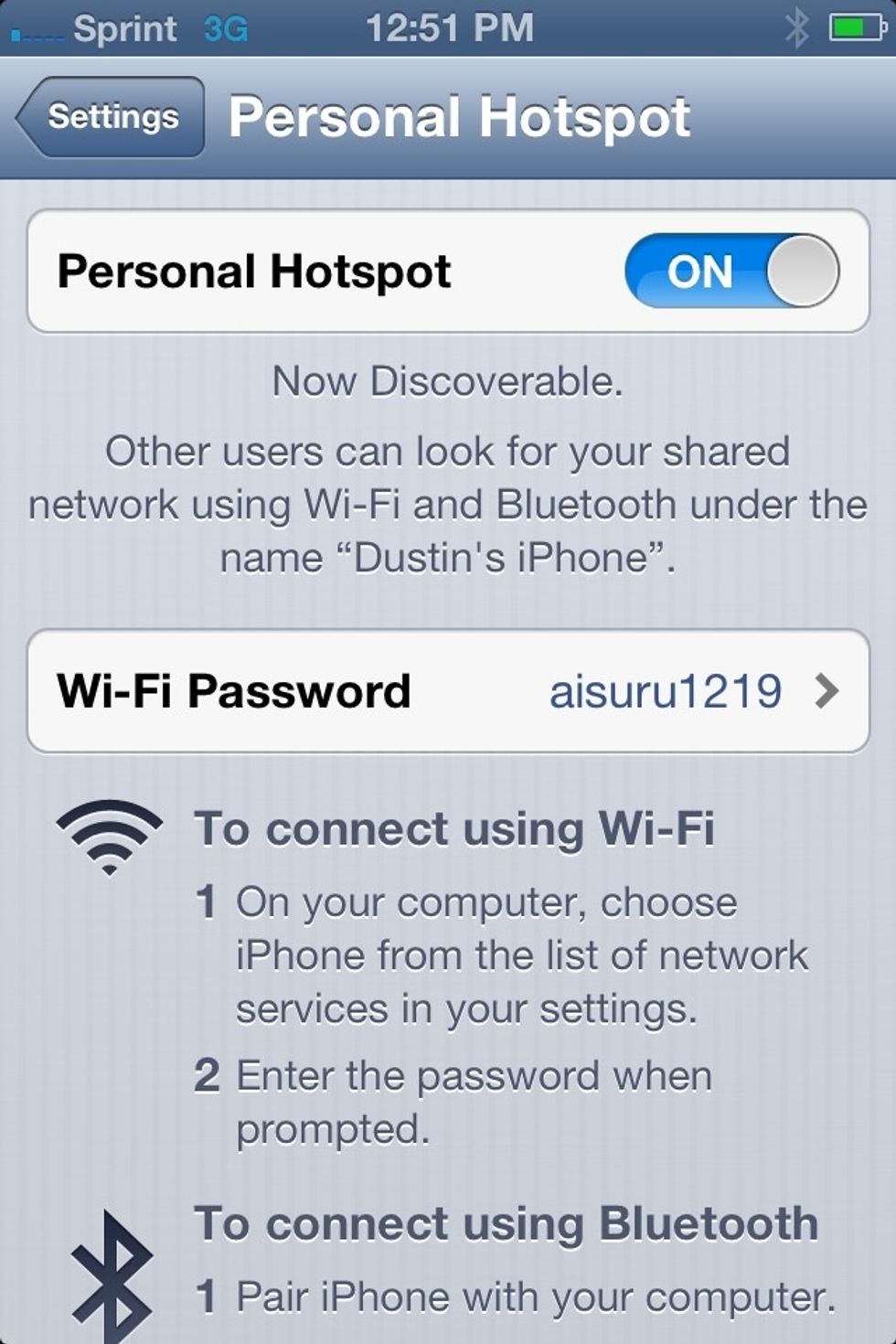
In the Personal Hotspot settings, change the Wi-Fi Password to something unique.

Turn on the HotSpot. Note the name of the Network. Here it is "Dustin's iPhone."

Turn on the HotSpot. Note the name of the Network. Here it is "Dustin's iPhone."

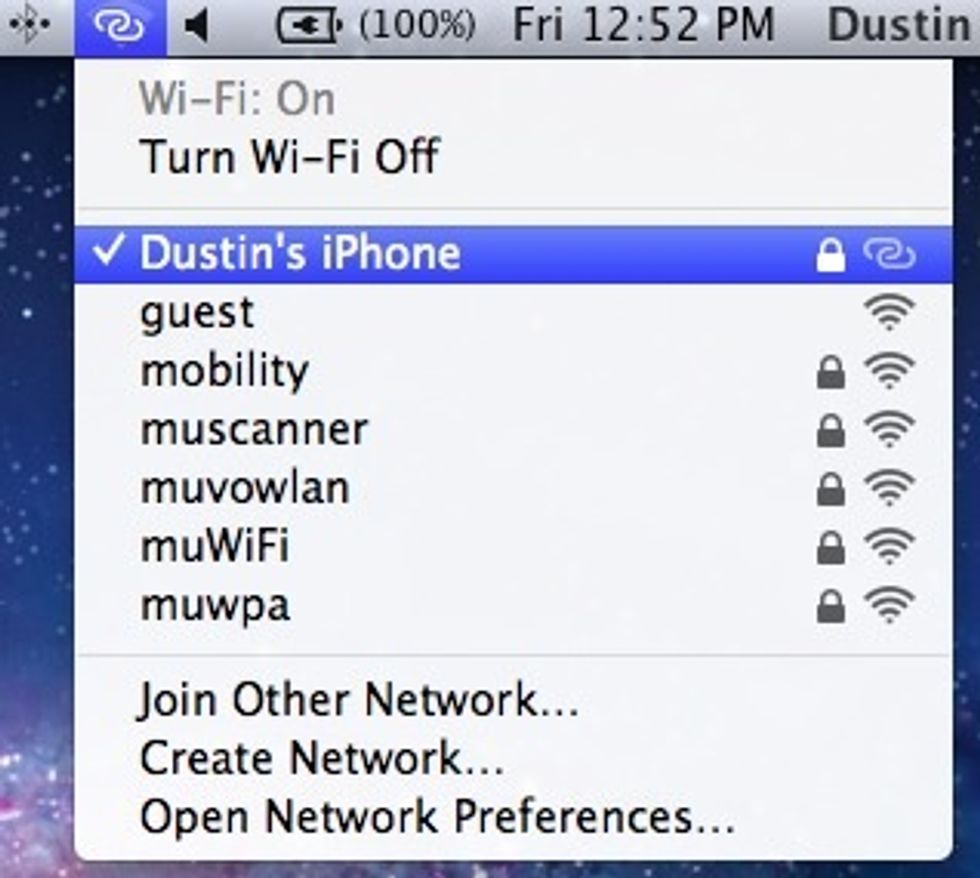
On your Mac, click on the Network Icon on the menus bar. Look for the network name for your phone.  Select that network. Wait for the connect to be established.

On your Mac, click on the Network Icon on the menus bar. Look for the network name for your phone. Select that network. Wait for the connect to be established.
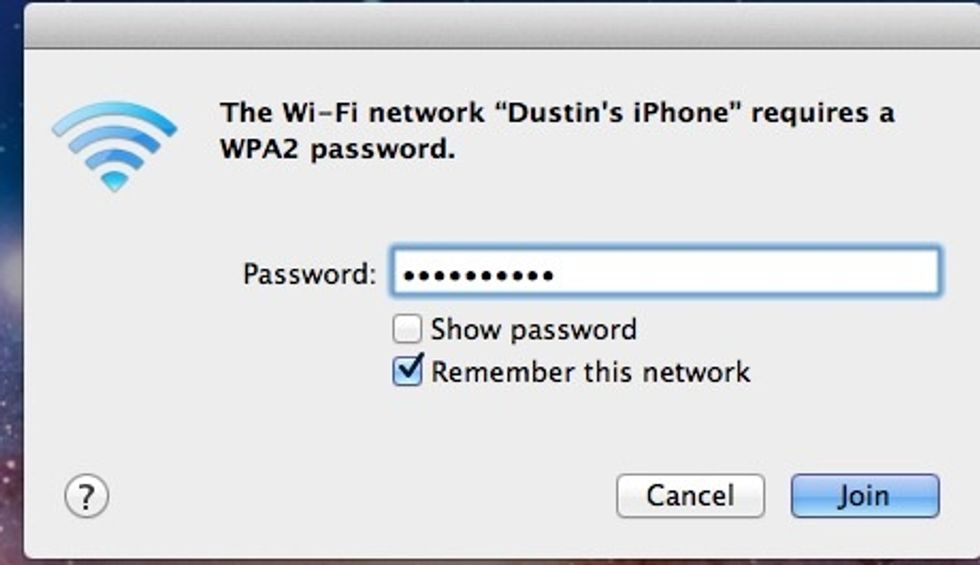
On your Mac, type in the name of the WiFi password you just setup.
On your Mac, type in the name of the WiFi password you just setup.

When a connection is successful, a blue bar will appear at the top of your phone.
When a connection is successful, a blue bar will appear at the top of your phone.

Your Mac should reflect image when connected to the phone.

Your Mac should reflect image when connected to the phone.

  • iPhone 5 running iOS6
  • Mac