
The Conversation (0)
Sign Up
Where to find the template
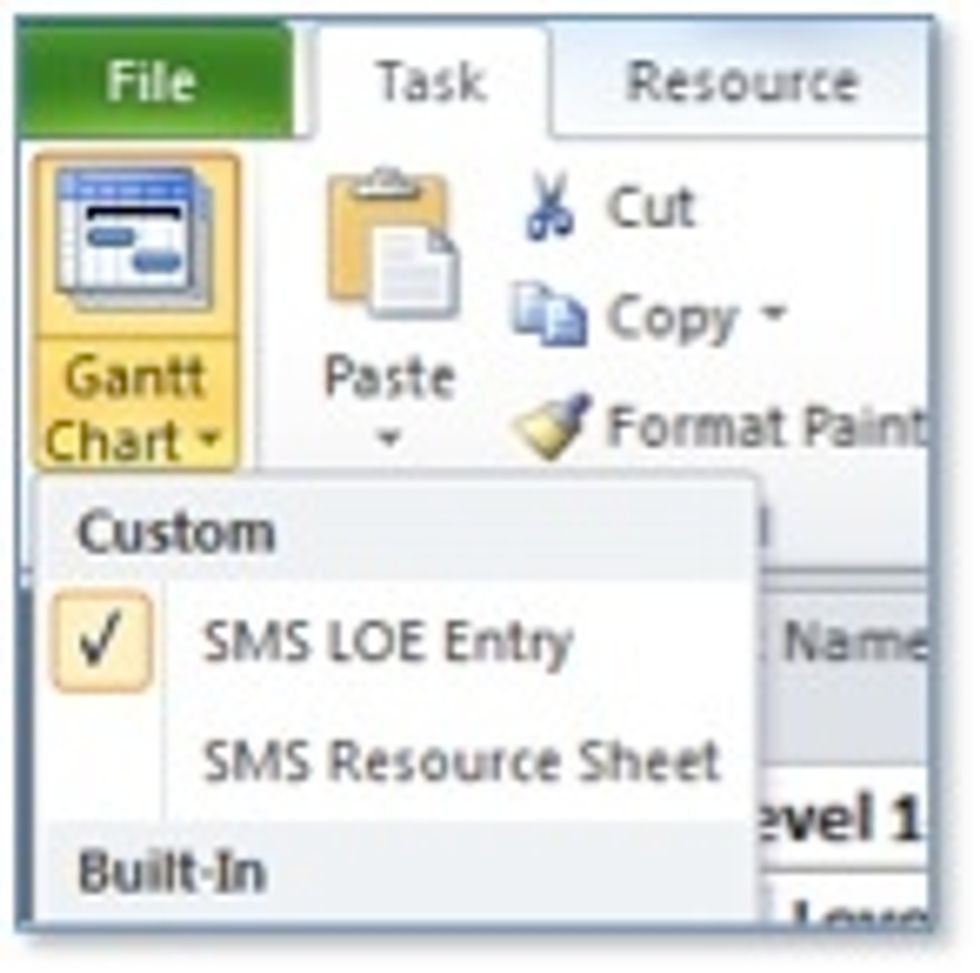
Open the LOE SAMPLE V6.mpp Microsoft Project file. Project will default to the SMS LOE Entry view, if not select this view by choosing the Task tab >Gantt Chart drop down > ‘SMS LOE Entry’ view
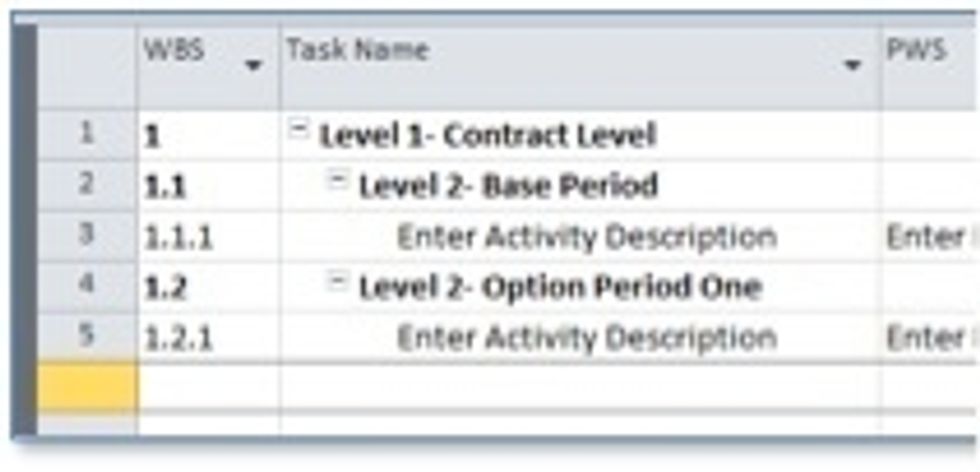
The template is pre-loaded with an example structure. Enter tasks under the Base Period as appropriate; when complete continue to the Option Period as necessary

Enter: Task Name, PWS, CLIN, Resource Names and Work. Additional fields Provide Deliverable, Assumptions and Estimation Type (EE= Engineering Estimate, HD= Historical Data, M= Model)
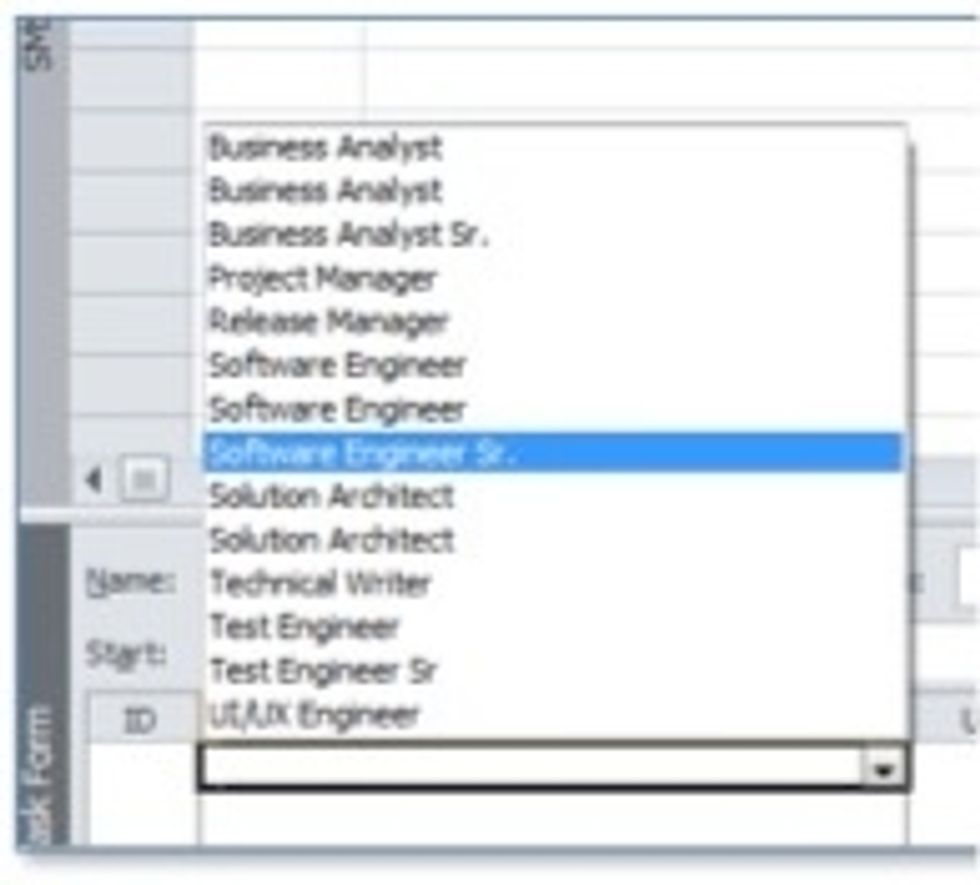
CLIN and PWS are drop down fields that will populate as data is entered. The data will be available in the drop down list. You can add resources to the active task in the top portion of the screen

Select a resource by click the Resource drop down menu. Enter the Unit Value (% of time) and then enter the number of hours required in the Work column. Continue adding resources as needed.
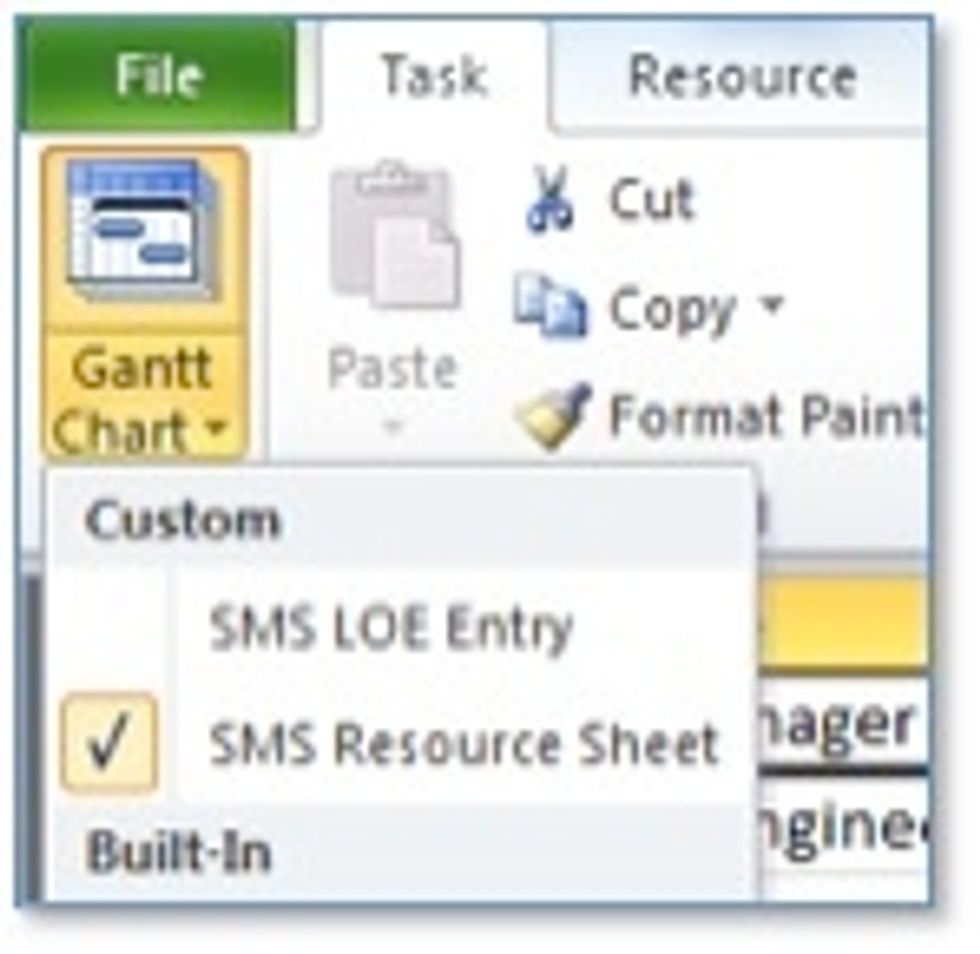
To view the specific resources assigned to the project, select the SMS Resource Sheet from the Gantt chart drop down
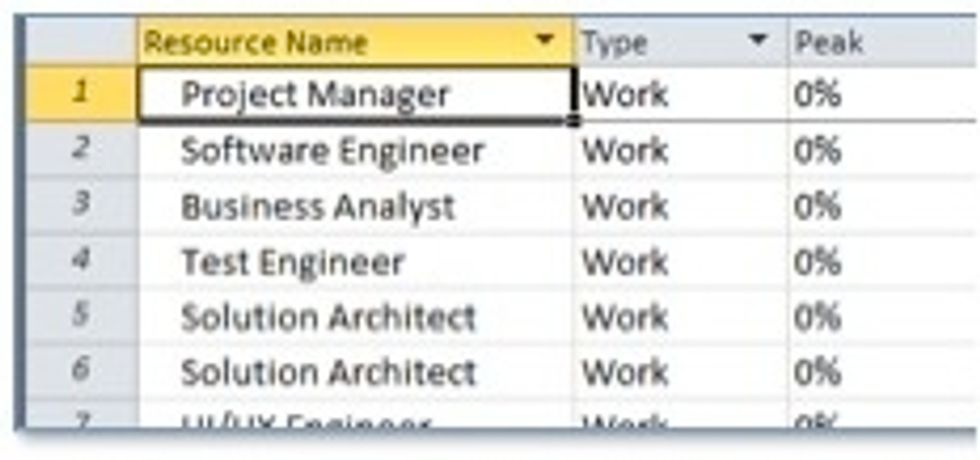
Resource Names are pre-loaded. You are free to change these resources to represent the particular project being worked. Key fields to enter are Resource Name and Company
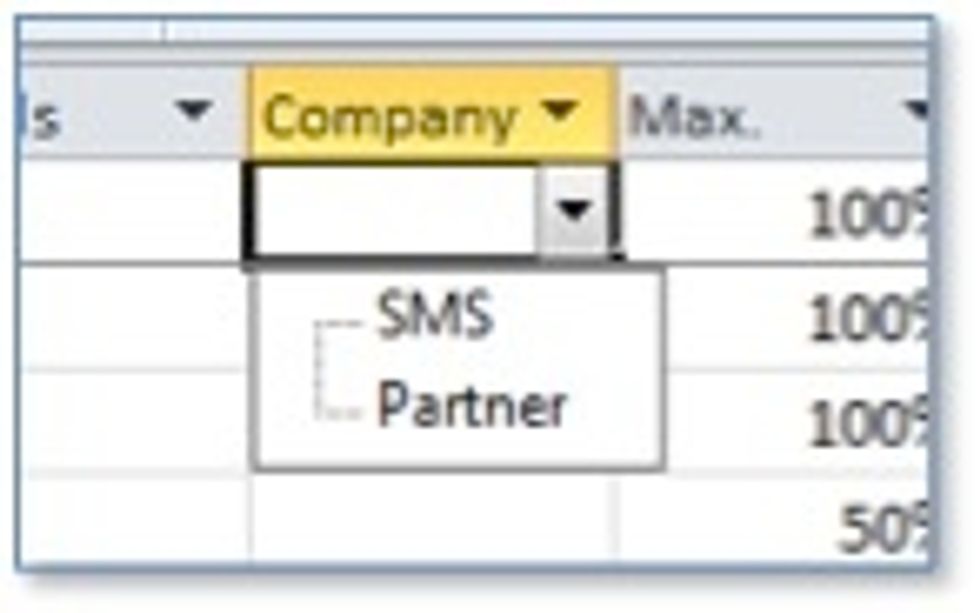
The Company field is pre-loaded with ‘SMS’ and ‘Partner’. You can add new Companies and they will appear in the drop down
How to prepare the LOE and present to Pricing