
The Conversation (0)
Sign Up
If you have a site that you frequent- and would benefit from an icon shortcut - this SnapGuide is for you!
For instance we ask our students to use Creative Commons Search when looking for images and music for their presentations.
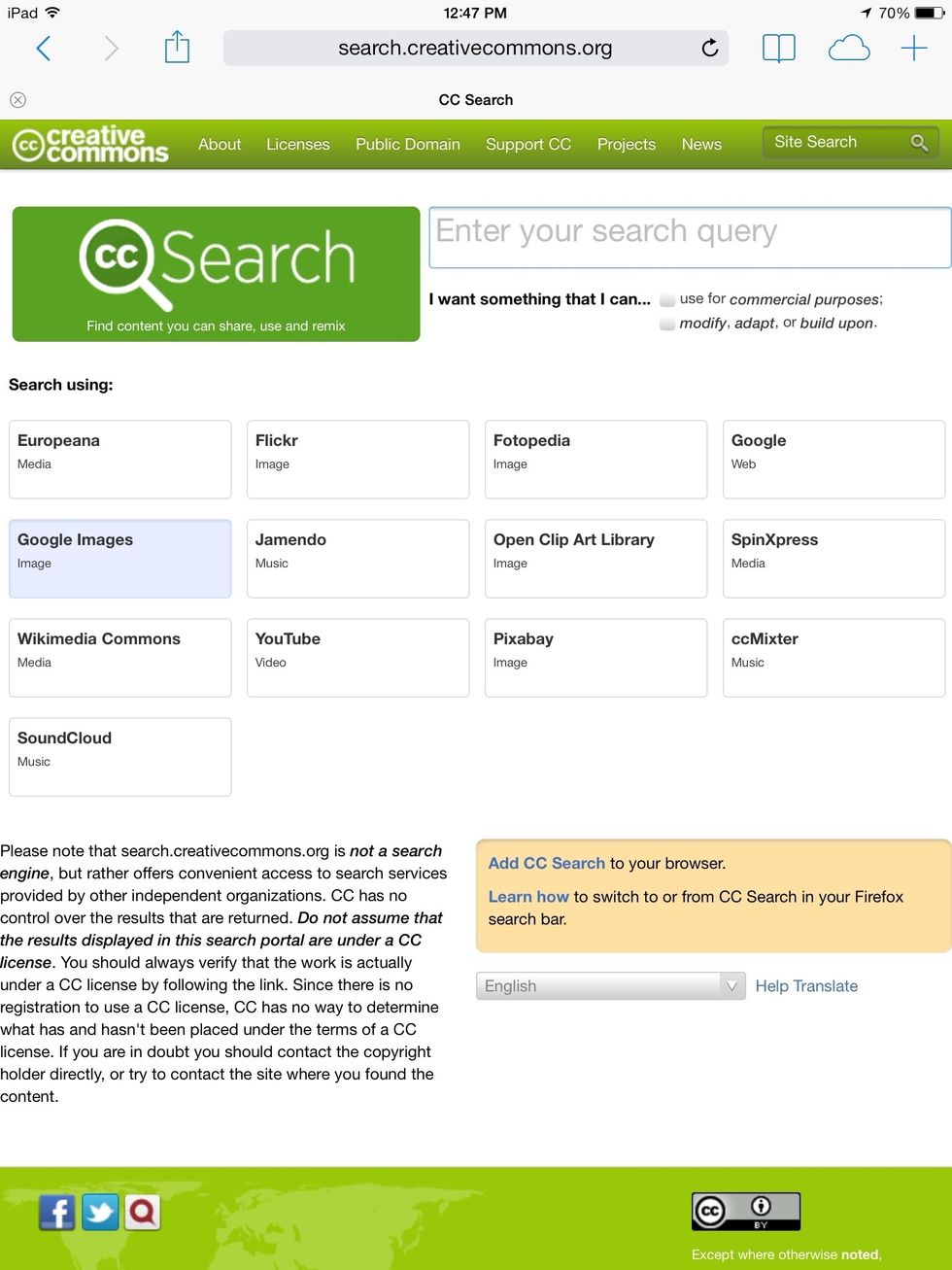
The website is www.search.creativecommons.org
To make it easier for students to get to this site- we have added an "icon" (which is also known as a webclip) to our iPads.

With this CC Webclip - they just touch it and it takes them to the Creative Commons Search search page.
To do this- open the Safari app.
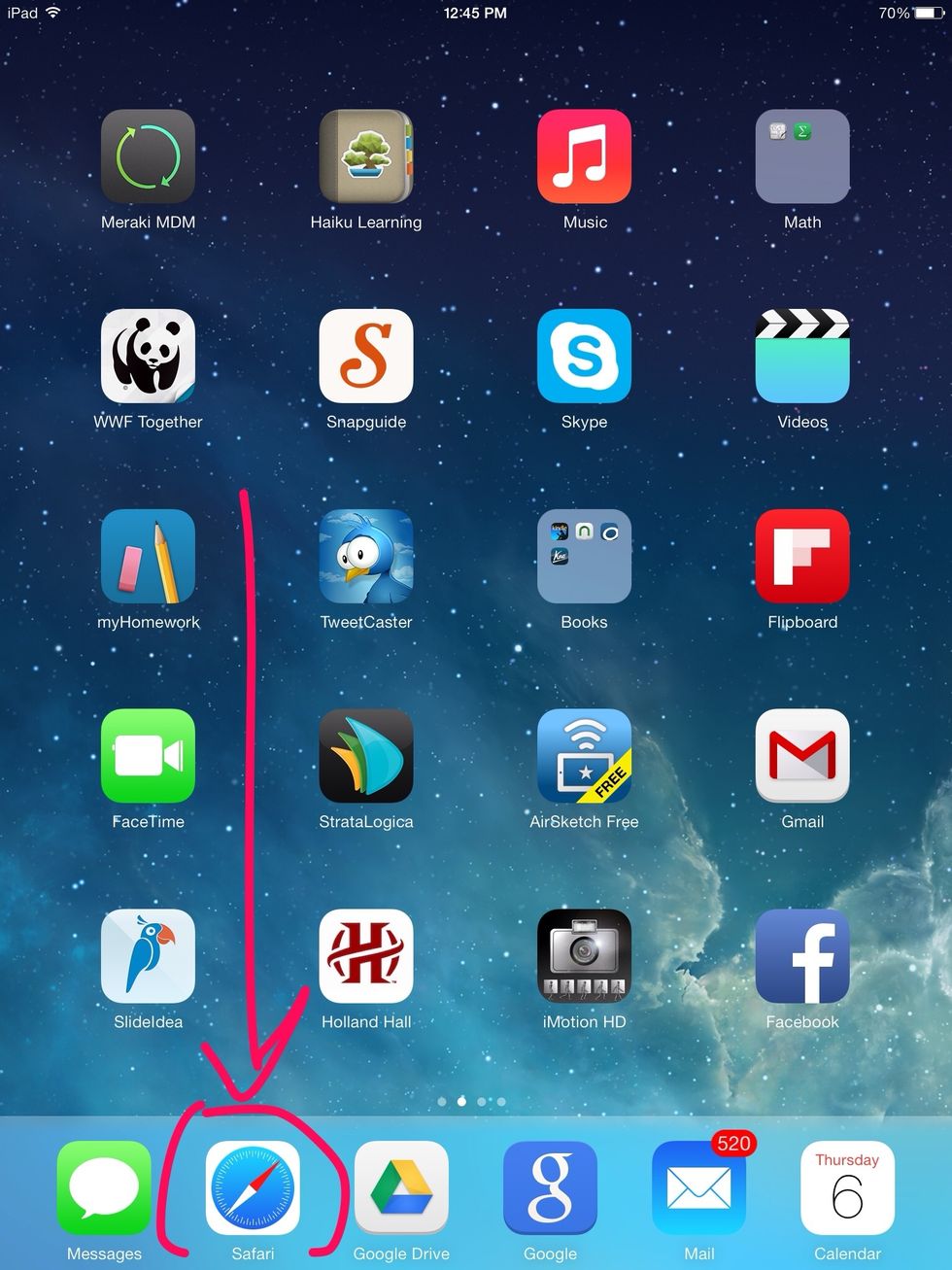
Once you open Safari, search for Creative Commons Search (or any other site you want to use) and click to open the website.

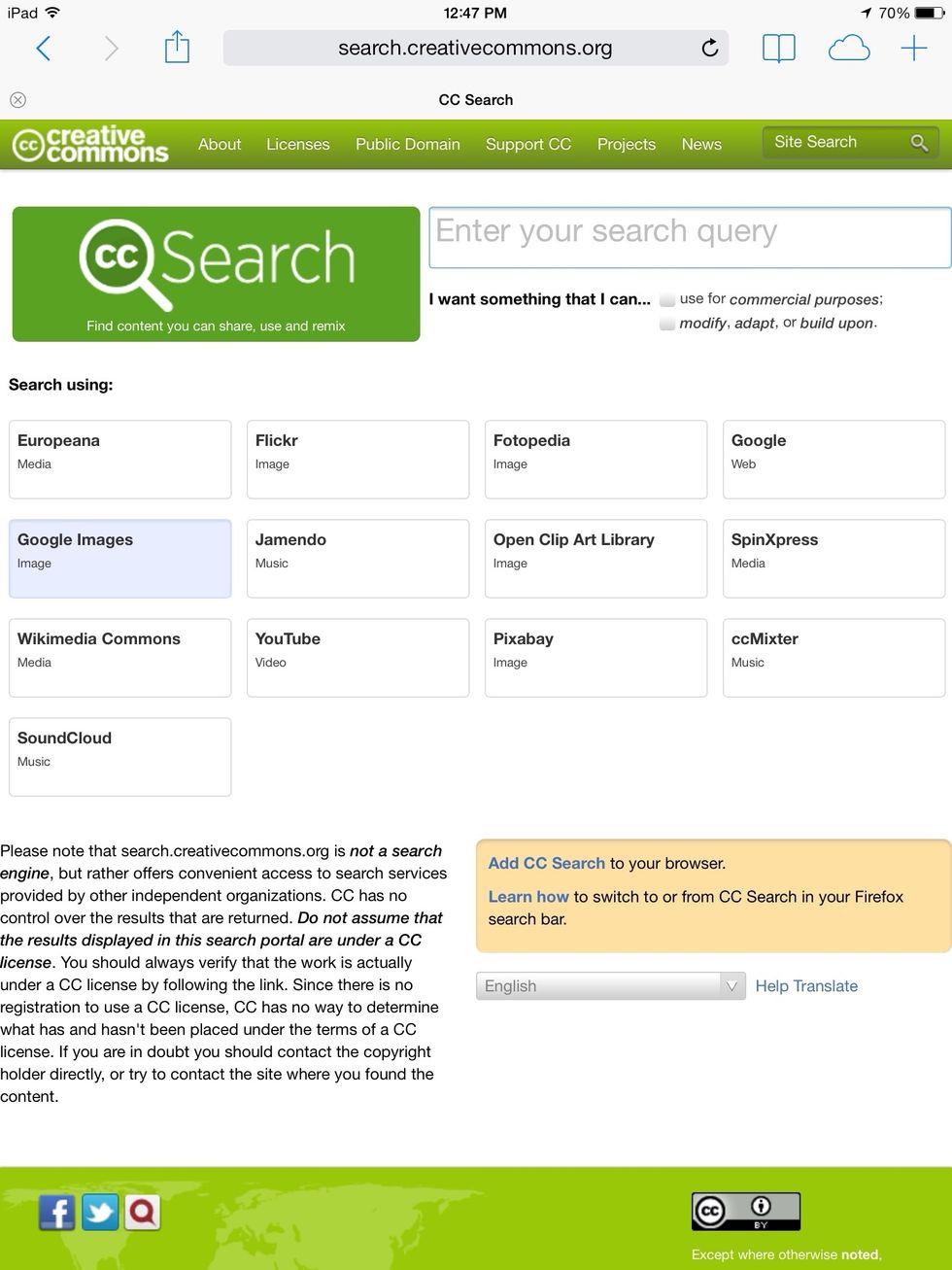
This is where I want the students to land!!
This is where I want students to land when searching for images and music. So now I want this site to be an icon on the iPad.
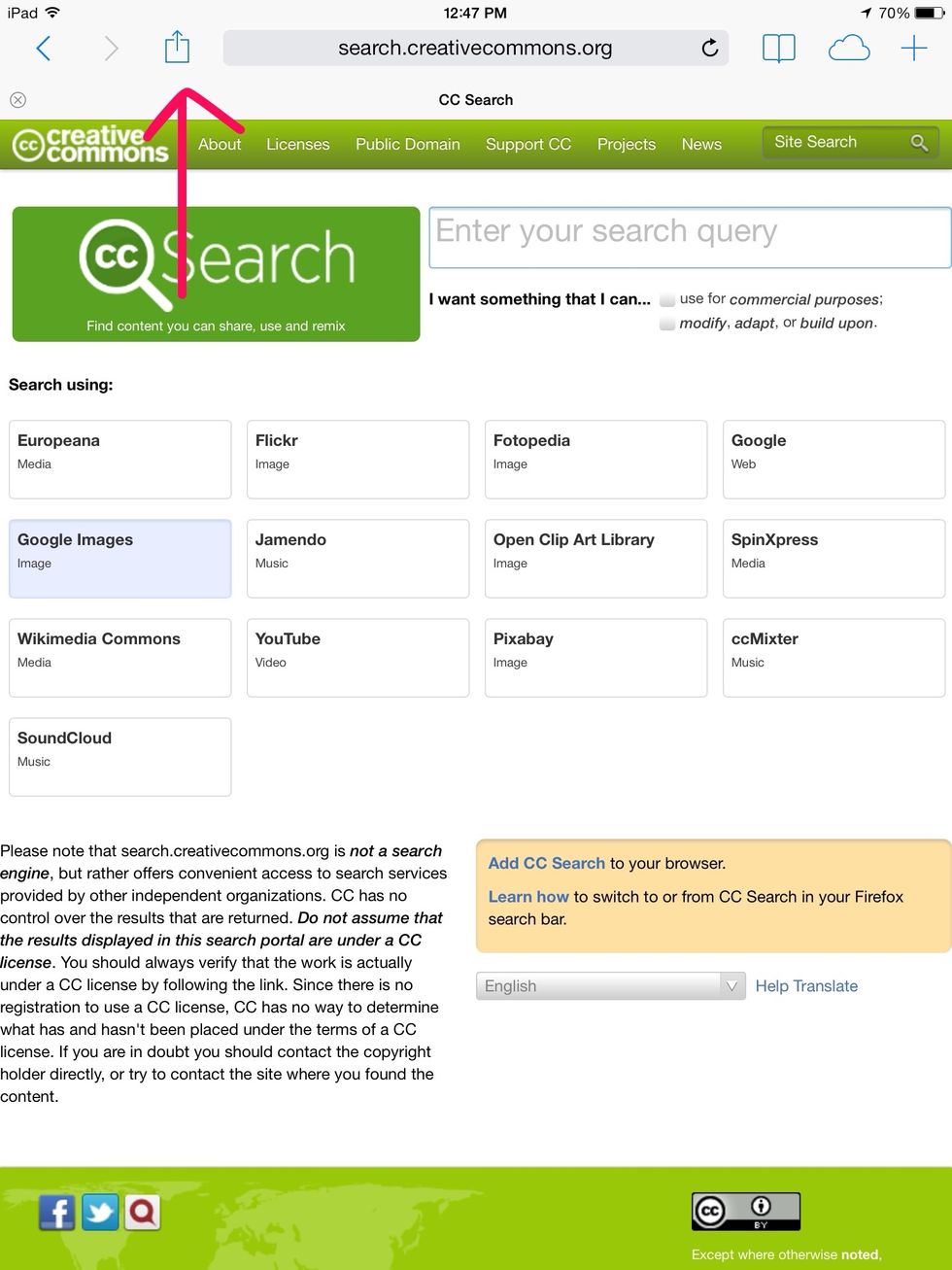
Click on the share icon - it is a box with an arrow pointing up.
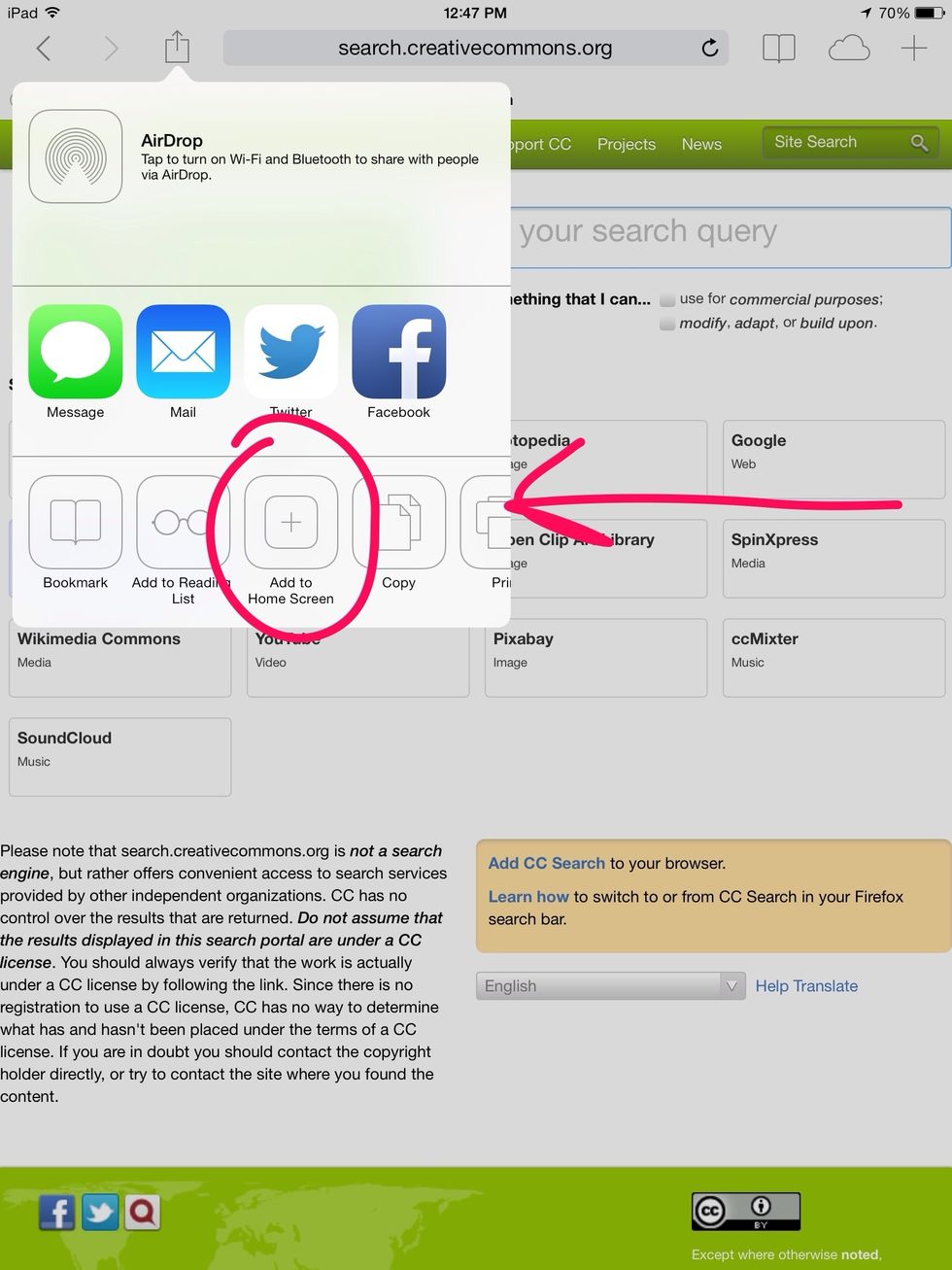
This box will pop up. Click on Add to Home Screen.

Check the title on the first line -which can be changed to what you like then click on ADD. The icon will appear on the screen of your iPad.

Viola!!! Now your students or you can just click on this webclip for quick access!! Hope this helps!!