
The Conversation (0)
Sign Up
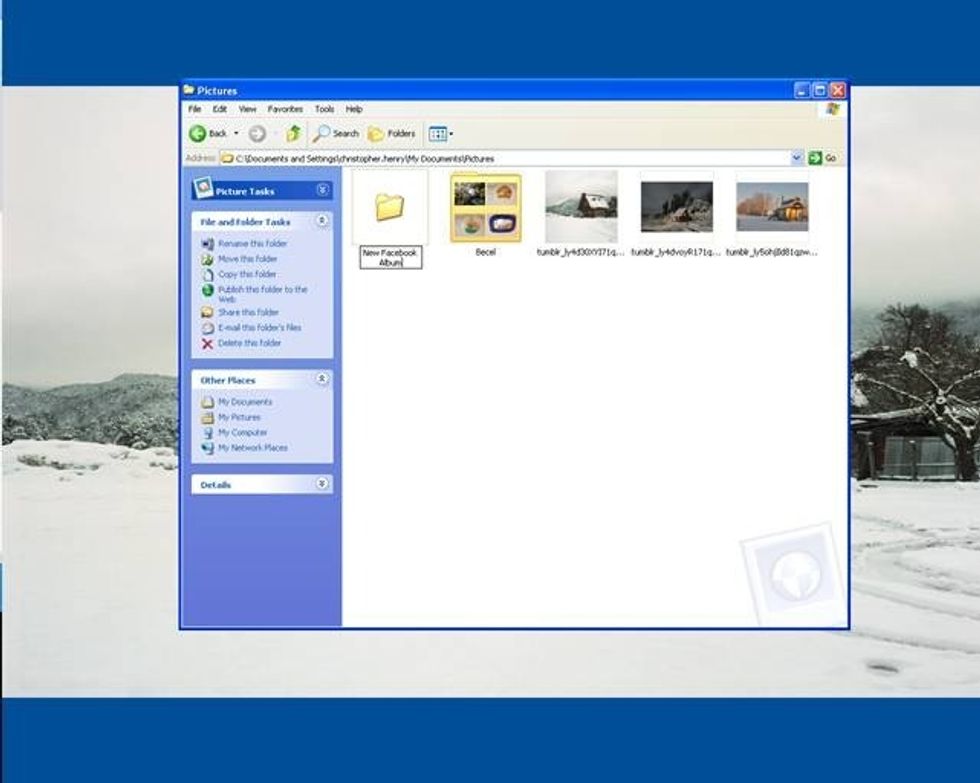
Create a new folder anywhere on your computer to store the photos you want to use to create your album
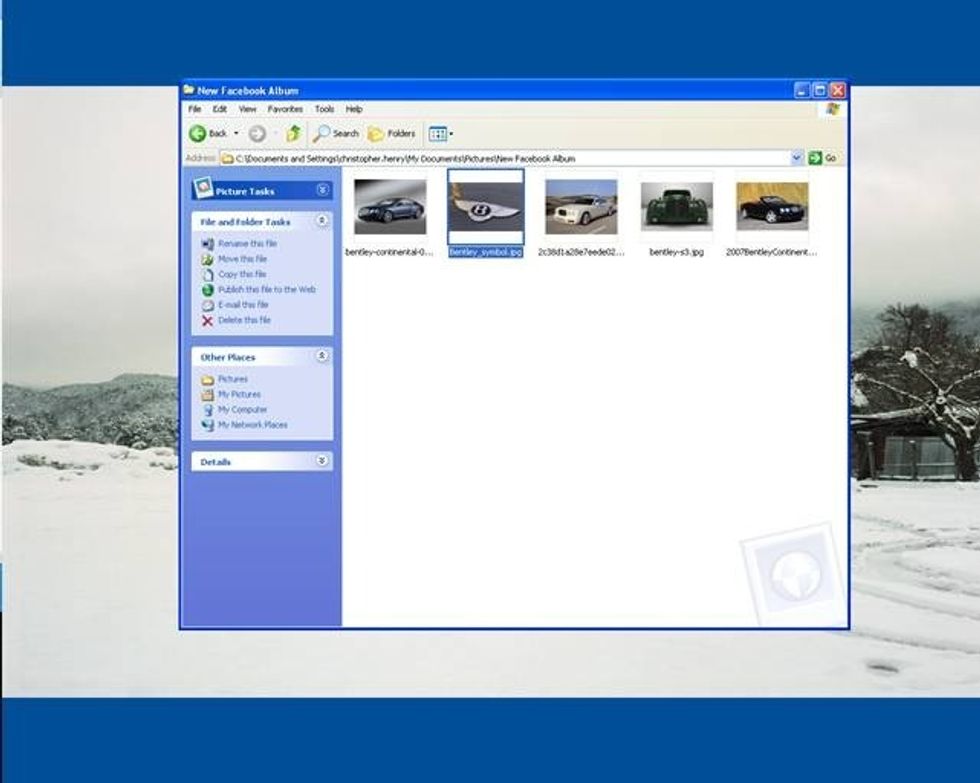
Add any photos you want to include in your Facebook album to your newly created folder
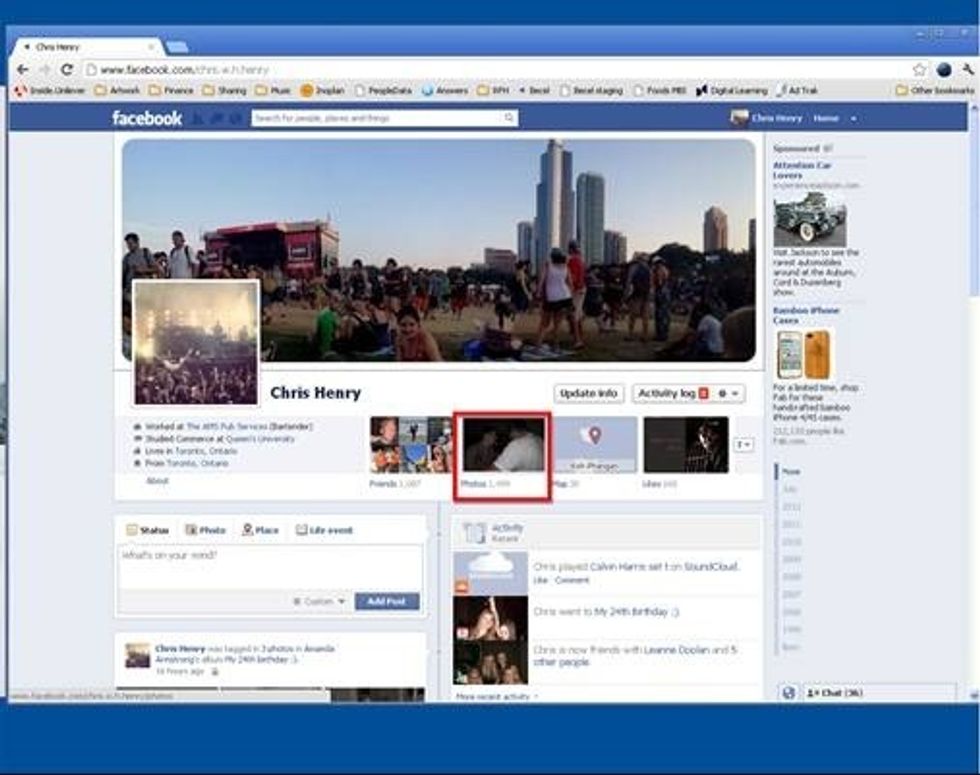
To upload your photos to Facebook, navigate to you profile page and select 'Photos'
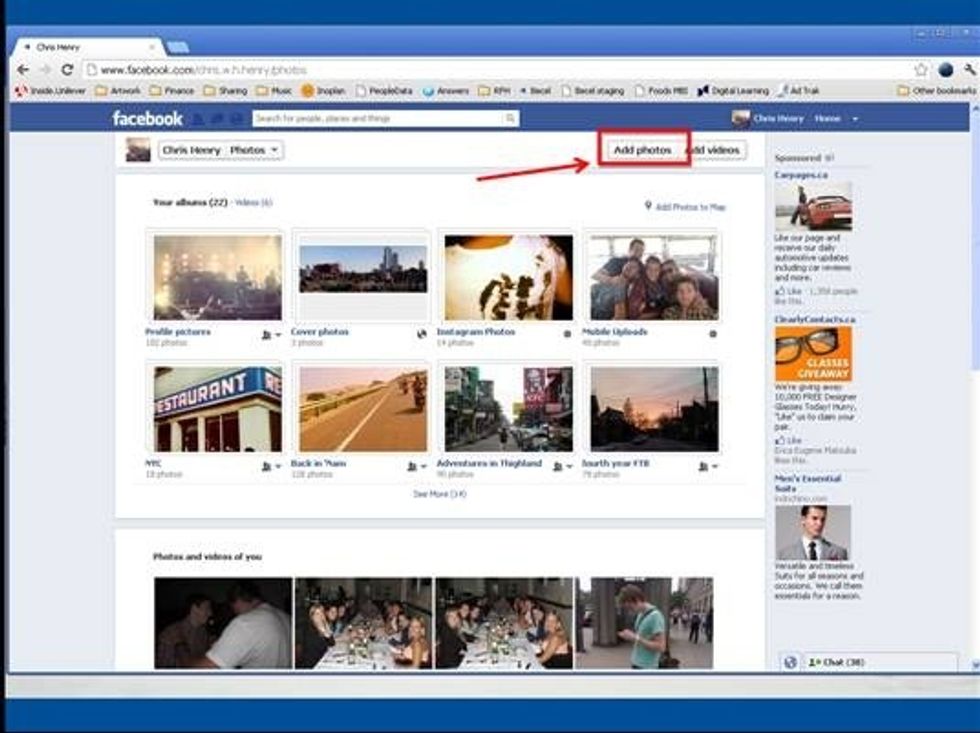
Select the 'Add Photos' button in the top right corner of the screen
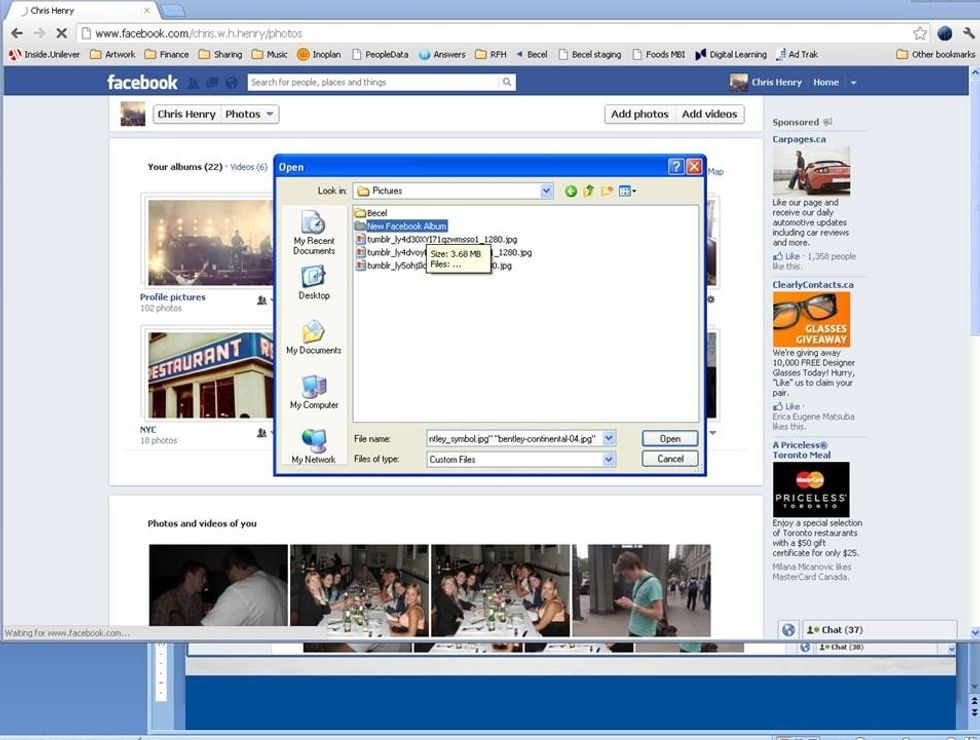
A dialog box should appear. Navigate to the folder you just created...
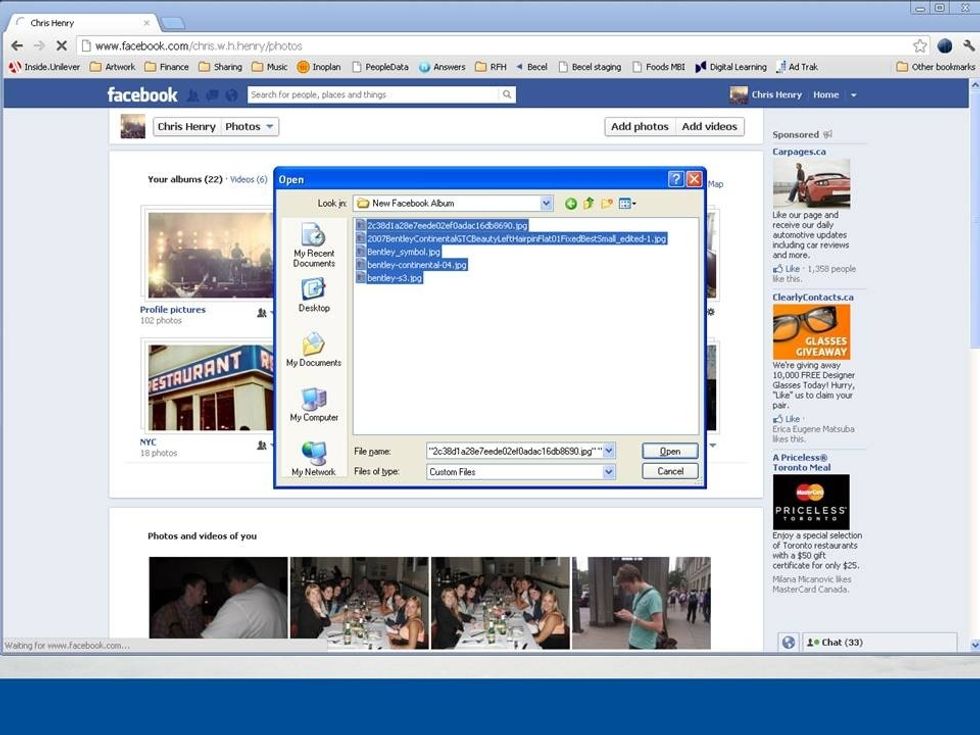
...and select all the photos in the folder (CTRL+A, or, select the top photo, hold shift, and then select the bottom photo in the list). Once you've selected your photos, click Open.
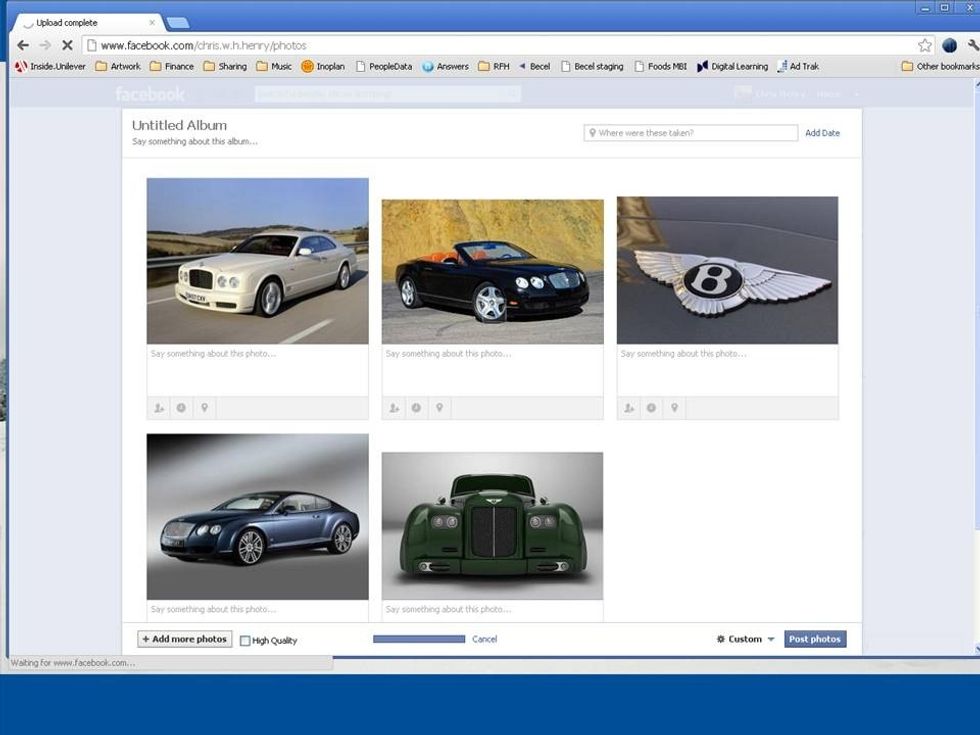
This should bring all of the photos you've selected to the album editing page within Facebook. Here you can...
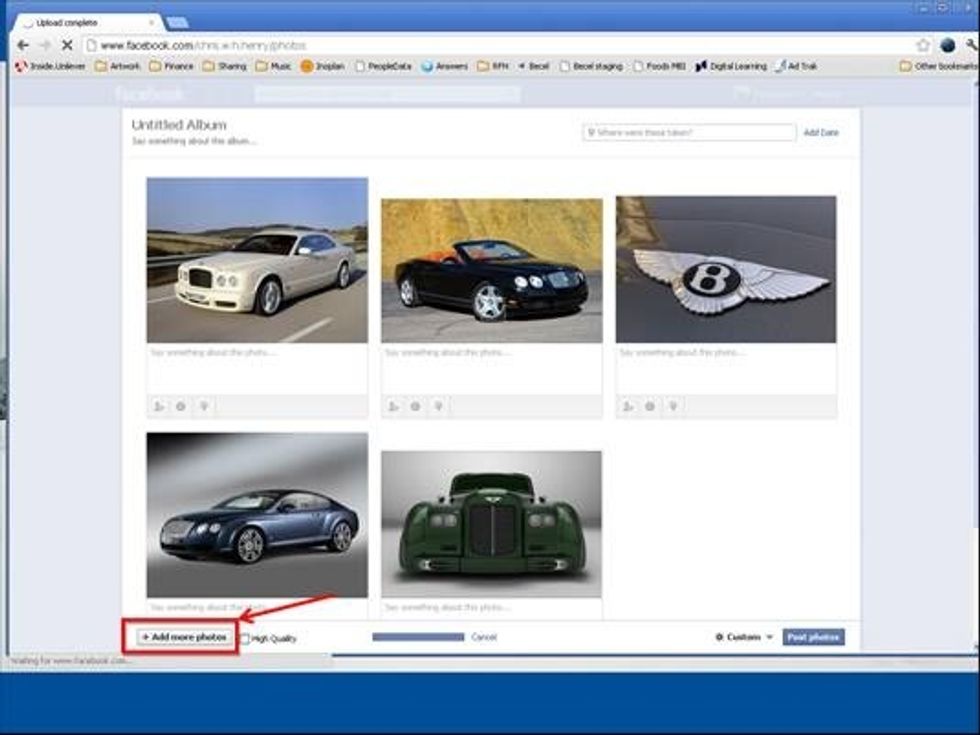
...add more photos to your album by repeating steps 5 and 6...
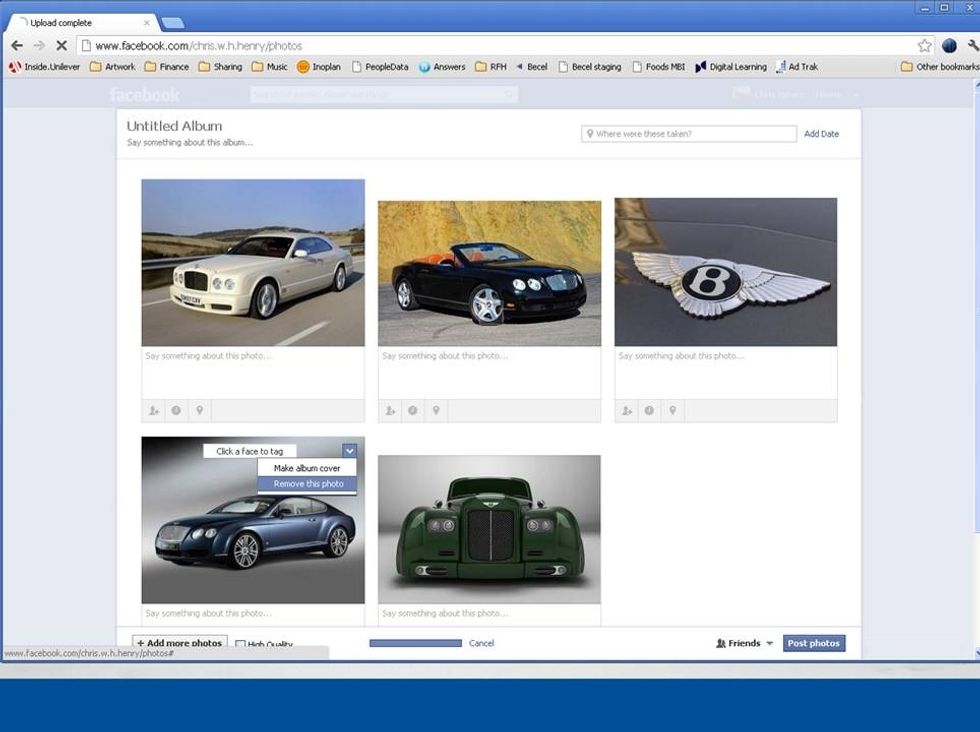
...delete any unwanted photos from your album via the drop down menu in the upper right hand corner of each photo...
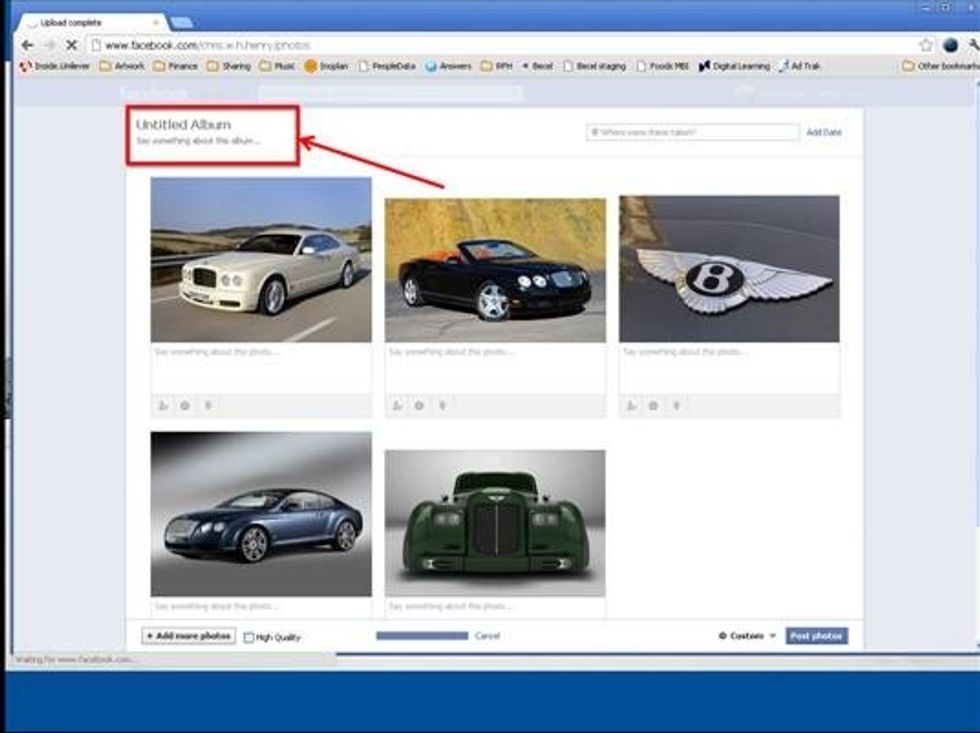
...add a title and description to your Facebook album...
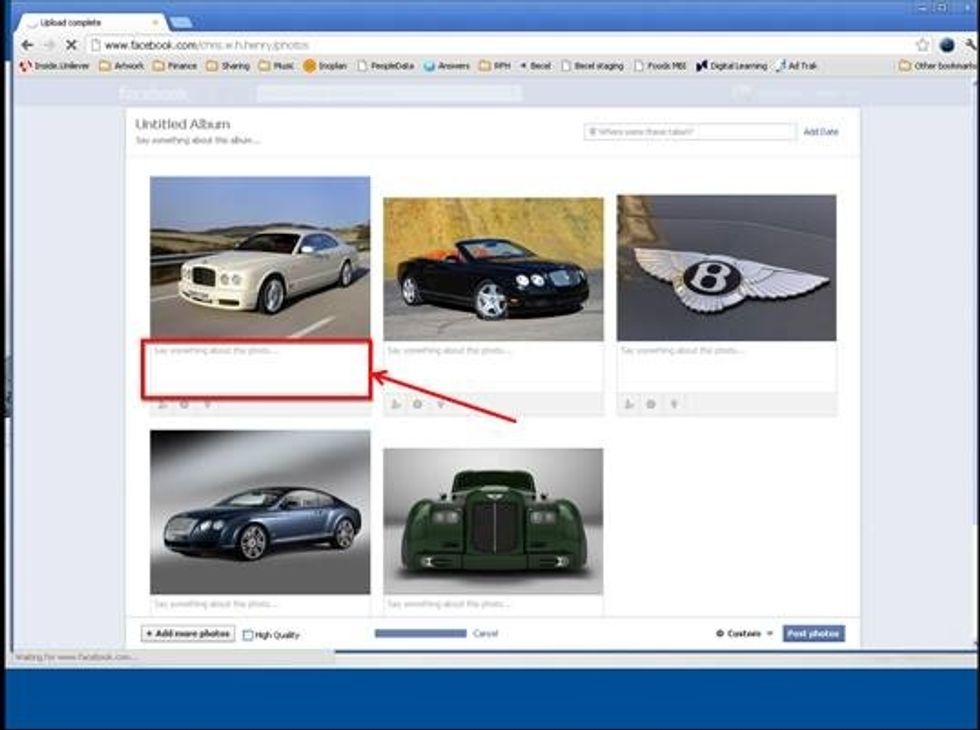
...add individual captions to each photo...
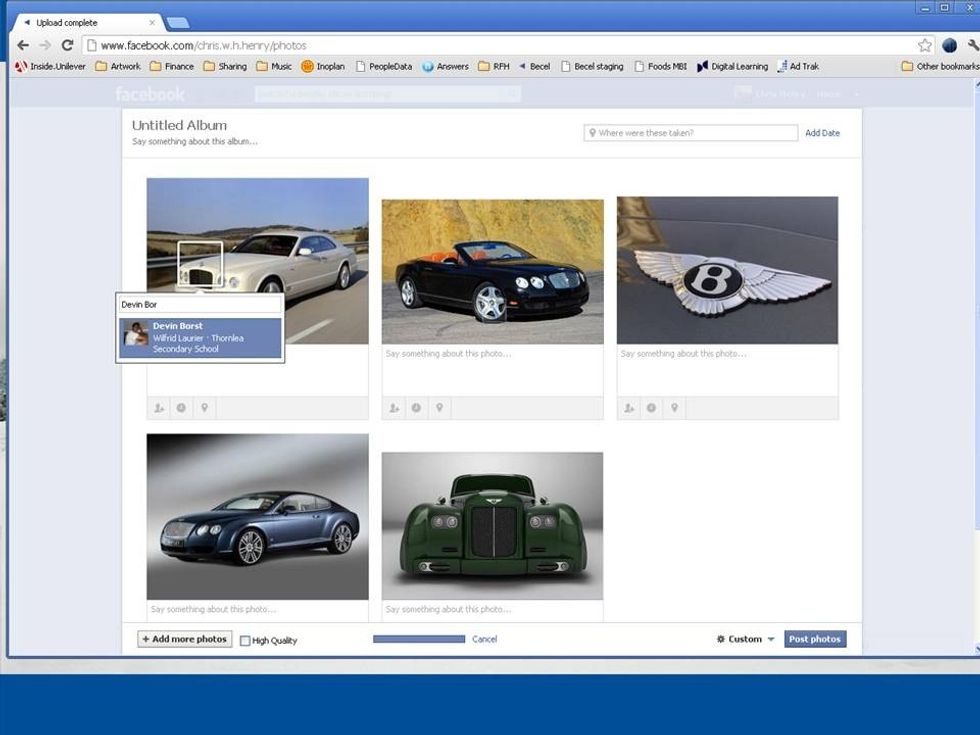
...tag your Facebook friends in your photos by clicking on the image and typing the person's name...
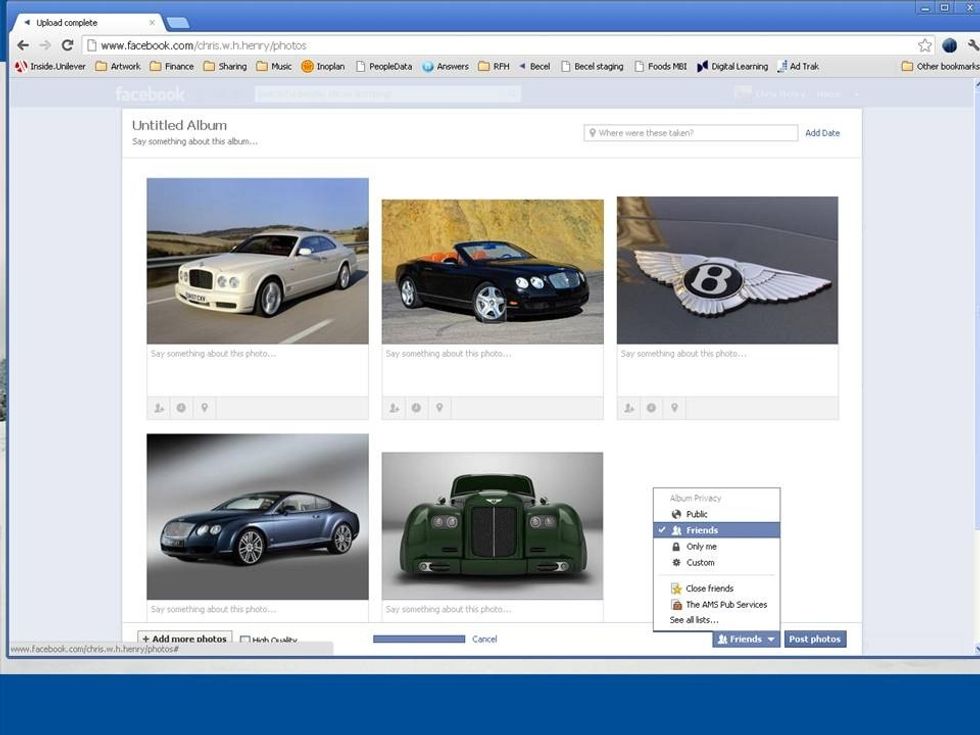
...and control who can see the album you're about to post (you can post it publicly for anyone on Facebook to see, only for your Friends, or for a customized group of Friends).
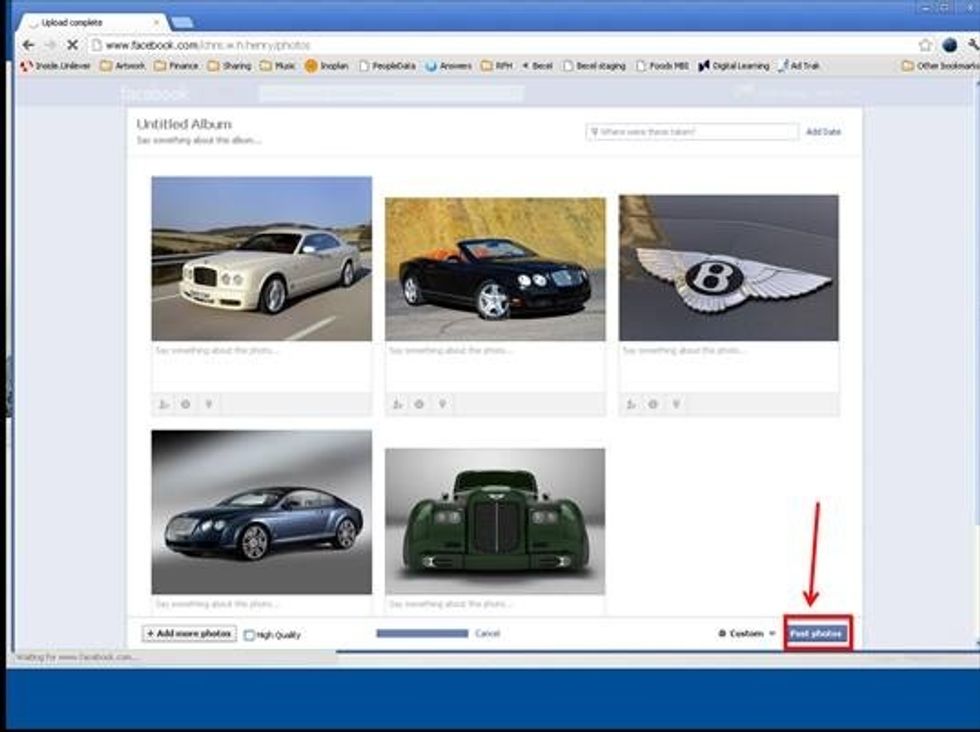
Now your ready to publish your album - select 'Post photos' and you're done!
Congratulations! You've successfully posted your photo album to Facebook!