
The Conversation (0)
Sign Up
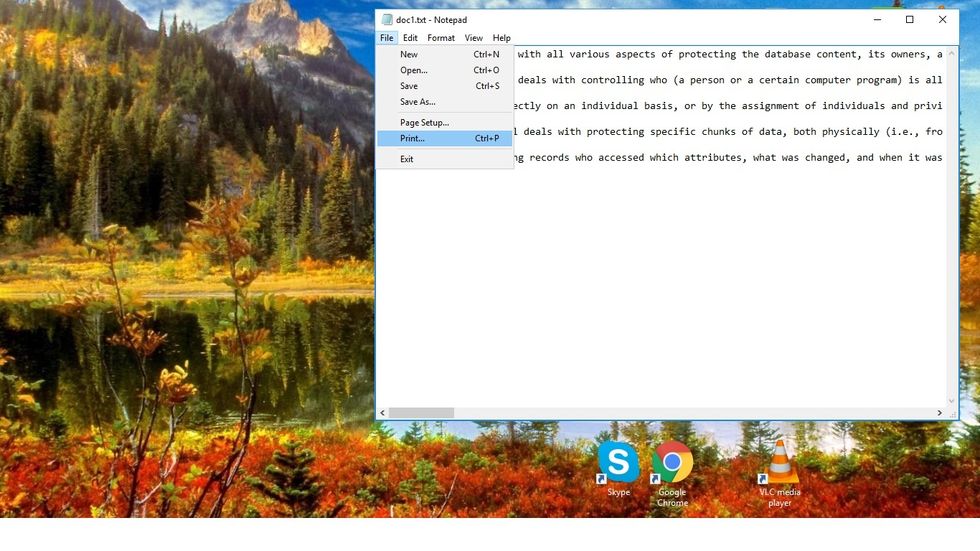
Step 1: To convert a document into PDF, simply open the text file into notepad and select the “File” menu from the left upper corner of the screen. Now from the drop down list select“Print” option.
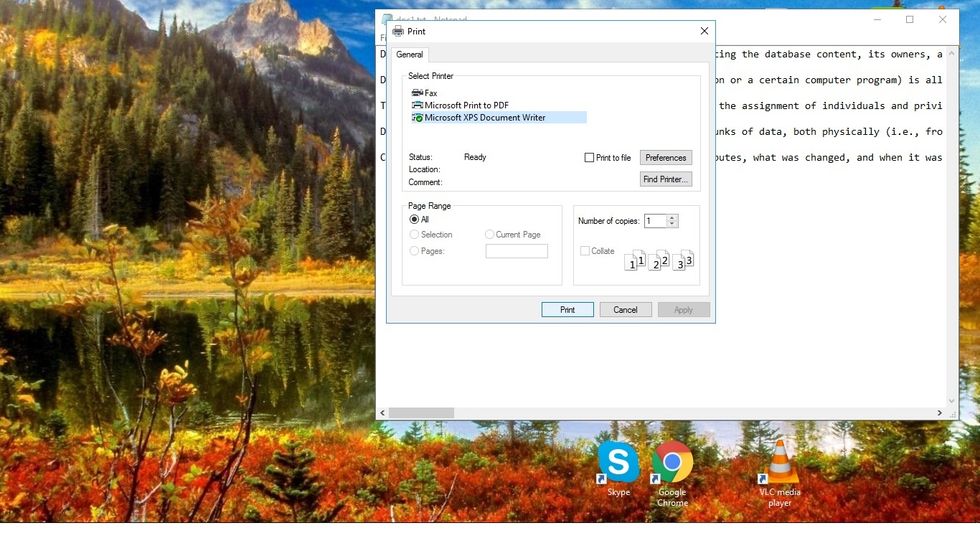
Step 2: Print dialogue box will appear on the screen and from the Print dialogue box, select “Microsoft Print to PDF” under the Select Printer options and click the “Print” button.
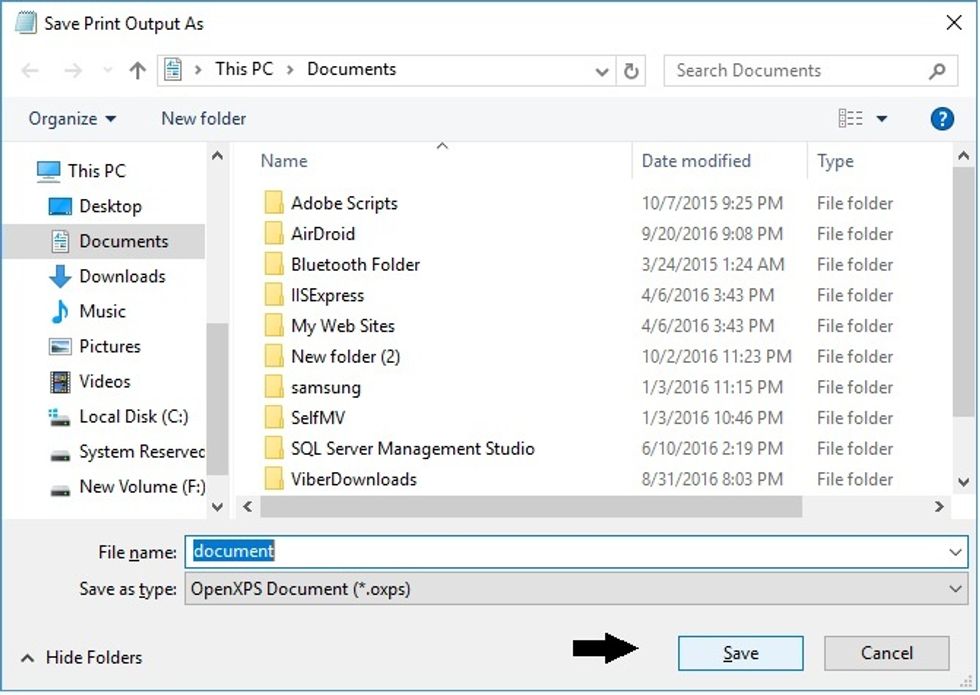
Step 3: Now Save Print Output As dialogue will appear on the screen. Insert the name of the file & select the location to store PDF file & click on the “Save” button to save the file into PDF format.
Windows 10 provide the ability to convert limited formats into PDF and users have to use PDF Editor Software (http://www.classicpdf.com/) to convert most of the formats into PDF.