
The Conversation (0)
Sign Up
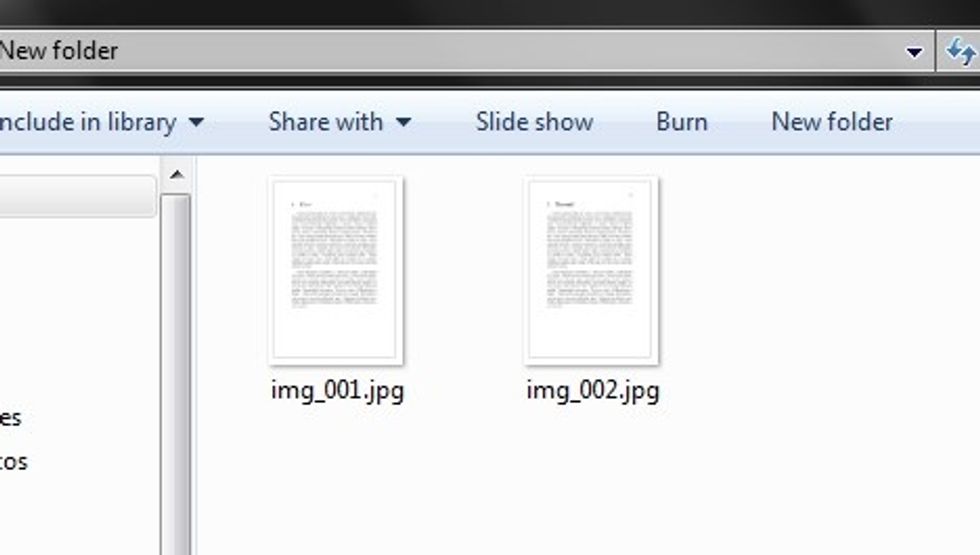
Let's say that I just scanned two pages of text and now I have two image files in JPG format
![I open image file in XnView and click [Tools] in the top menu bar, then choose [Multipage file] and [Create]. Alternatively open XnView using Start Menu shortcut and click [Create]/[Multi-Page file..]](https://guides.brit.co/media-library/i-open-image-file-in-xnview-and-click-tools-in-the-top-menu-bar-then-choose-multipage-file-and-create-alternatively-open.jpg?id=24147157&width=980)
I open image file in XnView and click [Tools] in the top menu bar, then choose [Multipage file] and [Create]. Alternatively open XnView using Start Menu shortcut and click [Create]/[Multi-Page file..]
![I need to [Add...] my JPG files now](https://guides.brit.co/media-library/i-need-to-add-my-jpg-files-now.jpg?id=24147178&width=980)
I need to [Add...] my JPG files now
![Next I need to select each file I need and then click [Add]](https://guides.brit.co/media-library/next-i-need-to-select-each-file-i-need-and-then-click-add.jpg?id=24147188&width=980)
Next I need to select each file I need and then click [Add]
![I make sure that files I added are in the right order, and I choose save [Directory], then [Create]. Format is set to default as [TIFF Revision 6]](https://guides.brit.co/media-library/i-make-sure-that-files-i-added-are-in-the-right-order-and-i-choose-save-directory-then-create-format-is-set-to-default-as.jpg?id=24147197&width=980)
I make sure that files I added are in the right order, and I choose save [Directory], then [Create]. Format is set to default as [TIFF Revision 6]
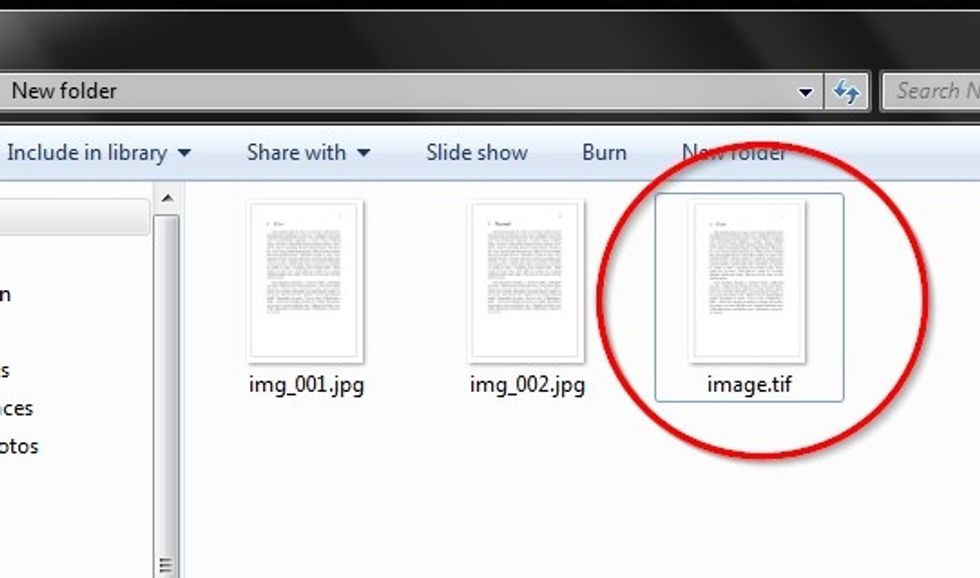
Now I have a newly created TIF file
![TIF file contains two pages, that could be easily viewed by clicking the [Next page] button as shown in the [Tool Bar]](https://guides.brit.co/media-library/tif-file-contains-two-pages-that-could-be-easily-viewed-by-clicking-the-next-page-button-as-shown-in-the-tool-bar.jpg?id=24147222&width=980)
TIF file contains two pages, that could be easily viewed by clicking the [Next page] button as shown in the [Tool Bar]
![I need to choose [File] and [Save As...] from the top menu bar](https://guides.brit.co/media-library/i-need-to-choose-file-and-save-as-from-the-top-menu-bar.jpg?id=24147230&width=980)
I need to choose [File] and [Save As...] from the top menu bar
![Now I select [PDF - Portable Document Format] from the drop-down list next to the "Save as type:" section and then I click [Options]](https://guides.brit.co/media-library/now-i-select-pdf-portable-document-format-from-the-drop-down-list-next-to-the-save-as-type-section-and-then-i-click-opti.jpg?id=24147236&width=980)
Now I select [PDF - Portable Document Format] from the drop-down list next to the "Save as type:" section and then I click [Options]
![Default ZIP format is causing oversized PDF files, that's why I choose [JPEG] compression type, and it is my choice to set it to [39] in quality for compromise between size and quality](https://guides.brit.co/media-library/default-zip-format-is-causing-oversized-pdf-files-that-s-why-i-choose-jpeg-compression-type-and-it-is-my-choice-to-set-it-to.jpg?id=24147249&width=980)
Default ZIP format is causing oversized PDF files, that's why I choose [JPEG] compression type, and it is my choice to set it to [39] in quality for compromise between size and quality
![[OK] to the "Do you want to save all pages?" prompt](https://guides.brit.co/media-library/ok-to-the-do-you-want-to-save-all-pages-prompt.jpg?id=24147260&width=980)
[OK] to the "Do you want to save all pages?" prompt
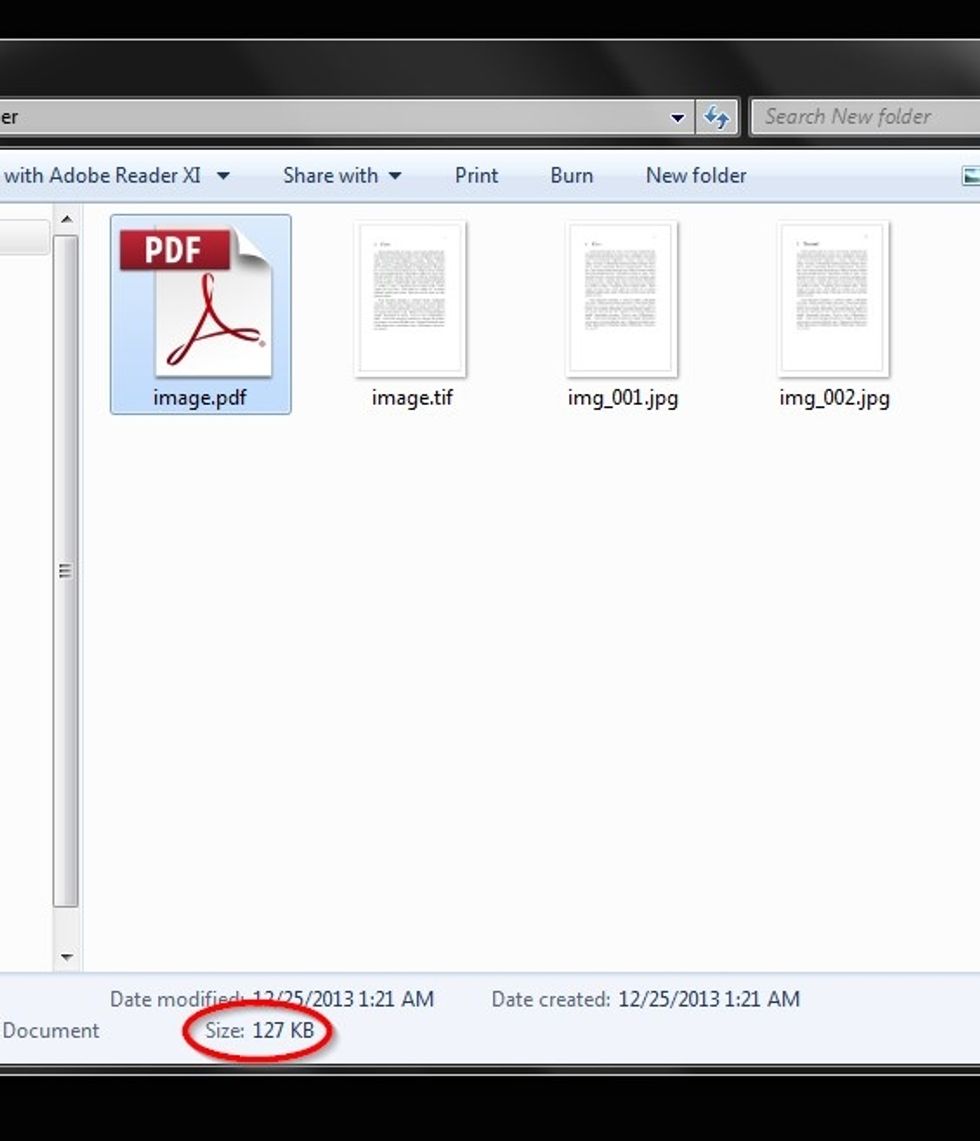
Now I have a small size PDF file with two pages for easy sharing and printing