The Conversation (0)
Sign Up
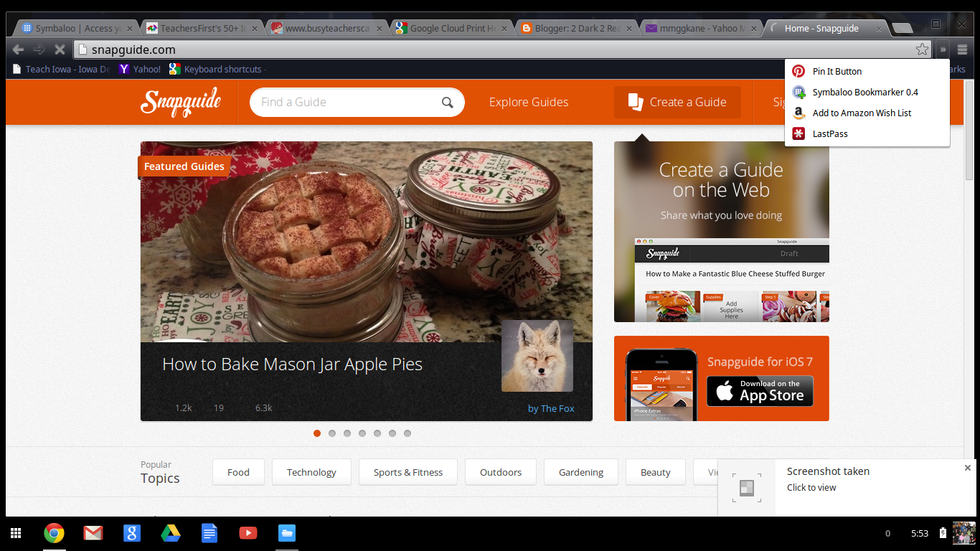
If you have the Symbaloo extension in your browser click on it - on Chrome it is in upper right corner
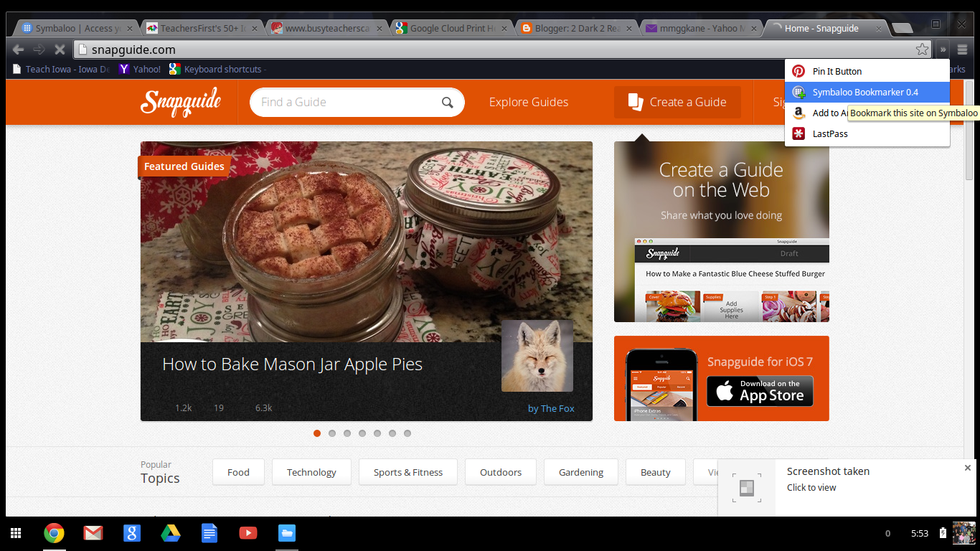
Choose Symabloo from the drop down menu

The pop up window will open - choose a name - color - icon - webmix - click add to your Symbaloo

The icon will show up in a tile on your webmix
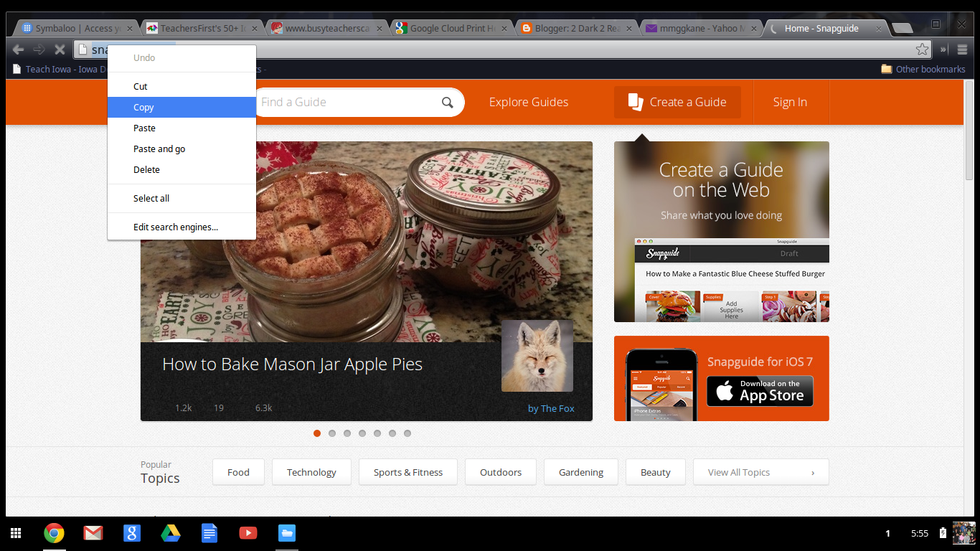
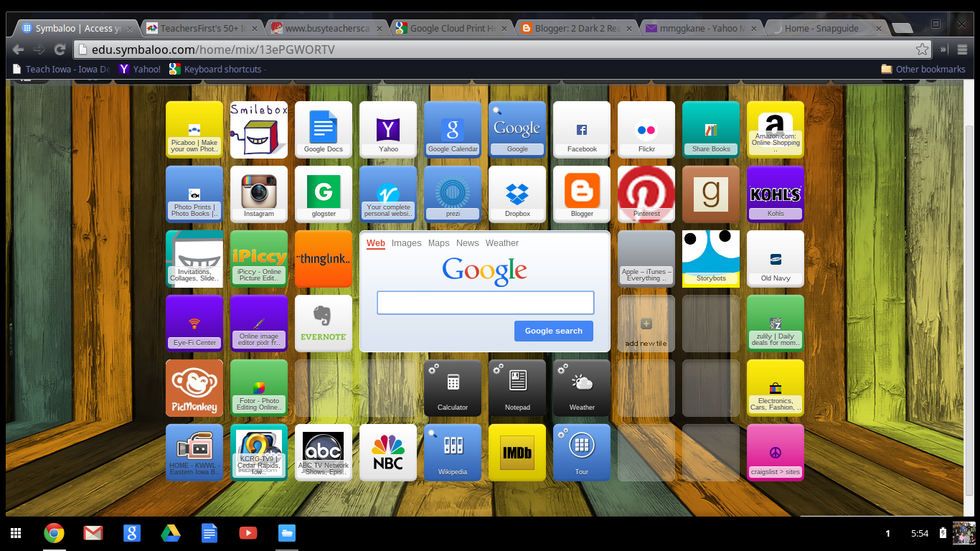
Go back to your Symbaloo Webmix and click on an open tile to add a new tile
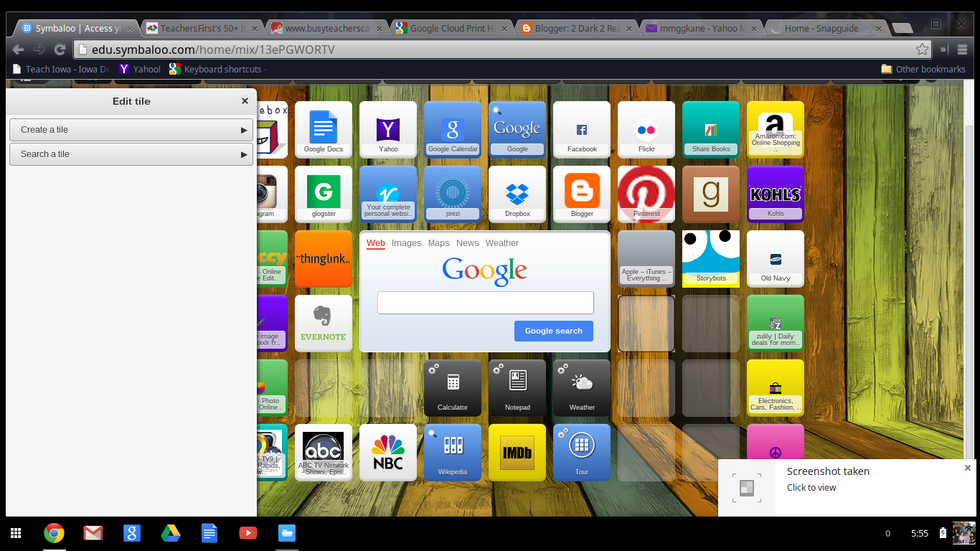
The create a tile pop up will come up
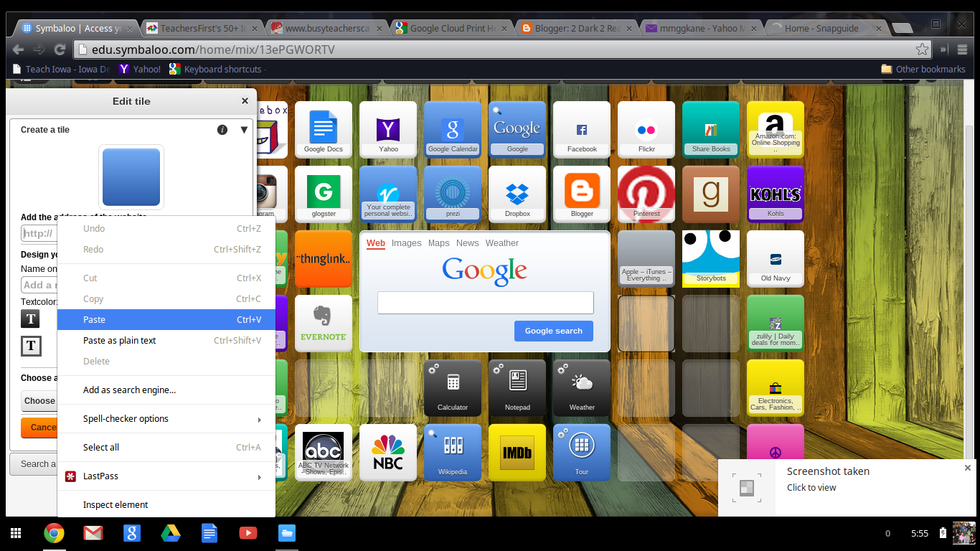
Paste the URL you copied into the URL box

Type in the name of website (or sometimes it will pop up in there) - choose a color and icon - click save
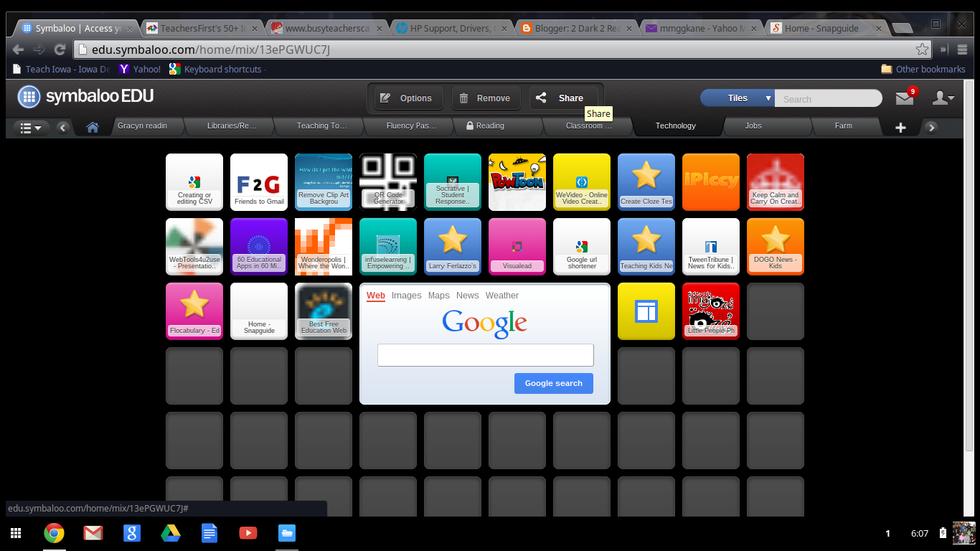
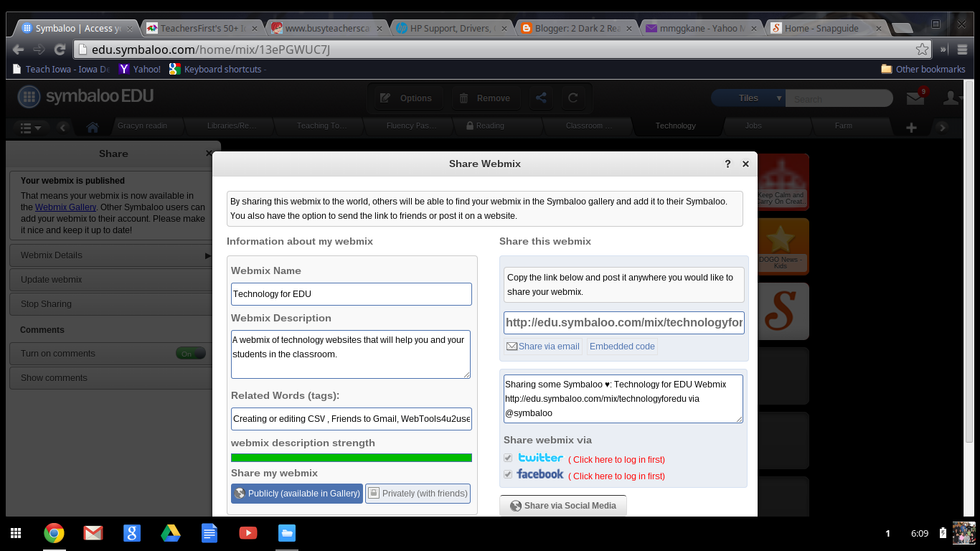
To share your webmix with others - click on the share button in the middle of the top of the page
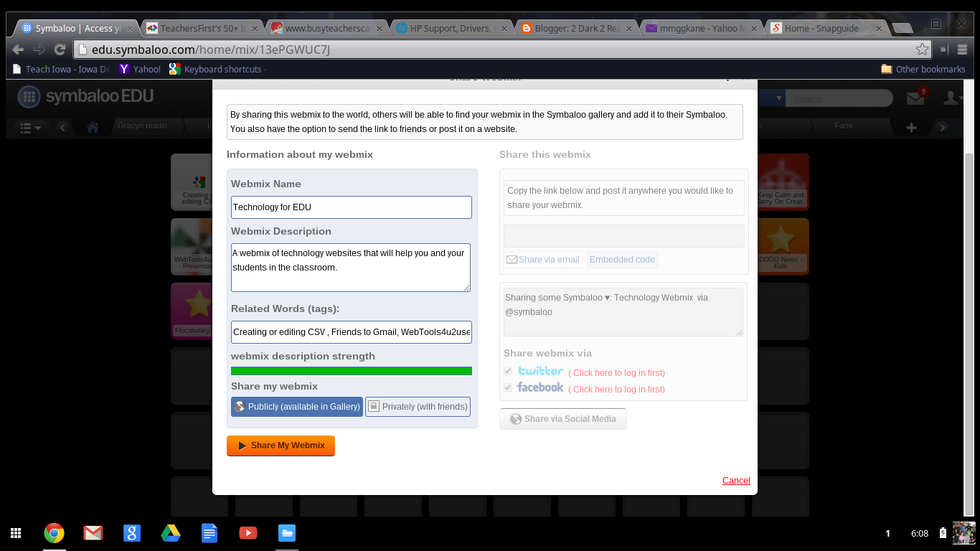
Give the webmix a name and description and tags if you like Choose if you would like to share it publicly or privately